
A passkey lets you sign in to Pabau with Face ID, Touch ID, Windows Hello or a hardware security key instead of typing your password. The passkey is stored on your device and only works on Pabau, so it can't be guessed, reused or phished. Each staff member sets up their own passkeys, and you can add one for every computer, phone or tablet you use.
NOTE: Your clinic's administrator decides whether passkeys can be used on the sign-in page (Step 1). Passkeys are allowed by default, so unless your admin has switched them off you can go straight to Step 2.
Step 1: Allow Passkeys for Your Clinic (Admins)
- Go to Setup → Business Details and click the Security tab.
- Under Allowed login methods, tick Passkeys.
- If you changed anything, click Save in the bar at the bottom of the page.
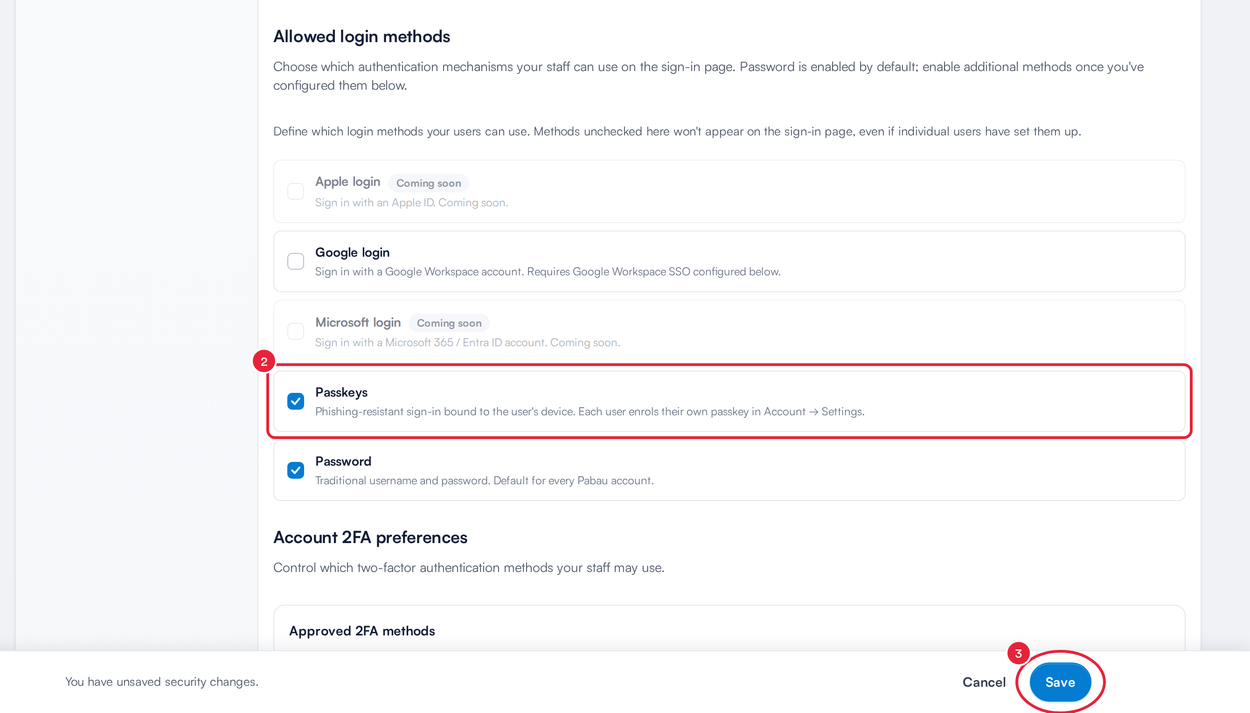
Passkeys ticked under Allowed login methods
Methods left unticked here don't appear on the sign-in page, even for staff who have already set them up. At least one method must stay ticked, and only company administrators can save changes to this list.
Step 2: Open Your Security Settings
- Click your profile picture in the top right corner.
- Choose Account Settings, then click Security on the left.
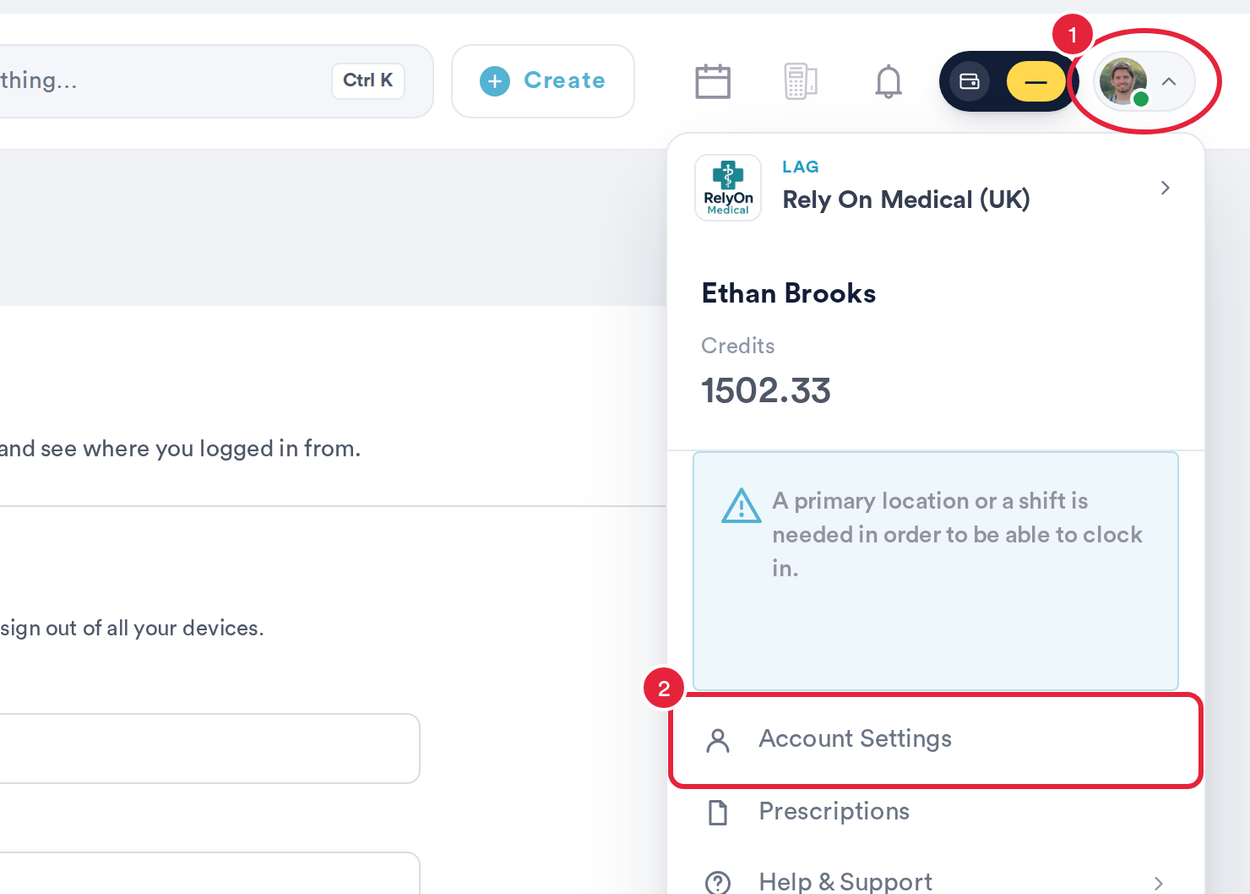
Account Settings is in your profile menu
Step 3: Add a Passkey
- Scroll down to Passkeys. In Device name (optional), type a name you'll recognise later, such as MacBook Pro or Reception iPad. If you leave it blank, it is simply called Passkey.
- Click Add a passkey.
- Follow the prompt from your browser or device: look at the camera for Face ID, touch the fingerprint sensor, enter your Windows Hello PIN, or tap your security key.
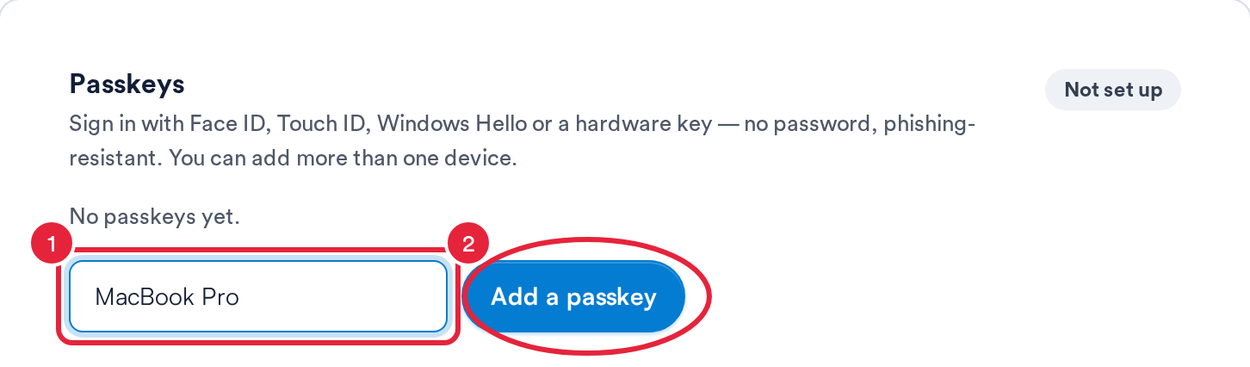
Name the device, then click Add a passkey
When it's done, a Passkey added message appears and the device is listed. If you close the prompt without finishing, you'll see Passkey setup was cancelled. Just click Add a passkey again.
NOTE: If the section says This browser doesn’t support passkeys., update your browser or switch to a current version of Chrome, Safari, Edge or Firefox.
Step 4: Manage Your Passkeys
- Each passkey is listed with its name, the date it was added and the date it was last used. The badge at the top shows how many passkeys are active.
- To stop a device from signing in, for example a laptop you've replaced, click Remove next to it. It can't be used to sign in from then on.
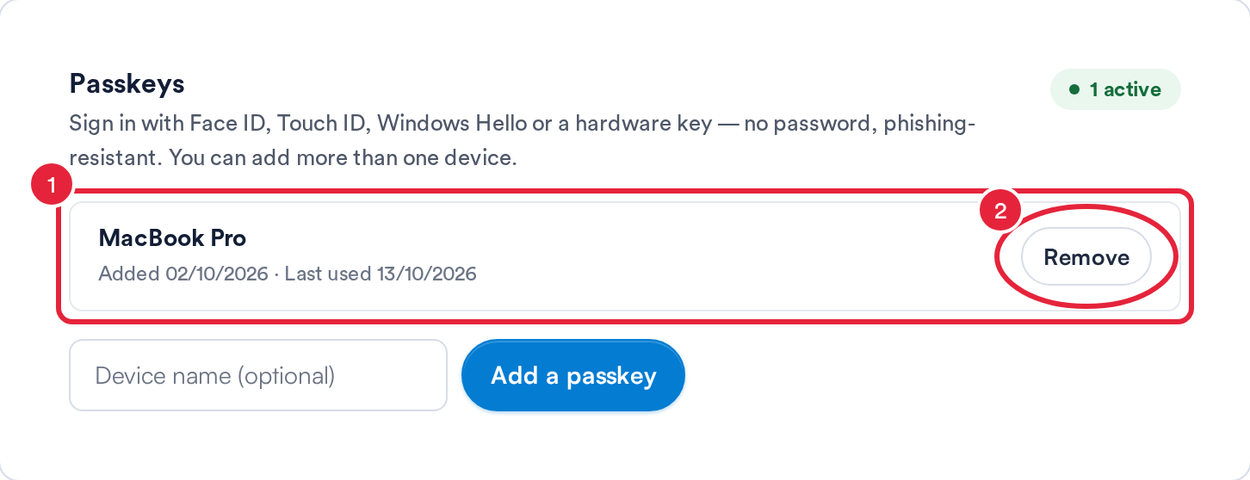
Your passkeys, with Remove next to each one
TIP: Add a passkey on each device you sign in from, such as your work computer and your phone, so you can still get in if one device is lost or replaced.
Step 5: Sign In With Your Passkey
- On the Pabau sign-in page, enter your email address.
- Click Continue.
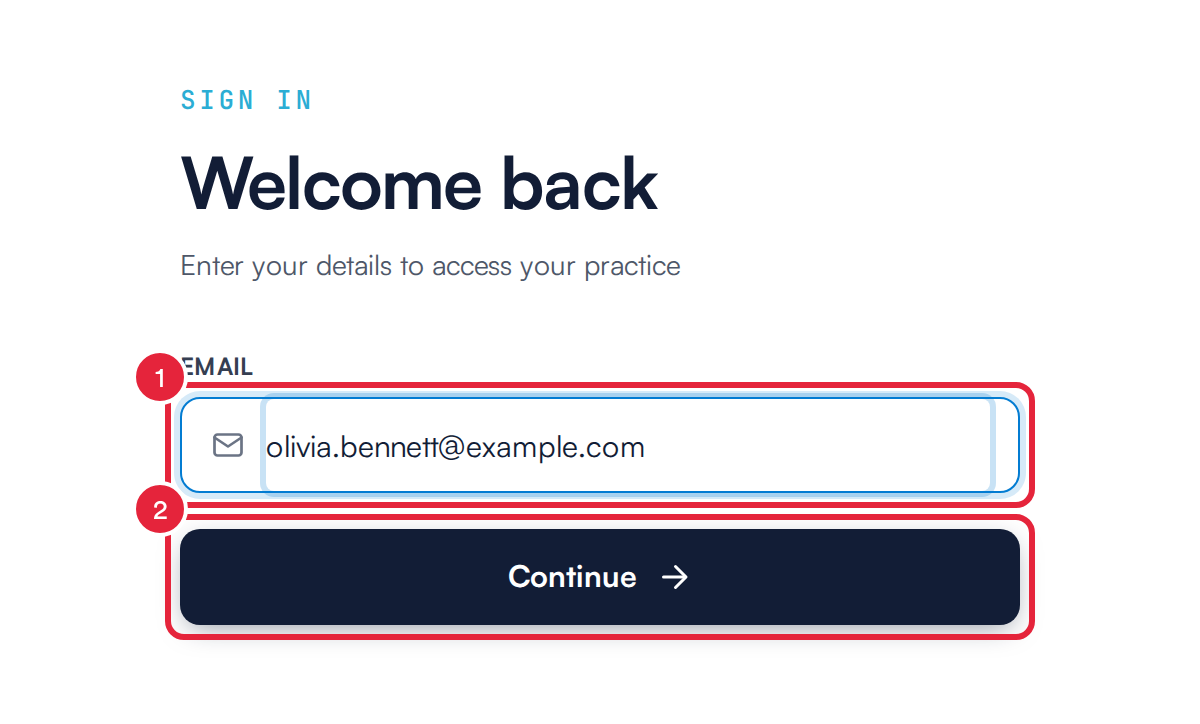
Start with your email address
- Click Sign in with a passkey. If your clinic allows more than one way to sign in, your password is behind Sign in with your password.
- Confirm on your device. The button reads Waiting for device… until you do, and then Pabau opens.
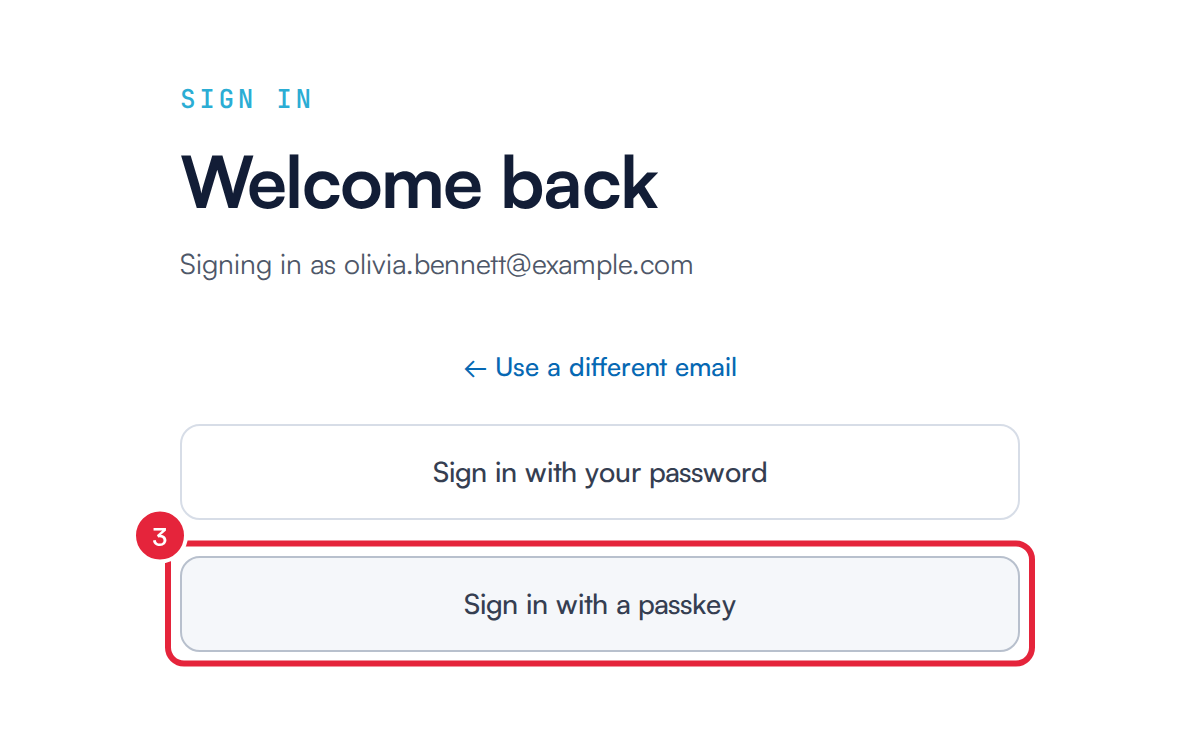
Choose Sign in with a passkey, then confirm on your device
A passkey sign-in doesn't ask for a two-factor authentication code, because the passkey is already tied to your device. Your clinic's allowed login locations and allowed login IPs still apply.
If you see No passkey found for this email — sign in with your password., you haven't added a passkey for this clinic yet. Sign in with your password and follow Steps 2 and 3.
NOTE: If your clinic allows passkeys as the only sign-in method and you don't have one yet, Pabau emails you a Set up your passkey link instead. The link expires after 30 minutes and opens your Account Settings, where you can add the passkey as in Step 3.
What's next?
- How to Make Your Account More Secure
- How to Set Up Two-Factor Authentication (2FA)
- How Two-Factor Authentication Works
Questions? Reach us any time via the in-app chat. We're happy to help.
Was this guide helpful? Let us know by voting below - your feedback helps us write clearer articles.
For more guides, browse the related articles below or use the search bar at the top of the page. You can also watch our video learning series, the Pabau Academy, or visit the Support page for additional help.