
Step 1: Accessing Business Details
To begin, log in to your Pabau account. Next, navigate to Setup in the left sidebar menu. Then, click on Business Details located under the ''Business section''.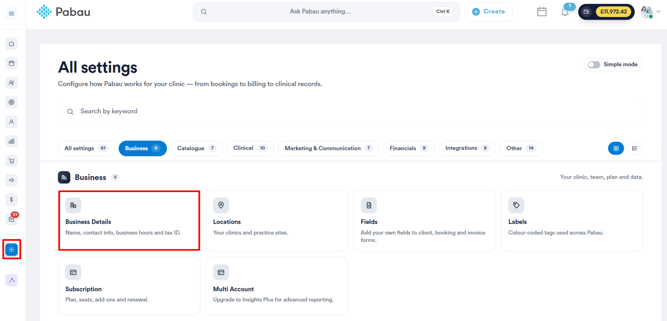
Step 2: Check Security Settings
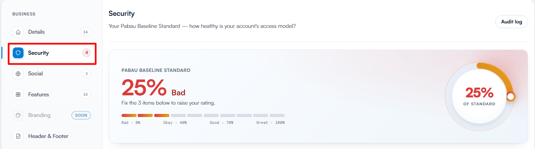
Within ''Business Details'', open the ''Security'' tab. At the top, you'll see your Pabau Baseline Standard security score, which shows how well your account meets the security standard.
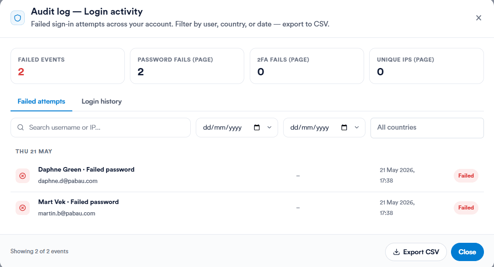
You can select Audit log in the top right corner to view a log of all failed sign-in attempts across your account, including password failures and 2FA failures. You can filter by user, country, or date, and export the data as a CSV.
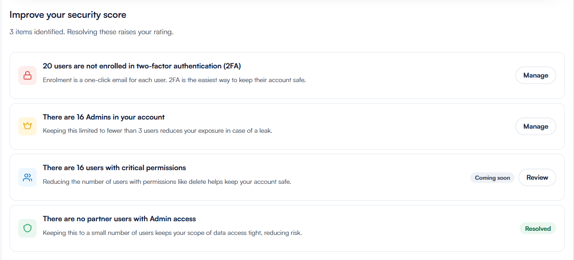
Below the score, the Improve your security score section lists any open recommendations, such as enrolling users in two-factor authentication or reducing the number of admin accounts.
Each item has a ''Manage'' button to address it directly. Resolving these items raises your overall score.
Step 3: Configure Allowed Login Methods
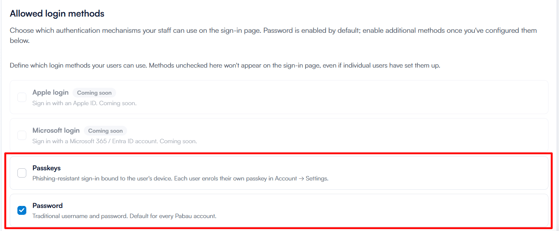
Under ''Allowed login methods'', control which authentication methods your staff can use on the sign-in page. Password is enabled by default. You can also enable Passkeys — a phishing-resistant sign-in method bound to the user's device, which each staff member sets up individually via their Account Settings.
You can also enable Sign in with Google, allowing staff members to log in to Pabau using their existing Google account instead of entering their email and password manually.
Step 4: Set 2FA Preferences
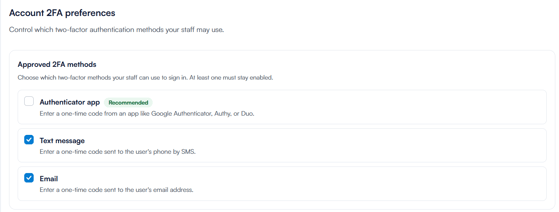
Under ''Account 2FA preferences'', choose which two-factor authentication methods your staff may use - authenticator app (recommended), text message, or email. At least one must remain enabled at all times. If a staff member hasn't set up a required method, they'll be prompted to configure it during login.
NOTE: For full guidance on setting up 2FA, visit our Two-Factor Authentication guide.
Step 5: Configure Security Tools
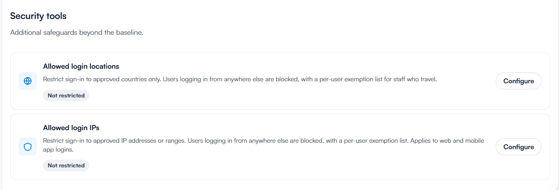
Under ''Security tools'', you can set up additional safeguards to control where and how staff can sign in:
- Allowed login locations - restrict sign-in to approved countries only. Any login attempt from outside those countries will be blocked, with the option to add per-user exemptions for staff who travel.
- Allowed login IPs - restrict sign-in to specific IP addresses or ranges. Applies to both the web and mobile app, with per-user exemptions available.
Once you've made your changes, click Save Changes in the top right corner to apply them.
Once this time elapses, your account will automatically unlock, allowing you to attempt to log in again.
Should you require immediate account unlocking, kindly reach out to our customer support team at customercare@pabau.com.
Please ensure that you contact us from the email address associated with the account you wish to unlock.
For more guides, refer to related articles below, select additional guides, or use the search bar at the top of the page. These guides will help you get the most out of your Pabau account.
Additionally, to help you fully utilize and understand your Pabau account, we recommend exploring additional guides and resources offered at the Pabau Academy. It offers in-depth video tutorials and lessons, offering a holistic learning experience that can equip you with the essential skills for achieving success with Pabau.