
This article covers the new Client Card, available to selected clinics from August 2026. If your Client Card looks different, see How to Share Invoices with Clients (Classic) guide instead.
There are three ways to share invoices with clients:
-
Immediately After Creating the Invoice
-
From the Client Card After the Invoice is Created
-
Automatically via the Client Portal
1. Immediately After Creating the Invoice
Step 1: Raise an Invoice
Start by logging in to your Pabau account and raise an invoice as usual.
Step 2: Share Invoice via SMS or Email
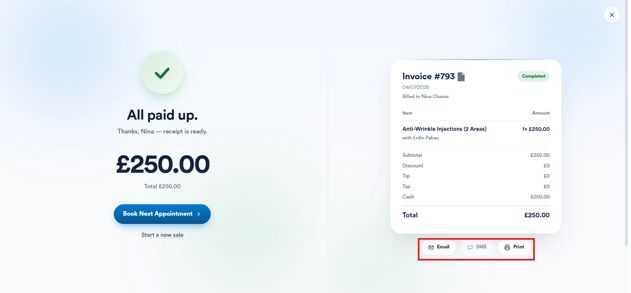
When you complete the payment, on the Checkout Completed screen, click on the email or SMS icon to share the invoice with the client.
Step 3: Check Contact Details
Confirm or update the client’s email address and/or mobile number.
Step 4: Send Invoice
The invoice will be sent using the standard Invoice template, which can be found in Client Notifications under Setup.
2. From the Client Card After the Invoice is Created
Step 1: Access Client Card
Open the client card of the client you want to share an invoice with.
Step 2: Locate Invoice
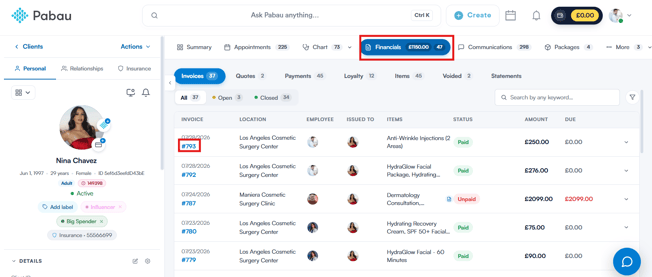
In the client card, navigate to the Financials tab, locate the invoice you want to share, and click on its number to open it.
Step 3: Share Invoice
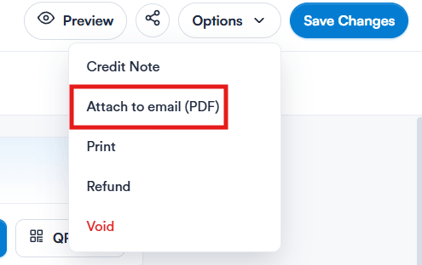
To send the invoice as a PDF via email, click on "Options" in the top right corner and select "Attach to email (PDF)".
Step 4: Compose Email
This will open the email composer with the PDF already attached. Compose the message you want to send to the client.
Step 5: Send Email
The client will receive your custom message with the PDF attached, instead of the standard client notification template.
TIP: You can also hover over an invoice in the Invoices list and click the Share icon (or use the share icon at the top of the open invoice) to send it to the client or their linked contacts — such as family members or an insurance company — by email or SMS.
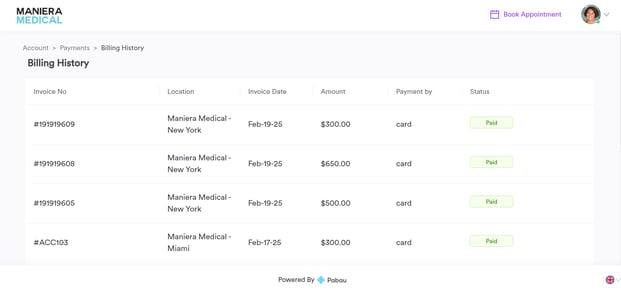
3. Automatically via the Client Portal
If you’re using the Client Portal, enable the Payments and Billing Details features by following the steps provided in this guide.
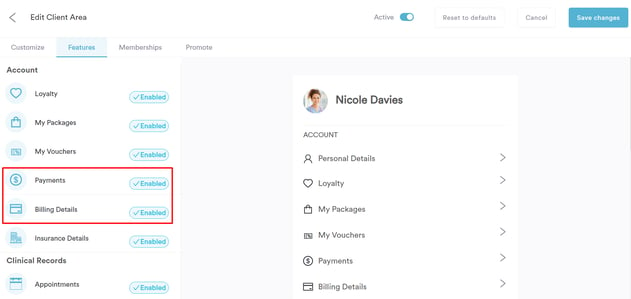
This will automatically make invoices available in each client’s account at all times.
There’s no need to manually share invoices as they will be added automatically.
By following these methods, you can efficiently share invoices with your clients.
Was this guide helpful? Let us know by voting below - your feedback helps us write clearer articles.
For more guides, browse the related articles below or use the search bar at the top of the page. You can also watch our video learning series, the Pabau Academy, or visit the Support page for additional help.