
The Point of Sale is where you sell services, products, packages, memberships, gift cards and account top-ups, and take payment for them. This guide walks through a sale from start to finish, including what you can do once the payment is complete.
Step 1: Open the Point of Sale
- Click Create at the top of the screen.
- Select Sale. You can also press Shift + S from anywhere in Pabau.
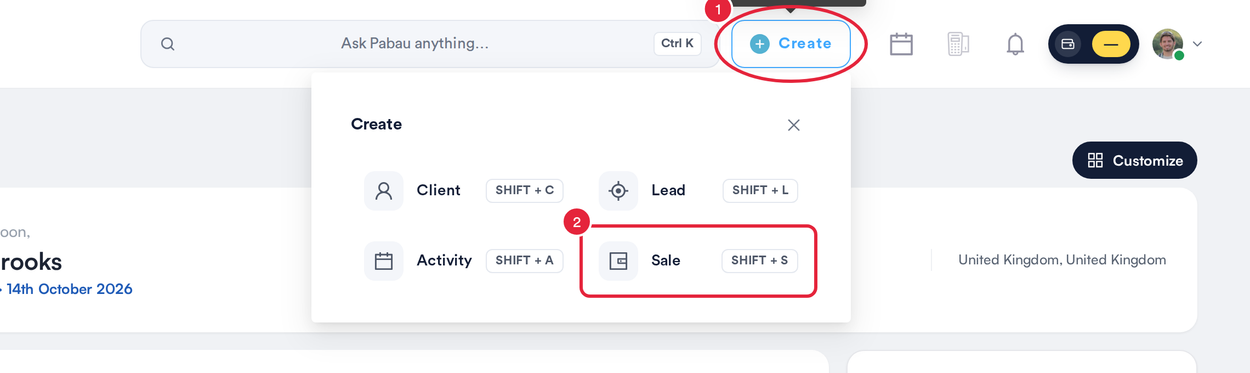
Create → Sale opens the Point of Sale
To check out an appointment, click it in the Calendar and select Checkout instead: the client and the booked services are added for you.
Step 2: Choose Who the Sale Is For
On the right, under Who is this sale for?:
- Search for the client by name or email and click their name.
- Or choose Walk-in to sell without a client card. Packages, memberships and account top-ups need a client, so they're unavailable for walk-in sales.
- Or choose Add a new client to create a client card on the spot.
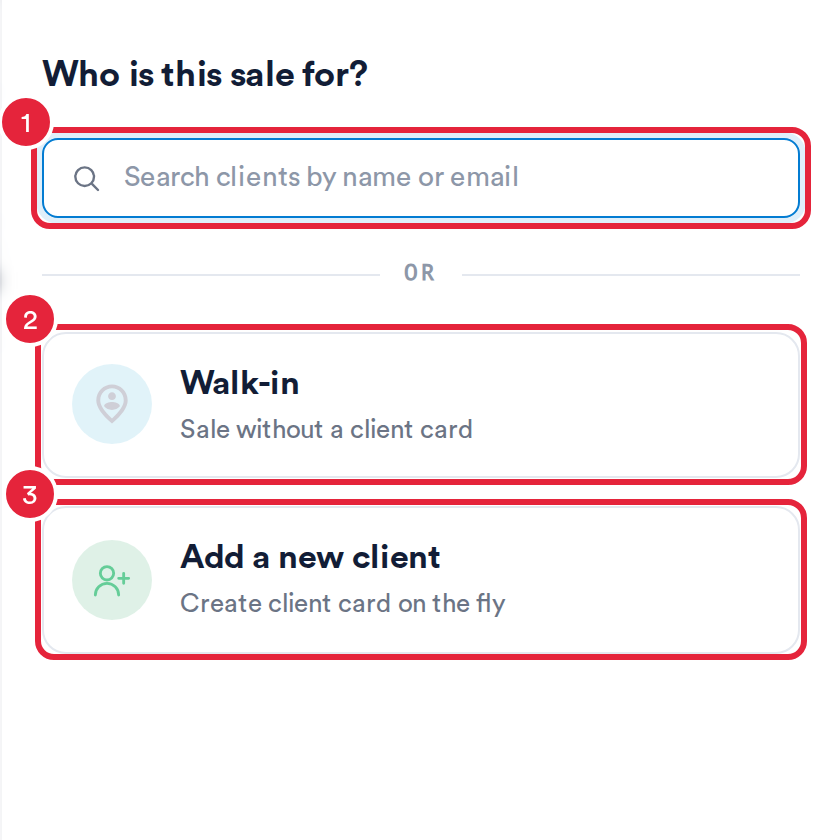
Pick an existing client, a walk-in or a new client
Step 3: Add Items to the Cart
- The rail on the left lists what you can sell: Services, Products, Packages, Memberships, Gift, Account and Consumable. Click one to see its items. Anything your clinic has switched off in the POS configuration isn't shown.
- Click an item to add it to the cart on the right. Narrow the list with the category buttons along the top, or type in Search by name or scan code.
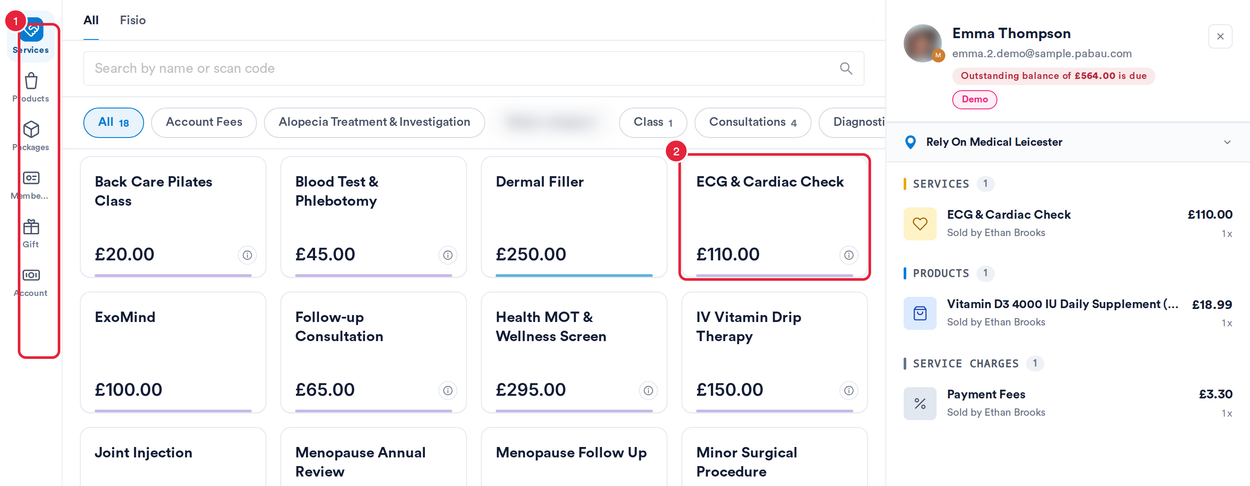
Click a category in the rail, then click an item to add it
Change How the Catalogue Looks
Click the gear at the bottom of the rail to open Configure:
- Sidebar density: Compact shows icons only; Detailed adds a caption under each icon.
- View: Tiles shows items as a grid of cards; List shows all items with a category filter bar.
- Click Done.
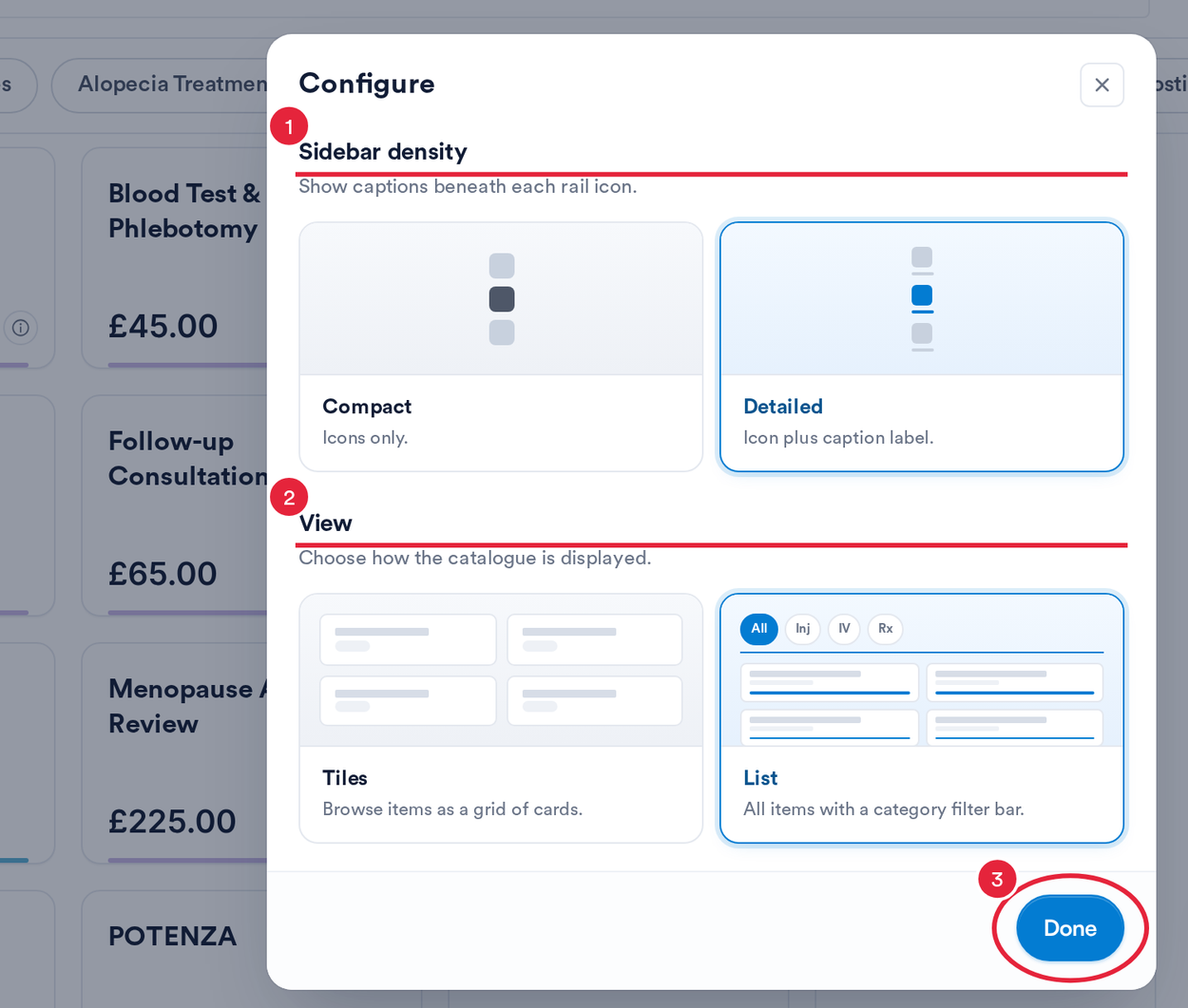
Choose the rail density and how items are displayed
Step 4: Check the Cart and Continue
- The cart lists everything in the sale and the total. Click the location row at the top of the cart to check or change the Location, invoice Template, Price list and Wallet for this sale.
- Click Continue to go to payment.
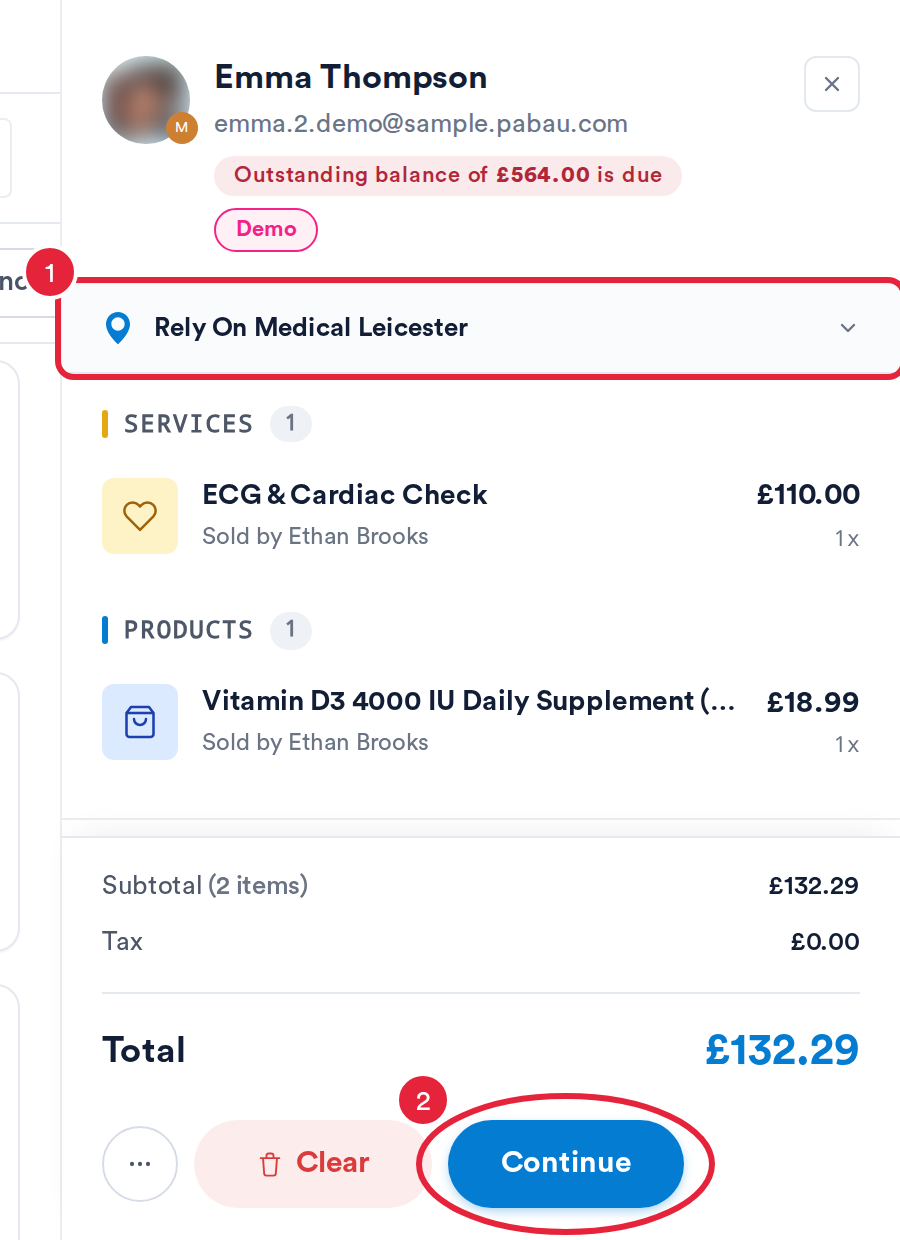
Check the sale details, then click Continue
Step 5: Take Payment
- Choose a payment method, for example Cash. Prepaid methods such as Account, Packages, Points and Vouchers are listed under PREPAID.
- Enter the amount and click Collect or Charge, depending on the method.
- Click Confirm Payment to complete the sale.
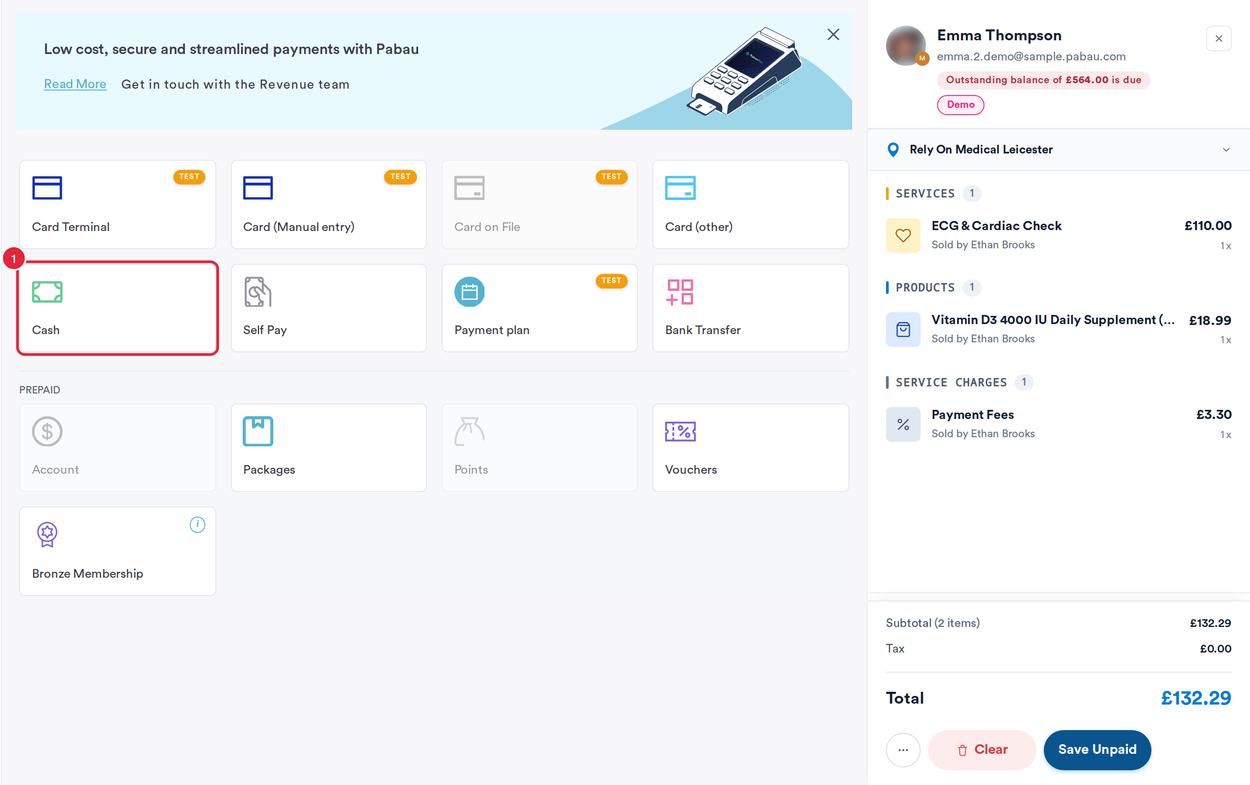
Choose how the client is paying
NOTE: Payments can be partial, and split between different methods. Enter the amount for each method and repeat until the sale is paid. Every payment you add is listed at the bottom right of the screen.
If you prefer not to use a real card for testing, you can use the test cards provided by Stripe by following the instructions here.
Step 6: After the Payment
Once the payment is confirmed, the completion screen shows the sale with its invoice number, for example Invoice #1042. From here you can:
- Click the invoice number to close the receipt and open the invoice, so you can review or change it straight away.
- Send or print the invoice with Email, SMS or Print. Email and SMS aren't offered for walk-in sales.
- Click Add note on a line to add a note for that item. The note appears on the invoice, just below the line item. Click Save note to keep it.
- Click Start a new sale to begin the next one.
NOTE: When the sale includes a membership, the completion screen shows no invoice number and no Email, SMS or Print buttons, so there is no invoice to open from there.
What's next?
- How to Use Prepaid Payment Methods at the Point of Sale
- How to Split a Payment Between Different Methods
- How to Add Money to a Client's Account
- How to Sell Custom Packages
- How to Adjust and Manage POS Configuration
Was this guide helpful? Let us know by voting below - your feedback helps us write clearer articles.
For more guides, browse the related articles below or use the search bar at the top of the page. You can also watch our video learning series, the Pabau Academy, or visit the Support page for additional help.