
The Health Trackers widget on the client card's Summary shows the latest answers to the form questions your clinic cares about most, such as smoking status or whether the client takes supplements. Each answer comes with the date it was recorded, so you can see at a glance what's up to date and what still needs asking.
NOTE: Only admins can choose the questions, and the choice applies to every client in your clinic. Everyone else sees the widget with the questions an admin has set up.
Step 1: Open the Health Trackers Settings
Open any client card and go to its Summary tab. Until an admin sets it up, the Health Trackers widget reads No health trackers configured.
- Click the gear icon (Configure Health Trackers) at the top right of the widget.
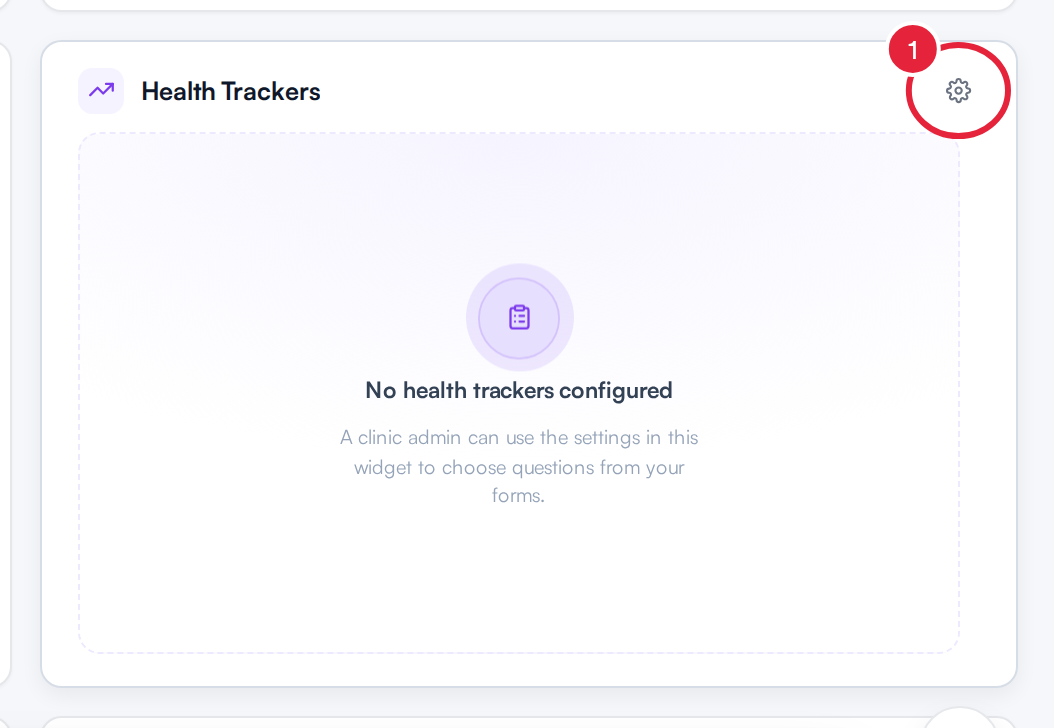
The gear opens the Health Trackers settings
TIP: Can't see the widget? It may be hidden in your own layout. Click Arrange at the top of the Summary to show it again. See How to Configure the Summary View in Client Card.
Step 2: Link Form Questions
Configure widgets opens on the Health Trackers tab, with the reminder: Choose questions from any forms to track for all clients in your clinic.
- Check that Health Trackers is the selected tab.
- Click Link Data. (Once questions are linked, this button becomes Add Field.)
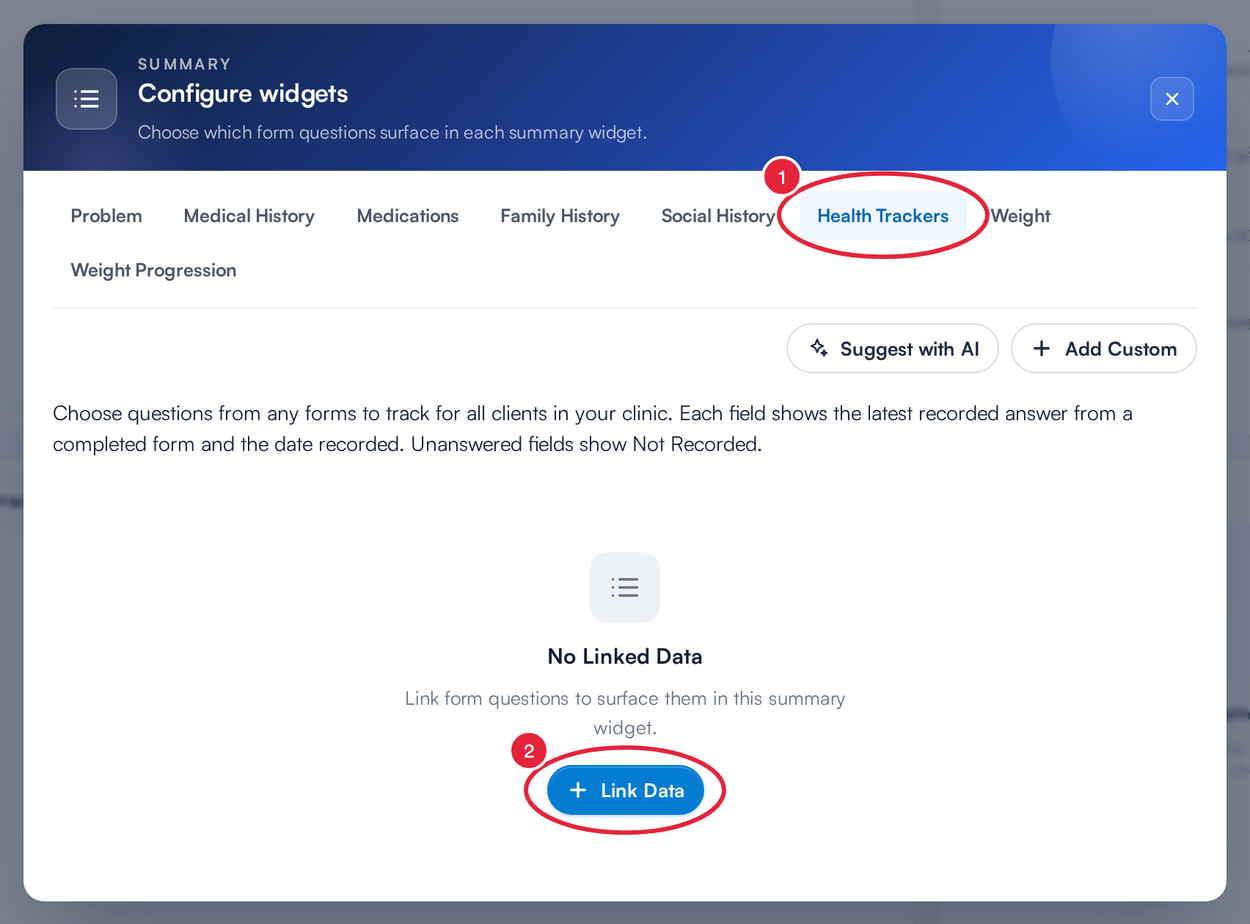
Health Trackers has its own tab in Configure widgets
Step 3: Choose the Questions to Track
The Add Field window lists the questions from all your clinic's forms (treatment notes, consent forms and questionnaires), grouped by form.
- Type in Search questions… to find a question by its wording, for example smok.
- Tick each question you want to track. You can tick questions from several forms.
- Click Add.
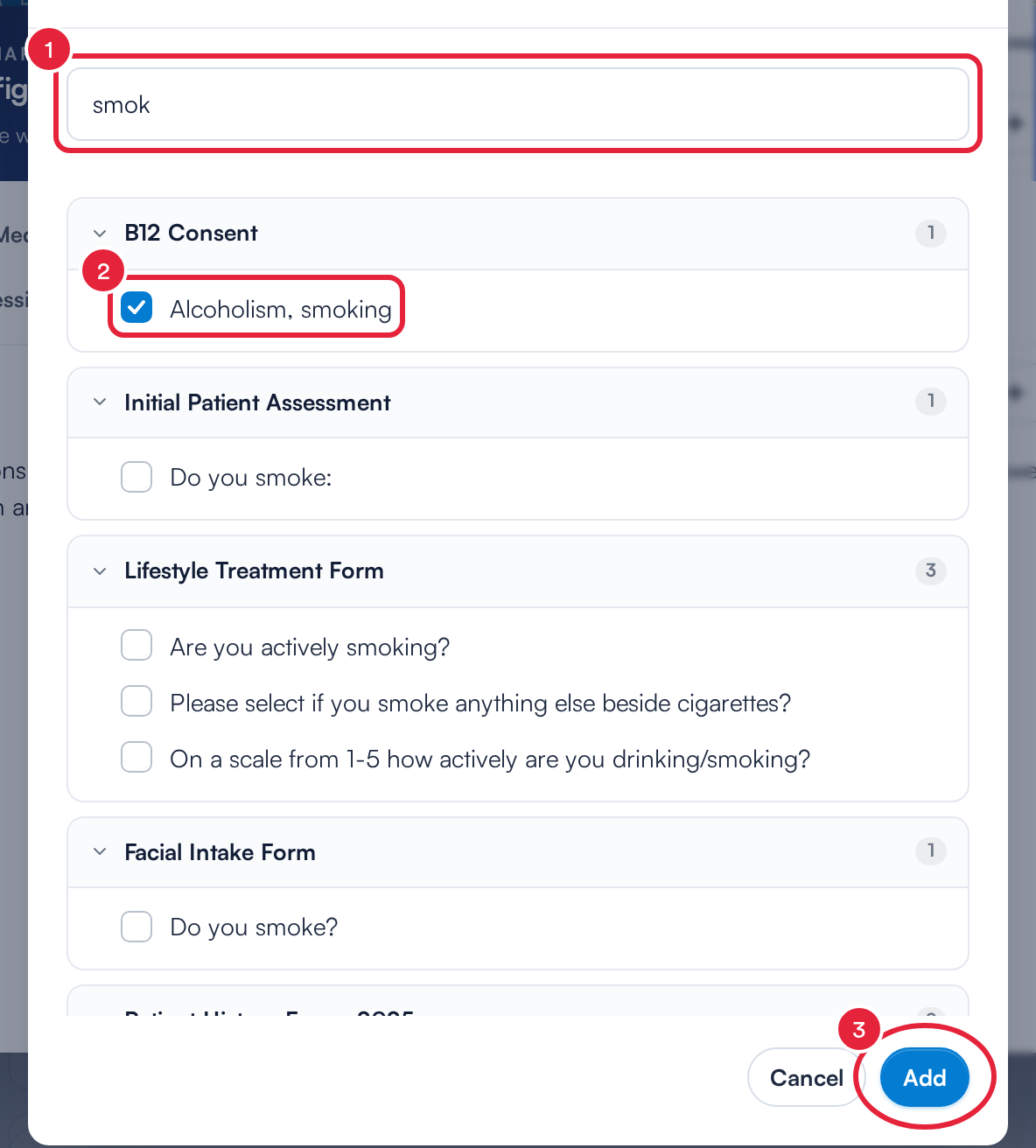
Search for a question, tick it and add it
Step 4: Order the Questions and Save
- The linked questions are listed with the form each one comes from. Drag a question by its handle to change the order, or click its X to remove it.
- Click Add Field to add more questions.
- Click Save.
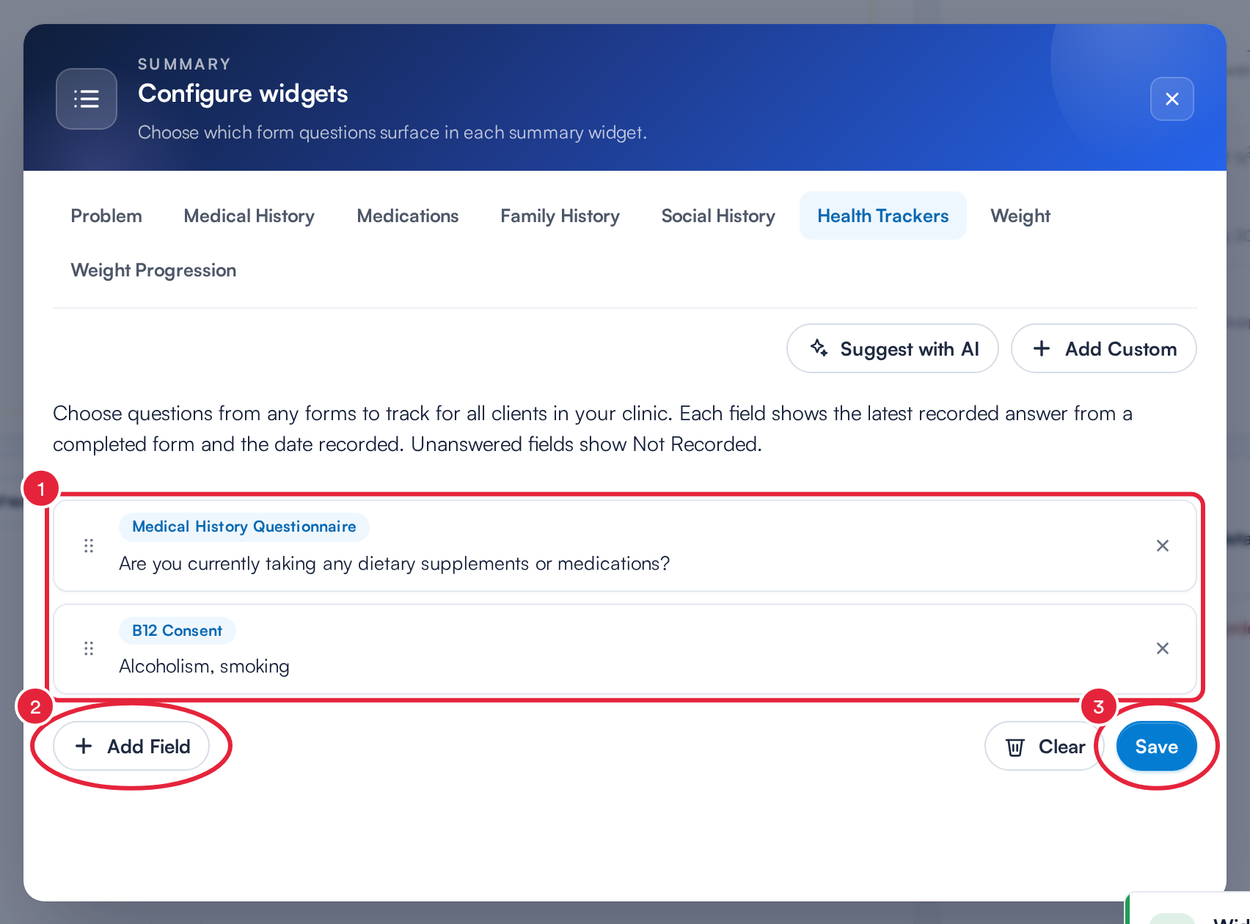
Put the questions in order, then save
NOTE: To stop tracking everything, open the settings again, click Clear and then Save. The widget goes back to No health trackers configured.
Step 5: Check a Client's Health Trackers
Every client's Summary now shows your questions, in the order you saved them. For each one you'll see:
- The latest answer from a completed form, the name of that form, and Recorded with the date it was answered.
- Not Recorded if the client hasn't answered that question on a completed form yet.
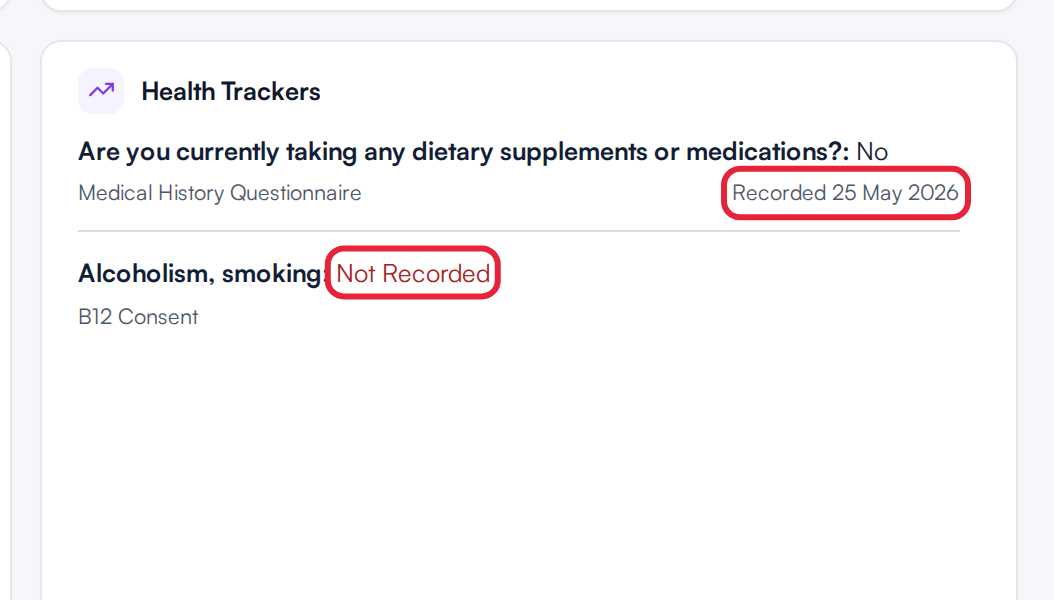
Each tracker shows the latest answer and when it was recorded
What's next?
- How to Configure the Summary View in Client Card (New Client Card)
- How to Use Client Summary (New Client Card)
- How to Write a Treatment Note From the Client Card (New Client Card)
Was this guide helpful? Let us know by voting below - your feedback helps us write clearer articles.
For more guides, browse the related articles below or use the search bar at the top of the page. You can also watch our video learning series, the Pabau Academy, or visit the Support page for additional help.