
This article covers the new Client Card, available to selected clinics from August 2026. If your Client Card looks different, see How to Use Client Summary (Classic) guide instead.
Instead of spending valuable time searching through different records, the AI Patient Summary instantly compiles the most important client information in one place. This makes it the fastest way to get up to speed on a client, especially when they arrive for an appointment.
Step 1: Access Client Summary
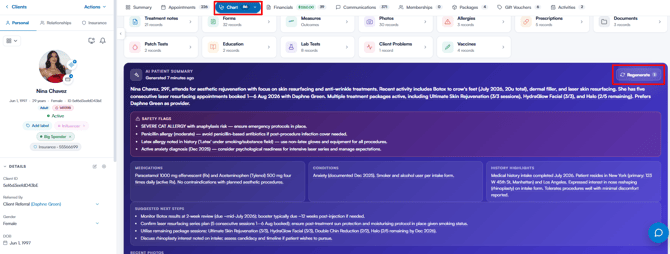
Navigate to a client card in Pabau and open the EMR tab (labelled Chart for clinics based in the United States). Scroll to the AI patient summary card at the bottom of the tab and click the “Generate” button.
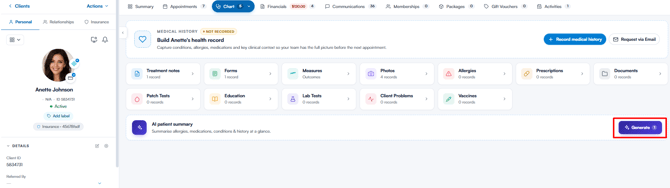
The AI Patient Summary will be generated in a few moments.
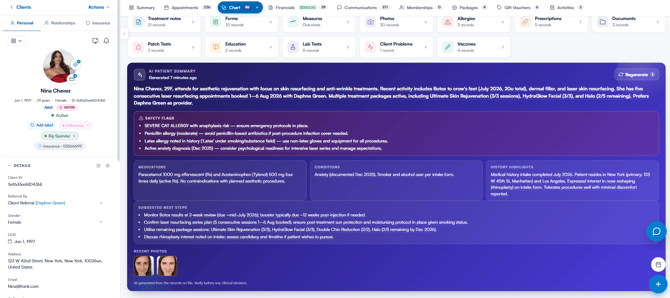
NOTE: Generating a summary uses your practice’s AI credits — if you have none left, the Generate button is disabled until you top up. Practices with the Care+ add-on can continue to generate summaries even with no credits remaining. For more details on all the tools that are part of Echo AI, please refer to the Echo AI Guide.
Step 2: Review the Client Insights
The AI patient summary provides an AI-generated overview of key client details, including:
- A short client summary (client details and recent activity)
- Safety flags (allergies and alerts)
- Medications
- Conditions (medical conditions)
- History highlights (highlights from the medical history)
- Suggested next steps
- Recent photos
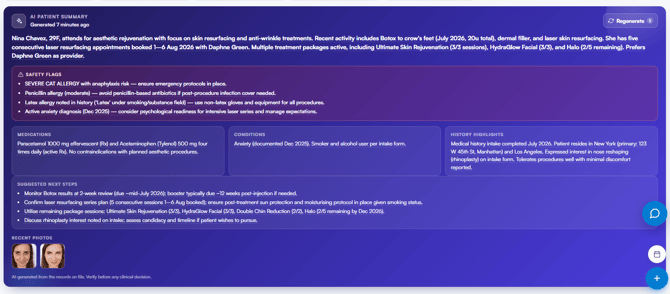
Having these insights readily available lets you quickly assess a client’s clinical picture and treatment history, making it easier to personalise their experience and prepare for their visit.
CAUTION: The summary is AI-generated from the records on file. Always verify it against the client’s record before making any clinical decision.
Step 3: Review Sources
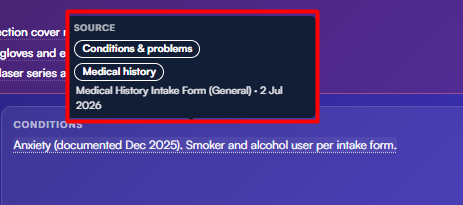
Items drawn from the client’s record show a subtle dotted underline. Hover over one to see its Source — the record the information came from, such as Medical history, Treatment notes or Allergies.
To keep the Client Summary up to date, you can regenerate it at any time. Open the EMR tab again, scroll to the AI patient summary and click the “Regenerate” button.
By using the AI Patient Summary, you can walk into every appointment prepared, improve client communication and ensure a seamless client experience.
Was this guide helpful? Let us know by voting below - your feedback helps us write clearer articles.
For more guides, browse the related articles below or use the search bar at the top of the page. You can also watch our video learning series, the Pabau Academy, or visit the Support page for additional help.