
NOTE: This guide covers the new Online Bookings and Client Portal, which are being rolled out to clinics in phases. If your screens look different, your account may still be on the classic version — message us via the in-app chat and we will help.
In this article, you will learn how to let clients book at your own web address, such as booking.yourclinic.com, instead of the Pabau booking address.
NOTE: You will need access to your domain’s DNS settings (usually with whoever you bought your domain from, such as GoDaddy, Cloudflare or 123 Reg). Your booking page must be published before you add a domain.
Step 1: Add Your Domain
- Open Online Bookings (More ▸ Online Bookings, or Setup ▸ Online presence ▸ Online Bookings) and click the Settings tab.
- Choose Custom Domain.
- Click Add domain.
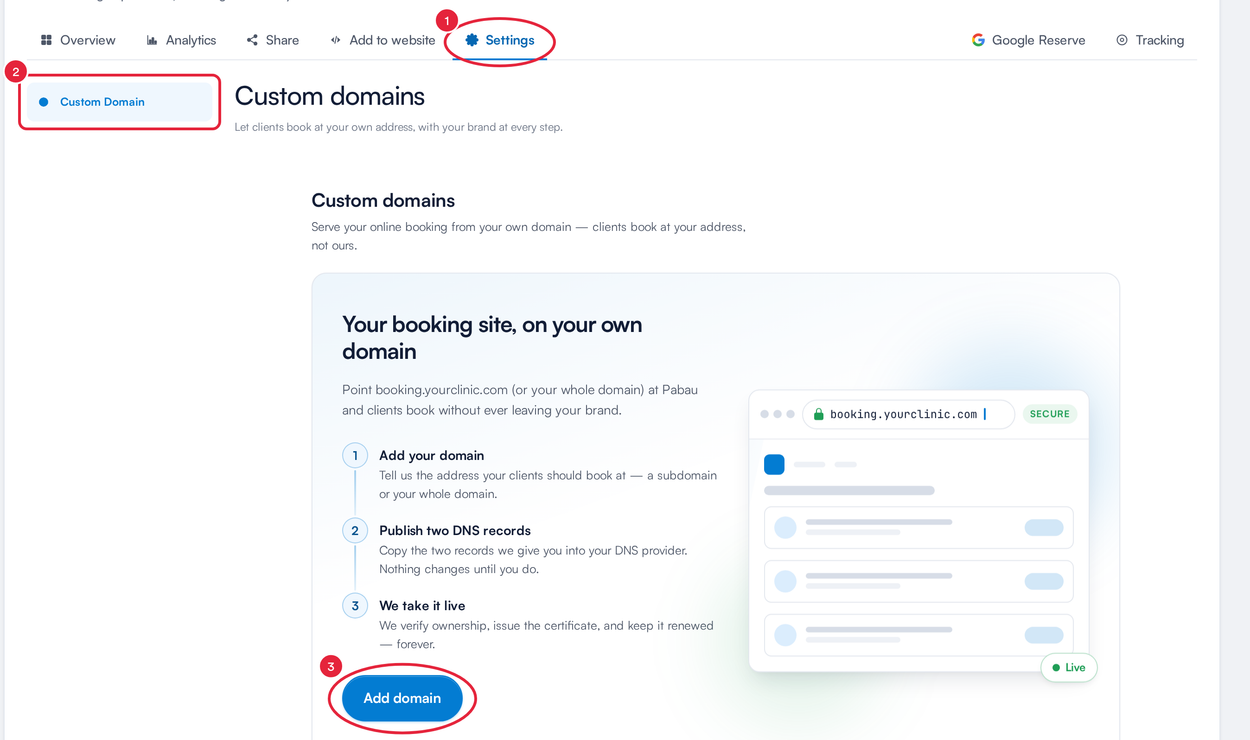
Settings (1) ▸ Custom Domain (2) ▸ Add domain (3)
In Add a custom domain:
- Enter the address your clients should book at in Domain — a subdomain such as booking.yourclinic.com, or yourclinic.com to use your whole domain.
- Click Add domain.
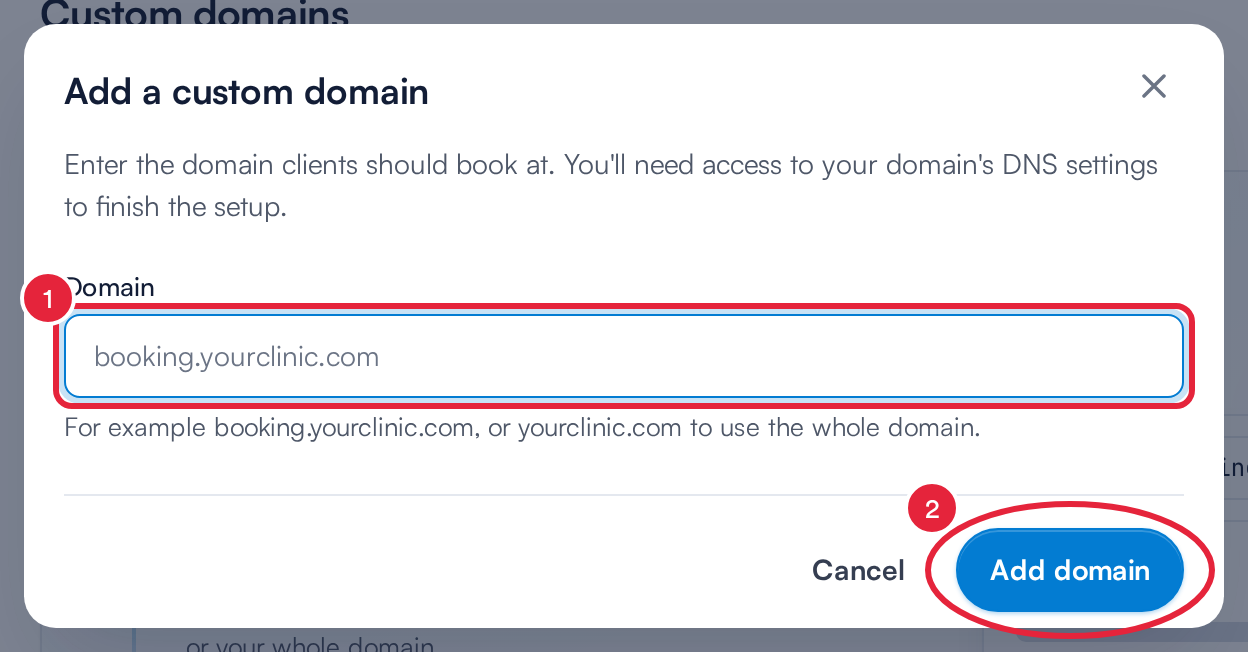
Enter your domain (1) and click Add domain (2)
Step 2: Publish the Two DNS Records
Pabau shows you two records under Set up your DNS records. Use the copy buttons to copy each Host and Value into your DNS provider exactly as shown:
- A CNAME record that points your address at Pabau. For a whole (root) domain, use an ALIAS / ANAME record if your provider offers one; otherwise ask us for the A-record addresses.
- A TXT record that proves the domain is yours.
WARNING: Keep the TXT record in place permanently. Pabau re-checks it regularly, and if it is removed your domain will be taken offline.
Step 3: Check and Go Live
- Once the records are saved, click Check now next to your domain. DNS changes can take up to 48 hours to spread; the list also refreshes on its own every minute.
- When your domain shows as Active, Pabau issues the security certificate and keeps it renewed for you. Clients can then book at your address.
To see the records again later, click DNS records next to the domain.
NOTE: Until a domain is verified, its status shows as Pending or Unverified. Nothing changes for your clients until it is Active — your standard booking link keeps working throughout. Only an account admin can remove a custom domain; a removed domain stays reserved to your clinic, so you can re-add it later.
What's next?
Put your new address on your website and social profiles — see Part 5: Share Your Booking Page and Add It to Your Website. For the whole set-up, start at Getting Started with the New Online Bookings and Client Portal.
Questions? Reach us any time via the in-app chat — we’re happy to help.
Was this guide helpful? Let us know by voting below - your feedback helps us write clearer articles.
For more guides, browse the related articles below or use the search bar at the top of the page. You can also watch our video learning series, the Pabau Academy, or visit the Support page for additional help.