
NOTE: This feature is being rolled out to clinics gradually. If you don't see it in your account yet, message us via the in-app chat.
IMPORTANT: These rules apply to everyone in your clinic, so only admins and owners can change them. Other staff see the current rules with the message "Only an admin can change AI Suggestion rules."
Step 1: Open the AI Suggestion Rules
In the calendar, click the gear icon (Calendar settings) in the bar at the top, just left of Day, Week and Month. The Calendar Settings window opens on the General tab. Scroll to the bottom of the General tab to AI Suggestion rules.

The gear icon opens Calendar Settings
When you book or reschedule an appointment, Pabau marks the times that best fit these rules. Suggested times appear in purple. Other available times stay selectable, so the rules guide staff but never stop them choosing another time. Online booking settings are managed separately and are not affected.
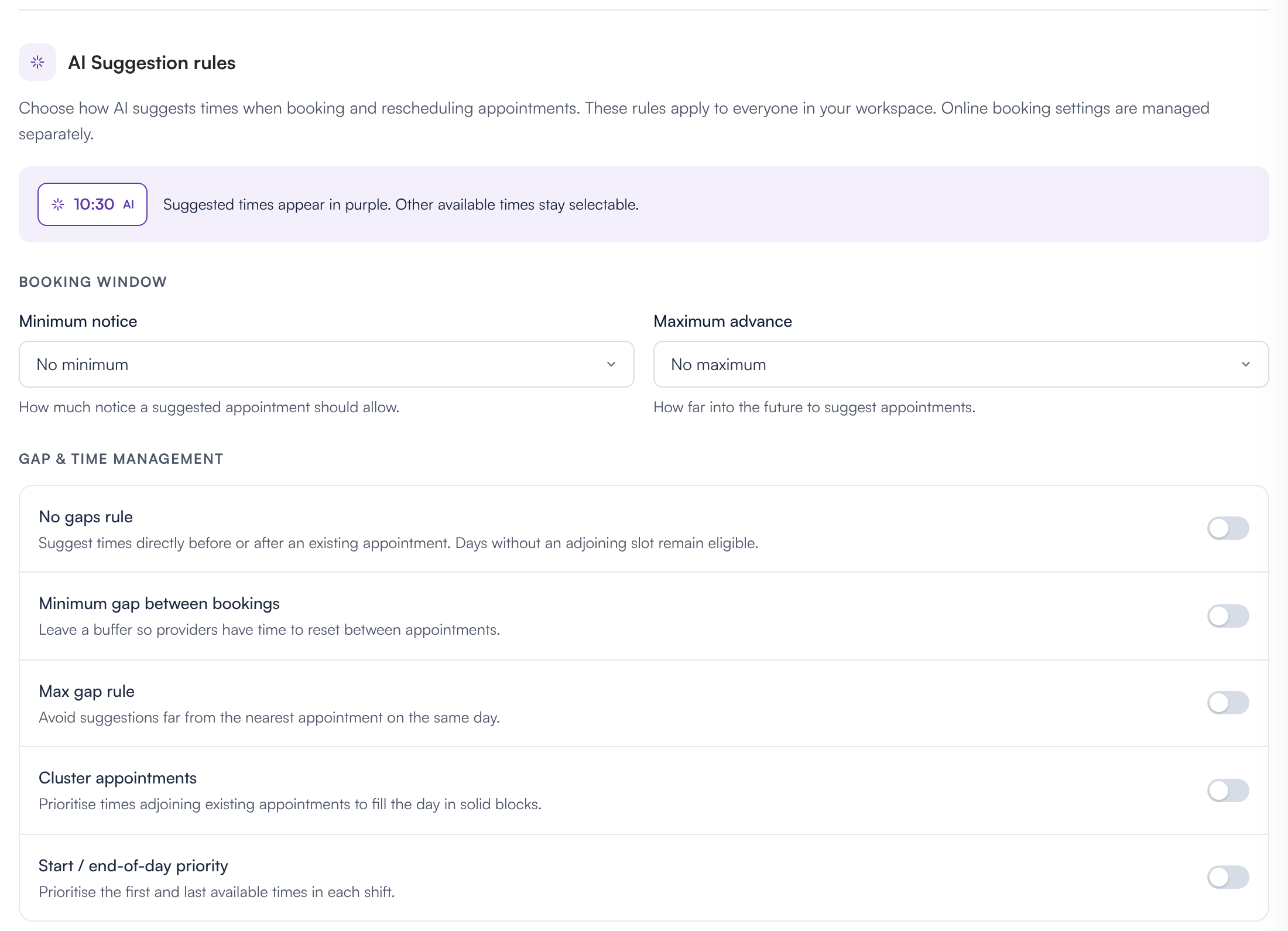
AI Suggestion rules at the bottom of the General tab
Step 2: Set the Booking Window
- Minimum notice: how much notice a suggested appointment should allow. Choose No minimum, 1 hour, 2 hours, 4 hours, 24 hours or 48 hours.
- Maximum advance: how far into the future to suggest appointments. Choose No maximum, or 14, 30, 60, 90, 180 or 365 days.
Step 3: Set the Gap and Time Rules
Under Gap & time management, turn on the rules you want. All of them are off by default.
- No gaps rule: suggest times directly before or after an existing appointment. Days without an adjoining slot remain eligible.
- Minimum gap between bookings: leave a buffer so providers have time to reset between appointments. When it's on, choose the Gap size, from 5 to 60 minutes (10 minutes to start with).
- Max gap rule: avoid suggestions far from the nearest appointment on the same day. When it's on, choose the Largest acceptable gap, from 60 to 240 minutes (120 minutes to start with).
- Cluster appointments: prioritise times next to existing appointments, to fill the day in solid blocks.
- Start / end-of-day priority: prioritise the first and last available times in each shift.
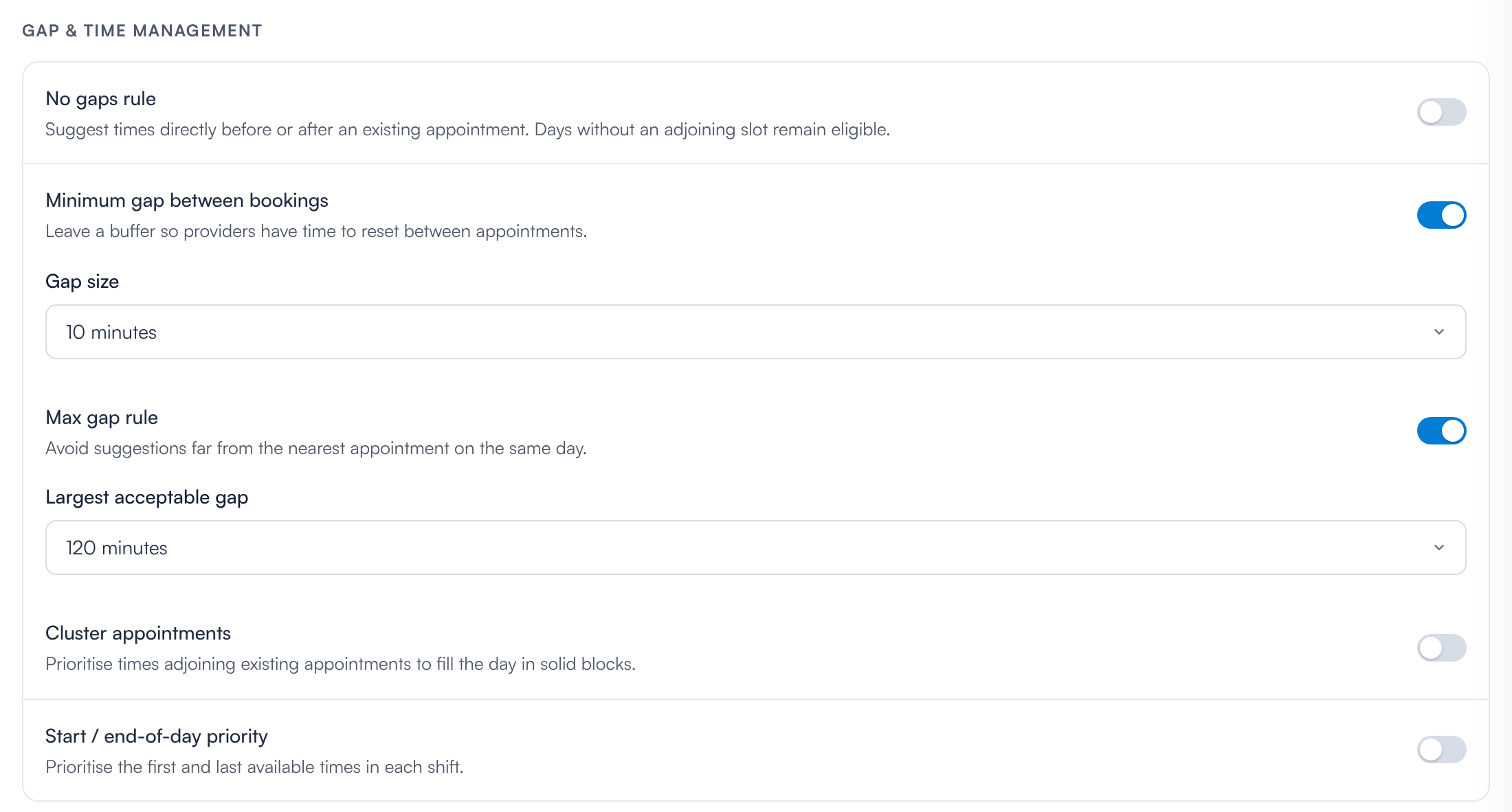
Gap size and Largest acceptable gap appear when their rules are on
NOTE: No gaps rule and Minimum gap between bookings can't both be on: turning one on turns the other off. With both gap rules on, Largest acceptable gap only offers values bigger than the Gap size.
Step 4: Save Your Changes
Click Save changes at the bottom right. You'll see Settings saved. To close without saving, click Cancel. You only need to save once, even if you changed several tabs.
Where do the suggestions appear?
The rules are used when staff pick a time for a new appointment and when they reschedule one, including with Suggest Times. Pabau compares each free time against the practitioner's diary for that day (their shifts and existing appointments) and marks the strongest choices in purple. Days or times that break the booking window are not suggested.
What's next?
The complete set of Calendar Settings guides starts at How to Configure the New Calendar Settings. Related guides:
- How to Set Scheduling Rules: Overlap, Group Appointments and Auto-Complete
- How to Choose the Default Notifications for New Appointments
- How to Use Suggest Times to Find Available Appointment Slots
- How to Book an Appointment With the New Booking Panel
- How to Find Your Way Around the New Calendar
Was this guide helpful? Let us know by voting below - your feedback helps us write clearer articles.
For more guides, browse the related articles below or use the search bar at the top of the page. You can also watch our video learning series, the Pabau Academy, or visit the Support page for additional help.