
NOTE: This feature is being rolled out to clinics gradually. If you don't see it in your account yet, message us via the in-app chat.
IMPORTANT: Notification defaults apply to everyone in your clinic, so only admins and owners can change them. Other staff can open Calendar Settings and see the current choices, but the options are locked, with the message "Only an admin can change workspace calendar settings."
Step 1: Open the Notification Settings Tab
In the calendar, click the gear icon (Calendar settings) in the bar at the top, just left of Day, Week and Month. The Calendar Settings window opens on the General tab. Click Notification settings in the list on the left.

The gear icon opens Calendar Settings
Step 2: Choose the Default Communications
Under Default communications, tick each message that should already be ticked when someone books a new appointment:
- Appointment Reminder: a reminder sent ahead of the appointment.
- Appointment confirmation: a confirmation sent straight after booking.
- Request feedback: asks the client for feedback after the appointment.
- Express Booking: ticks the Express Booking link on the booking, so the client is sent a link to pay up front.
These are only starting points. Staff can still tick or untick each message on every booking.
Step 3: Choose How Reschedules Are Confirmed
Under Rescheduling, leave Confirm before rescheduling ticked if Pabau should ask before moving an appointment you drag to a new time. Untick it to move appointments straight away, with an Undo option in case you dropped one in the wrong place.
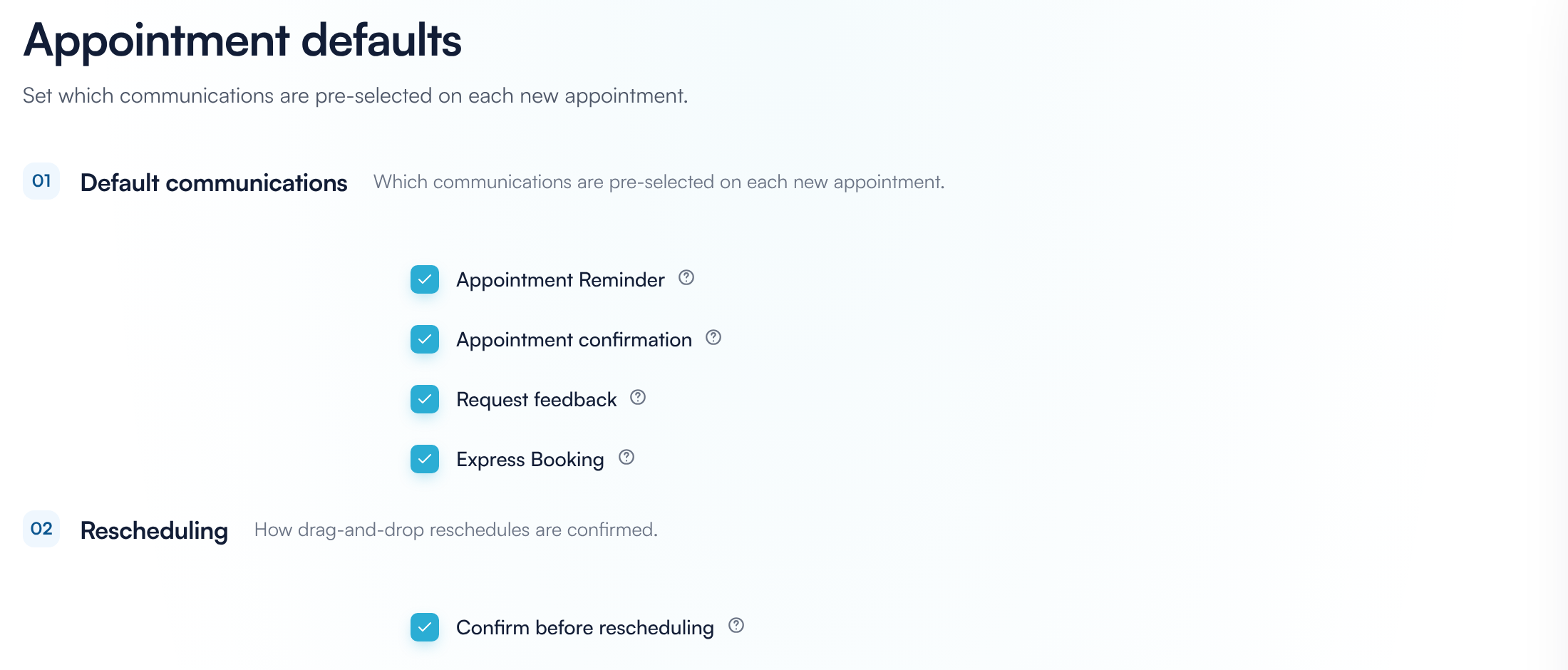
Default communications and rescheduling
Step 4: Save Your Changes
Click Save changes at the bottom right. You'll see Settings saved. To close without saving, click Cancel. You only need to save once, even if you changed several tabs.
Why is a message unticked even though it is ticked here?
These settings only decide whether a message starts ticked. The booking panel also checks the rest of your setup:
- Channels: a message is only ticked for the channels (email or SMS) turned on for that message type in your client notification settings.
- Reminders: if the appointment is too soon for the reminder to go out on time, the reminder starts unticked.
- Express Booking: the link only starts ticked if Express Booking is turned on in your clinic's Payment Policy. If it's off there, there is no link to send. See How to Enable Payment Policy.
To change what each message says or which channel it uses, see How to Manage Client Notifications in the Appointment Booking Menu.
Who do these settings apply to?
The defaults apply to every new appointment booked by anyone at your clinic. Only admins and owners can change them.
What's next?
The complete set of Calendar Settings guides starts at How to Configure the New Calendar Settings. Related guides:
- How to Set Scheduling Rules: Overlap, Group Appointments and Auto-Complete
- How to Set AI Suggestion Rules
- How to Manage Client Notifications in the Appointment Booking Menu
- How to Book an Appointment With the New Booking Panel
- How to Find Your Way Around the New Calendar
Was this guide helpful? Let us know by voting below - your feedback helps us write clearer articles.
For more guides, browse the related articles below or use the search bar at the top of the page. You can also watch our video learning series, the Pabau Academy, or visit the Support page for additional help.