
NOTE: This guide covers the new Online Bookings and Client Portal, which are being rolled out to clinics in phases. If your screens look different, your account may still be on the classic version — message us via the in-app chat and we will help.
In this article, you will learn how a flash sale works on your booking page: where to set it up, how to show or hide the live countdown, and what your clients see when they book. A flash sale needs no code — the discount is applied automatically to the services, days and times you choose, so it is a quick way to fill quiet days.
Step 1: Create the Flash Sale
- Go to Marketing → Promotions and click Create promotion.
- Under What kind of deal?, choose Flash sale, then set the discount, the services it covers, which clients can have it and the days and times it runs. How to Create a Flash Sale walks through every option.
Once it is active, the sale is listed under Promotions as a Flash sale marked No code · auto-applied. There is nothing to switch on for online booking — an active flash sale shows on your booking page straight away.
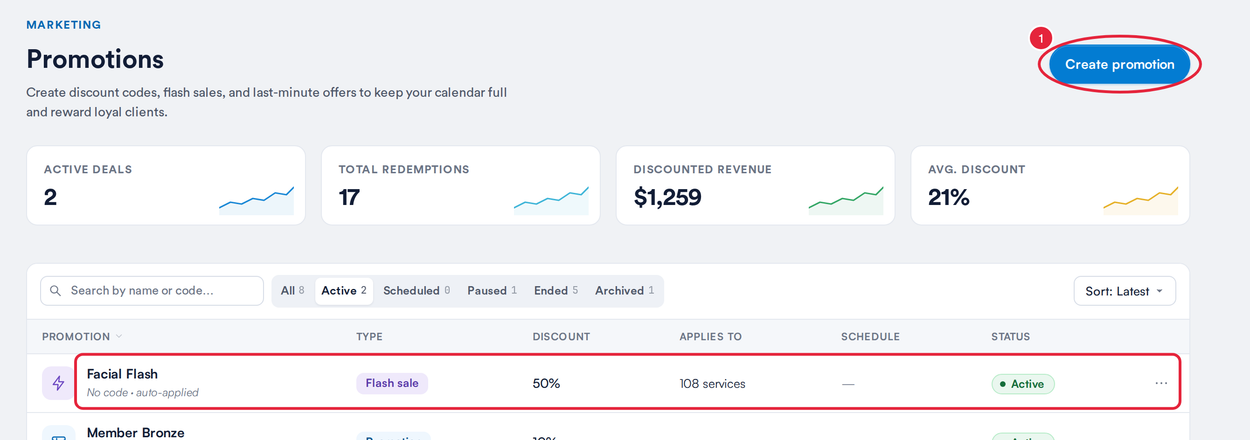
Marketing → Promotions: create a flash sale, then check it is listed as Active
TIP: Want clients to type in a code instead? Codes for online booking are set up separately — see How to Create and Manage Promo Codes for Online Bookings.
Step 2: Choose Whether to Show the Countdown
While a flash sale is running, your booking page can show a live countdown to when the offer ends. It is on by default. To check or change it, go to Setup → Online Bookings and click Customise page to open Pabau Studio (see Part 2 if you are new to Studio). Then:
- Click Services in the Booking pages strip.
- Click Edit at the top right.
- Hover over the list of services and click the blue Services label that appears.
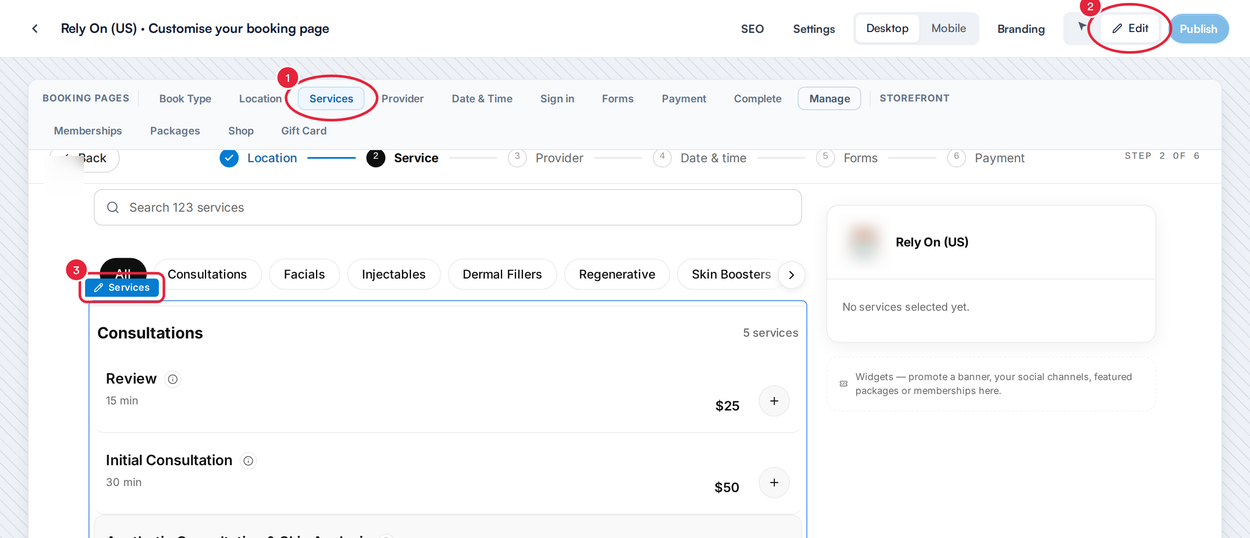
Pabau Studio in Edit mode: open the settings for the list of services
- In the Services list panel, click the Promotions tab.
- Under Flash sales, switch Show timer for flash sales on or off.
- Click Publish to put the change live.
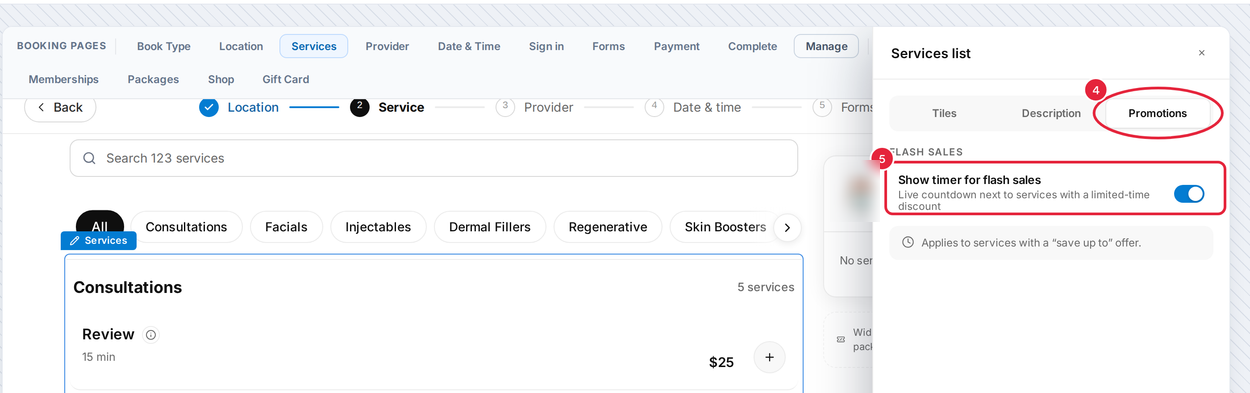
The Promotions tab of the Services list panel, with Show timer for flash sales
NOTE: This setting only controls the countdown. The ⚡ sale tags and the discount itself always show while a flash sale is active.
Step 3: Check What Your Clients See
Every service covered by an active flash sale has a ⚡ save up to tag under its price (1). It says “up to” because the discount only applies on the days and at the times the sale runs. A sale with a fixed amount off is shown as the equivalent percentage of the service price.
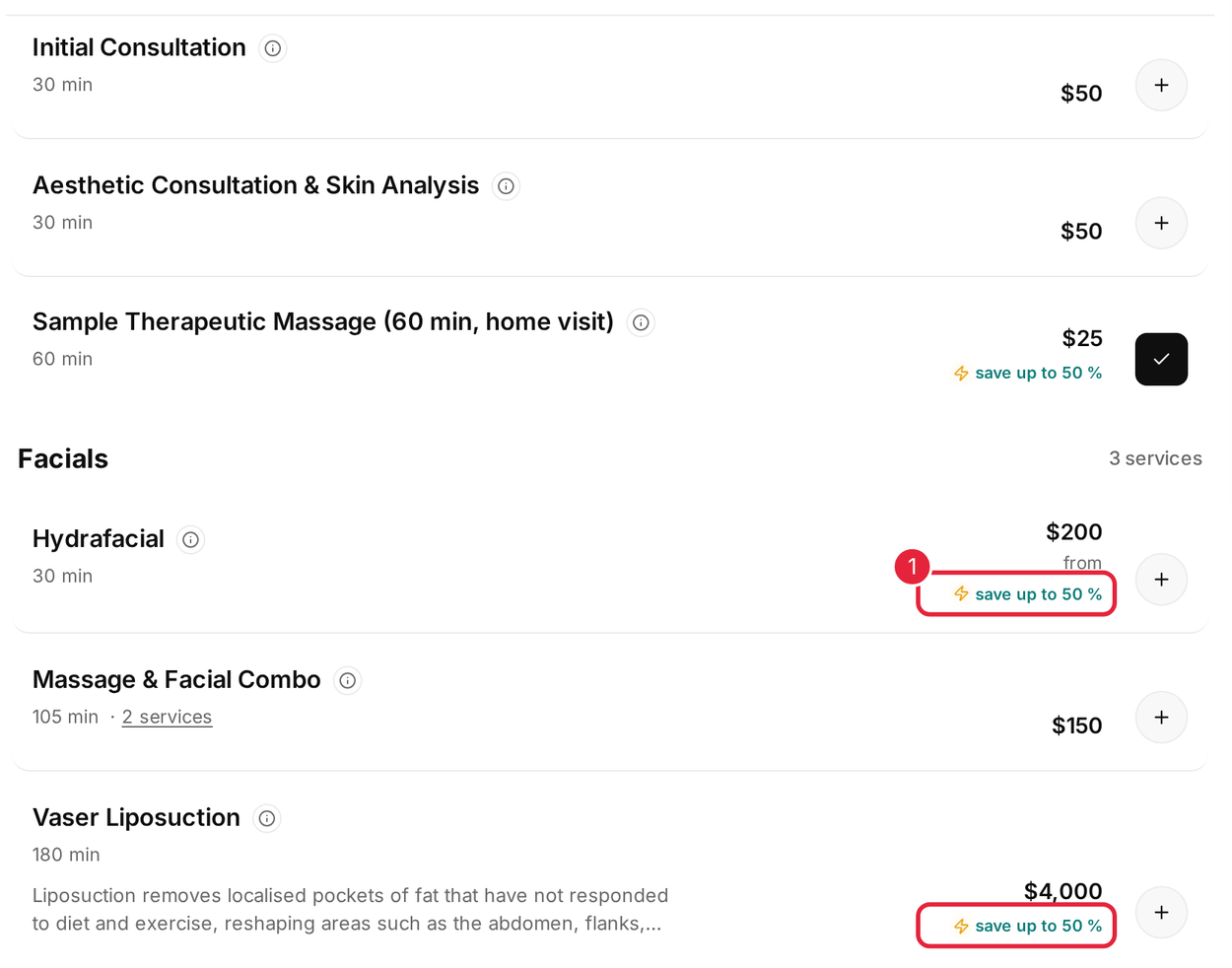
Services covered by a flash sale show a ⚡ save up to tag
On the date and time step:
- A ⚡ above a date shows the sale runs on that day.
- A ⚡ on a time shows that appointment time gets the sale price.
- Once a time is picked, the booking summary shows the sale’s name and the amount taken off.
- The total is reduced, and that is the price the client pays.
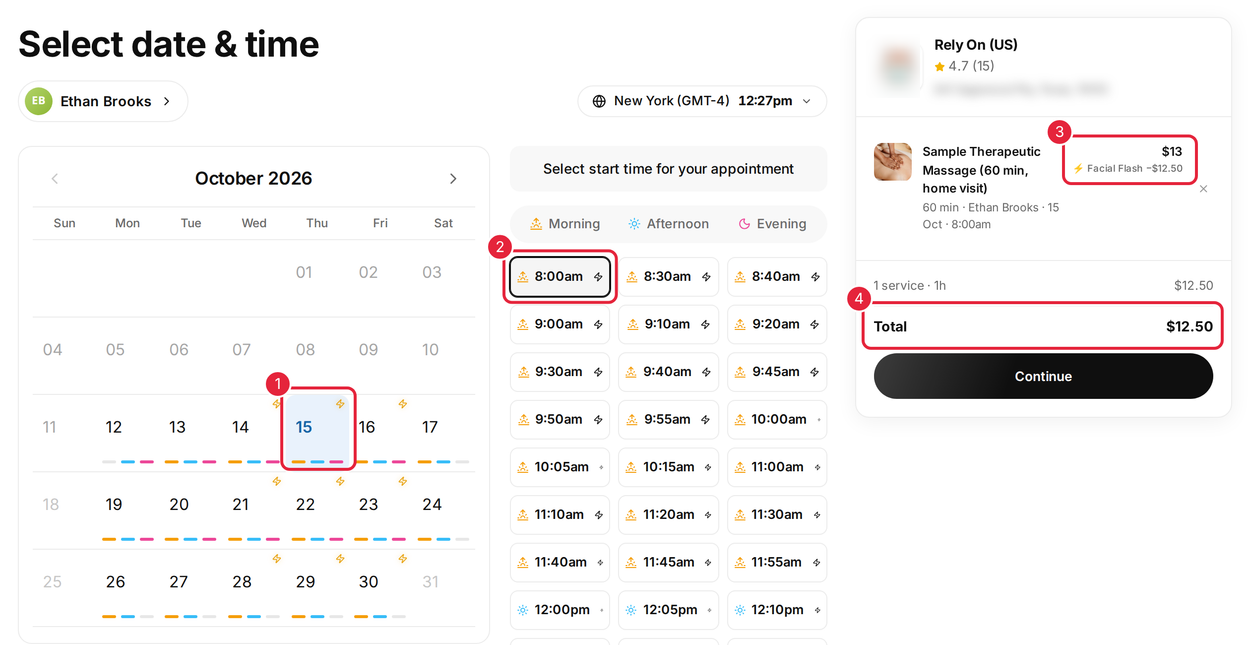
⚡ marks on sale days and times, and the discount in the booking summary
If Show timer for flash sales is on, the countdown appears beside the price in the service’s details window (the ⓘ next to the service name) while the sale is live — that is, today is a sale day and the current time is inside the sale’s hours. It shows Offer expires in and counts down to the end of today’s sale hours, or to midnight if the sale has no set hours. On days the sale is not running, the ⚡ tag still shows but there is no countdown.
IMPORTANT: The discount depends on the appointment time the client picks, not the day they book. A client booking on a Monday for a Thursday sale slot gets the sale price; a client booking during the sale for a later, non-sale day does not.
A few more things to know:
- If more than one flash sale covers the same appointment, the client gets whichever gives the bigger saving. Sales are never added together.
- Flash sales limited to certain clients (for example, new clients only) do not show ⚡ tags on your booking page, because the page cannot tell who is visiting. Eligible clients still get the discount once they have signed in.
- If the sale has a limit per client, only signed-in clients can get it, because uses cannot be counted for a guest.
- When a sale reaches its total usage limit, its tags disappear and no more bookings get the discount.
What's next?
- How to Create a Flash Sale — every option, including time-of-day rules and the heatmap.
- How Promo Codes Work on Your Online Booking Page — the codes clients can enter at checkout.
- How to Add Widgets to Your Booking Page — add a promo banner or announcement bar to advertise your sale.
Questions? Reach us any time via the in-app chat — we’re happy to help.
Was this guide helpful? Let us know by voting below - your feedback helps us write clearer articles.
For more guides, browse the related articles below or use the search bar at the top of the page. You can also watch our video learning series, the Pabau Academy, or visit the Support page for additional help.