
NOTE: This guide covers the new Online Bookings and Client Portal, which are being rolled out to clinics in phases. If your screens look different, your account may still be on the classic version — message us via the in-app chat and we will help.
In this article, you will learn how to control who can book a service online — new clients, existing clients, or only clients who have had the service before — and how to add other limits such as age, the days of the week and how far ahead a service can be booked. You set all of this on the service itself, and your new booking page checks it whenever a client books.
Step 1: Open the Service
- Go to Setup and, under Catalogue, click Services. Click the service you want to restrict.
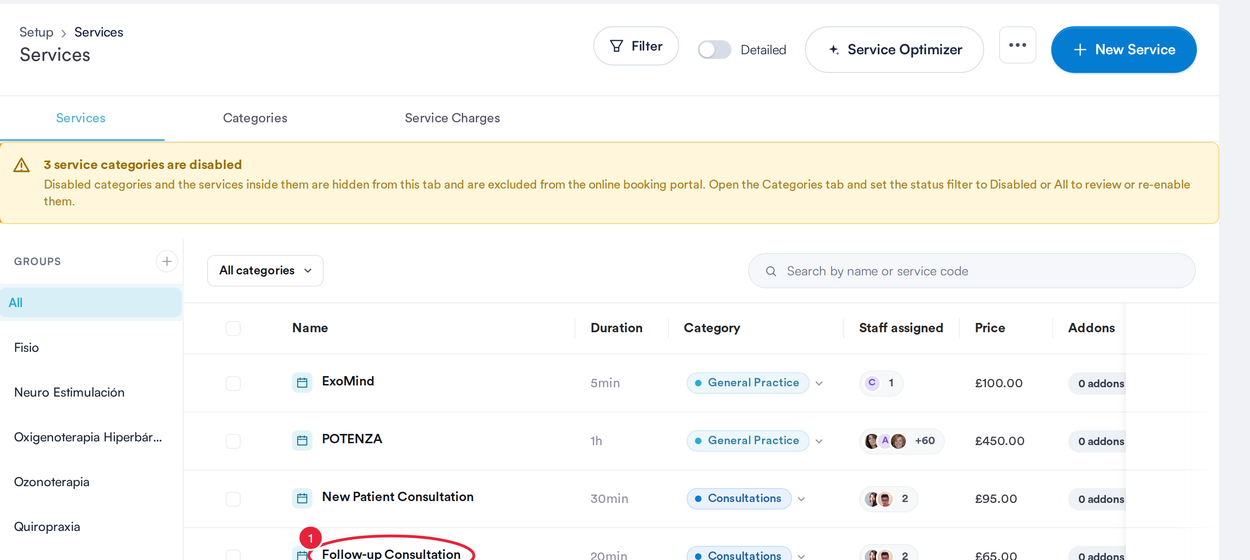
Setup → Services: click the service to edit it
Step 2: Choose Who Can Book
- In Edit Service, open the Restrictions tab.

Open the Restrictions tab (Save is at the top right)
- Under Restrict patient bookings to, click one option.
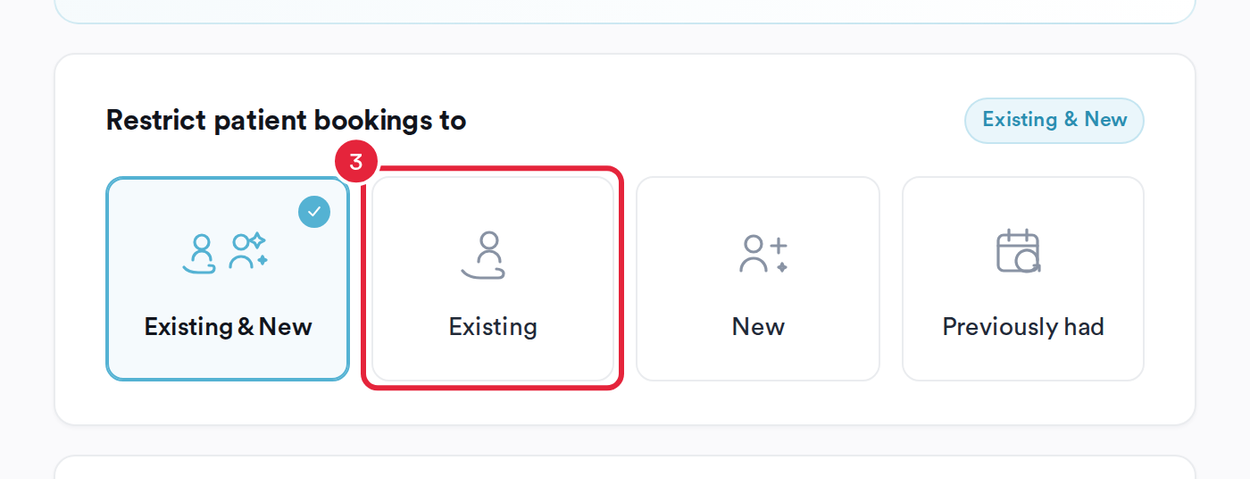
Choose who can book this service
| Option | Who can book it online |
|---|---|
| Existing & New | Everyone. This is the default. |
| Existing | Only clients who have had at least one appointment with you before. Clients must sign in to book it. |
| New | Only clients who have not had an appointment with you before — for example, a new-client consultation. |
| Previously had | Only clients who have had this service before. Clients must sign in to book it. |
Cancelled appointments, no-shows and appointments that have not happened yet do not count as a previous visit.
NOTE: In the classic version, Previously Had let you pick a different service the client must have had first (for example, a consultation before a treatment). On the new booking page, Previously had means the client has had this same service before. To make a consultation the first step for new clients, set the treatment to Existing and the consultation to Existing & New or New.
Step 3: Add Any Other Limits
The rest of the Restrictions tab adds more limits. On the new booking page, these are checked for online bookings too:
- Set any of these, then click Save at the top right:
- Age requirements — a minimum and/or maximum age.
- Gender restriction — Any, Female or Male.
- Booking window — Min notice and Max ahead for this service.
- Available time of day — Any time, Morning (8am–12pm), Afternoon (12pm–5pm) or Evening (5pm+).
- Available days — the days of the week the service can be booked.
- Same-day booking block — treatments this service cannot be booked on the same day as.
- Cool-down between bookings — how long a client must wait before booking this service again.
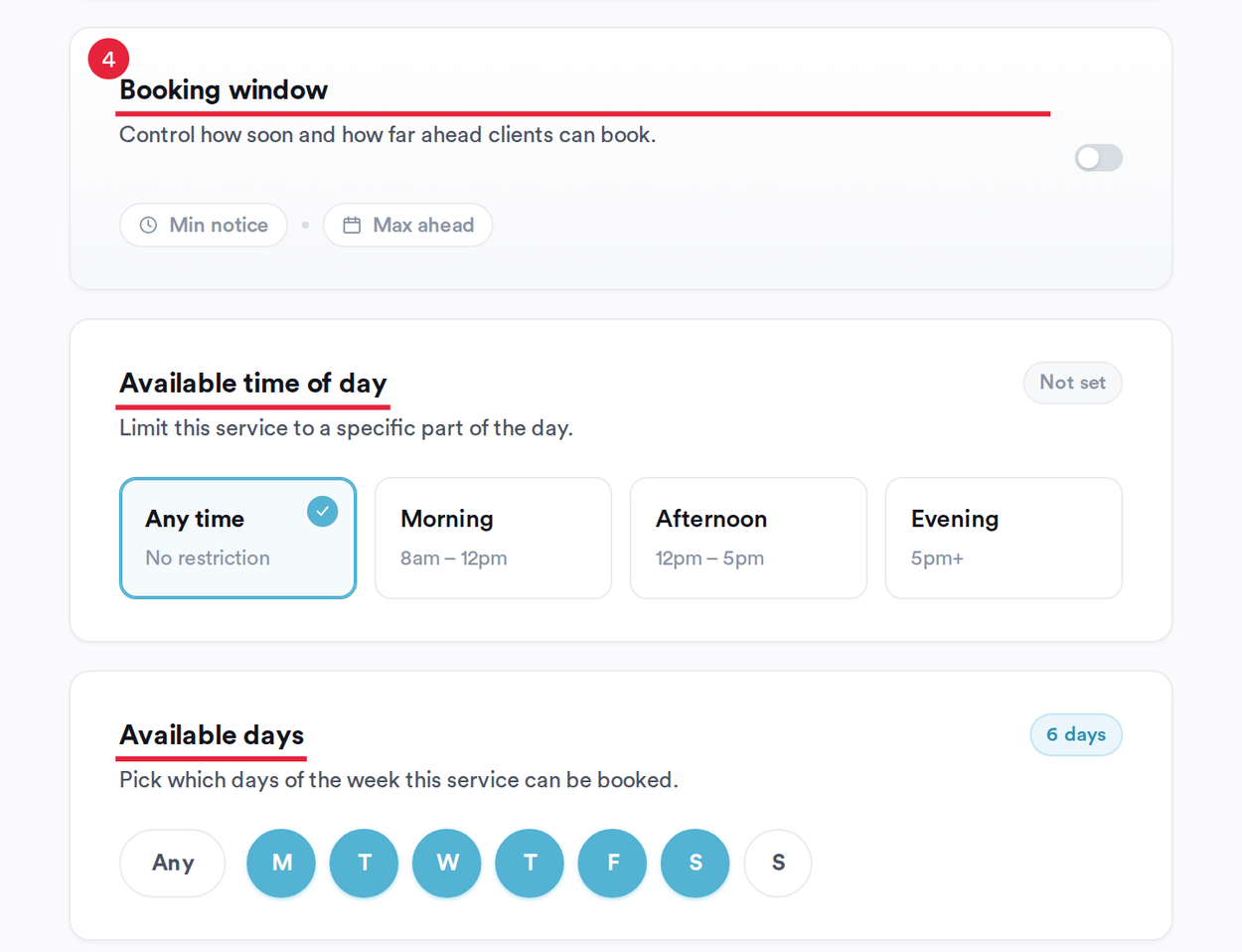
Booking window, time of day and days for this service
WARNING: Check Available days whenever you set a restriction. Sunday starts unticked, so once you set any rule on this service, it can no longer be booked online on a Sunday unless you tick S (or Any).
Can I Stop a Service Being Booked on Certain Days?
Yes. Use Available days on the service's Restrictions tab to choose the days clients can book it online:
- Go to Setup → Catalogue → Services and open the service.
- In Edit Service, open the Restrictions tab.
- Under Available days, tick only the days the service can be booked. Untick the days you want it closed.
- Click Save.
On your online booking page, clients only see times on the days you've ticked. Other services aren't affected — they stay bookable on every day your team is working.
IMPORTANT: Sunday starts unticked. If your clinic takes Sunday bookings for this service, tick Sunday before saving, or the service won't be bookable online on Sundays.
NOTE: This restriction is for online bookings. Don't rely on it to stop your team booking the service on the calendar — let staff know which days it's closed.
TIP: To close a service for a time of day rather than a whole day (for example, mornings only), use Available time of day on the same tab.
What Your Clients See
- A client who is not signed in sees Sign in to book on services limited to Existing or Previously had, and is asked to sign in when they choose one.
- A signed-in client who does not meet a rule — for example, a new client trying to book an Existing-only treatment, or someone outside the age range — cannot add the service and is told why.
- Times outside the service's booking window, time of day or available days are simply not offered.
TIP: Rules about your whole booking page — minimum notice, maximum advance and gap rules for every service — are set in Pabau Studio. See Part 3: Set Booking Steps and Availability Rules.
What's next?
To choose which services appear online at all, see Part 1: Get Your Booking Page Ready.
Was this guide helpful? Let us know by voting below - your feedback helps us write clearer articles.
For more guides, browse the related articles below or use the search bar at the top of the page. You can also watch our video learning series, the Pabau Academy, or visit the Support page for additional help.