
The Vitals component adds weight, height, BMI, temperature, blood pressure and pulse to a treatment form in one go. Your team records them in the treatment note as usual, and can look back over a client's earlier readings at any time, from inside the note or from the client card.
Step 1: Add Vitals to a Treatment Form
Go to Setup and click Forms under Clinical. Open the treatment form you want to add vitals to, or click Create Form to start a new one.
- Click Components.
- Click Custom.
- Drag Vitals (“Weight, height, BMI, temperature, blood pressure and pulse”) onto your form.
- Pabau adds a Vitals heading and a set of fields: Weight (kg), Height (cm), BMI, Temperature with a Temperature unit (°C or °F), BP Systolic and BP Diastolic (mmHg), Pulse Rate (bpm), Pulse Pattern and Pulse Volume.
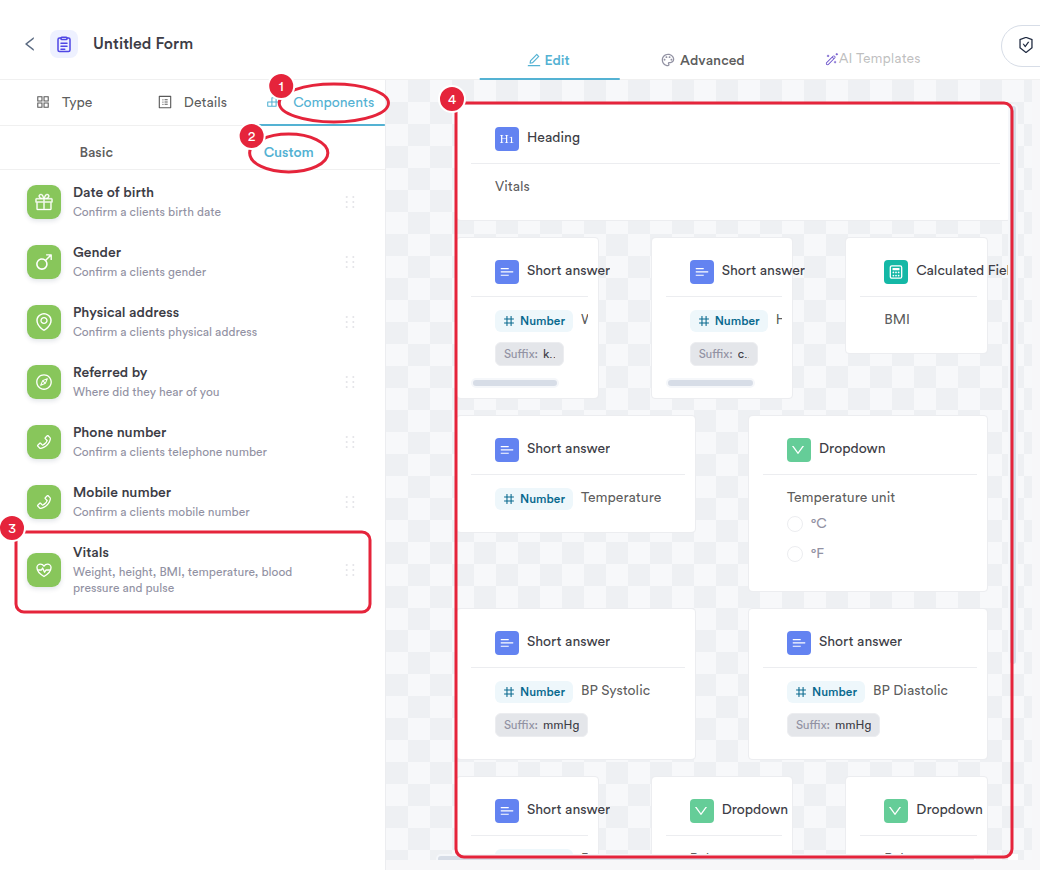
One component adds every vitals field
Each field is an ordinary question, so you can rename, move or delete any you don't need. BMI is worked out for you from the weight and height. When you're done, save the form as usual.
TIP: Keep the heading called Vitals. That's what puts the Past Data button beside it when your team fills in the note (see Step 3).
Step 2: Record Vitals in a Treatment Note
Open the client's card, click the Create button (the blue plus sign in the bottom right corner), click Treatment note and choose your form.
- Enter the readings. BMI fills itself in once the weight and height are entered.
- Click Save Form.
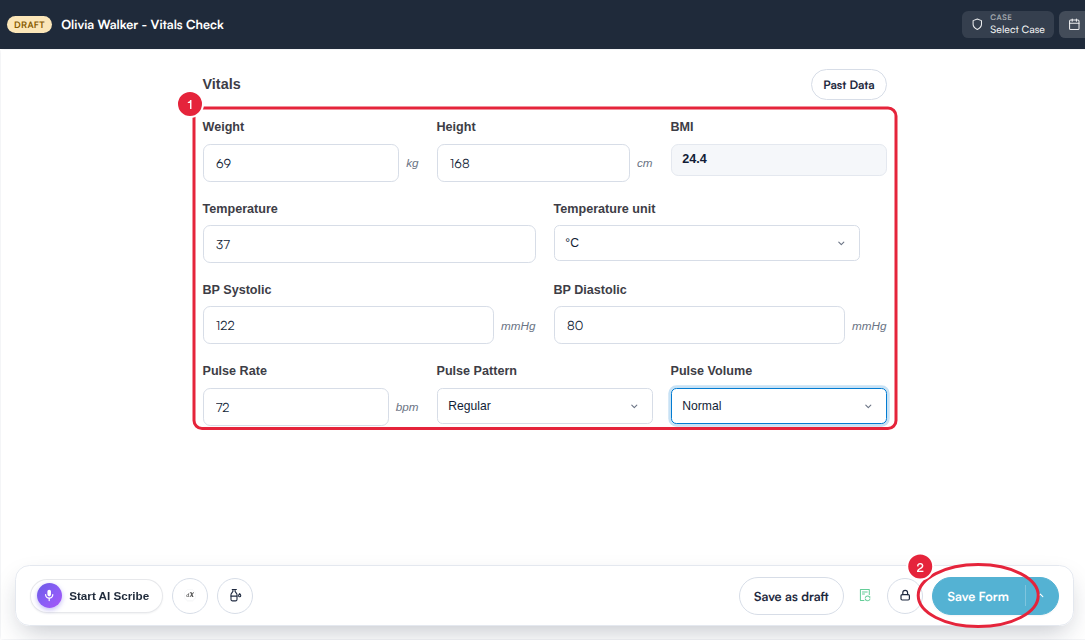
Record the readings and save the note
Step 3: Check Earlier Readings While You Write
- While you're filling in the note, click Past Data beside the Vitals heading.
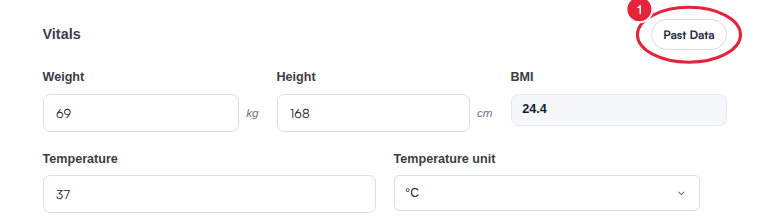
Past Data sits beside the Vitals heading
The Past Vitals window lists the client's earlier readings, newest first, with one column for each vital. Scroll sideways to see them all. If the client has a long history, click Load older records at the bottom to see more.
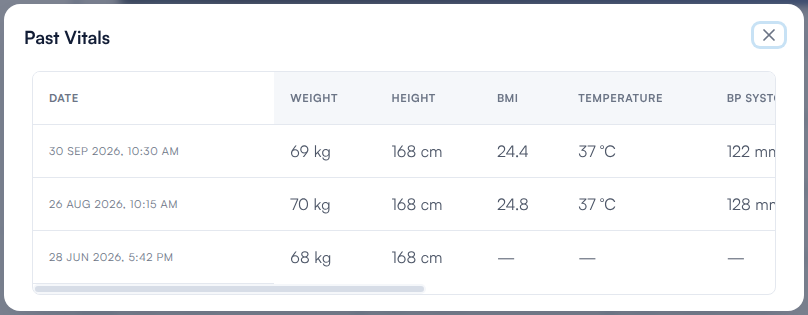
Every earlier reading, newest first
NOTE: Past Vitals collects readings from all of the client's completed forms, not only forms with the Vitals component. If another form asks for a weight or a blood pressure, for example, those answers appear here too, as long as the question clearly names that one reading, for example “What is your current weight?”. A question that asks for several readings at once, such as “Height and weight”, isn’t included.
Step 4: See a Client's Vitals From the Client Card
You don't need to open a note to check a client's readings.
- On the client's card, click EMR (called Chart in the United States).
- Click the Vitals card. It shows how many records hold vitals, and opens the same Past Vitals window.
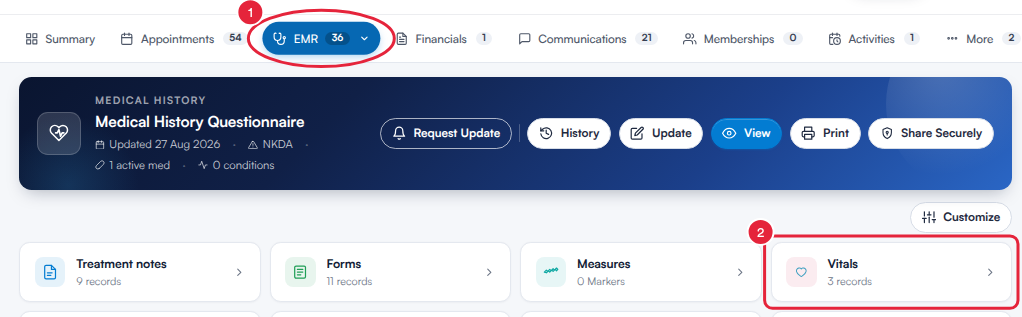
The Vitals card opens the client's full vitals history
You can also let clients see their own readings in the client portal: see How to Choose What Clients See About Their Health in the Client Portal.
What's next?
- How to Create a Medical Form
- How to Use Medical Components in Pabau
- How to Write a Treatment Note From the Client Card (New Client Card)
- How to Track Outcome Measures in the Client Card (New Client Card)
Was this guide helpful? Let us know by voting below - your feedback helps us write clearer articles.
For more guides, browse the related articles below or use the search bar at the top of the page. You can also watch our video learning series, the Pabau Academy, or visit the Support page for additional help.