
NOTE: Your clinic decides which options you see, so some of the steps below may look slightly different or be skipped.
In this article, you will learn how to buy a gift card from your clinic’s online store, whether it is for someone else or for yourself. Gift cards can be spent on any treatment, package or product at the clinic.
NOTE: You need to sign in to buy a gift card. If you aren’t signed in, you will be asked to when you pay. If your clinic has more than one location, you may be asked to choose one first.
Step 1: Open the Gift Card Page
- On your clinic’s booking page, click Gift Card in the menu at the top. On a phone, tap Gift cards under Explore on the booking page.
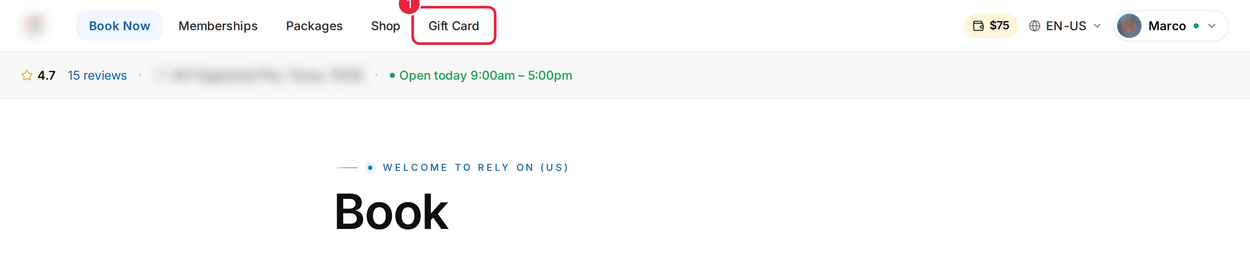
Click Gift Card in the booking page menu
TIP: Already signed in to your client portal? Open My Gift Cards and click Purchase gift card.
Step 2: Choose an Amount
- Click one of the amounts, or type your own amount in Custom amount. The lowest and highest amounts your clinic allows are shown underneath.
- Click Continue.
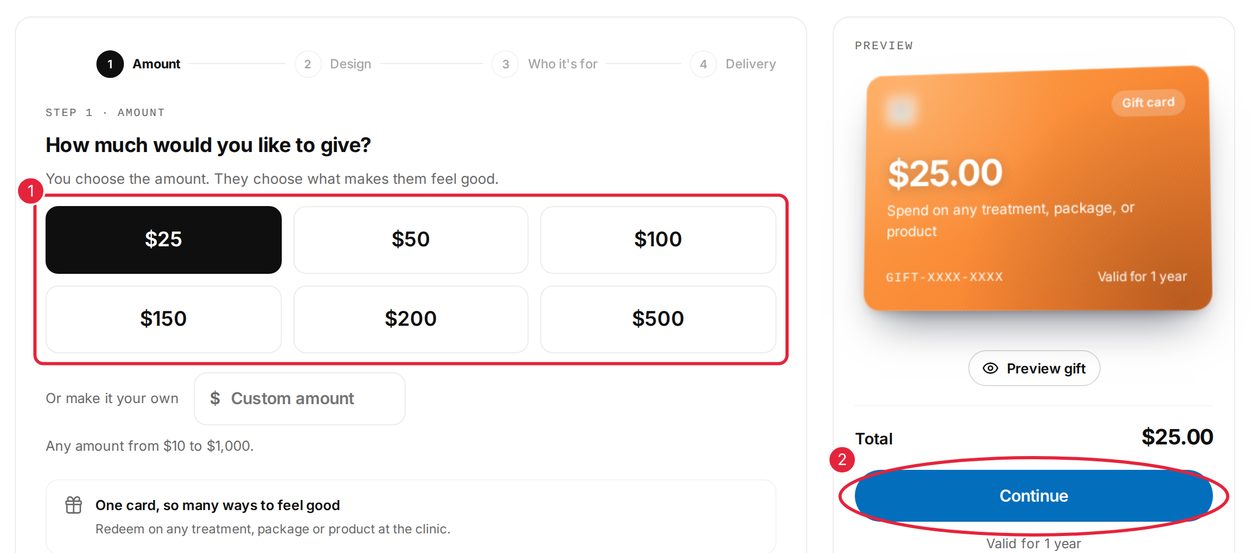
Pick an amount or enter your own, then click Continue
The card on the right shows a live preview of your gift card, the total and how long it is valid for. Click Preview gift at any time to see it the way the recipient will.
Step 3: Pick a Design
- Use the occasion buttons, such as Birthday, Thank you or Wedding, to narrow the designs down, or leave All designs selected.
- Click the design you like.
- Click Continue.
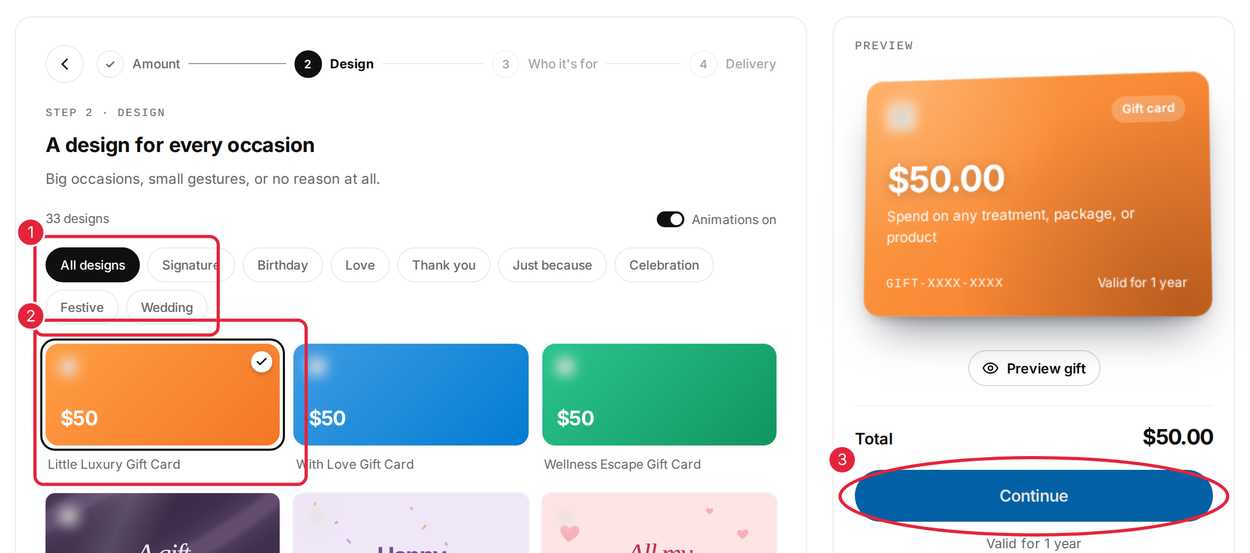
Filter by occasion, choose a design and click Continue
Step 4: Add the Recipient and a Message
- Enter Their name and Their email.
- Write a message in Message, optional, or click one of the ideas under A little inspiration to fill it in for you.
- Click Continue.
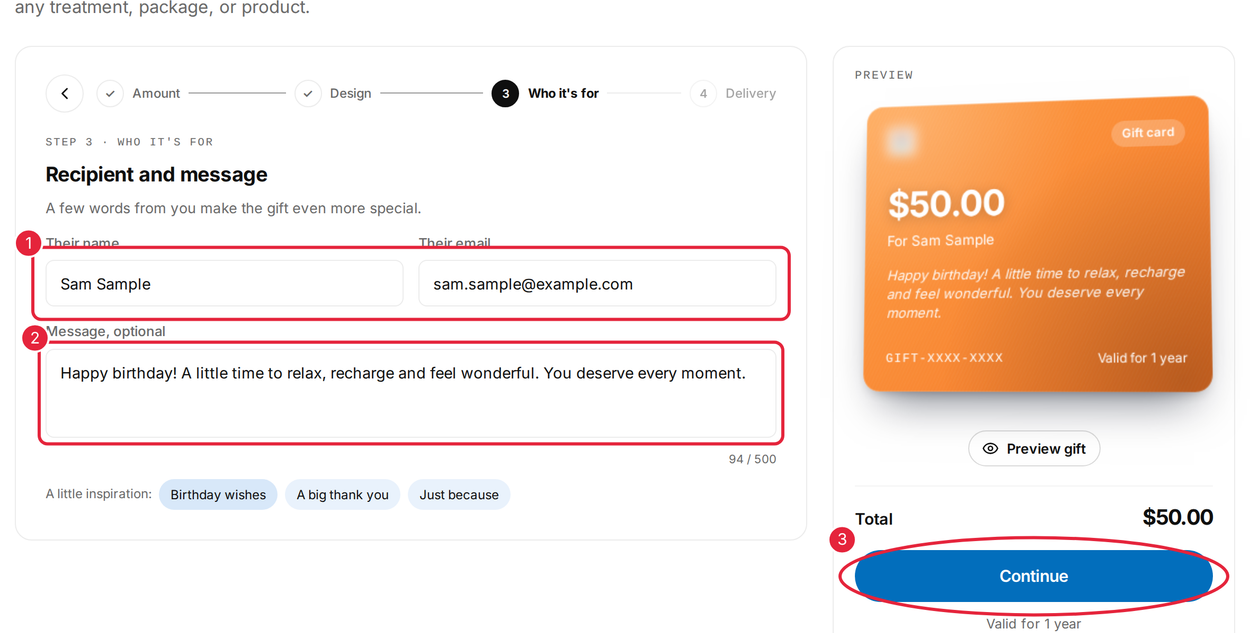
Add who it’s for and a personal message
NOTE: Buying the gift card for yourself? Choose Email it to me in the next step. On a phone, you can choose Me at this step instead.
Step 5: Choose Delivery and Buy
- Choose Email the recipient to send the gift card straight to them, or Email it to me to receive it yourself and pass it on.
- Check The details. Click Edit next to anything you want to change.
- Click Buy gift card (the button shows the total). Enter your payment details and click Pay.
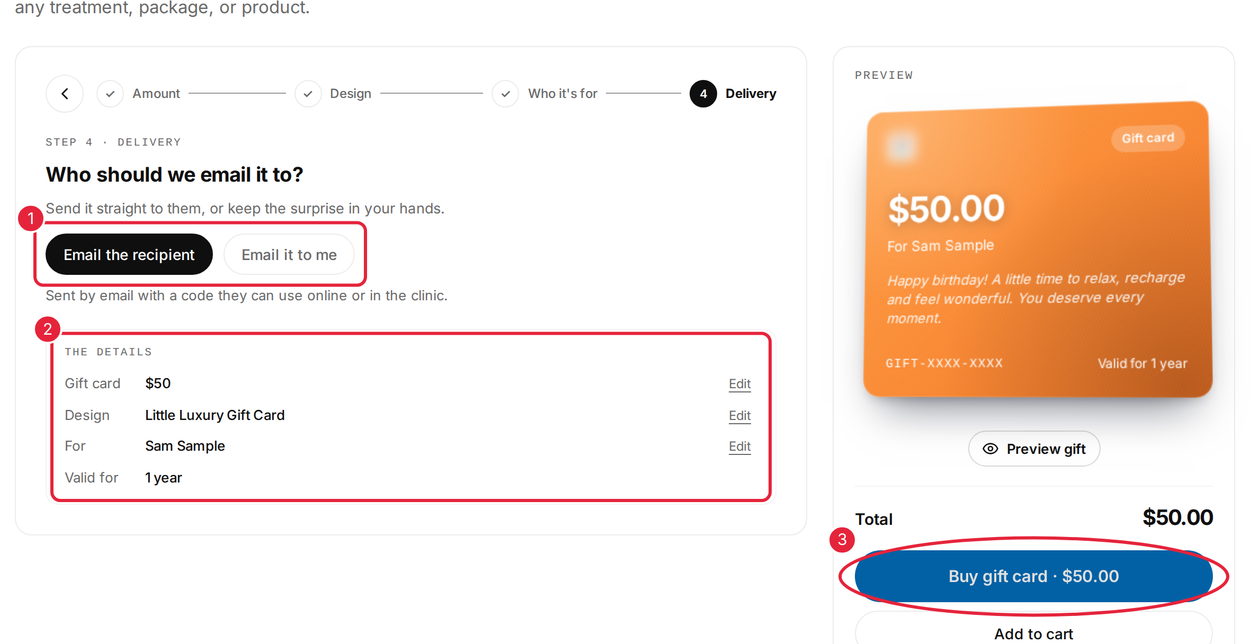
Choose who receives the email, check the details and click Buy gift card
When the payment goes through, you will see Gift card sent. The recipient gets an email with the gift card and its code, which they can use online or at the clinic. A gift card you send to yourself also appears in My Gift Cards in your client portal.
TIP: Want to buy other things at the same time? Click Add to cart instead of Buy gift card, then check out from your basket. You can have one gift card in each basket.
Using a Gift Card
To spend a gift card when you book online, click Add gift card (or Add gift card or promo code) at the payment step and enter its code — if your clinic accepts gift cards online. You can also save a code to your account: in your client portal, open My Gift Cards, enter the code under Have a gift card code? and click Add to wallet.
What's next?
To send a gift card from your phone, read How to Buy a Gift Card for Someone Else. For memberships and packages, read How to Buy a Membership, Package or Gift Card Online.
Are you a clinic? See How to Sell Memberships, Packages, Products and Gift Cards in Your Online Store to set up gift cards.
Questions? Reach us any time via the in-app chat — we’re happy to help.
Was this guide helpful? Let us know by voting below - your feedback helps us write clearer articles.
For more guides, browse the related articles below or use the search bar at the top of the page. You can also watch our video learning series, the Pabau Academy, or visit the Support page for additional help.