
NOTE: Your clinic decides which options you see, so some of the steps below may look slightly different or be skipped.
In this article, you will learn how to buy a membership, a package of sessions or a gift card from your clinic’s online store, and how to use a gift card or promo code.
NOTE: You need to be signed in to buy anything in the store — see How to Use Your Client Portal (New Client Portal). If your clinic has more than one location, you may be asked which one you are buying from.
Step 1: Open the Store and Choose a Membership
- On your clinic’s booking page, use the menu at the top (1) to open Memberships, Packages, Shop or Gift Card. You only see the tabs your clinic sells. You can also use the Explore section on the first page of the booking page.
- On Memberships, search by name, perk or service (2) if there are a lot of plans.
- Click Subscribe monthly (3) on the plan you want, or
- click See what’s included (4) first to see what you get each period, what it costs and the terms.
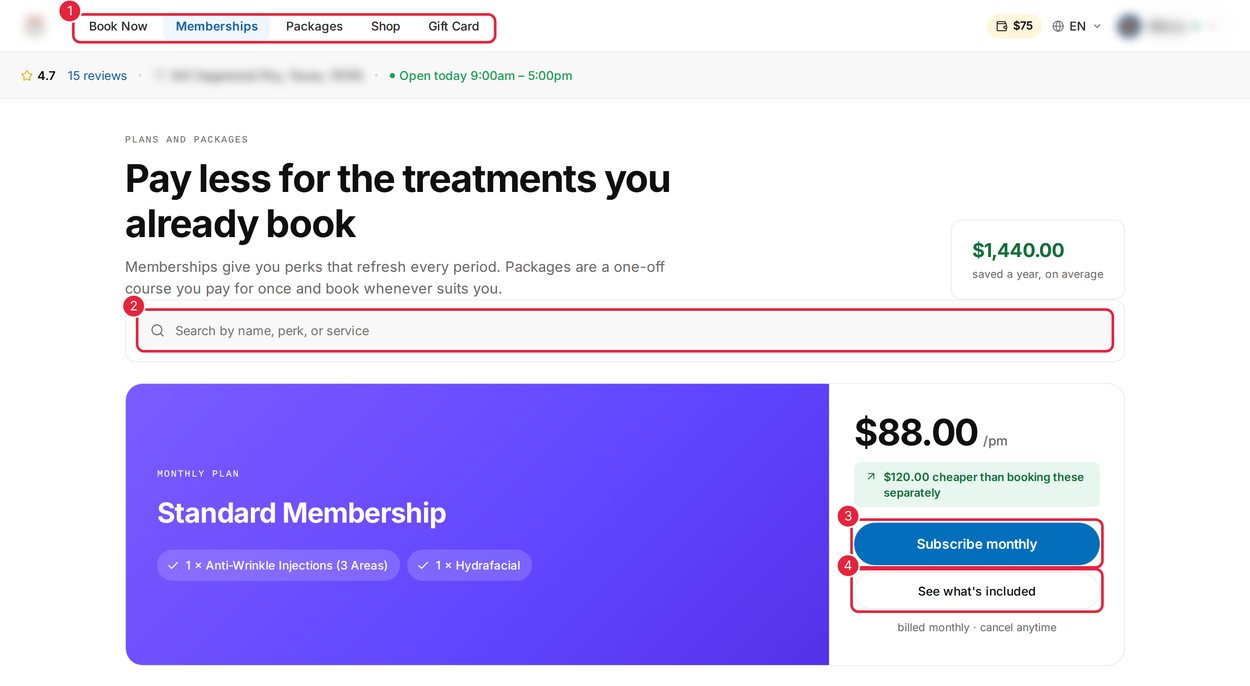
The Memberships tab
Step 2: Start Your Membership
- Enter your card details (1). Your card goes straight to the payment provider — the clinic never sees it.
- Click Start membership (2). Your first payment, and any joining fee, is taken now. You then see Your membership is set up. The invoice appears in your account once the payment has gone through.
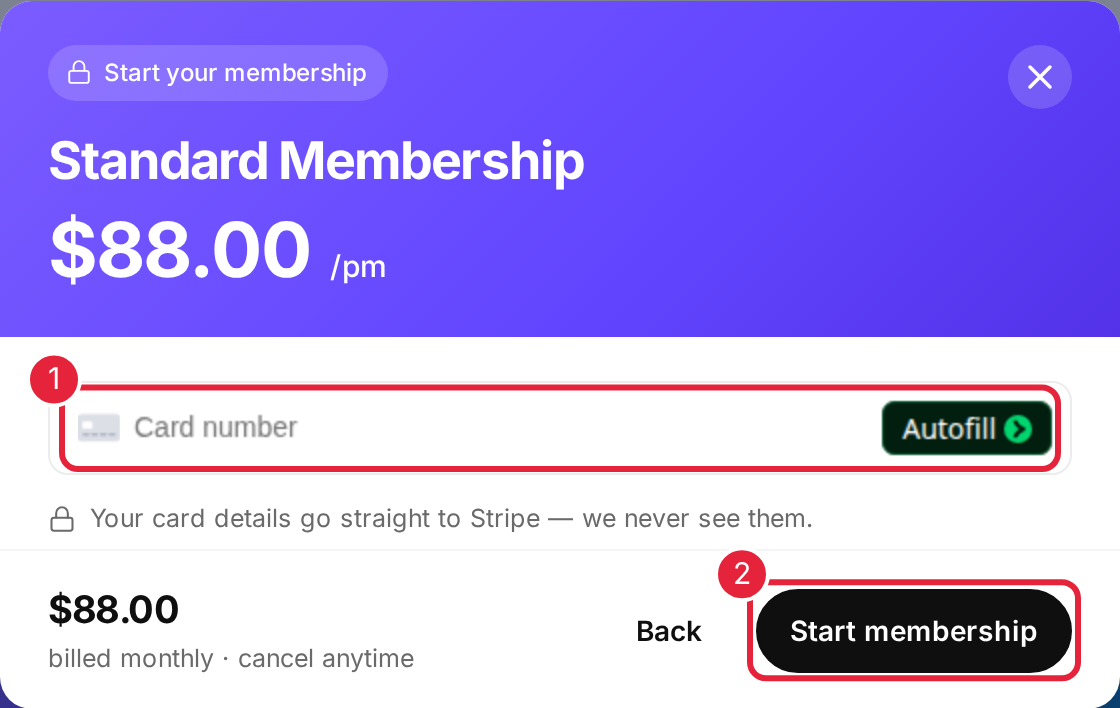
Enter your card and start your membership
NOTE: Memberships renew automatically on your billing date. Perks refresh each period and do not roll over unless your plan says so. You can pause or cancel from My Memberships in your client portal. A membership is paid for on its own, separately from anything else you buy. If your clinic offers it, you can also join a membership while you book an appointment — see How to Book an Appointment Online (New Booking Page).
Step 3: Buy a Package
A package is a set number of sessions, paid for once, at a lower price per session. Open Packages, filter by category or search, and click More info on the package you want.
- If there is a choice, pick how many sessions you want (1). The price per session and your saving update as you choose.
- Click Add to cart (2) to keep shopping, or
- click Buy now (3) to pay straight away.
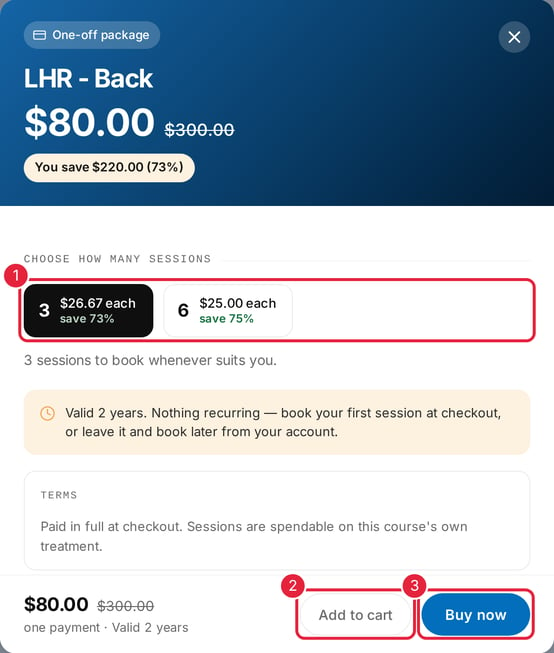
Choose your sessions, then buy the package
The package is paid in full. Your sessions are saved to your account, so you can book them whenever suits you — see My Packages in your client portal.
Step 4: Buy a Gift Card
Open Gift Card. The steps along the top (1) take you through Amount, Design, Who it’s for and Delivery.
- Click an amount (2), or
- type your own under Or make it your own (3). The limits are shown underneath.
- Click Continue (4). On Design, pick a card design, then click Continue again.
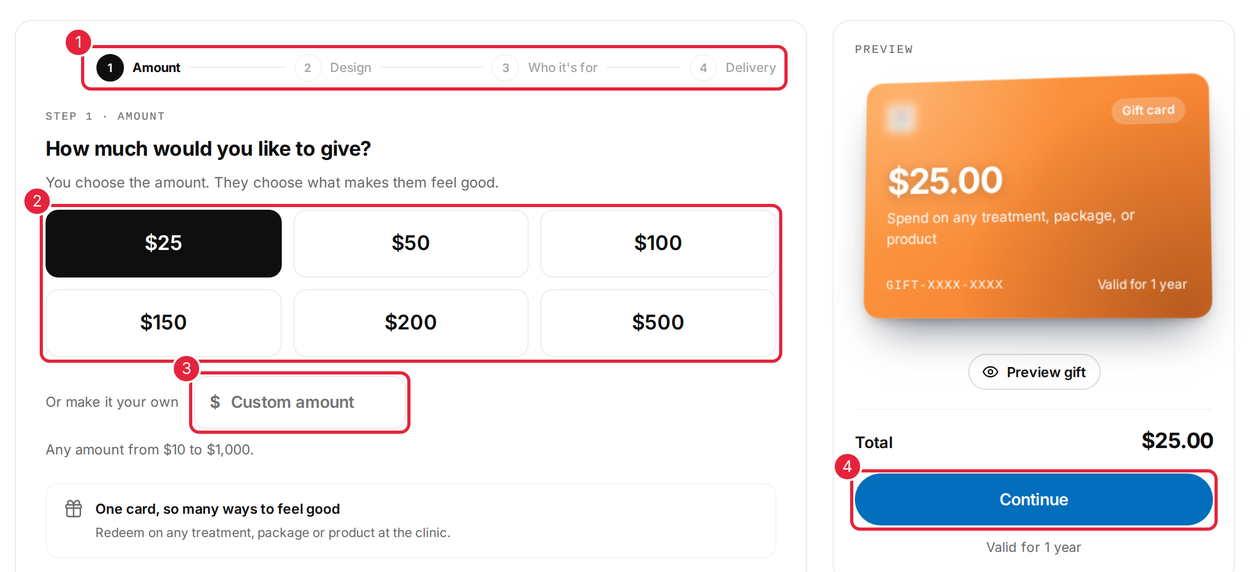
Choose an amount
On Who it’s for:
- Enter the recipient’s name and email address (1). On a phone, you choose Someone else or Me first. If the gift card is for you, there is no recipient to fill in and the card is emailed to you.
- Add a message (2), if you like.
- Click an idea under A little inspiration (3) to start your message for you.
- Click Continue (4). The preview on the right shows how the card will look.
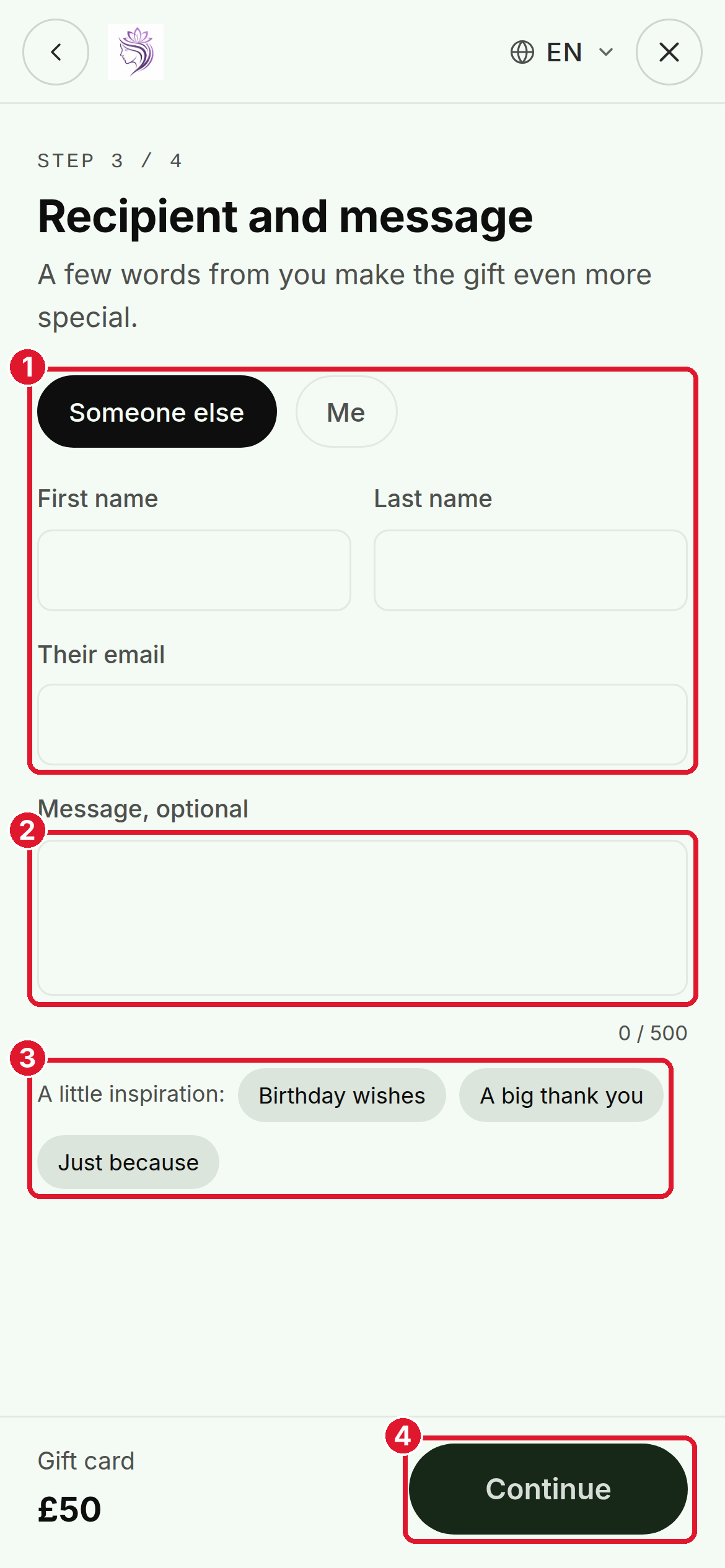
Say who the gift card is for (on a phone, choose Someone else or Me)
On Delivery:
- Choose Email the recipient, or Email it to me to pass it on yourself (1). You are only asked for a gift card for someone else.
- Check The details (2). Click Edit to change anything.
- Click Buy gift card (3) to pay now, or
- click Add to cart (4) to keep shopping.
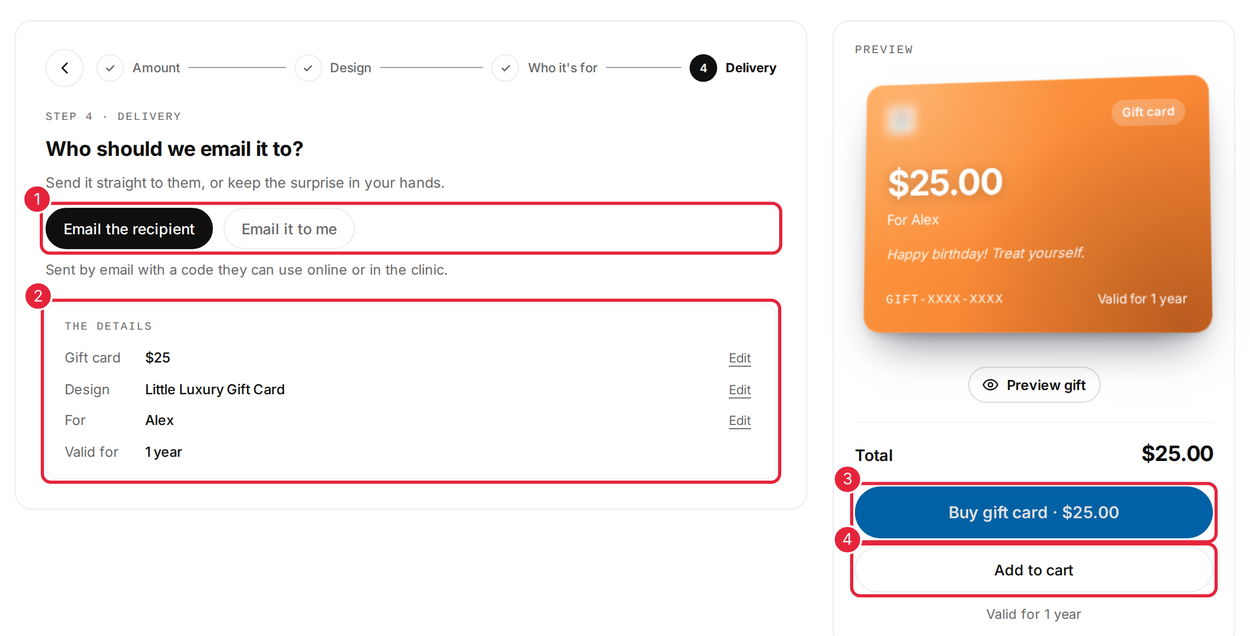
Choose how the gift card is delivered
The gift card is emailed with a code that can be used online or at the clinic. If someone gives you a gift card, add it to My Gift Cards in your client portal with Add to wallet.
Step 5: Use a Gift Card or Promo Code
Codes are entered in your basket, so click Add to cart instead of buying straight away. Then click View in the bar at the bottom of the page.
- Click the bin (1) to remove something from your basket.
- Under Gift card or promo code (2), enter your code and click Apply. Your saving is shown when the code is accepted.
- Click Checkout (3) to pay.
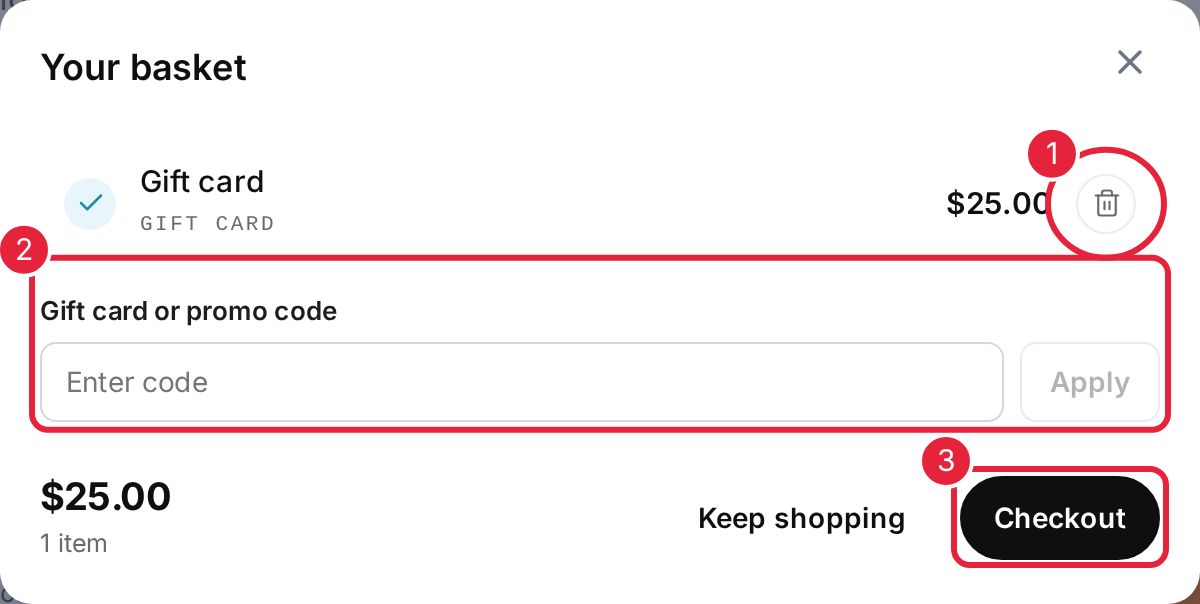
Enter a code in your basket
When you book an appointment, you can also use a code on the booking page under Add gift card or promo code.
If you see This clinic isn't accepting online purchases right now., the clinic’s online store is closed for the moment. Please contact the clinic directly.
What's next?
- Ready to book? Read How to Book an Appointment Online (New Booking Page).
- To manage what you have bought, read How to Use Your Client Portal (New Client Portal).
Questions? Reach us any time via the in-app chat — we’re happy to help.
Was this guide helpful? Let us know by voting below - your feedback helps us write clearer articles.
For more guides, browse the related articles below or use the search bar at the top of the page. You can also watch our video learning series, the Pabau Academy, or visit the Support page for additional help.