
Print a small barcode label for a client in a couple of clicks, ready to stick on a specimen tube, sample bag, wristband or paper record. The barcode holds the client's Client ID, and the label also shows their name and date of birth. For a full sheet of address or patient labels, use Print Labels instead (see the guide linked below).
Step 1: Open the Client Card
Go to Clients, search for the client and click their name to open their client card.
Step 2: Choose Print Patient Barcode
- Click Actions at the top of the client card, above the client's details.
- Click Print Patient Barcode.
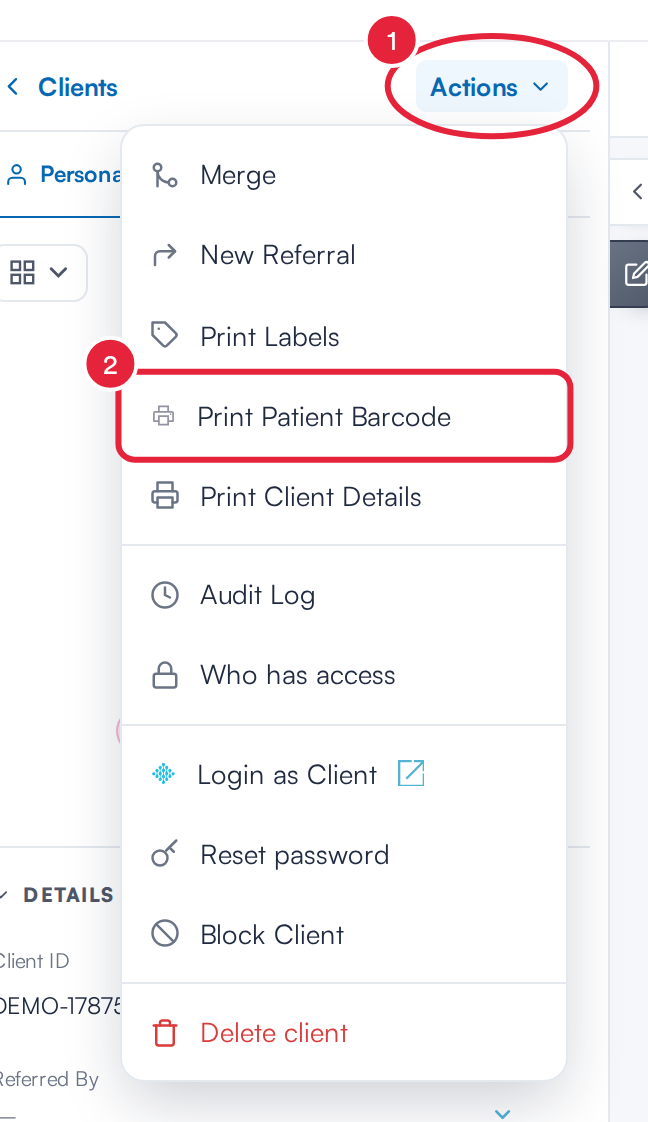
Actions → Print Patient Barcode
Step 3: Print the Label
The Print Patient Barcode view opens and your browser's print window appears straight away.
- In the print window, choose your label printer, then follow the hint at the top of the page: In the print dialog, set Scale to 100% (Actual size) and turn off "Fit to page". This keeps the bars at their true size so scanners can read them.
- Check the label: the barcode with the Client ID printed under it, the client's name, and their date of birth and gender, for example 31/12/1986 / F.
- Need another copy? Click Print at the top right to open the print window again. Click Close, or press Escape, to go back to the client card.
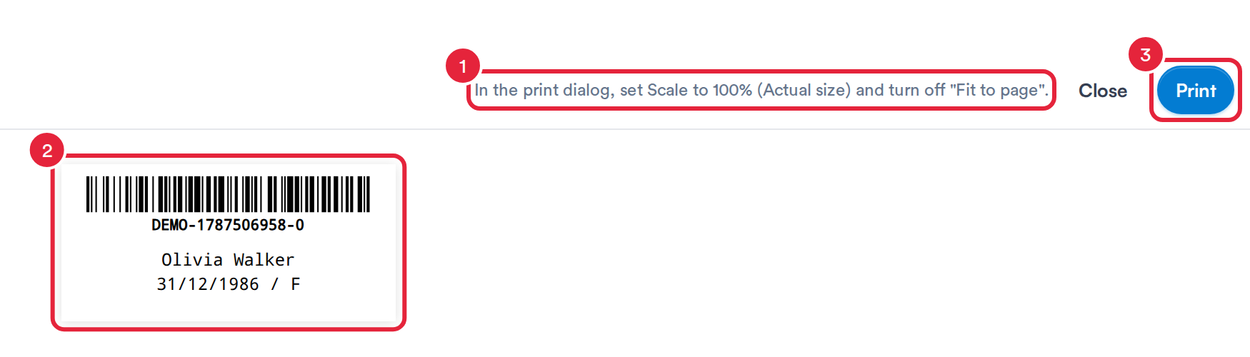
The patient barcode label
NOTE: The label is 62 mm wide, and wider for a long Client ID, so it suits 62 mm label rolls. If the client has no Client ID, the barcode uses Pabau's own number for the client instead.
IMPORTANT: If you see Unable to print a barcode. The Client ID must contain only letters, numbers, spaces or standard punctuation., the client's Client ID contains a character a barcode can't hold, such as an accented letter. Print stays greyed out until the Client ID uses only plain letters, numbers, spaces and punctuation.
What's next?
Was this guide helpful? Let us know by voting below - your feedback helps us write clearer articles.
For more guides, browse the related articles below or use the search bar at the top of the page. You can also watch our video learning series, the Pabau Academy, or visit the Support page for additional help.