
A lead preview shows a lead’s contact details, owner, source, location and labels in a panel at the side of the screen, so you can check who someone is without opening the full lead card and losing your place. On the pipeline board you can also open the whole lead card in a side panel and close it again when you are done.
NOTE: You need the Can access leads page permission to use the Leads list, or Can access pipeline page to use the board.
Step 1: Preview a Lead From the Leads List
- Open Leads from the left sidebar and switch to List, then hover over a lead.
- Click the eye icon (Preview) next to the lead’s name.
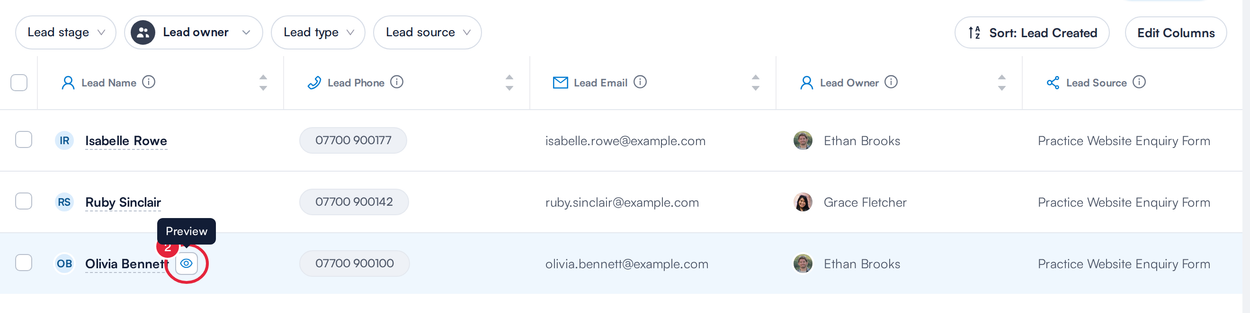
The Preview icon appears when you hover over a lead
Step 2: Read the Lead Preview
The Lead preview panel shows the lead’s photo or initials, name and status (Open, Won or Lost). Under About this lead you will find their Email and Phone (click either to email or call them), Owner, Source, Location and Labels.
- Click View record to open the full lead card. When you go back to the list, it keeps the filters and page you were on.
- Click ×, or press Esc, to close the preview.
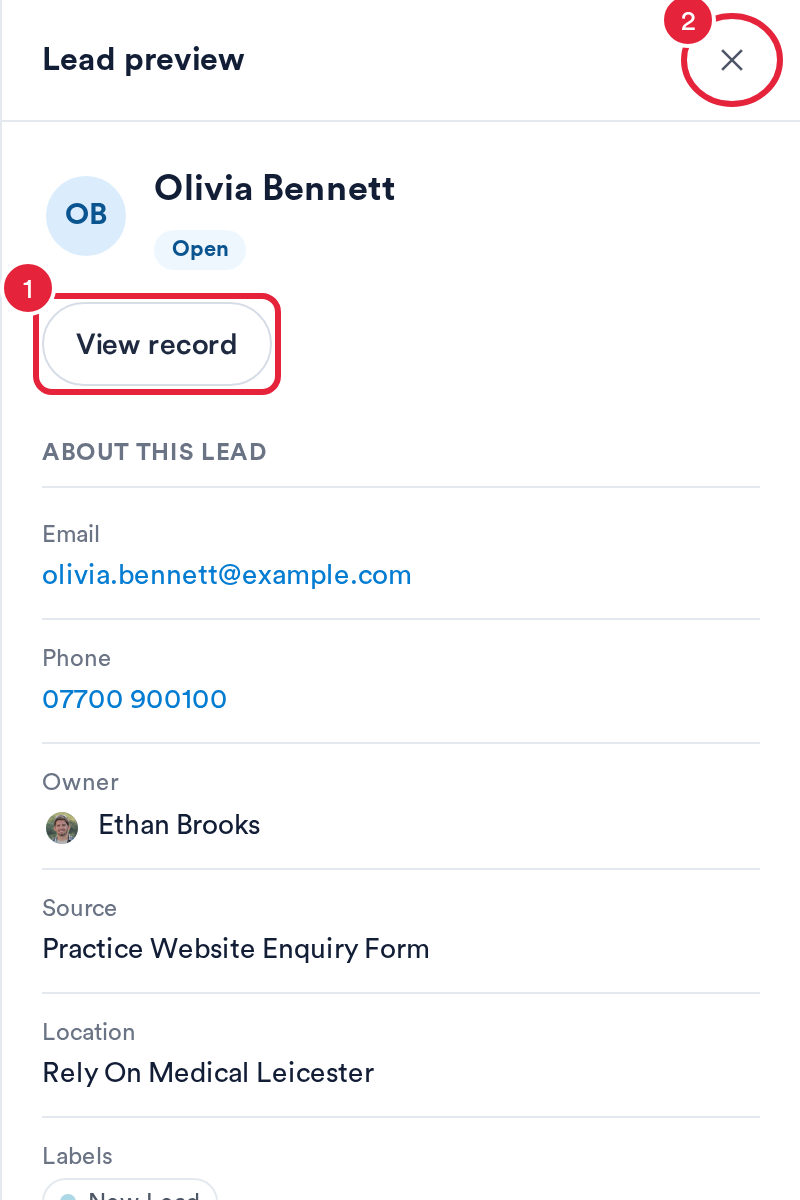
The Lead preview panel
TIP: The preview sits beside the list rather than over it, so you can keep scrolling and click the eye icon on another lead to preview them instead.
Step 3: Preview or Open a Lead From the Pipeline Board
- Click the lead’s name on its card to open the Lead preview.
- Or hover over the card, click its ⋯ button and choose Preview lead.
- To work on the whole lead card, choose Open lead from the same menu. The lead card opens in a side panel over the board, where you can update it just as you would on the full page.
- Click × to close the side panel. The board refreshes to show your changes.
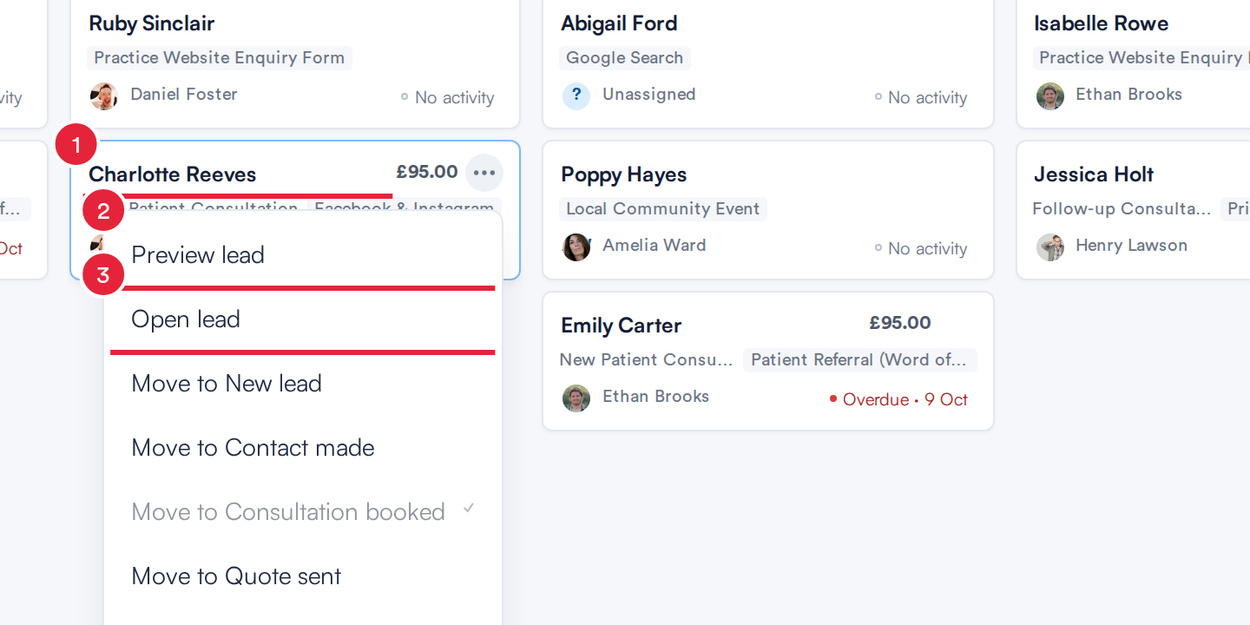
Preview or open a lead from its card on the board
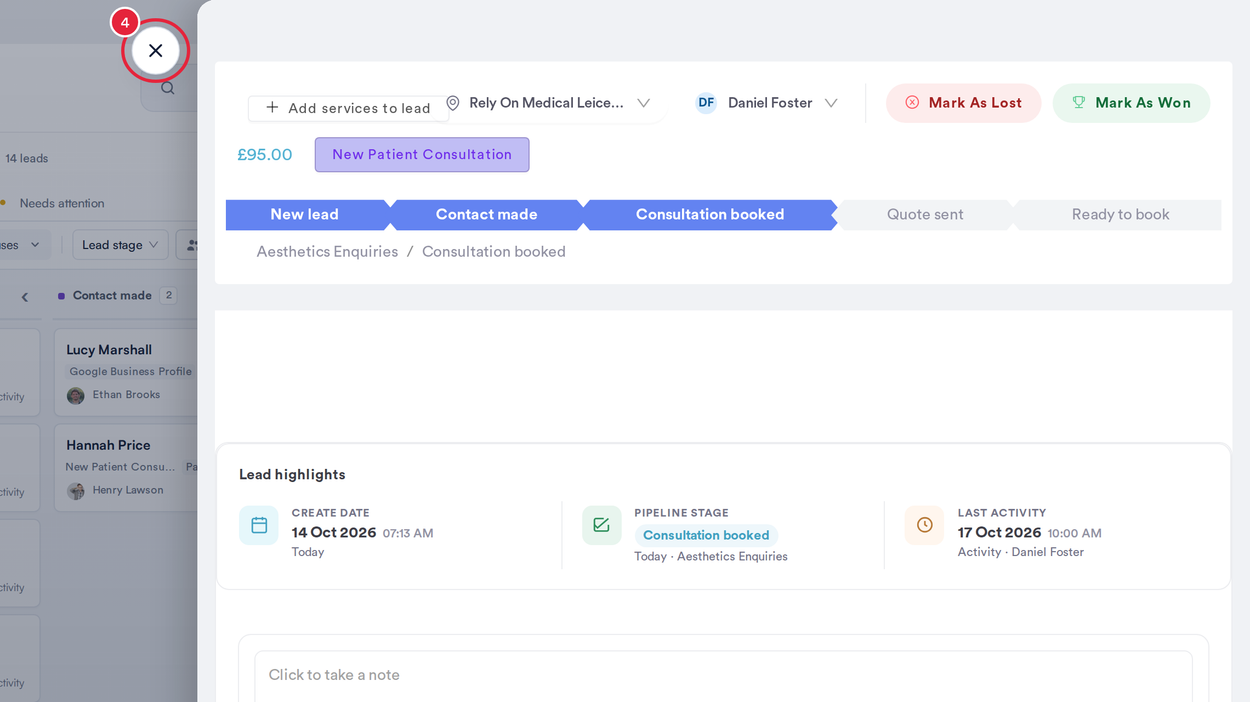
Open the full lead card without leaving the board
What's next?
Was this guide helpful? Let us know by voting below - your feedback helps us write clearer articles.
For more guides, browse the related articles below or use the search bar at the top of the page. You can also watch our video learning series, the Pabau Academy, or visit the Support page for additional help.