
Short questions don’t need a full line each. In the form builder you can place up to four questions side by side in one row, for example weight, height and BMI, so forms are shorter and quicker to fill in on the client card.
Step 1: Open the Form
Go to Setup, click Forms under Clinical and open the form. Make sure you are on the Edit tab with the Components list showing.
Step 2: Drop a Question Onto the Edge of Another
- Drag a component from the Components list, or a question that is already on the form, over the left or right edge of a question on the form. A blue bar appears on that edge.
- Let go. The question you dragged sits next to the other one, on the side you chose.
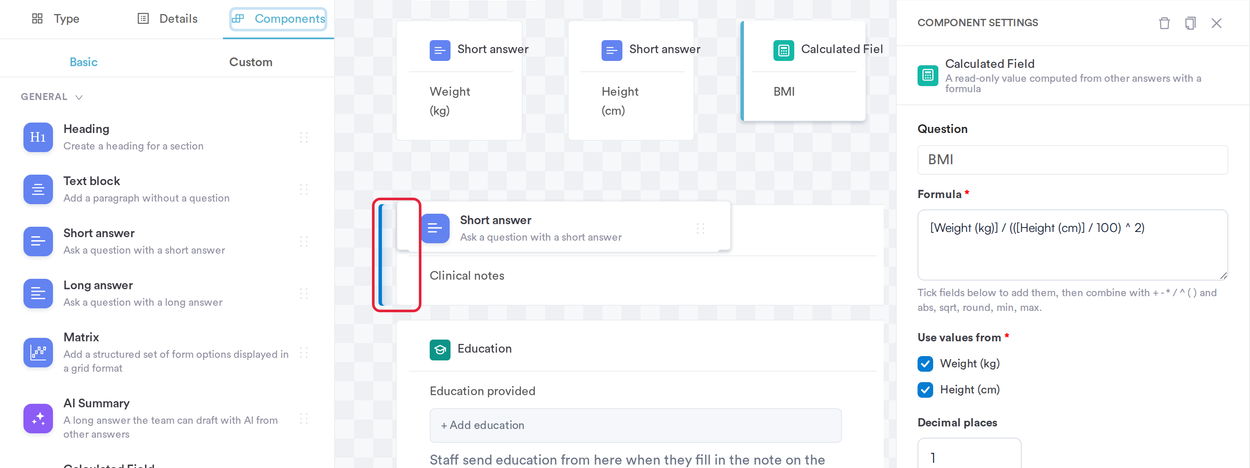
The blue bar shows which side the question will join
NOTE: If no blue bar appears, the question can’t go in that row (or the row already has four questions) and is added above or below instead. Rows are for compact questions only: Short answer, Long answer, Dropdown, Single Choice, Multiple Choices, Slider, AI Summary and Calculated Field.
Step 3: Build the Row
Drop more questions onto the edges of the row to add them, up to four per row. To take a question out of a row, drag it to a different place on the form.
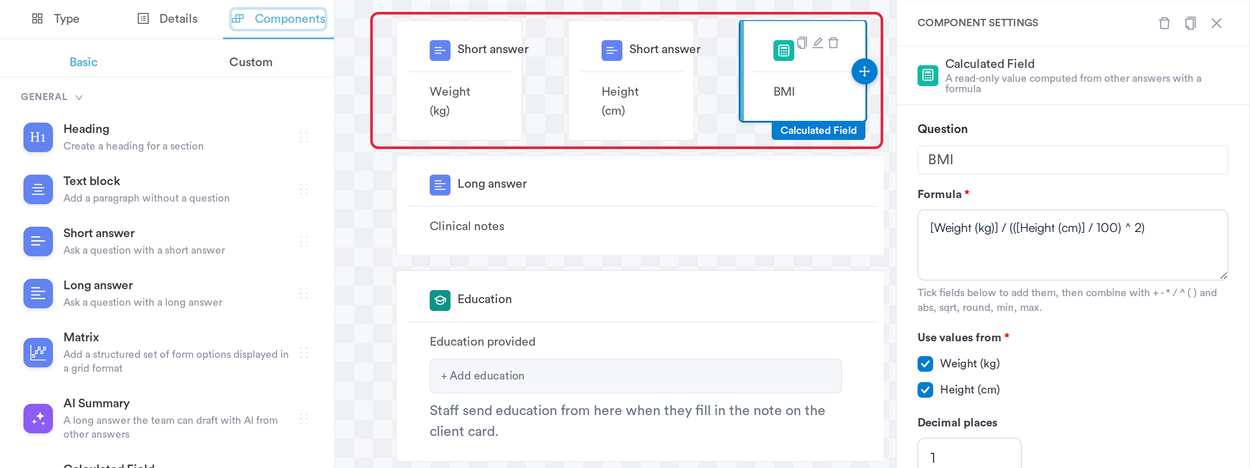
Weight, height and BMI in one row
Step 4: Save the Form
Click Save Form, then Publish. Use Preview to check the layout before you publish.
When your team fills in the form on the client card, the questions in a row appear next to each other. On a narrow screen, such as a phone, they stack one under another automatically.
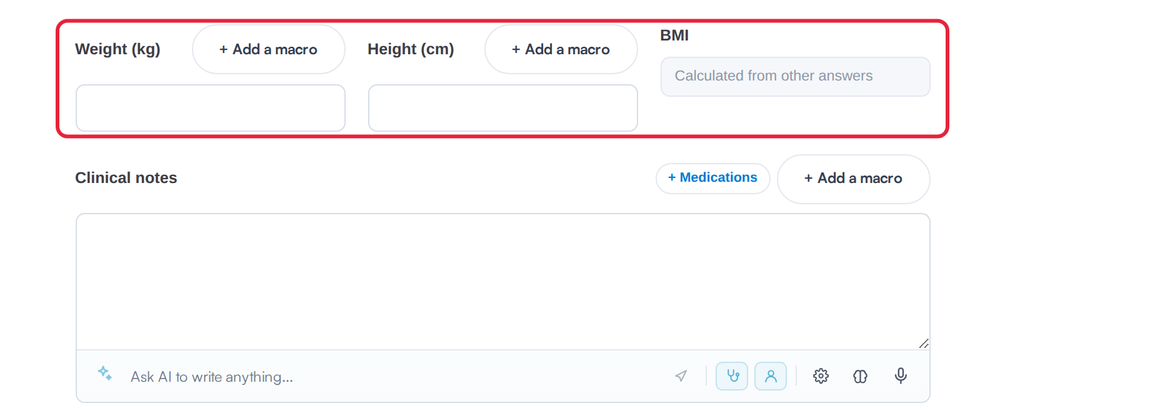
The same row in a treatment note on the client card
NOTE: Rows only change how the form looks, not the questions or answers. Places that don’t support rows yet, such as forms clients fill in online, show the questions one under another as before.
What's next?
Was this guide helpful? Let us know by voting below - your feedback helps us write clearer articles.
For more guides, browse the related articles below or use the search bar at the top of the page. You can also watch our video learning series, the Pabau Academy, or visit the Support page for additional help.