
Folders let you organize the reports you use most into your own structure inside Pabau's new reports experience — for example, a "Month-end" folder for your finance reports or a folder per location.
In this article, we'll show you how to create, rename, and delete folders, how subfolders work, how to browse a folder's contents, and how reports are placed into folders.
Step 1: Open the Reports Catalogue
Log in to your Pabau account. In the left sidebar, hover over Analytics and click Reports. The reports catalogue opens, with your folders in the left sidebar.
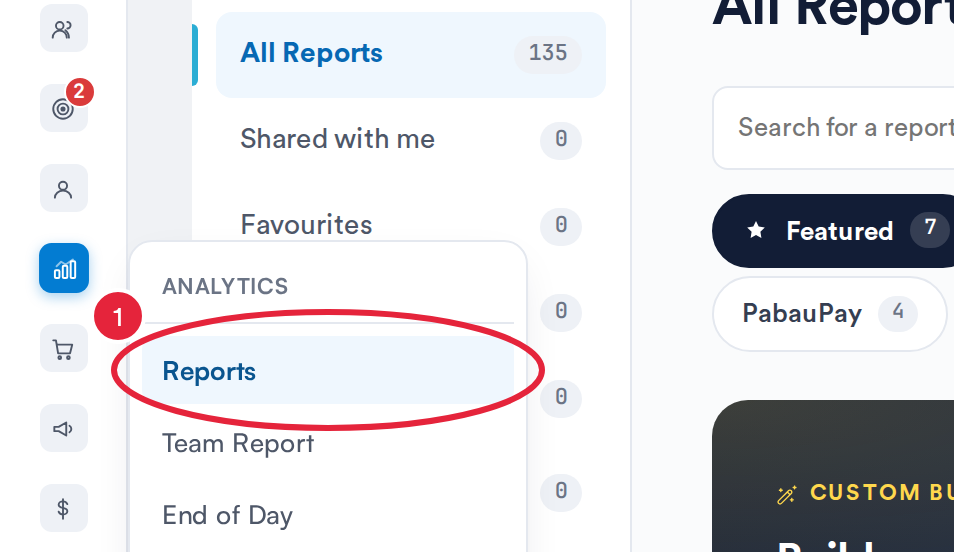
Analytics → Reports opens the reports catalogue
Step 2: Create a folder
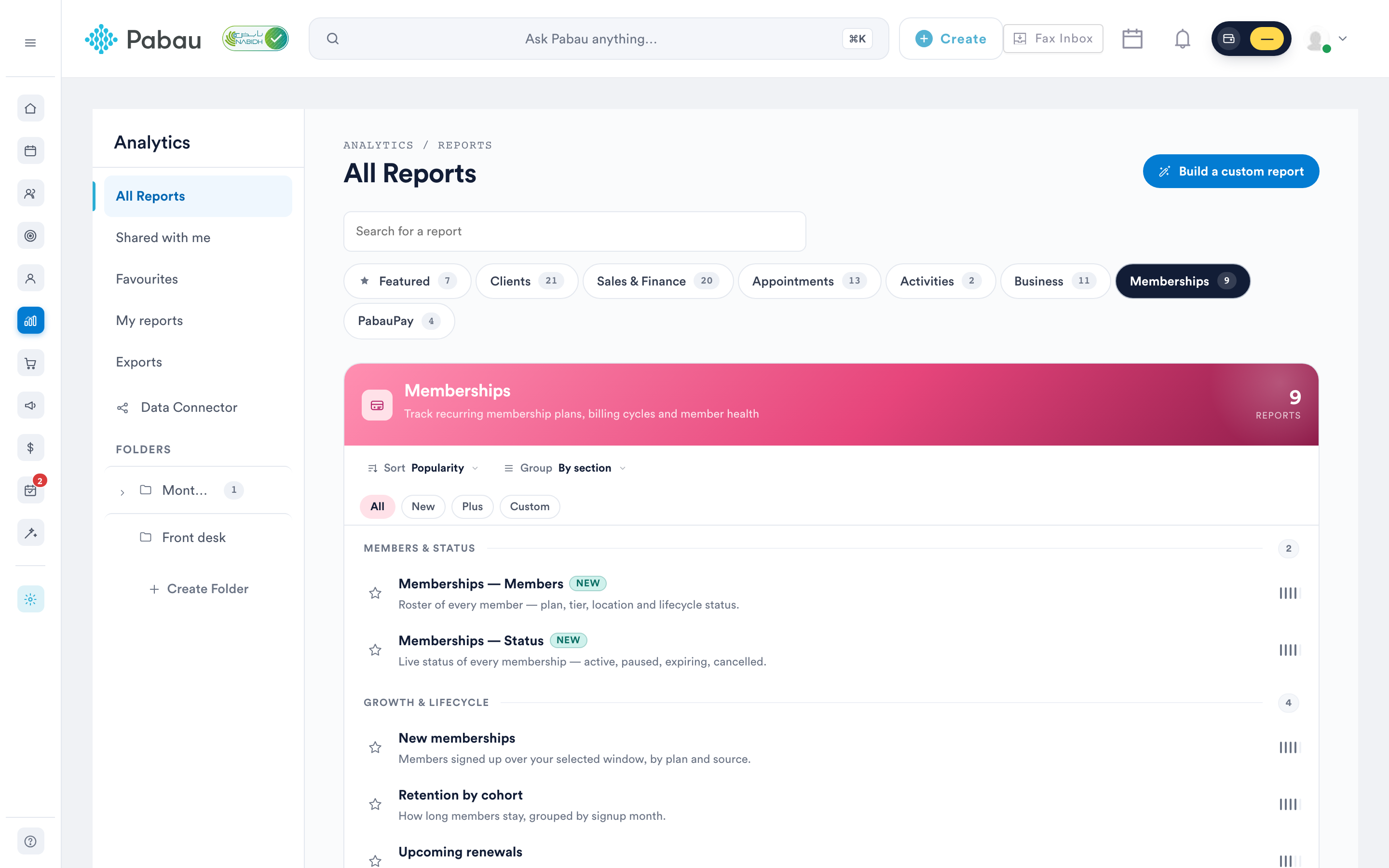
In the left sidebar of the reports catalogue, find the "Folders" section and click the "Create Folder" button. In the "New folder" window, enter a name and click Save. The folder appears in the sidebar right away.
Step 3: Create a subfolder
Each folder row in the sidebar has a three-dot menu. Click it and choose "New subfolder", then name the subfolder and click Save. You can also create one from inside the folder itself using the "New subfolder" button in the folder view.
Folders that contain subfolders show an expand arrow and a count of the subfolders they hold — click the arrow to expand or collapse the branch.
NOTE: Subfolders go one level deep — you can create subfolders inside a top-level folder, but not inside another subfolder.
Step 4: Rename a folder
Click the folder's three-dot menu and choose "Rename". Update the name in the "Rename folder" window and click Save.
Step 5: Delete a folder
Click the folder's three-dot menu and choose "Delete". A confirmation window asks "Are you sure you would like to delete this folder?" — if the folder contains subfolders, it also warns: "This action will delete all the sub-folders in this folder." Click Yes to confirm or No to cancel.
IMPORTANT: Deleting a folder removes the folder together with all of its subfolders. The reports themselves are not deleted — they remain available in the reports catalog.
Step 6: Browse a folder
Click a folder's name in the sidebar to open the folder view. Here you'll find:
- A Back button and a breadcrumb (Folders / parent folder / current folder) for quick navigation.
- A "New subfolder" button (on top-level folders).
- A Subfolders grid — each card shows the subfolder's name and how many reports it contains; click a card to open it.
- The folder's report list, where each report keeps its favorite star. Click a report to open it.
An empty folder shows the message "No reports in this folder yet — add some from a report card."
Step 7: Add reports to a folder
- Custom reports: when you build or edit a custom report, the builder's header includes a folder dropdown (set to "No folder" by default) — pick a folder there and the report is filed into it when you save. See How to Create a Custom Report from Scratch.
- Moving and removing: from the reports list's Folders tab, each report inside a folder has a three-dot menu with "Move to another folder" (opens a "Move report to another folder" window where you choose the target folder) and "Remove from folder".
NOTE: You'll need the "Can access reports page" permission to open the reports catalog and work with folders.
By following these steps, you can keep your reports catalog tidy and put the reports each team needs one click away. To surface individual reports even faster, you can also mark them as favorites — see How to Favorite a Report — and track your report downloads on the Exports page.
For more guides, refer to related articles below, select additional guides, or use the search bar at the top of the page. These guides will help you get the most out of your Pabau account.
Additionally, to help you fully utilize and understand your Pabau account, we recommend exploring additional guides and resources offered at the Pabau Academy. It offers in-depth video tutorials and lessons, offering a holistic learning experience that can equip you with the essential skills for achieving success with Pabau.