
When you export a report from Pabau's new reports experience, the file is generated in the background. The Exports page is where you track those exports and download the finished files.
In this article, we'll show you how to open the Exports page, what each status means, and how the one-hour download window works.
Step 1: Open the Exports Page
Log in to your Pabau account. In the left sidebar, hover over Analytics and click Reports.
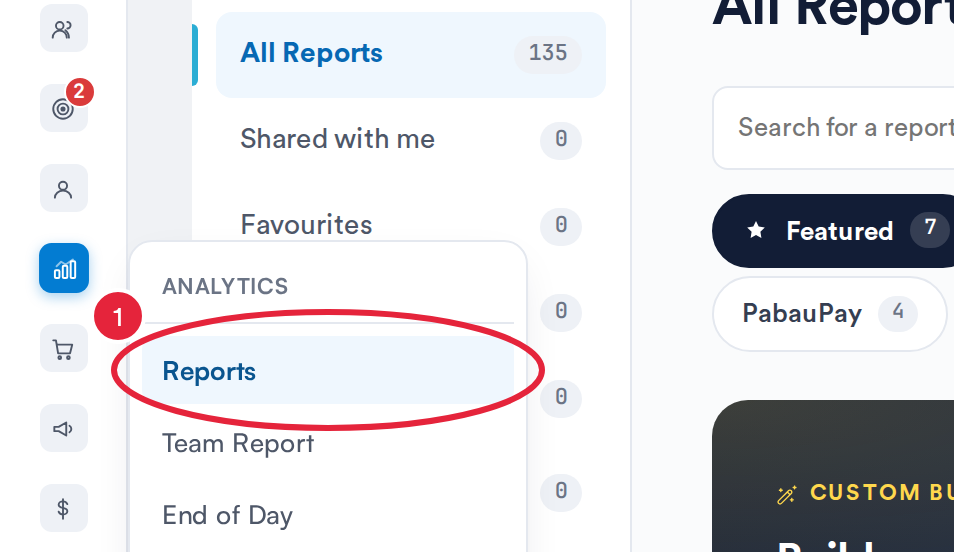
Analytics → Reports opens the reports catalogue
In the reports catalogue, click "Exports" in the left sidebar — you'll find it between "My reports" and "Data Connector". It's a regular link, so you can also open it in a new tab.
NOTE: Right after you export a report from the new report viewer, the confirmation message links you straight to this page, so you don't need to navigate to it manually.
Step 2: Read the exports table
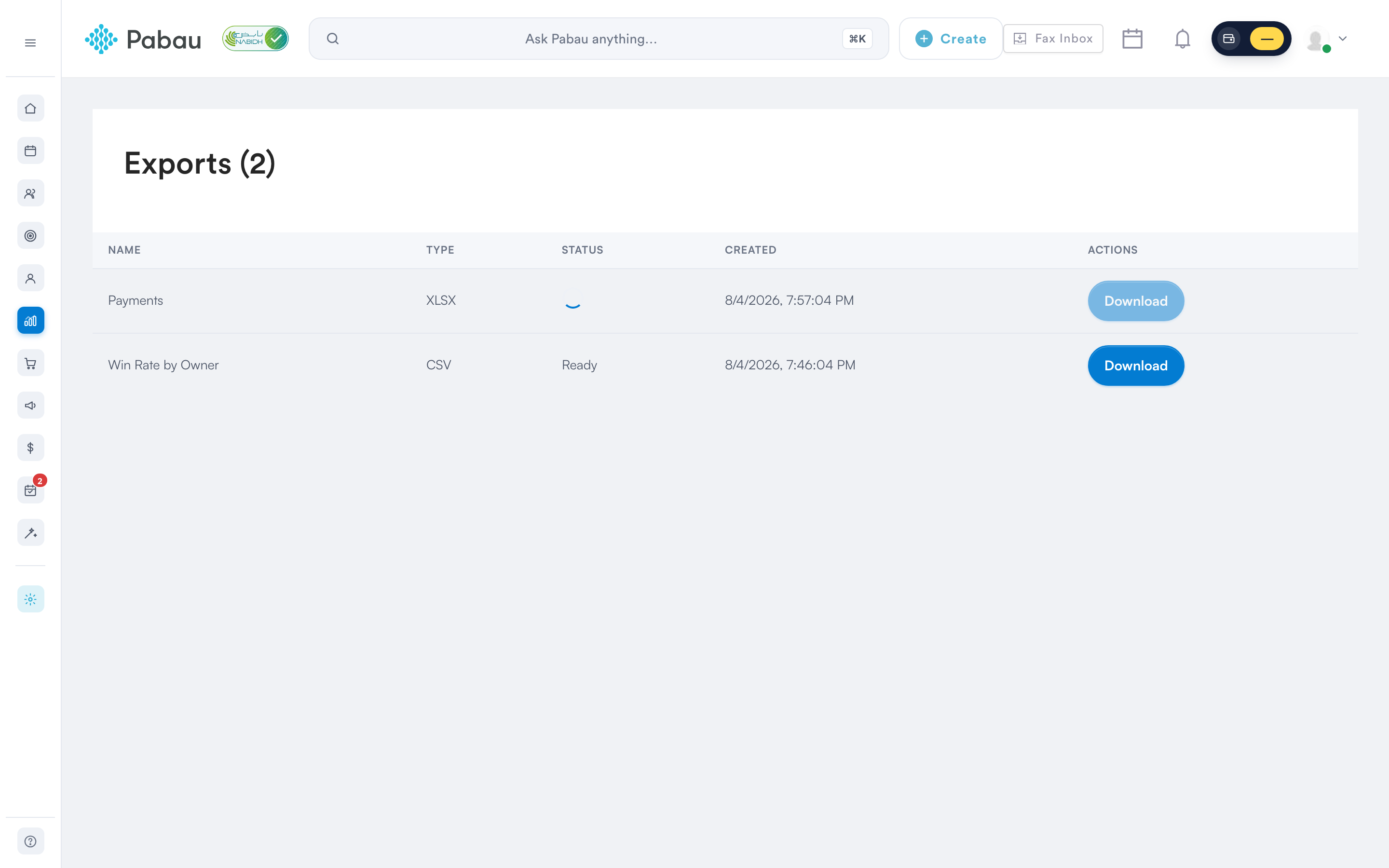
The page heading shows "Exports" along with a count of your exports from the last hour. The table updates live — you don't need to refresh the page while an export is being generated. It has the following columns:
- Name: the name of the export.
- Type: the file format, such as XLSX, CSV, or PDF.
- Status: where the export is in its lifecycle (see below).
- Created: the date and time the export was created, in your local time.
- Actions: the Download button.
The Status column can show one of four values:
| Status | What it means |
|---|---|
| Processing... | The file is still being generated — a spinner is shown while you wait. |
| Ready | The file has been generated and can be downloaded. |
| Failed | The export ran into an error. Run the export again from the report. |
| Expired | The export is more than one hour old and can no longer be downloaded. |
Step 3: Download your file
Once an export shows Ready, click the Download button in the Actions column — the file opens in a new tab. The button is only clickable while the export is Ready and less than one hour old; on an expired row it is disabled, and hovering over it shows the message "Download link expired — re-run the export to get a fresh URL".
Things to keep in mind:
- Exports are available to download for one hour. After that they expire — simply re-run the export from the report to get a fresh file.
- The page only lists exports created in the last hour, so older entries drop off the list automatically.
- The list is personal — you only see exports that you created, in the account you're logged in to.
NOTE: To start an export, open the report, click the three dots (More options) at the top right and choose Export. Print (Detailed) in the same menu also creates a PDF of the whole report, which appears on this page. For the full steps, see How to Export Reports.
By following these steps, you can keep track of every report you export and download the files while they're fresh.
For more guides, refer to related articles below, select additional guides, or use the search bar at the top of the page. These guides will help you get the most out of your Pabau account.
Additionally, to help you fully utilize and understand your Pabau account, we recommend exploring additional guides and resources offered at the Pabau Academy. It offers in-depth video tutorials and lessons, offering a holistic learning experience that can equip you with the essential skills for achieving success with Pabau.