
The Apps button on the New Client Card lists the apps and integrations your clinic uses with client records, so you can open one for the client you're looking at in a single click.
Step 1: Open the Apps List
- Open the client's card. In the left panel, click the Apps & integrations icon in the row of icons above the client's photo (next to the bell).
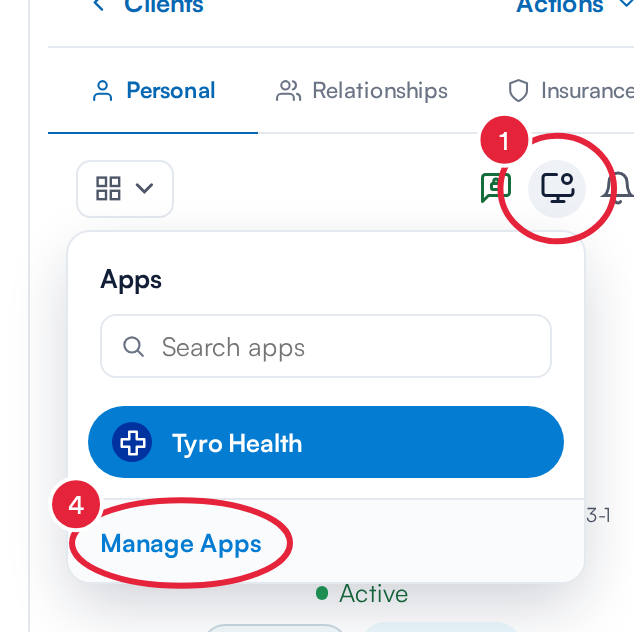
The Apps list on the client card
Step 2: Find and Open an App
- Type in Search apps to narrow the list.
- Click an app to open it for this client.
What you see in the list depends on what your clinic uses:
- Apps installed from the App Marketplace that add a button to the client card. They open in a new browser tab with the client's details filled in.
- Fullscript and Fullscript Labs, once you've connected your own Fullscript account. They open the Fullscript window for this client inside Pabau. Fullscript Labs is shown to US clinics only. See How to Use the Fullscript Integration in the Client Card.
- Open in DoseSpot, when your clinic's DoseSpot integration is connected (US). It opens this client's record in DoseSpot, after Pabau checks that you're a registered prescriber and that the client's details are complete.
- Tyro Health, when your clinic has connected Tyro Health (Australia). It opens the patient list in Tyro Health Online in a new tab, which needs your own Tyro Health login.
If none of these apply, the list shows No apps installed.
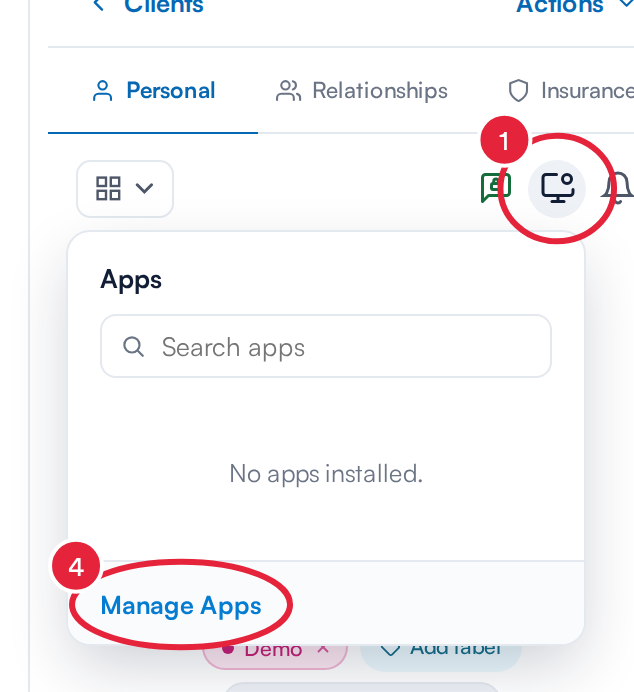
With no apps set up, the list is empty
Step 3: Add or Remove Apps
- Click Manage Apps at the bottom of the list to go to the App Marketplace, where apps are installed and removed.
NOTE: An app only appears in this list if it adds a button to the client's details. An app that's installed but has nothing to show for a client, such as an accounting app, won't be listed.
Step 4: Apps in the Create Menu
Some apps also add their own actions to the client card's Create menu (the + button at the bottom right). Click Create and look under From your apps: each item opens that app's page with the client's details filled in. If none of your apps add actions, the section doesn't appear.
What's next?
- App Marketplace
- How to Use the Fullscript Integration in the Client Card (New Client Card)
- How to Set Up the DoseSpot Integration
- Insurance Guide Part 4 (Australia): Submit and track claims with Tyro Health
Was this guide helpful? Let us know by voting below - your feedback helps us write clearer articles.
For more guides, browse the related articles below or use the search bar at the top of the page. You can also watch our video learning series, the Pabau Academy, or visit the Support page for additional help.