
This is where you lodge the claim and follow it to payment. Pabau prepares the claim from the invoice and hands the actual submission to Tyro Health’s secure window; the outcome then flows back into Pabau so you always know where a claim stands.
Step 1: Open the claim
Open the claim from the invoice (or from your Claims list). Pabau shows a review panel pre-filled from the appointment: the patient, their Medicare/DVA/fund details, the practitioner, and the MBS item line(s).
Step 2: Confirm the funder and details
Check the Funder (Medicare, DVA or Private health), the practitioner (and their provider number), and — for Medicare — whether it’s bulk billed. Anything that’s missing is flagged here before you submit.
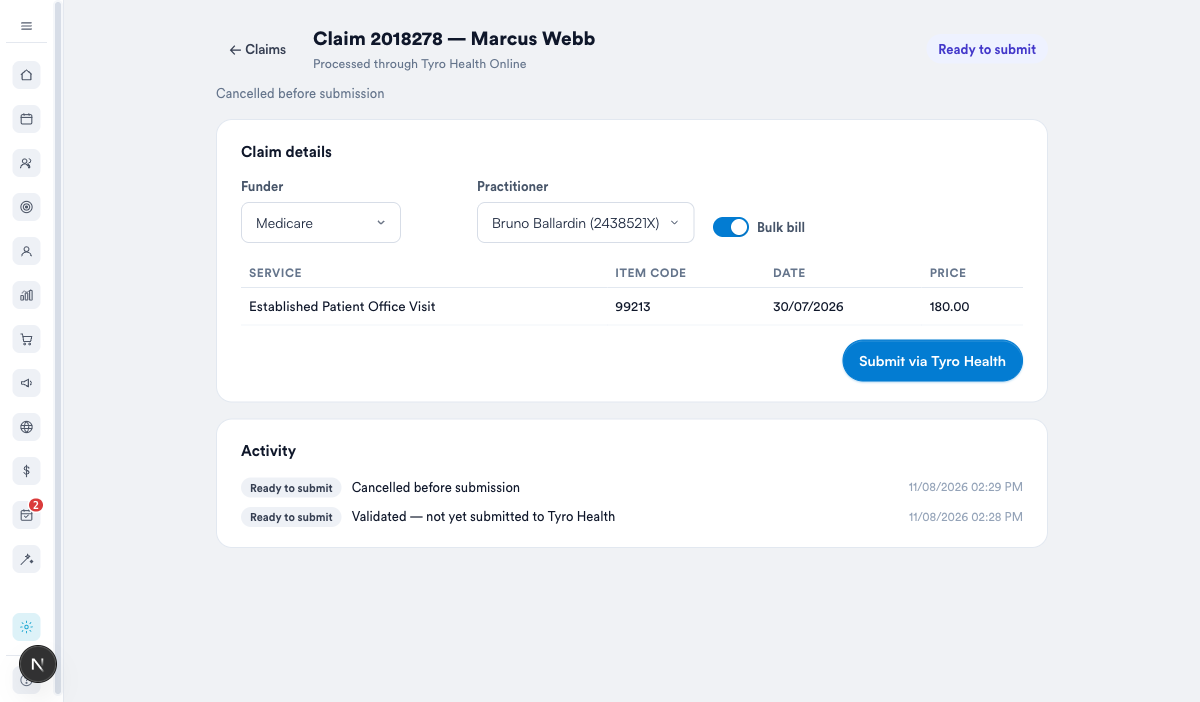
Step 3: Submit via Tyro Health
Click Submit via Tyro Health. Tyro’s secure window opens, pre-filled with everything Pabau captured — the provider, the patient, and the claim items. It handles patient verification and consent, prompts for anything still missing, and lodges the claim with the funder. When it closes, the outcome is written back to Pabau.
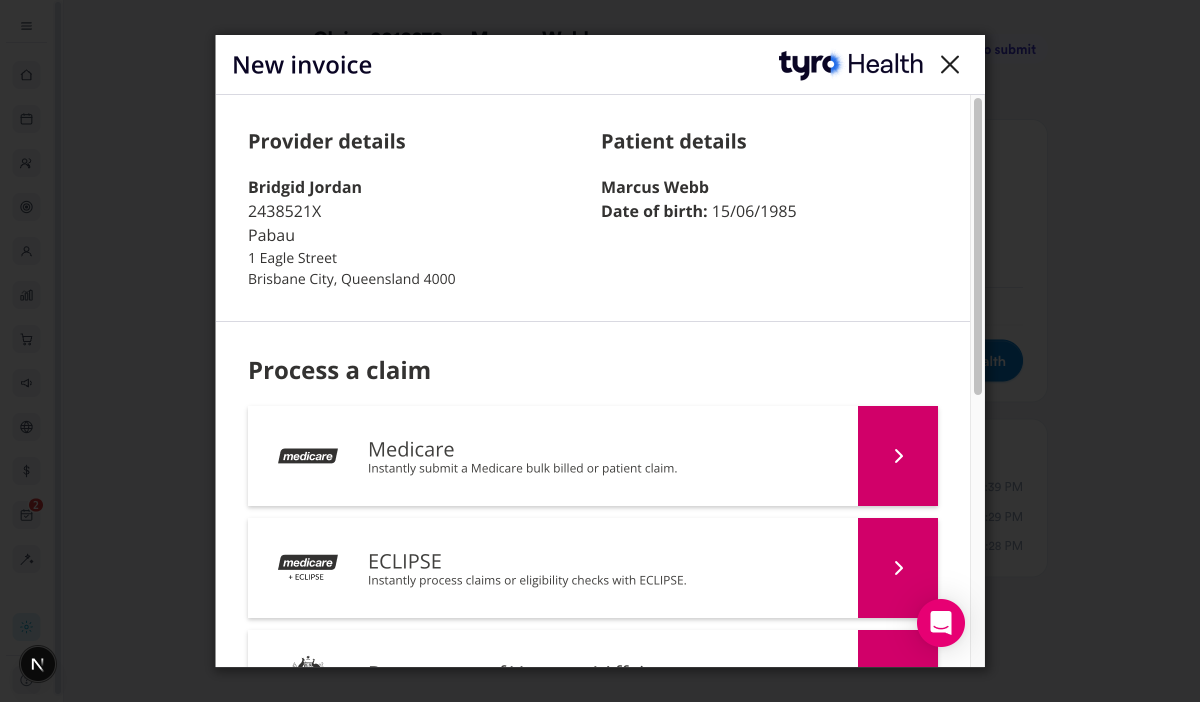
NOTE: The Tyro Health window is where the patient’s Medicare details are verified and the claim is lodged — it’s hosted by Tyro, so nothing sensitive passes through the browser. You’ll see the provider and patient Pabau sent, then choose the claim type (Medicare, DVA/ECLIPSE or Private Health) to complete it.
NOTE: “Submit via Tyro Health” is the Australian equivalent of submitting to a clearinghouse — Tyro is the gateway to Medicare, DVA and the private health funds. Which funder the claim goes to is the choice you made in Step 2.
Step 4: Track the outcome
Each claim carries a status that Pabau keeps in sync:
- Ready to submit — prepared but not yet lodged.
- Submitted / Outstanding — lodged and awaiting assessment.
- Approved — accepted; awaiting settlement (the benefit and any gap are shown).
- Paid — settled by the funder.
- Declined / Rejected — not accepted; the reason is shown so you can correct and resubmit.
See each item’s result
Once the funder has assessed the claim, the claim page shows the outcome item by item: each line’s status, the benefit the funder paid on it, and — for a rejected line — the funder’s rejection code and reason in plain language. The claim’s Transaction ID is shown alongside, which is what Tyro Health support will ask for if you ever need to reference a claim with them.
Need the funder-side view? Open in Tyro Health in the claim header opens the same transaction in Tyro Health Online (it asks for your own Tyro Health login) — bulk bill assignment-of-benefit statements print from the invoice page there.
TIP: Patient claims and HealthPoint (private health) usually return an outcome within seconds. Medicare bulk bill and DVA are assessed by Services Australia and typically settle in 1–2 business days — Tyro Health notifies Pabau the moment the funder responds, and Pabau also checks in the background, so the status updates without you chasing it.
A whole claim shows Declined — why?
If any single item on the invoice is rejected, the funder declines the whole claim. Open it and check the item-by-item results — the rejected line shows the funder’s code and reason (for example a wrong item number or provider number). Fix it and resubmit.
Can I resubmit a claim?
Yes — a Declined or cancelled claim can be corrected and submitted again; Pabau keeps the reference unique on each attempt.
Where do I see all my claims?
Your Claims list shows every claim and its current status across patients, so you can work outstanding and declined claims in one place.