
When you’re working through a report or a list, you often need a quick look at one client: their appointments, balance or notes. Clicking a client’s name opens their full client card in a side panel over the page, so you can check or update the record and then carry on from the same spot.
This works wherever a client’s name is shown as a link, for example in Analytics reports such as Aged Debt, on the Prescriptions list and the Labs board, on the insurance claims and remittance screens, and in your online bookings activity.
Step 1: Click the Client’s Name
- In the report or list, click the client’s name.
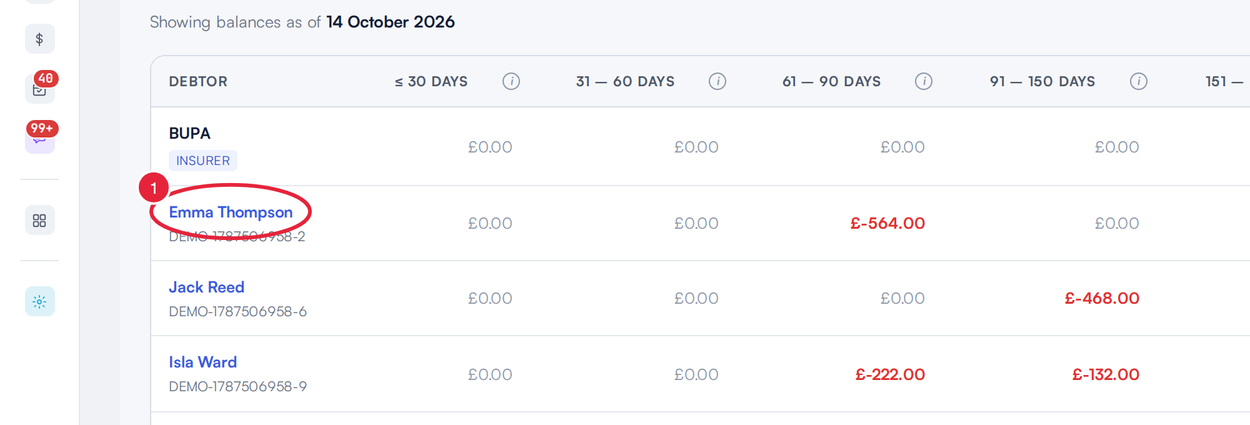
Click a client’s name in a report
Step 2: Work in the Client Card
The client’s card opens in a panel over the page. It is the full client card, so you can switch tabs, check their history and add notes just as you would on the card itself. Meanwhile the page underneath stays exactly where you left it, with your filters and scroll position kept.
Step 3: Close the Panel
- Click the ✕ at the top left of the panel. You can also press Esc or click outside the panel.
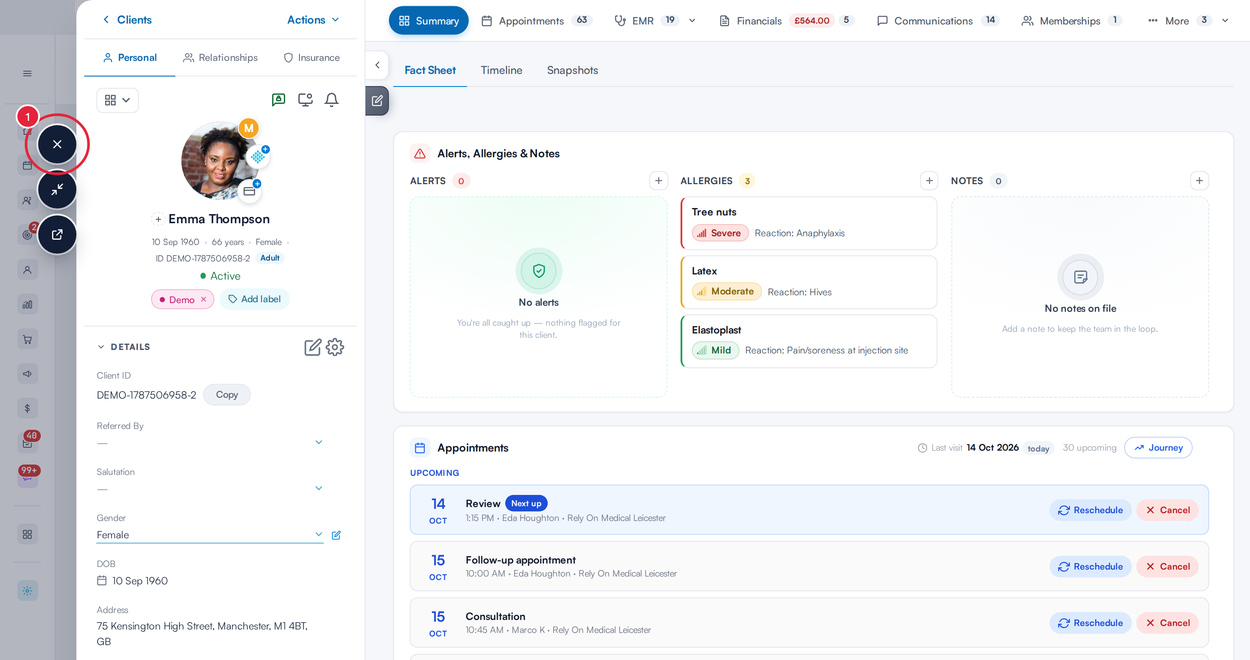
The client card opens over the page you were on
Moving to another page, for example with your browser’s Back button, closes the panel too.
TIP: Want the client card in its own browser tab instead? Hold Ctrl (Cmd on a Mac) while you click the client’s name, or click it with your mouse wheel.
What's next?
Was this guide helpful? Let us know by voting below - your feedback helps us write clearer articles.
For more guides, browse the related articles below or use the search bar at the top of the page. You can also watch our video learning series, the Pabau Academy, or visit the Support page for additional help.