
This article covers the new Client Card, available to selected clinics from August 2026. If your Client Card looks different, see Overview of Clients and Client Card (Classic) guide instead.
Searching for clients
Type what you're looking for into the search field. The search bar can find:
- Clients — search by name, email, or other client details
- Leads — find leads in your pipeline
- Appointments — locate upcoming or past appointments
- Invoices — search for specific invoices
- Setup — find any settings page quickly
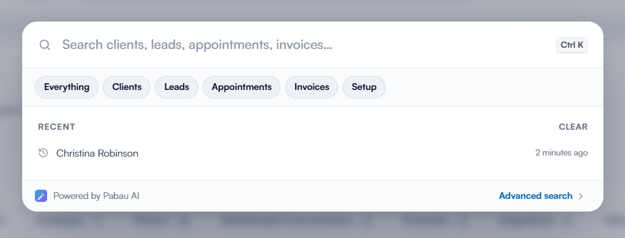
For advanced searches, click the advanced search button on the bottom right.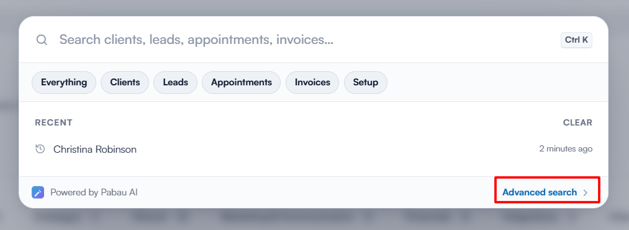
Click on the desired client card.
View all clients
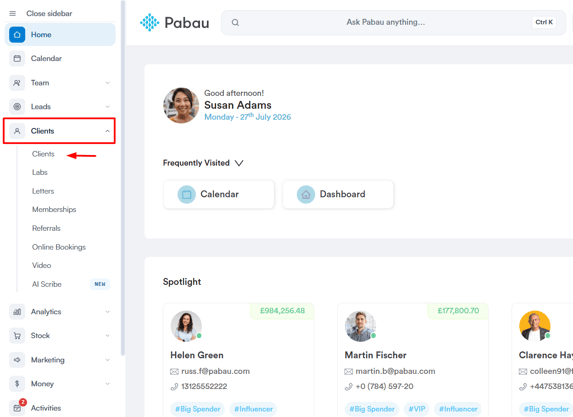
In the left sidebar menu, navigate to Clients, then choose Clients again, to see all of your clients in one place.
Customize the display of client information by rearranging and adding data fields by clicking on "Edit Columns".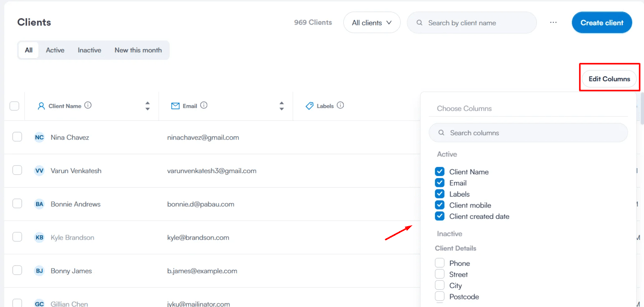
You can delete or email multiple clients by selecting the checkboxes to the left of each client row.
Use the Views dropdown to create client views, grouping clients who meet specific conditions.
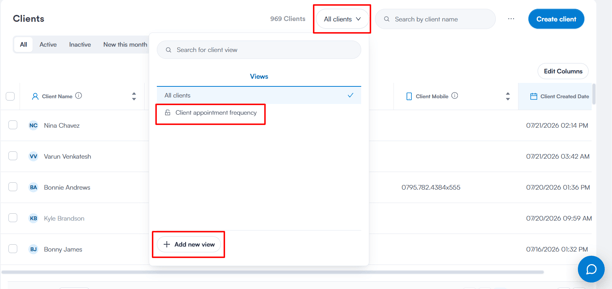
The search bar allows you to find clients based on the data included in the columns you've added to the client table.
Understanding the client card
The client card contains all client data and is divided into sections. Under the client's photo, it shows the client's name, DOB, age, gender, and client ID, along with their status (e.g. Active) and any labels applied to them (such as "Big Spender" or "VIP").
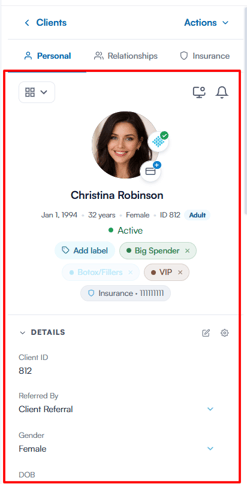
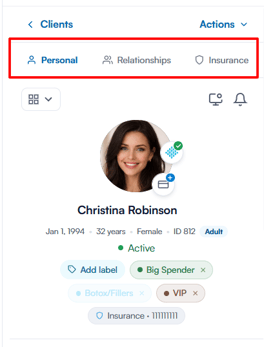
On the left, three tabs organize the client's core information:
- Personal: Displays the client's status, labels, insurance number, and a "Details" section with fields like Client ID, Referred By, Gender, and DOB.
- Relationships: Showcases client relationships.
- Insurance: Holds the client's insurance details.
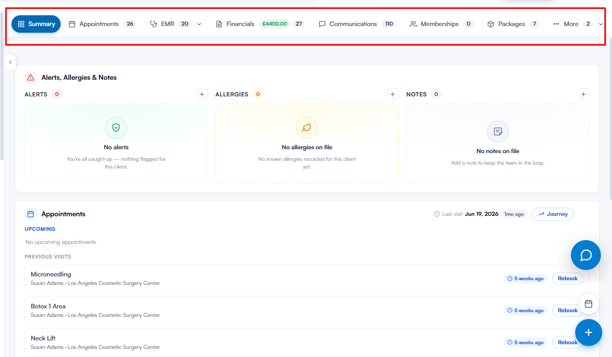
In the center of the client card, multiple tabs categorize client data for convenient access and management, each displaying a live count where relevant:
- Summary: A customizable overview of crucial client information.
- Appointments: All appointments related to the client.
- EMR: Medical forms, prescriptions, documents, and photos.
- Financials: Payments made by the client.
- Communications: Notifications sent to the client.
- Memberships: Membership plans purchased by the client.
- Packages: Packages bought by the client.
- More: Additional tabs, such as Gift Vouchers and Activities, that don't fit in the main bar.
Summary
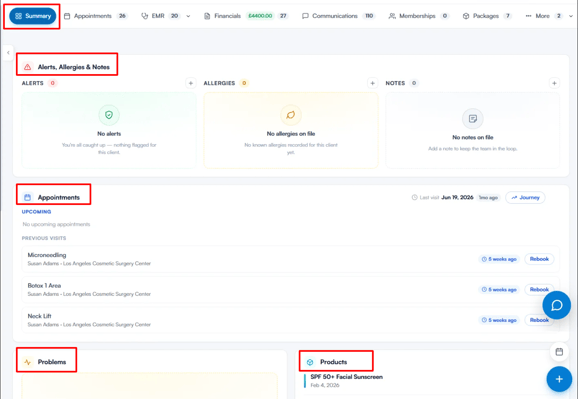
Within the Summary tab, information is organized into cards:
- Alerts, Allergies & Notes: Displays any alerts, allergies, or notes on file for the client, with a "+" button to add new ones directly from this view.
- Appointments: Shows the client's last visit date, a "Journey" link to view their full history, and lists upcoming appointments alongside previous visits — each with a quick "Rebook" option.
- Problems: Displays any active problems recorded for the client, flagging important medical conditions the team should be aware of.
- Products: Lists products associated with the client, along with the date each one was recorded.
- Saved Cards: Shows any payment cards saved on file for the client, with an option to add a new card directly from this view.
Appointments
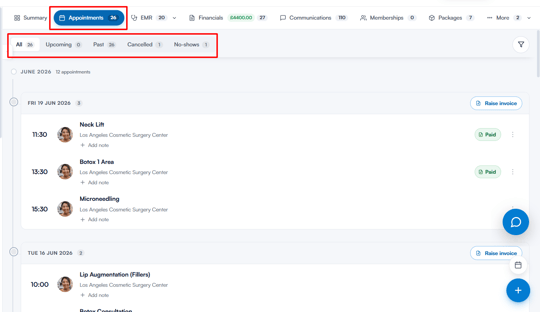
The Appointments tab displays all of the client's appointments, organized into a timeline grouped by month and date.
At the top, sub-tabs let you filter appointments by status:
- All: Shows every appointment on record.
- Upcoming: Shows only future appointments.
- Past: Shows appointments that have already taken place.
- Cancelled: Shows appointments that were cancelled.
- No-shows: Shows appointments the client didn't attend.
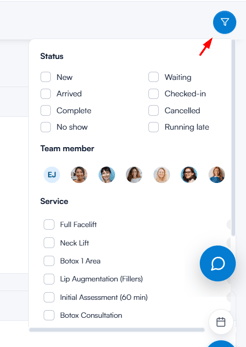
A filter icon on the right lets you narrow down the list further.
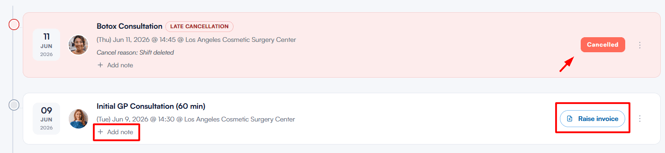
Each date groups the appointments booked that day, showing the time, treatment name, and location for each one. From here, you can:
- Add a note directly under any appointment.
- Raise an invoice for all appointments booked on that date.
- View the payment status of each appointment (e.g. "Paid") and access further options via the three-dot menu.
Chart
The Chart tab (formerly EMR) centralizes all of the client's medical and clinical records.
At the top, a Medical History banner shows the client's intake form status, including when it was last updated, any allergies or active medications on file, and recorded conditions.
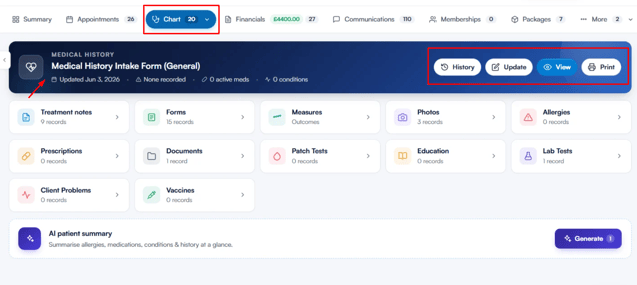
From here you can:
- History: View previous versions of the medical history form.
- Update: Edit the client's medical history.
- View: Open the form as the client would see it.
- Print: Print the medical history form.
Below the banner, records are organized into cards, each showing a live count:
- Treatment notes: Notes logged from the client's treatments.
- Forms: Medical or consent forms completed by the client.
- Measures: Tracked outcomes and measurements over time.
- Photos: Photos taken of the client, useful for before/after comparisons.
- Allergies: Any allergies recorded for the client.
- Prescriptions: Medications prescribed to the client.
- Documents: Files or documents uploaded for the client.
- Patch Tests: Results of any patch tests carried out.
- Education: Educational materials shared with the client.
- Lab Tests: Lab test records and results.
- Client Problems: Active problems or conditions flagged for the client.
- Vaccines: Vaccination records on file.
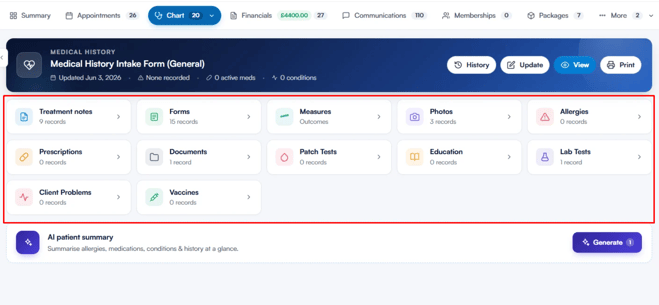
At the bottom, the AI patient summary card lets you generate an AI-written summary of the client's allergies, medications, conditions, and history at a glance.
Financials
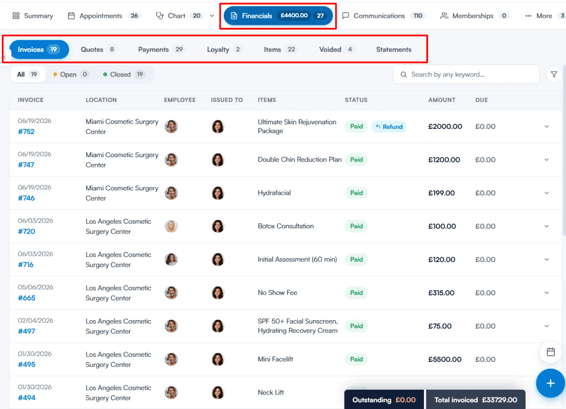
The Financials tab breaks down all payments and financial records related to the client, organized into sub-tabs:
- Invoices: All invoices raised for the client.
- Quotes: Quotes provided to the client.
- Payments: Payments received from the client.
- Loyalty: Loyalty points or rewards activity.
- Items: Individual items or services billed to the client.
- Voided: Invoices or transactions that were voided.
- Statements: Client account statements.
Within the Invoices sub-tab, invoices can be further filtered by status:
- All: Shows every invoice.
- Open: Shows unpaid or outstanding invoices.
- Closed: Shows invoices that have been fully paid.
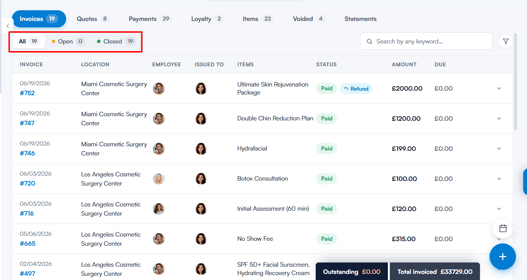
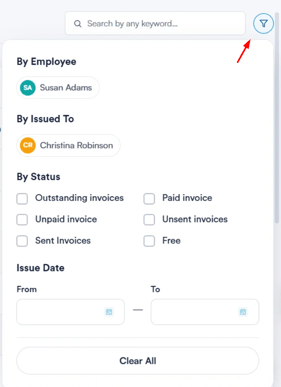
A search bar and filter icon let you narrow the list further by keyword or criteria.
Each invoice row displays the invoice number and date, location, employee, who it was issued to, the items billed, payment status (e.g. "Paid," with a "Refund" option where applicable), the amount, and any amount due.
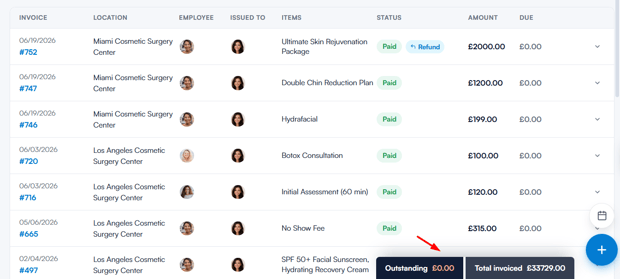
At the bottom of the tab, two summary totals are always visible: Outstanding (the total unpaid amount) and Total invoiced (the total value of all invoices for the client).
Communications
The Communications tab houses all messages sent to the client, organized into a timeline grouped by month and date.
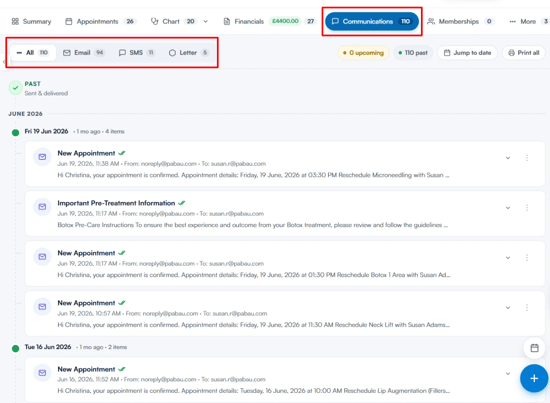
At the top, sub-tabs let you filter communications by channel:
- All: Shows every communication sent.
- Email: Shows only emails.
- SMS: Shows only text messages.
- Letter: Shows only letters.
On the right, additional controls help you navigate:
- Upcoming / Past: Filter toggles showing counts of scheduled versus already-sent communications.
- Jump to date: Quickly navigate to a specific date in the timeline.
- Print all: Print the full communications history.
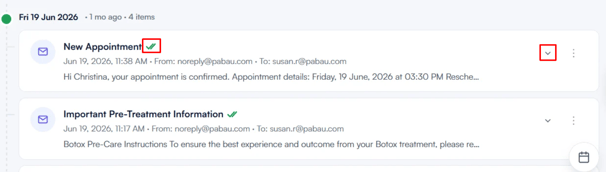
Each entry shows the message type (e.g. "New Appointment"), a checkmark confirming it was sent and delivered, the date and time it was sent, the sender and recipient, and a preview of the message content. A dropdown arrow and three-dot menu on each entry give access to further details and actions.
Memberships
The Memberships tab shows all membership plans purchased by the client, split into two sub-tabs:
- Your memberships: Displays the client's active membership plans.
- Transactions: Shows the transaction history related to the client's memberships.
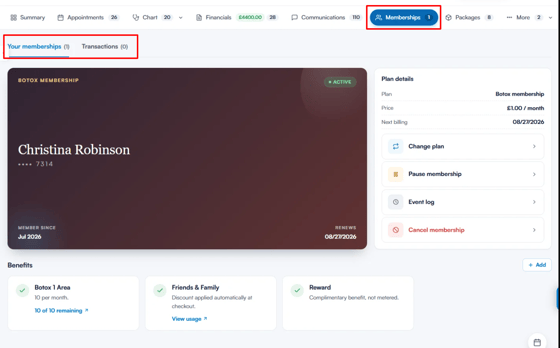
Each membership is displayed as a card, styled like a membership card, showing the plan name, client name, card number, "Member since" date, and renewal date, along with its current status (e.g. "Active").
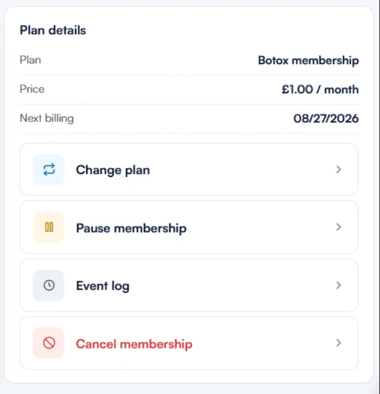
On the right, a Plan details panel shows the plan name, price, and next billing date, along with quick actions:
- Change plan: Switch the client to a different membership plan.
- Pause membership: Temporarily pause the membership.
- Event log: View a history of actions taken on the membership.
- Cancel membership: Cancel the membership entirely.
Below, the Benefits section lists everything included in the plan, such as treatment allowances (e.g. "Botox 1 Area — 10 per month," with usage tracked and a "View usage" link), automatic discounts (e.g. "Friends & Family"), and complimentary perks (e.g. "Reward").

An "Add" button lets you add further benefits to the plan.
For more information on memberships, please refer to the Memberships guide.
Packages
The Packages tab lists all packages purchased by the client, split into two sub-tabs:
- Active: Shows packages currently available for the client to use.
- Expired: Shows packages that have run out or passed their expiration date.
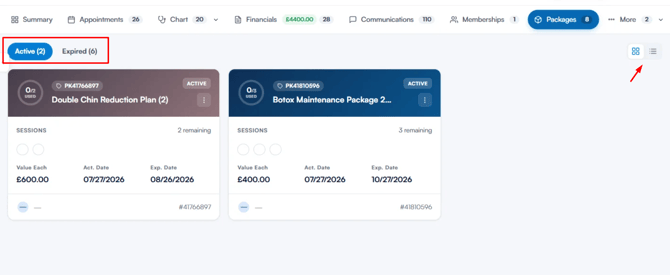
A view toggle on the right lets you switch between a grid or list layout.
Each package is displayed as a card showing the package name, unique code (e.g. "PK41766897"), and status (e.g. "Active"). It also shows the number of sessions used out of the total included, along with visual dots representing remaining sessions. Further details include:
- Value Each: The value of a single session within the package.
- Act. Date: The date the package was activated.
- Exp. Date: The date the package expires.
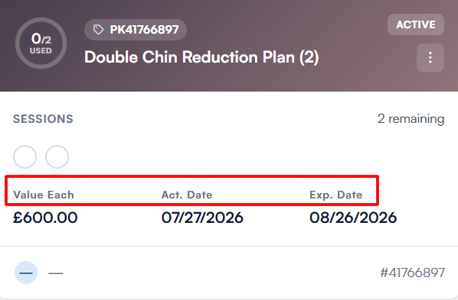
Each card also displays the package's unique reference number at the bottom, along with a three-dot menu for further actions.
For more information on packages, please refer to the Packages guide.
Gift Vouchers
The Gift Vouchers tab (found under "More") shows all vouchers linked to the client, split into two sub-tabs:
- Active: Shows vouchers that are still valid and have remaining value.
- Expired: Shows vouchers that have expired or been fully used.
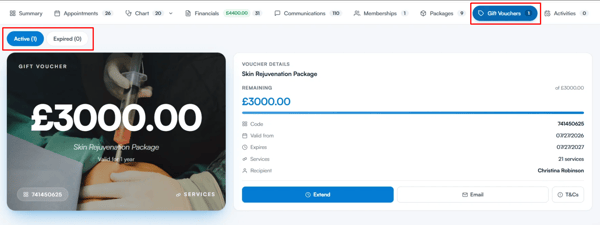
Each voucher is displayed as a card showing the voucher amount, name, validity period, and unique code, along with a "Services" link.
On the right, a Voucher details panel shows:
- Remaining: The remaining balance, shown against the original total value with a progress bar.
- Code: The voucher's unique code.
- Valid from: The date the voucher became valid.
- Expires: The voucher's expiration date.
- Services: The number of services the voucher can be redeemed against.
- Recipient: The client the voucher was issued to.
Three actions are available at the bottom:
- Extend: Extend the voucher's validity period.
- Email: Email the voucher to the client.
- T&Cs: View the voucher's terms and conditions.
For more information on gift vouchers, please refer to the Gift Vouchers guide.
Activities
The Activities tab (found under "More") records client-related tasks and activities, such as calls, emails, messages, meetings, and dates of service.
At the top, sub-tabs let you filter activities by type:
- All: Shows every activity logged.
- Email: Shows only email activities.
- Call: Shows only call activities.
- Message: Shows only message activities.
- Meeting: Shows only meeting activities.
- Date of Service: Shows only date-of-service activities.
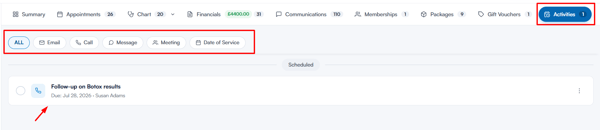
Activities are grouped by status (e.g. "Scheduled"), with each entry showing the activity name, type icon, due date, and assigned staff member. A checkbox lets you mark an activity as complete, and a three-dot menu gives access to further options.
For more information on activities, please refer to the Activities guide.
Quick actions
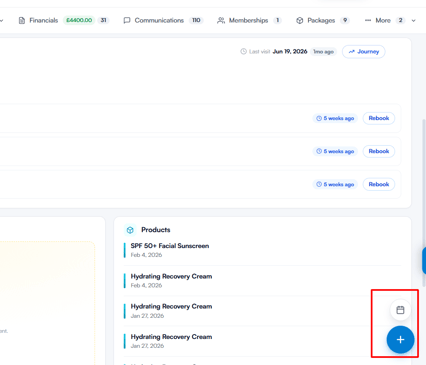
In the bottom right corner of the client card, two floating buttons give quick access to common actions:
- Calendar icon: Redirects you to the calendar, where you can book an appointment for this client.
- Create button (blue "+" icon): Opens a menu of actions you can carry out for the client, such as sending a Communication, adding a Treatment note, creating a Consent form, submitting a Lab request, adding a Prescription, processing a Sale, creating a Quote, or logging an Activity.
With everything organized into these tabs and quick actions, the client card gives you a complete, all-in-one view for managing every aspect of a client's journey in Pabau.
Was this guide helpful? Let us know by voting below - your feedback helps us write clearer articles.
For more guides, browse the related articles below or use the search bar at the top of the page. You can also watch our video learning series, the Pabau Academy, or visit the Support page for additional help.