
The widgets on the client card’s Summary tab (such as Problem, Medical History, Medications, Family History and Social History) show answers from your clinic’s forms. Instead of linking each question by hand, you can let Pabau suggest them: it reads the questions on your clinic form templates, matches them to each widget, and you choose which ones to keep.
NOTE: Only admin users can configure widgets. Suggest with AI is free (it uses no credits) and only reads your form templates, never your clients’ answers. Nothing changes until you click Link.
Step 1: Ask for Suggestions
Open any client card. The Summary tab opens on the Fact Sheet.
- Click Configure widgets at the top right of the Fact Sheet.
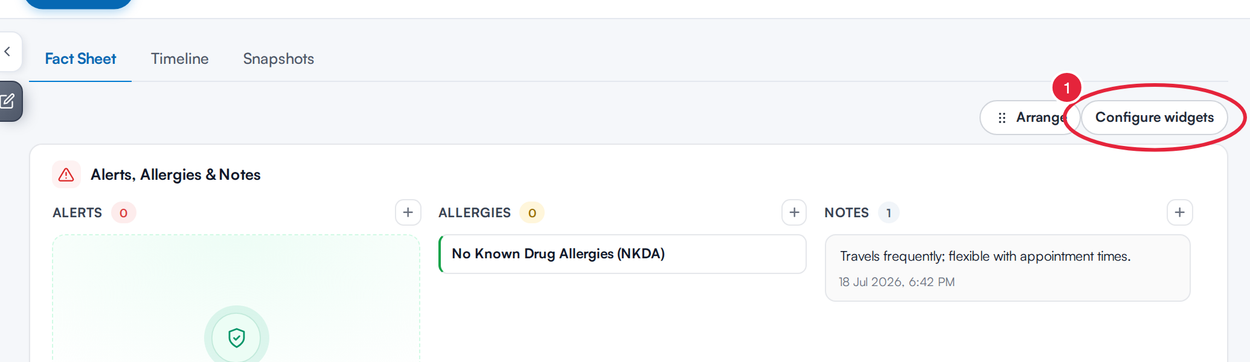
Configure widgets is at the top right of the Fact Sheet
- In the Configure widgets window, click Suggest with AI.
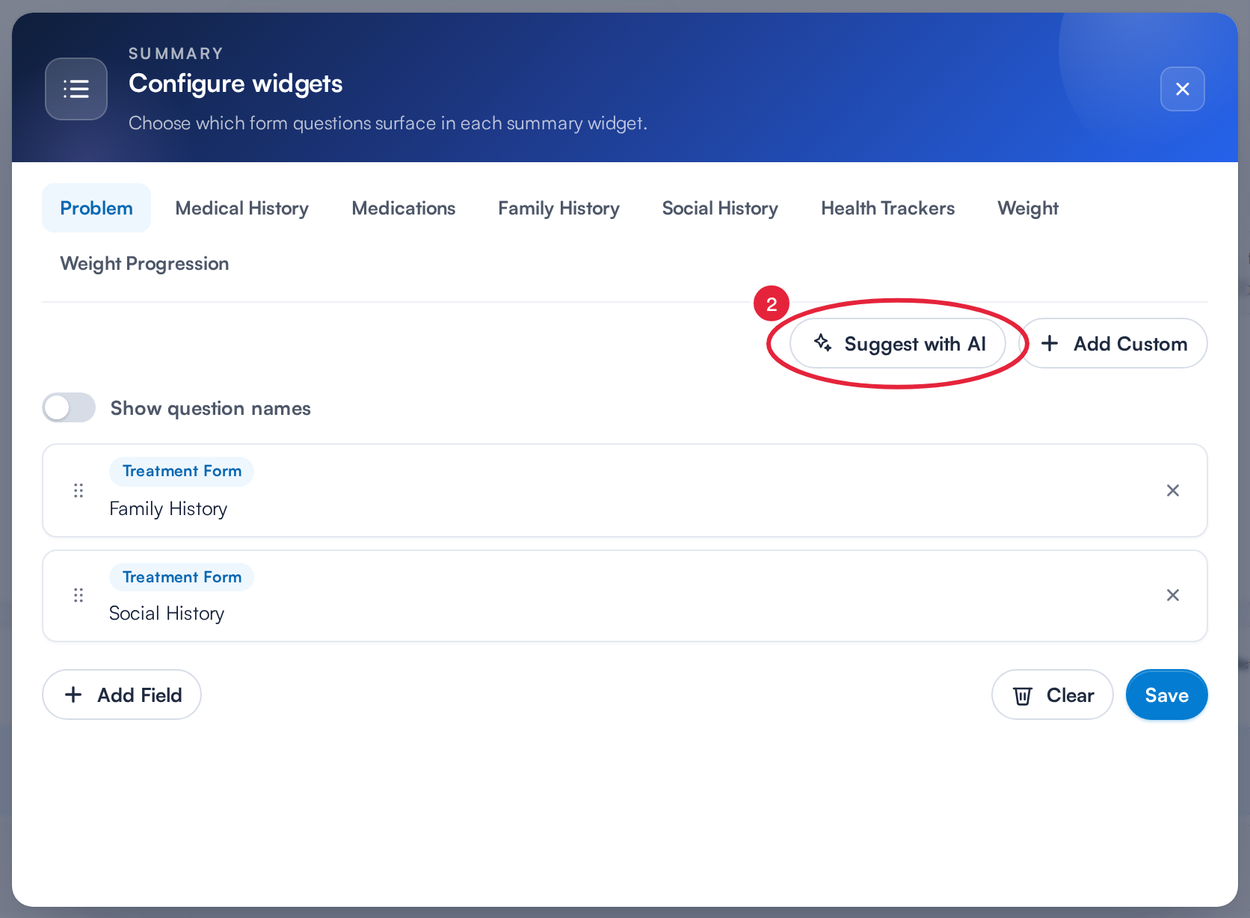
Click Suggest with AI
The Suggested fields window shows Reading your forms… and then Matching questions to each widget…. If your clinic has a lot of forms, this can take a minute or more.
Step 2: Review and Link the Suggestions
Suggestions are grouped by widget, then by form, with a short note on why each form was picked. Every question starts ticked, and the window tells you how many there are, for example 135 questions to link. Untick any you don't want, then link the rest.
- Untick any question you don’t want a widget to show.
- Use Select all to tick or untick every question at once.
- Click Link (the button shows how many fields, for example Link 135 fields).
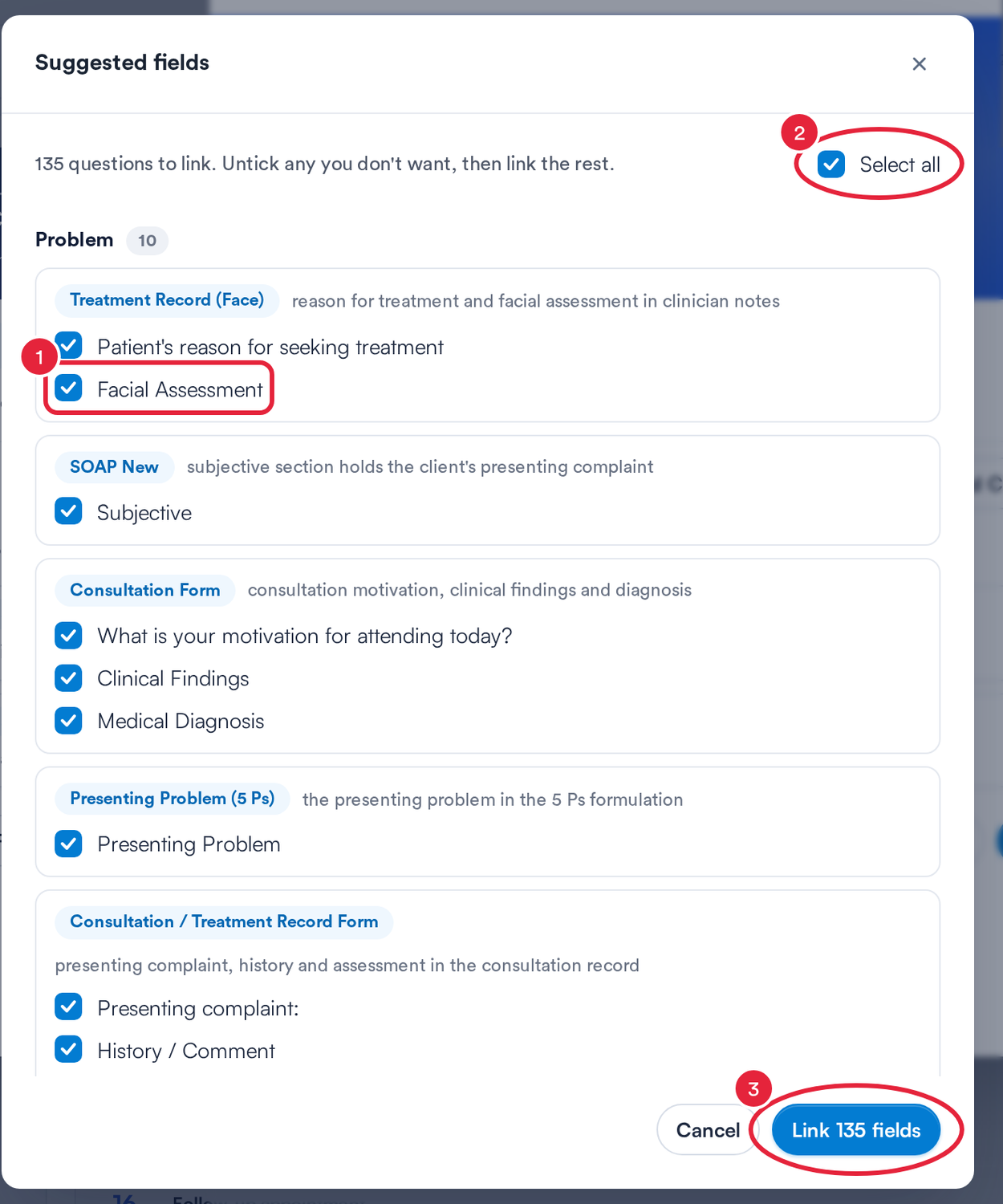
Untick what you don’t want, then link the rest
A message confirms how many fields were linked, for example Linked 135 suggested fields. The new questions are added to the ones each widget already shows; nothing is removed. Widget settings apply to every client card in your clinic.
- Click Cancel to close the window without linking anything.
- Nothing new to suggest. Your widgets already show the questions we would link. means your widgets are already up to date.
- If a widget can’t be saved, its questions stay in the list with a message naming it. Click Link again to retry.
- Couldn't suggest fields right now. Try again in a moment. means the suggestion didn’t finish. Click Try again.
TIP: To reorder or remove linked questions afterwards, open the widget’s tab in Configure widgets. See How to Configure the Summary View in Client Card (New Client Card).
Step 3: Open a Linked Form from a Widget
Once forms are linked, the Medical history, Family history and Social history widgets let anyone open them straight from the Fact Sheet:
- Click the + at the top right of the widget.
- Choose a form from the list. It opens at its first linked question. If the client has already filled it in, their latest answers open so you can update them; otherwise a new copy of the form opens.
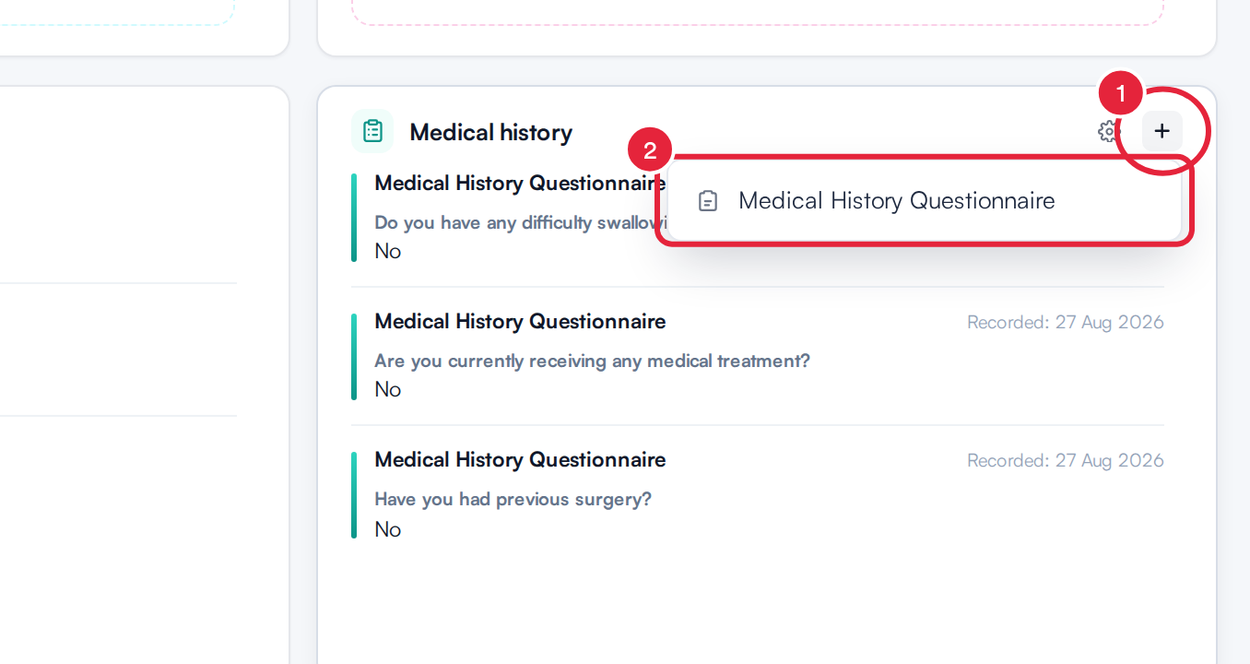
The + on a history widget lists its linked forms
Admins also see a gear icon next to the +, which opens that widget straight in Configure widgets.
NOTE: If you see Couldn't open the form, the linked form may have been renamed or deleted. An admin can link it again in Configure widgets.
What's next?
Was this guide helpful? Let us know by voting below - your feedback helps us write clearer articles.
For more guides, browse the related articles below or use the search bar at the top of the page. You can also watch our video learning series, the Pabau Academy, or visit the Support page for additional help.