
When an activity is about a specific appointment, invoice or chart record, you can link that record right inside the activity's note. Whoever picks up the activity can open the record in one click, and the record itself shows that an activity is waiting on it.
Step 1: Open an Activity for the Client
Links can only be added when the activity is for a client, because Pabau lists that client's records. To add links to an existing activity, open it from the client card's Activities tab. On an Activities board, open the full Create activity form and choose the client first. Until a client is chosen, Insert is greyed out with the hint Choose a client to link their records.
- To start a new one from the client card, click Create (the + button at the bottom right) and choose Activity.
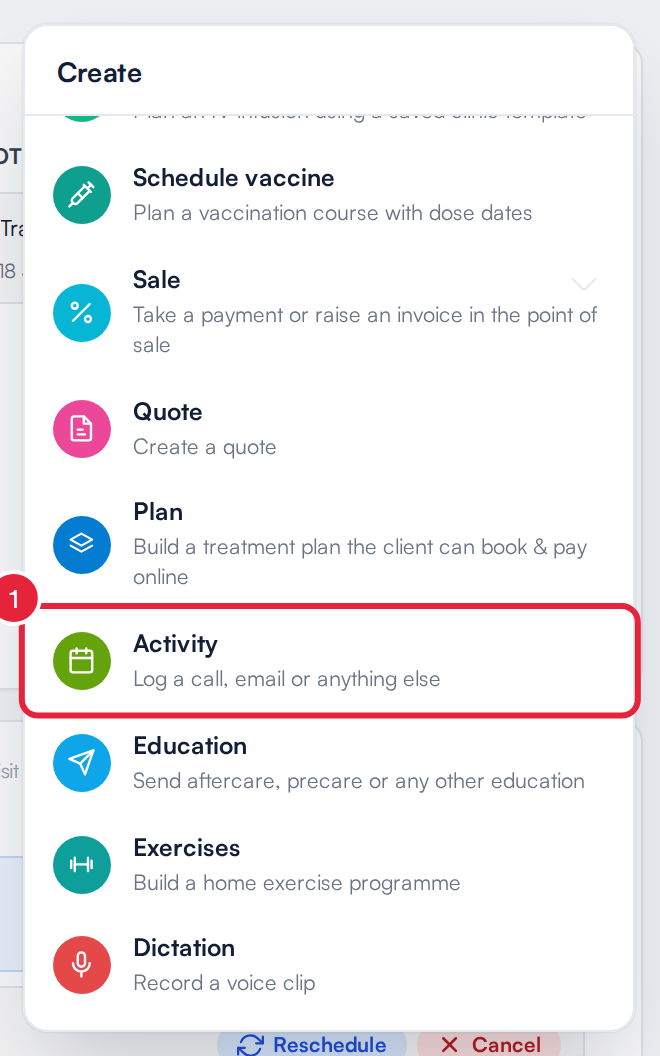
Create an activity from the client card
Fill in the Activity type, Activity name and Due date as usual.
Step 2: Insert a Link in the Note
- In Note, type your message and leave the cursor where the link should go, then click Insert.
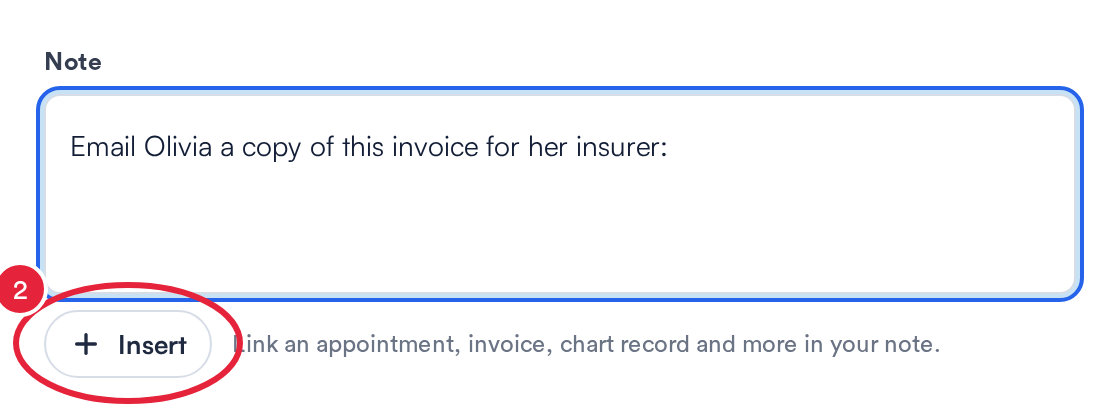
Insert links a record into the note
- Choose the type of record. They're grouped under Client (appointments, packages, memberships, letters), Financials (invoices, payments) and Chart (treatment notes, forms, photos, allergies, prescriptions, documents, lab tests, diagnoses, vaccines and more). Type in Search record types to find one quickly.
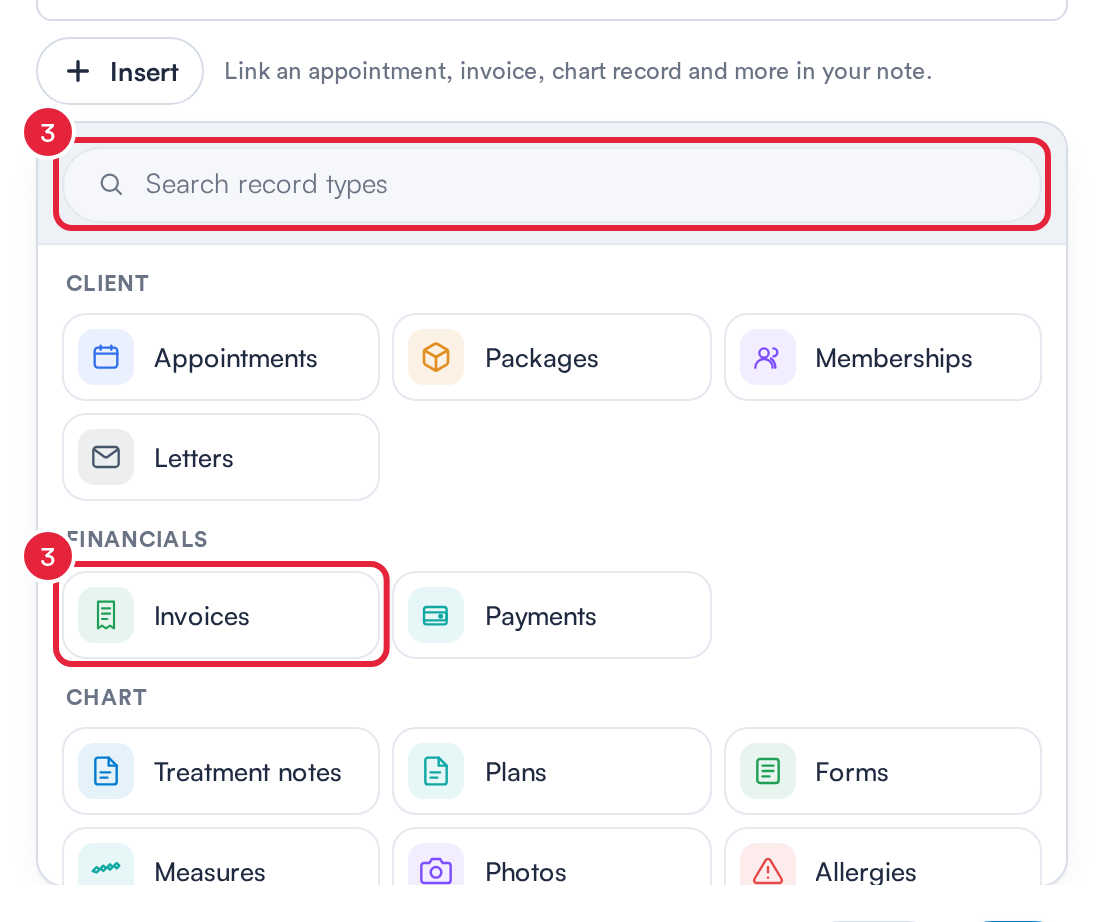
Pick the type of record to link
NOTE: Only the record types your account uses are offered. Chart sections your clinic has hidden are left out, and if none are available you'll see No record types are available for your account.
- Pick the record from the client's list, newest first. Click Show more to see older ones, or the back arrow to choose a different type.
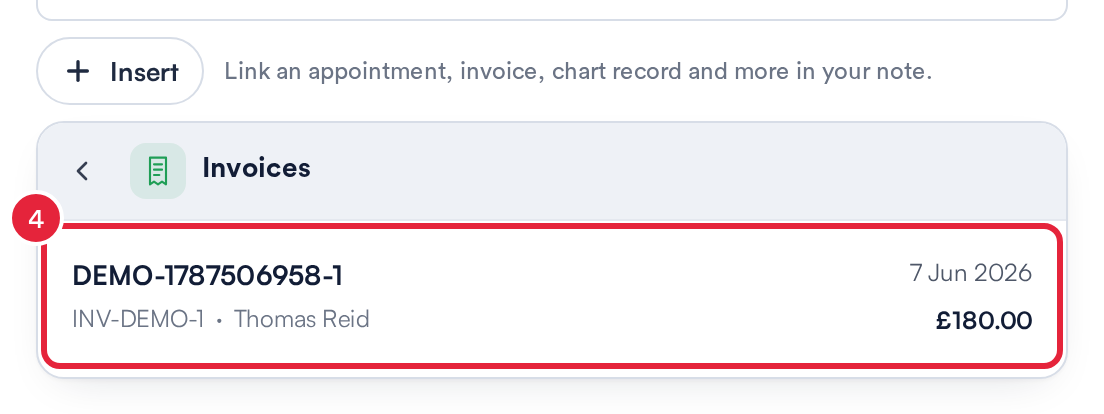
The client's records of that type
The record is added to the note as a link, such as Invoice · #1042 · 7 Jun 2026. A link only shows the type of record, its date and, for an invoice, its number, so no clinical details appear in the note itself. Add more links the same way, then click Save.
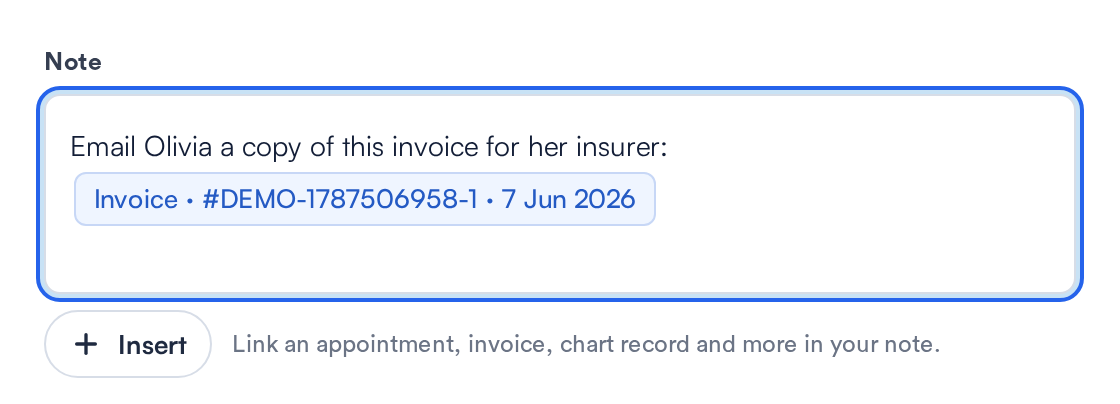
The linked invoice in the note
Anyone who opens the activity, on the client card, a board or their task list, can click the link to open that record, or its tab, on the client's card.
TIP: To remove a link, delete it from the note like any other text and save the activity.
Step 3: See the Activities Linked to a Record
Once an open activity links a record, that record shows a linked activity icon. On the client's card you'll find it next to invoices and payments in Financials, packages, treatment notes, and letters in Communications. It also appears on the Labs board, the Letters page and the Prescriptions list.
- Hover the icon to see the activity's name, or click it to open the list, which groups the open activities under Overdue, Due today and Scheduled. The icon turns red when one of them is overdue.
- In the list, click an activity to open and edit it, or tick its checkbox to mark it as done.
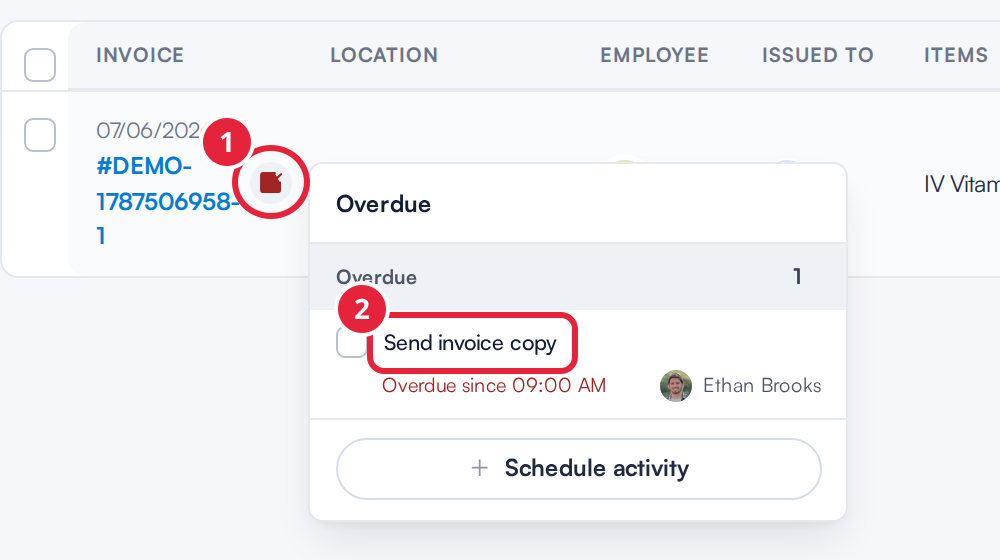
An invoice's linked activities
Click Schedule activity at the bottom of the list to create a new activity with a link to this record already in its note.
NOTE: The icon only counts open activities. Done activities drop off the icon, and it disappears once none are left.
What's next?
- Understanding the Activities Tab on the Client Card (New Client Card)
- How to Mark an Activity as Done from the Client Card (New Client Card)
- How to Work an Activities Board
- How to Assign Activities to Clients
Was this guide helpful? Let us know by voting below - your feedback helps us write clearer articles.
For more guides, browse the related articles below or use the search bar at the top of the page. You can also watch our video learning series, the Pabau Academy, or visit the Support page for additional help.