
Once an appointment is booked, you can change it from its booking panel: swap the service, team member, time, duration or room, add another service for the same visit with the same team member or someone else who is free, and move the appointment through your statuses.
NOTE: This feature is being rolled out to clinics gradually. If you don't see it in your account yet, message us via the in-app chat.
Step 1: Open Edit Services
- In the Calendar, click the appointment to open its booking panel.
- Click the pencil next to Services.
Edit services opens, with the number of services beside it. It lists every appointment the client has at that location that day, so you can adjust the whole visit in one go.
Step 2: Change a Service
- Click the service name to change it to a different service.
- Under Staff, choose a different team member. Click the heart (Mark requested) if the client asked for this team member.
- Change the Start time or Duration.
- Change the Resource (room or equipment), who pays under Charge (for example Self Pay or one of the client's insurers) and the Price List.
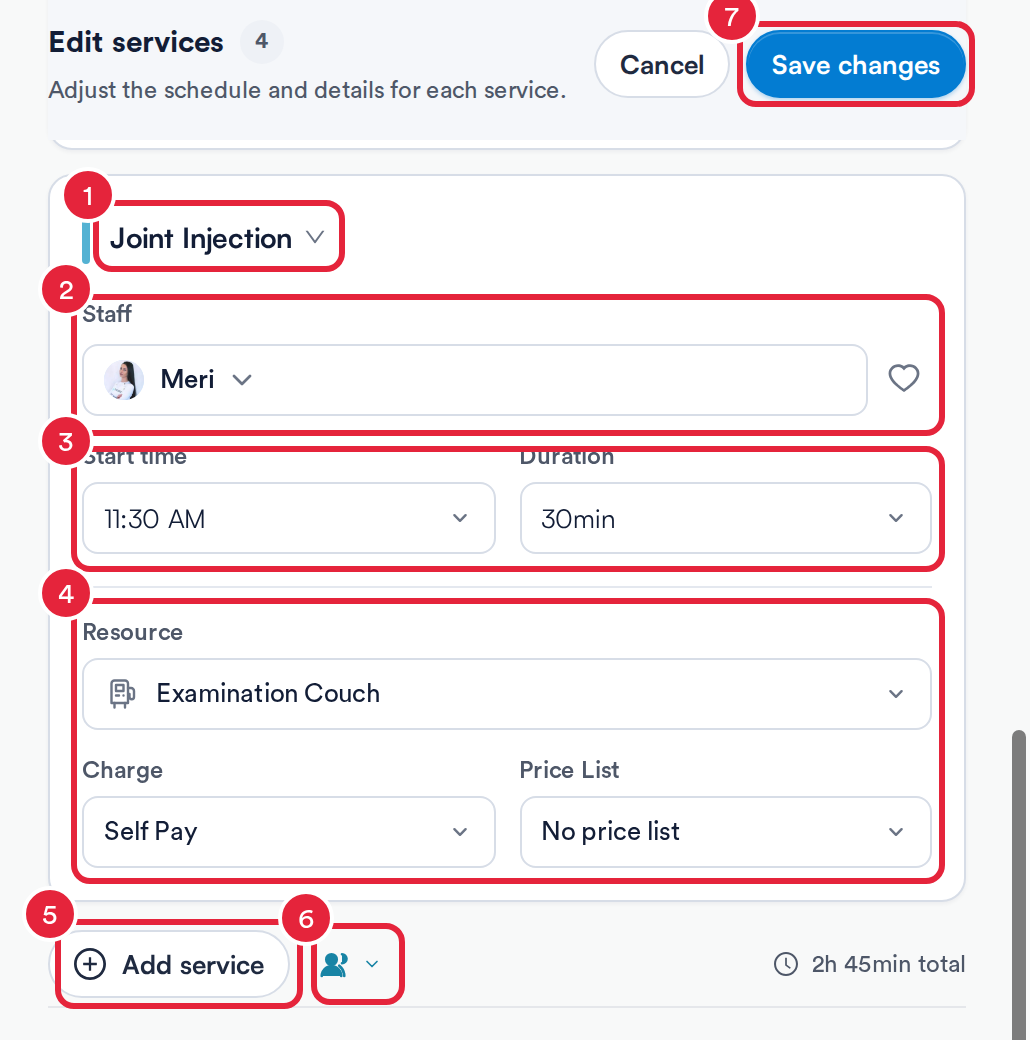
Change any detail of a service, or add another
NOTE: If the service has add-ons, an Add-ons field also appears on its card. Click Select add-on to add one; the duration grows to include it. See How to Select Add-ons When Booking on the Calendar.
Step 3: Add Another Service
To add a service with the same team member, click Add service (5 in the picture above) and choose the service. It starts when the last service ends.
To give the new service to someone else:
- Click the people button beside Add service (Add with another employee, 6 above). The Choose team member list opens.
- Team members with a green ring are free at that time. Anyone greyed out is busy or not working then; hovering over them shows a note such as Tracy Johansson is unavailable at 12:00 PM.
- The time the new service would start is shown at the bottom, for example Choose an employee available at 12:00 PM. Click a free team member, then choose the service.
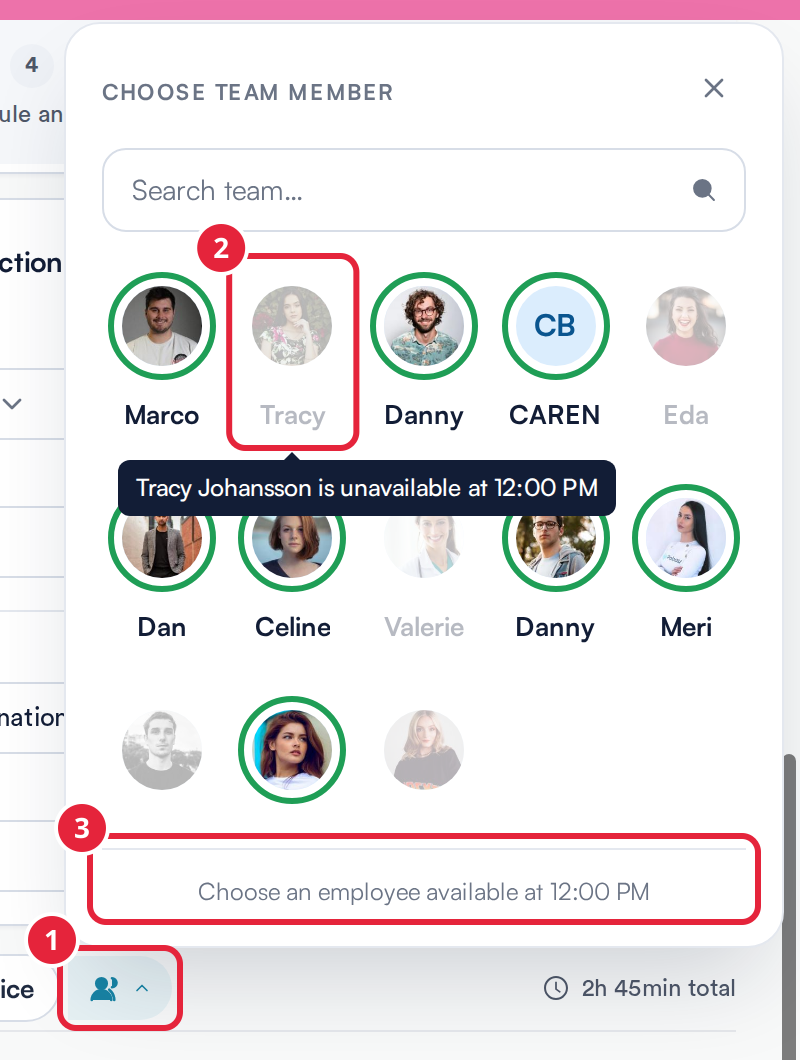
Only free team members can be picked
- The new service appears as its own card with the team member and start time. Change any of its details as in Step 2.
- Click the bin to remove a service. If that service was already booked, its appointment is cancelled when you save. You can't remove the appointment you opened this way; to cancel it, use Actions → Cancel appointment.
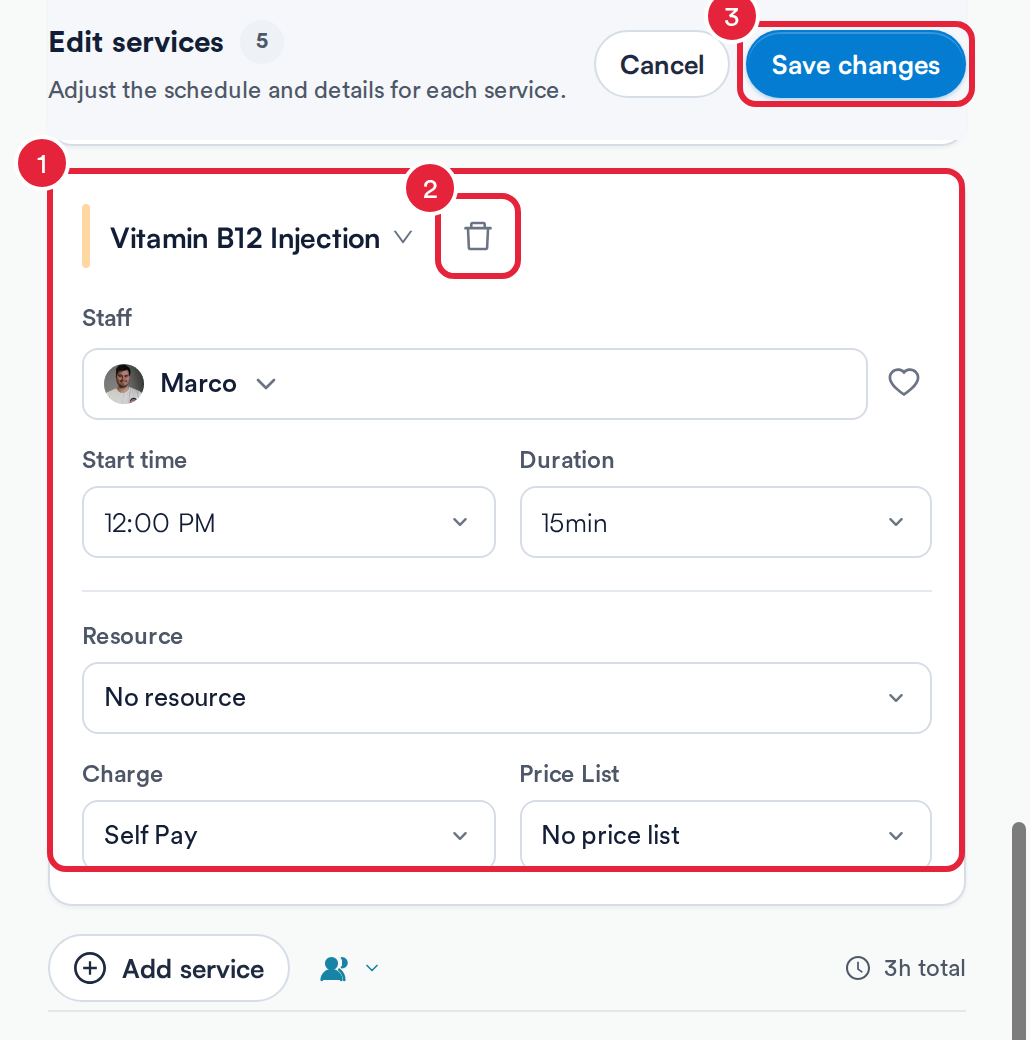
The new service gets its own card
Step 4: Save Your Changes
Click Save changes (7 in the first picture). Pabau confirms with Appointment updated and the services appear on the calendar. Click Cancel instead to leave everything as it was.
NOTE: If a change clashes with another booking, Pabau warns you with Booking conflict. If your clinic doesn't allow overlapping appointments, the change isn't saved; pick a different time, team member, room or equipment.
TIP: If you close the panel before saving, Pabau asks Discard unsaved changes? Click Keep editing to go back and save them.
Changing the Appointment Status
The status bar at the top of the booking panel shows where the appointment is in your day.
- Click a status, for example Arrived or Complete, to move the appointment on. Your clinic's own statuses appear here too.
- Running Late sits on the row below.
- No Show becomes available once the appointment's start time has passed. Before then it's greyed out: Unable to mark upcoming appointments as no-show.
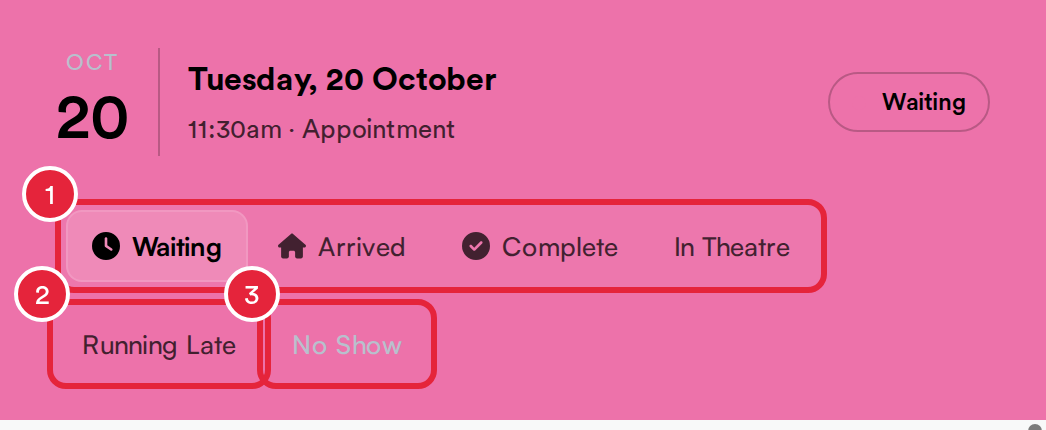
Click a status to update the appointment
NOTE: Cancelled isn't on the status bar. To cancel, use Actions → Cancel appointment, so you can record a reason and apply your cancellation policy.
What's next?
- How to Change the Status of an Appointment
- How to Create and Manage Appointment Statuses
- How to Add Multiple Staff to Appointments
- How to Select Add-ons When Booking on the Calendar
Was this guide helpful? Let us know by voting below - your feedback helps us write clearer articles.
For more guides, browse the related articles below or use the search bar at the top of the page. You can also watch our video learning series, the Pabau Academy, or visit the Support page for additional help.