
You can update a lead’s details straight from the Leads list, without opening each lead card. Hover over a cell, click the pencil and change the value: it is a quick way to reassign leads, fix a typo in an email address or move a lead to another stage. To change many leads in one go, see How to Edit Leads in Bulk.
Step 1: Show the Columns You Want to Edit
Open Leads from the left sidebar and switch to List. You can only edit the columns that are showing.
- Click Edit Columns, tick the columns you want to see and click Save.
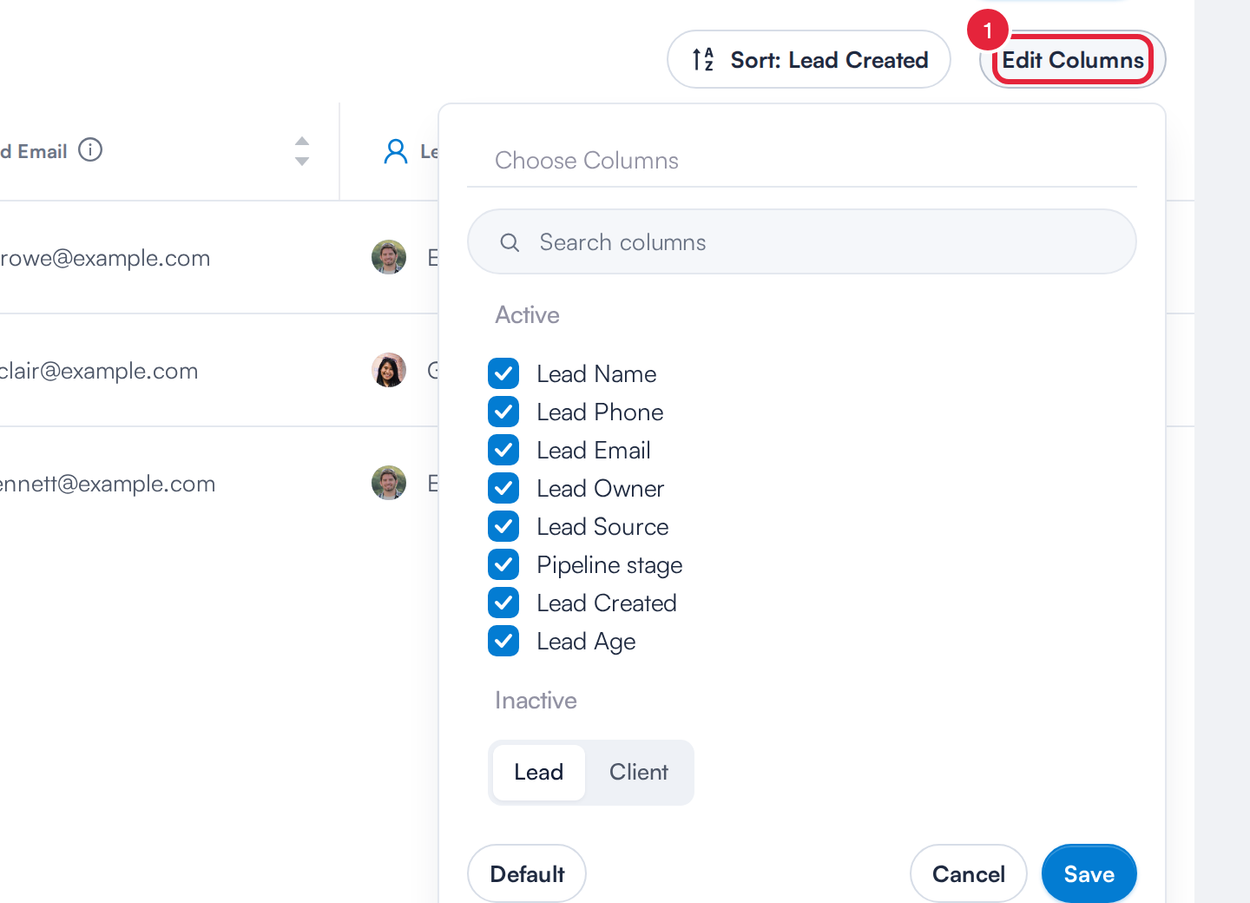
Choose which columns the list shows
These columns can be edited in the list: Lead First Name, Lead Last Name, Lead Email, Lead Phone, Lead Owner, Lead Source, Pipeline stage, Lead Location, Lead date of birth and your lead custom fields. Won Time and Won by can be edited on won leads only.
Step 2: Open the Editor for a Cell
- Hover over the cell you want to change.
- Click the pencil icon (Edit current value) that appears in the cell.
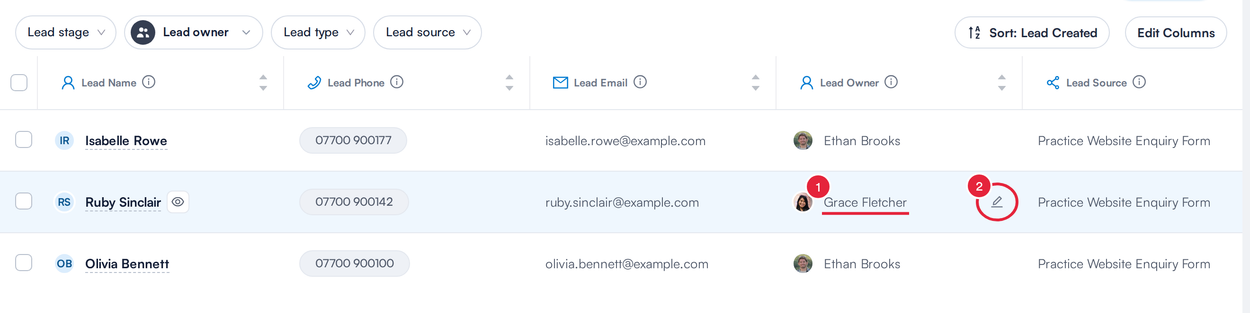
Hover over a cell and click the pencil
Step 3: Choose a New Value From a List
Lead Owner, Lead Source, Lead Location and Won by open a list of options.
- If the list is long, type in Search to narrow it down.
- Click the new value. It is saved straight away, and a message such as "Lead owner" changes saved confirms it.
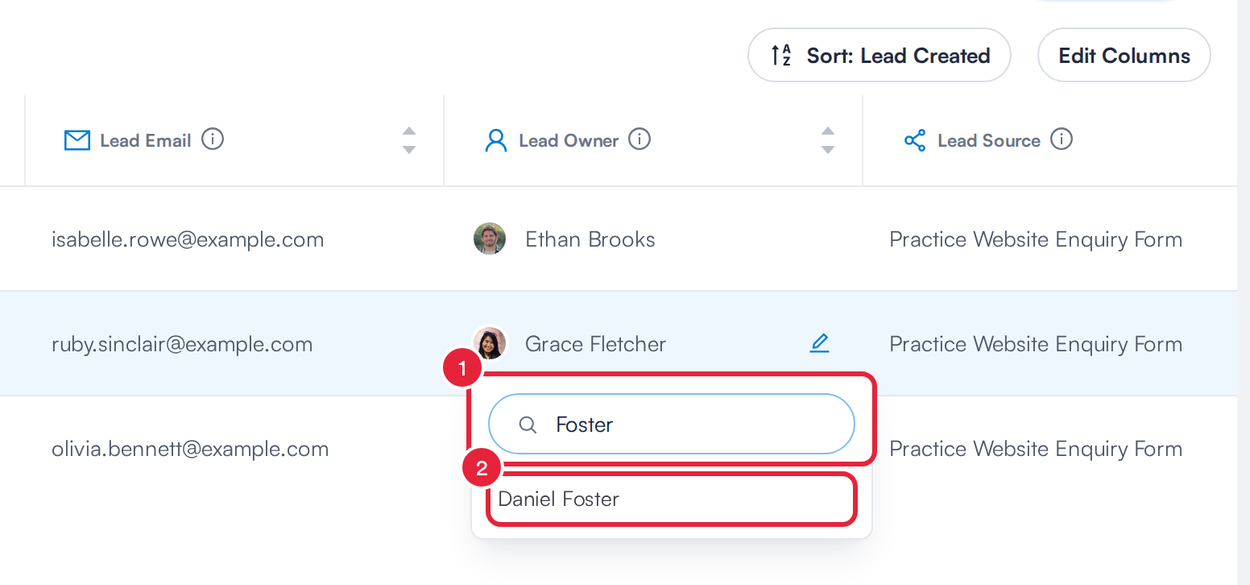
Pick the new owner from the list
- Pipeline stage first lists your pipelines: click one, then click the stage. Use the back row at the top to choose a different pipeline.
- Where a field can be left blank, Clear value at the top of the list removes the current value.
NOTE: Changing the Lead Owner assigns the lead to that person, the same as assigning it on the lead card, so they are notified if they have lead notifications turned on. See How to Get Notified When You Have an Assigned Lead.
Step 4: Type a New Value
Lead Email, Lead Phone, Lead First Name and Lead Last Name open a text box. Date columns open a date picker.
- Type the new value (or pick the date).
- Click Save, or press Enter. Click Cancel to leave the value as it was.
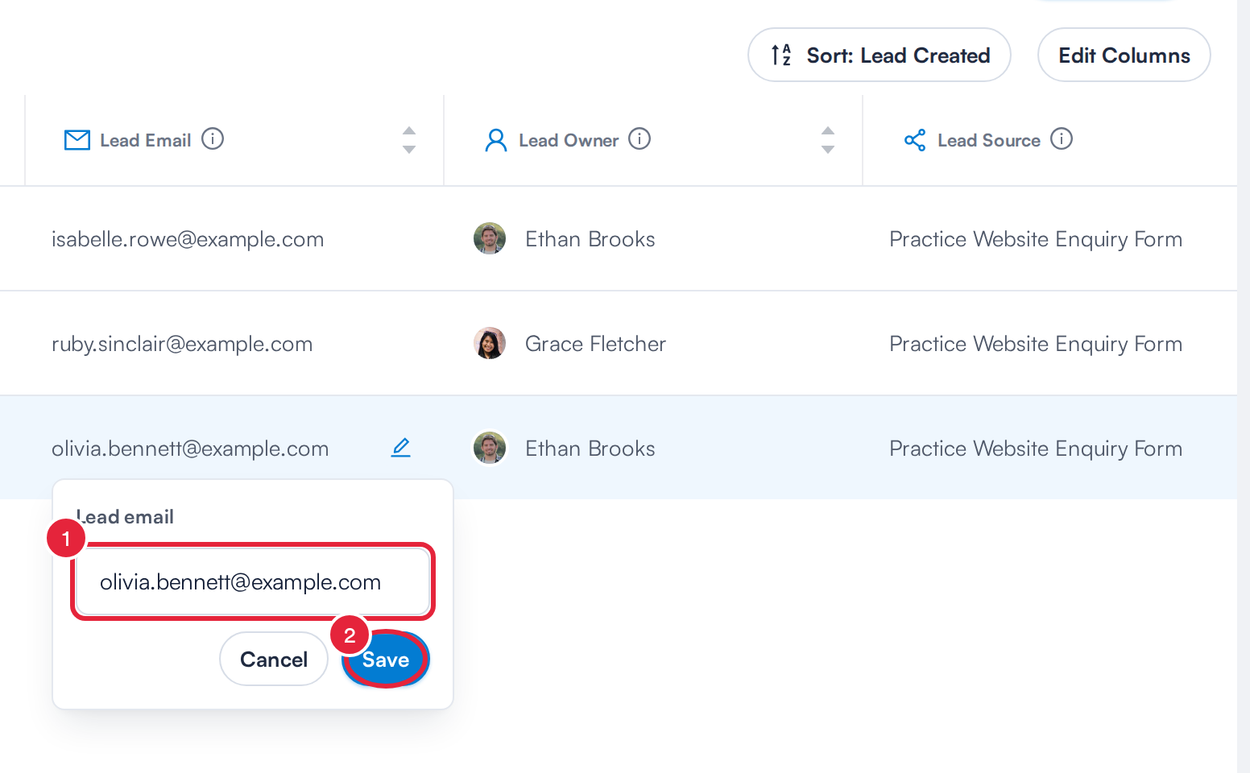
Type the new value and save
If the value isn’t valid, the editor tells you before saving, for example Please enter a valid email. If a change can’t be saved, Pabau shows a message saying that column could not be saved, and the cell keeps its old value.
TIP: Each change is saved for that one lead straight away. There is no separate Save for the whole list.
What You Can’t Edit in the List
Some columns don’t have a pencil: the lead name (click it to open the lead card, or edit Lead First Name and Lead Last Name instead), the lead status and lost reason (use Mark As Won, Mark As Lost or Reopen on the lead card), labels, services, marketing consent, and columns Pabau works out for you, such as Lead Age or Lead Created.
What's next?
Was this guide helpful? Let us know by voting below - your feedback helps us write clearer articles.
For more guides, browse the related articles below or use the search bar at the top of the page. You can also watch our video learning series, the Pabau Academy, or visit the Support page for additional help.