
Step 1: Navigate to Leads
Start by logging into your Pabau account using your login credentials. Then, navigate to the Leads tab located on the left sidebar menu. All leads will be listed on this page.

Step 2: Bulk Select Leads
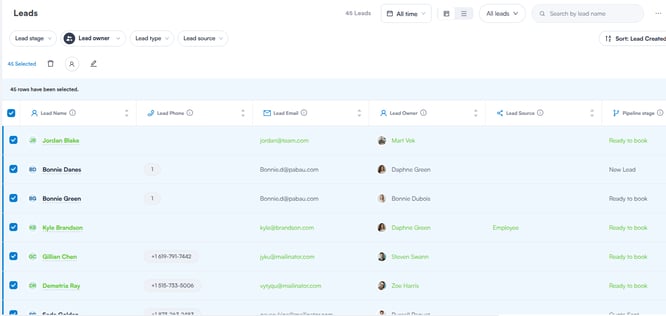
Navigate to the left and tick the top checkbox to select all your leads.
Step 3: Edit Leads
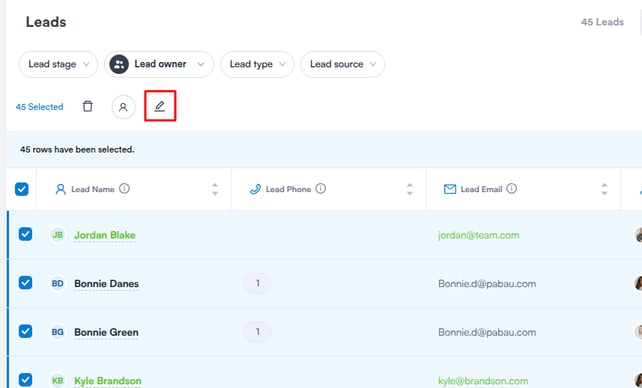
To edit the selected leads, click the edit icon in the top left corner.
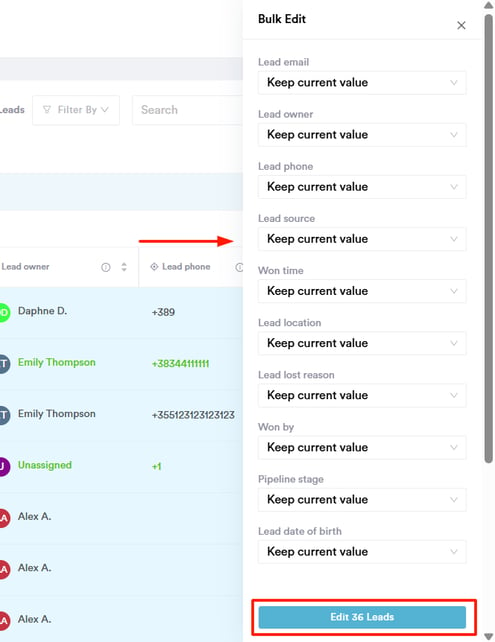
A menu will open in the right corner of the screen, allowing you to make changes in bulk. Once you've made the changes, ensure to select the edit button on the bottom right corner to finalize.
By following these steps, you can successfully edit your leads in bulk.
Can I move many leads to another pipeline at once?
Yes. Select the leads as in Step 2, click the edit icon, and in the bulk edit panel find Pipeline stage:
- In Select pipeline, choose the pipeline you want to move the leads to (for example, your newsletter pipeline).
- A second box, Select stage, then appears listing only that pipeline's stages. Choose the stage the leads should land in.
- Click the edit button at the bottom right to apply the change to every selected lead.
NOTE: A lead always sits in a stage of a pipeline, so you must pick a stage as well as the pipeline — choosing a pipeline on its own does not move the leads.
Was this guide helpful? Let us know by voting below - your feedback helps us write clearer articles.
For more guides, browse the related articles below or use the search bar at the top of the page. You can also watch our video learning series, the Pabau Academy, or visit the Support page for additional help.