
When you print a lab request from the client card, the Lab order option lays the order out with your clinic's lab order template: who it's to and from, the patient's details, the tests ordered, the diagnoses and the clinical details. You can rename, reorder and remove the sections and their fields, add your own text, and keep a separate layout for each lab you send to.
NOTE: Until you save a lab order template, Pabau prints lab orders with its built-in layout. This template only changes the Lab order printout. The other print options, such as Request (Barcode), Labels and a lab's own requisition form, are not affected.
Step 1: Open the Lab Order Template
- Go to Setup. Under Clinical → Documentation, click Print Templates.

Print Templates sits under Clinical → Documentation
- Under Preview form type, click Lab order. The designer opens with your clinic's lab order template for all labs, or with a new one if you haven't saved one yet.
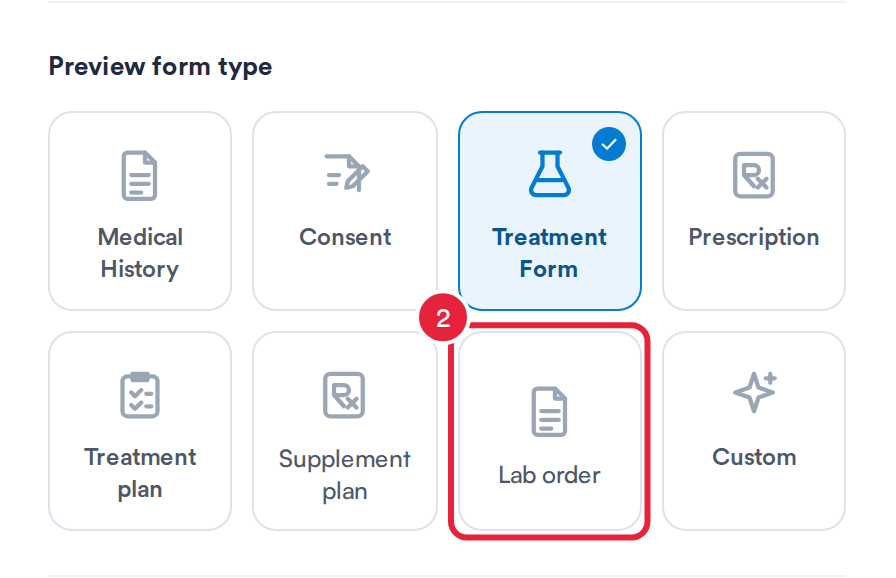
The Lab order card opens the lab order designer
Step 2: Choose the Labs and Arrange the Layout
- Under Applies to, keep All labs (default) for your clinic-wide layout, or choose one lab. A template for one lab replaces the all-labs default for orders sent to that lab.
- Under Layout blocks, drag the blocks you want onto the page. The order blocks are Order header, To / From, Patient details, Ordered tests, Diagnoses and Clinical details. You can also add a Heading, Text, Columns, a Divider, a Spacer, a Page break, Signatures or a Header.
- Check the result in the Live preview, which shows a sample lab order.
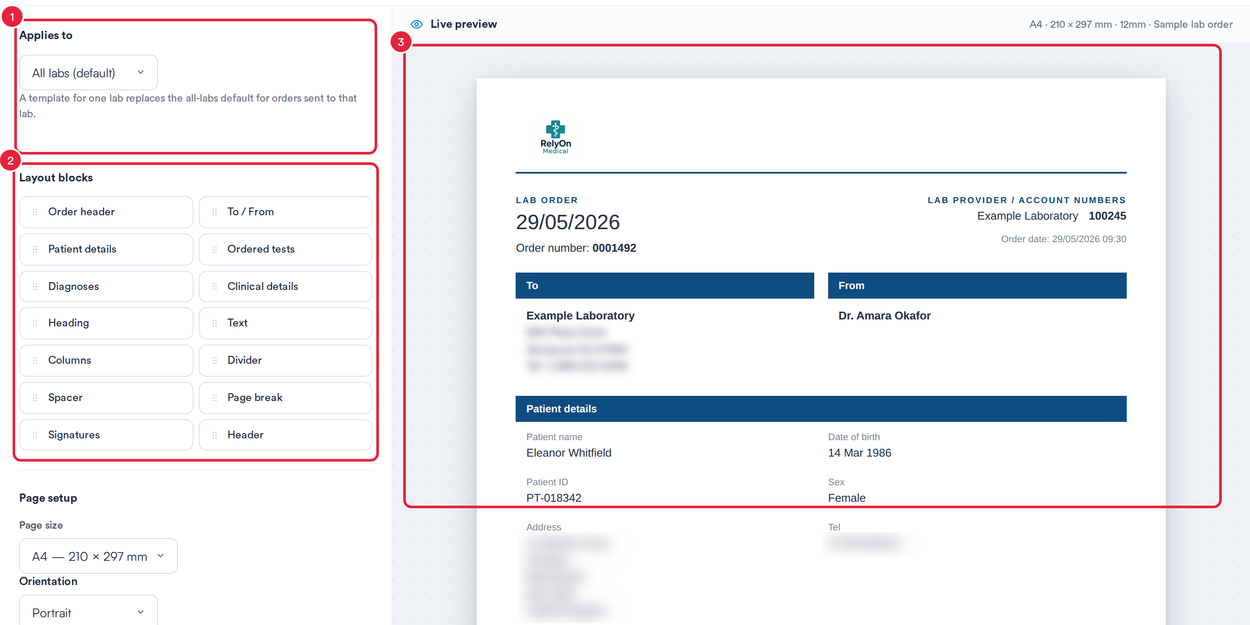
Choose the labs, drag in blocks and check the preview
Step 3: Edit a Section and Its Fields
- Click a section in the preview, for example Patient details. Its settings open on the left. Use the icons above the section to move or remove it.
- Change the Section title printed above it.
- Under Fields, rename each field's label, or use Move up, Move down and Remove to change what prints and in what order.
- Use Add a field to bring back a field you removed.
- Click Done.
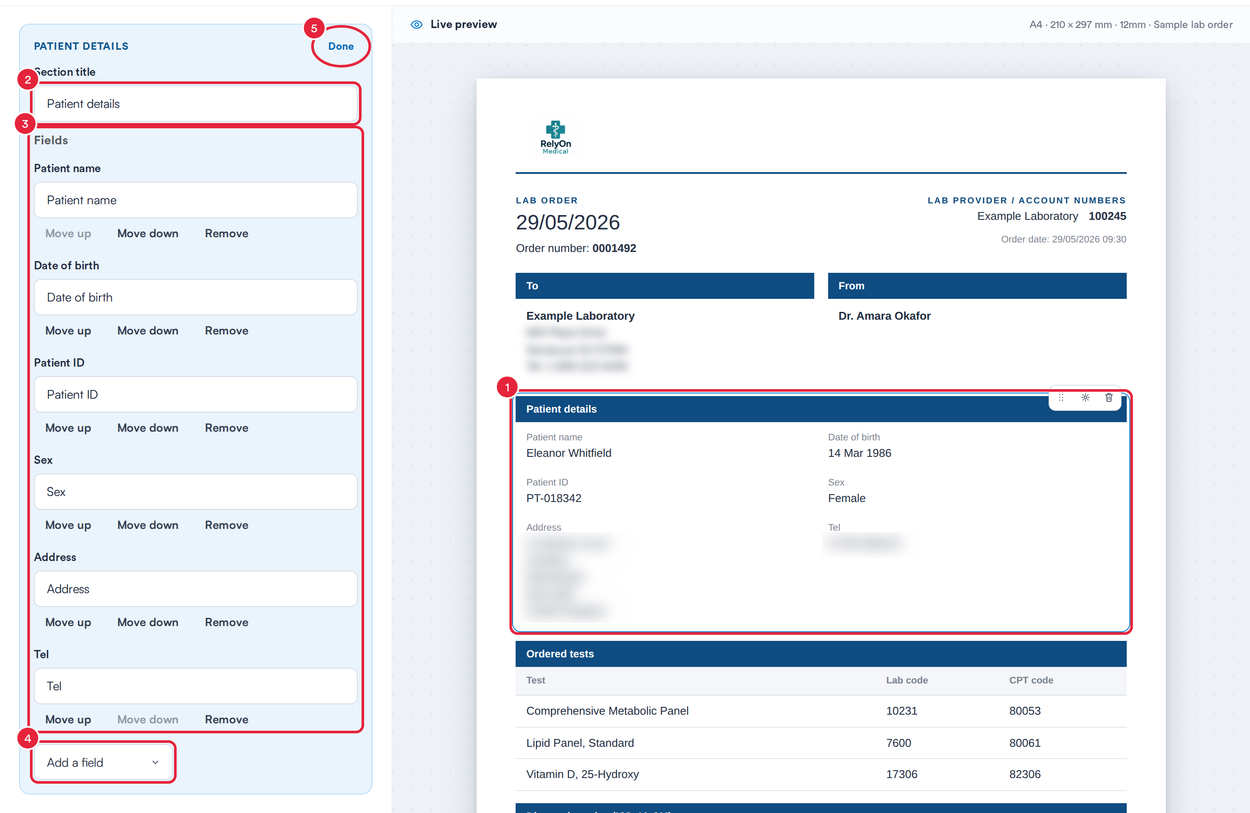
Rename, reorder or remove the fields in a section
NOTE: A section only prints when the order has something to put in it. For example, Diagnoses is left out of an order with no diagnosis codes. In the designer, an empty section shows as “printed only when the order has data for it”.
Step 4: Set Up the Page and Save
Below the blocks, Page setup controls the Page size, Orientation and Margins, whether to Repeat header on every printed page and Show page numbers, and the fonts and colours. When you're happy with the preview, click Save template at the top right. You'll see Template saved.
Step 5: Print a Lab Order From the Client Card
- Open the client's card, go to EMR → Lab Tests (Chart → Lab Tests in the United States) and click the ⋮ button on the lab request.
- Click Print.
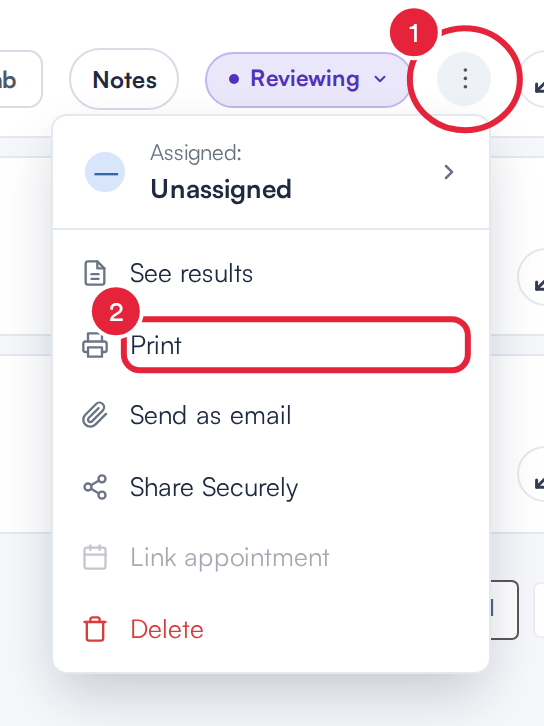
Print a lab request from its menu
- In What would you like to print?, choose the Request tab.
- Click Lab order. Pabau lays the order out with the template for the lab it was sent to, or your all-labs default.
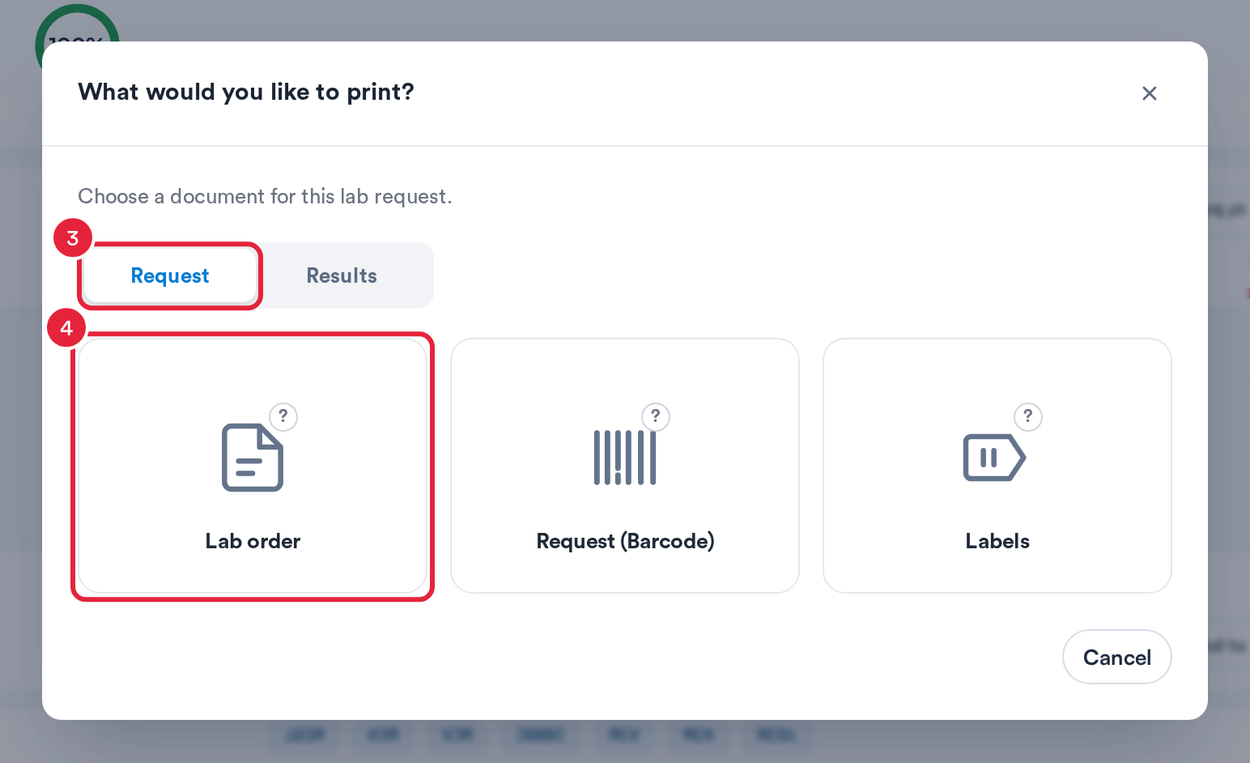
The Lab order option uses your template
Keep a Separate Layout for One Lab
To keep your all-labs layout and add a different one for a particular lab:
- In Print Templates, click the Custom card under Preview form type, then click New lab order template.
- Under Applies to, choose the lab, build the layout as above and click Save template.
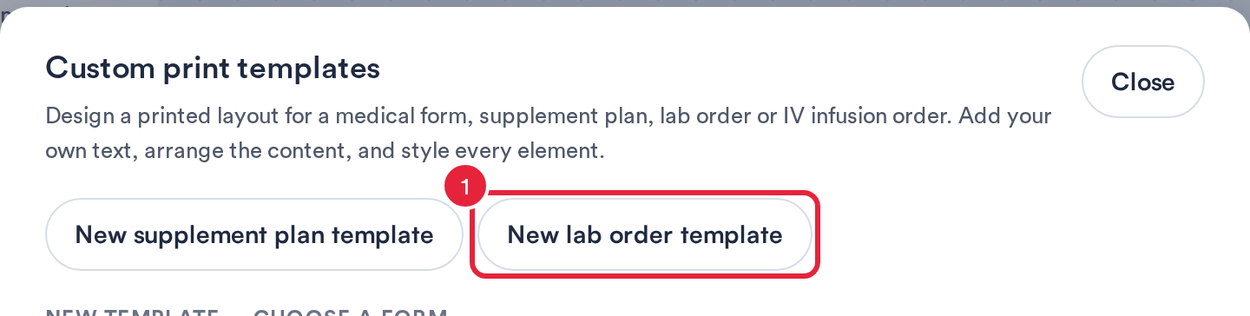
Start a second lab order template from Custom
Your saved lab order templates are listed in the Custom window, where you can open, duplicate or delete them. If more than one template applies to the same lab, Pabau uses the one saved most recently.
What's next?
- How to Create a Print Template
- How to Create a Custom Print Template
- How to Create a Lab Request (New Client Card)
Was this guide helpful? Let us know by voting below - your feedback helps us write clearer articles.
For more guides, browse the related articles below or use the search bar at the top of the page. You can also watch our video learning series, the Pabau Academy, or visit the Support page for additional help.