
Insurance claims are often rejected because the details on file don't match what the insurer holds. From the client card you can check a client's membership with Aviva, AXA Health, Cigna International, Trust In Health, Vitality Health or WPA through Healthcode, then save the confirmed membership number and cover dates to the client's policy.
NOTE: Membership lookups are for UK private medical insurers. They run from the client card's Insurance tab, which appears once Insurance Billing is switched on under Setup → Business Details → Features. You don't need a Healthcode account of your own and there is nothing to set up: Pabau runs the lookup through its own Healthcode connection. BUPA policies keep their own lookup through BUPA Providers Online, see How to Verify a Bupa Membership from the Client Card.
Step 1: Open the Lookup From the Client's Policy
- Open the client's card and click Insurance in the panel on the left.
- Under Insurance Policies, find the client's policy and click Lookup beside the membership number.
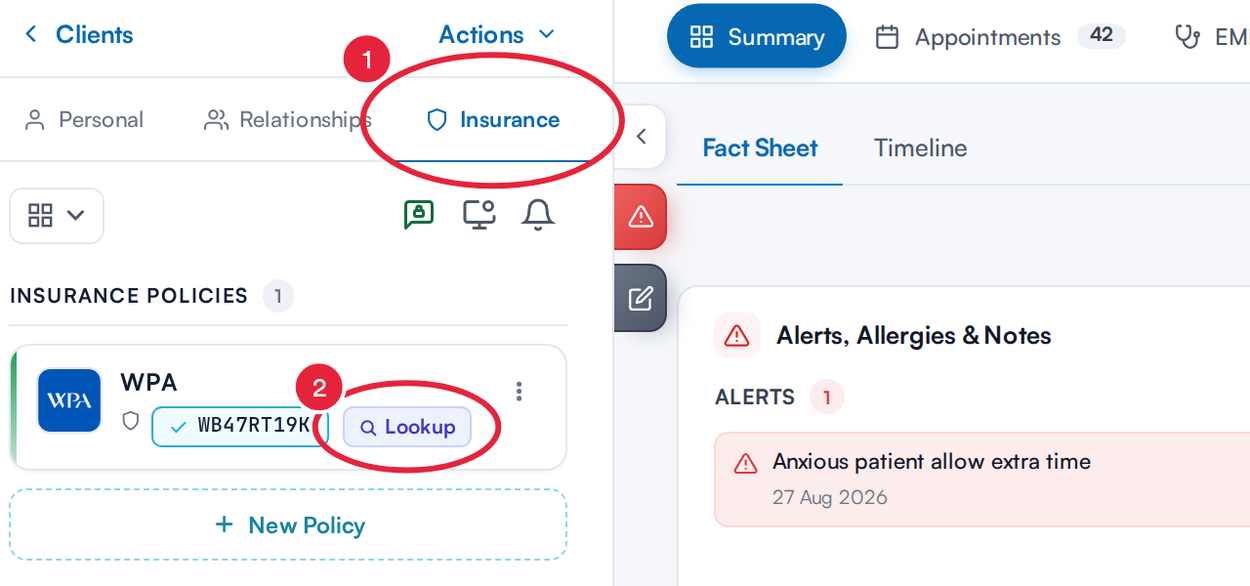
Lookup appears on policies with the insurers Healthcode connects to
The Lookup button appears on policies with Aviva, AXA Health, Cigna International, Trust In Health, Vitality Health and WPA. Pabau recognises the names clinics usually give these insurers, such as AXA PPP or PruHealth. You don't need the membership number to search: on a policy that has none yet, Lookup sits beside Add membership number.
Step 2: Check the Details and Search
The Membership lookup window opens with the client's details already filled in from their record.
- Check the Insurer. Pabau picks it from the policy. If it can't tell which insurer the policy is with, the box reads Choose an insurer…, so select the right one from the list.
- Check the First initial, Last name and Date of birth (DD/MM/YYYY). Some insurers also take the client's Postcode or Sex. Those boxes only appear for an insurer that uses them, and are filled in from the client record where Pabau has the details.
- Click Search. The window shows Checking with the insurer… while Pabau checks.
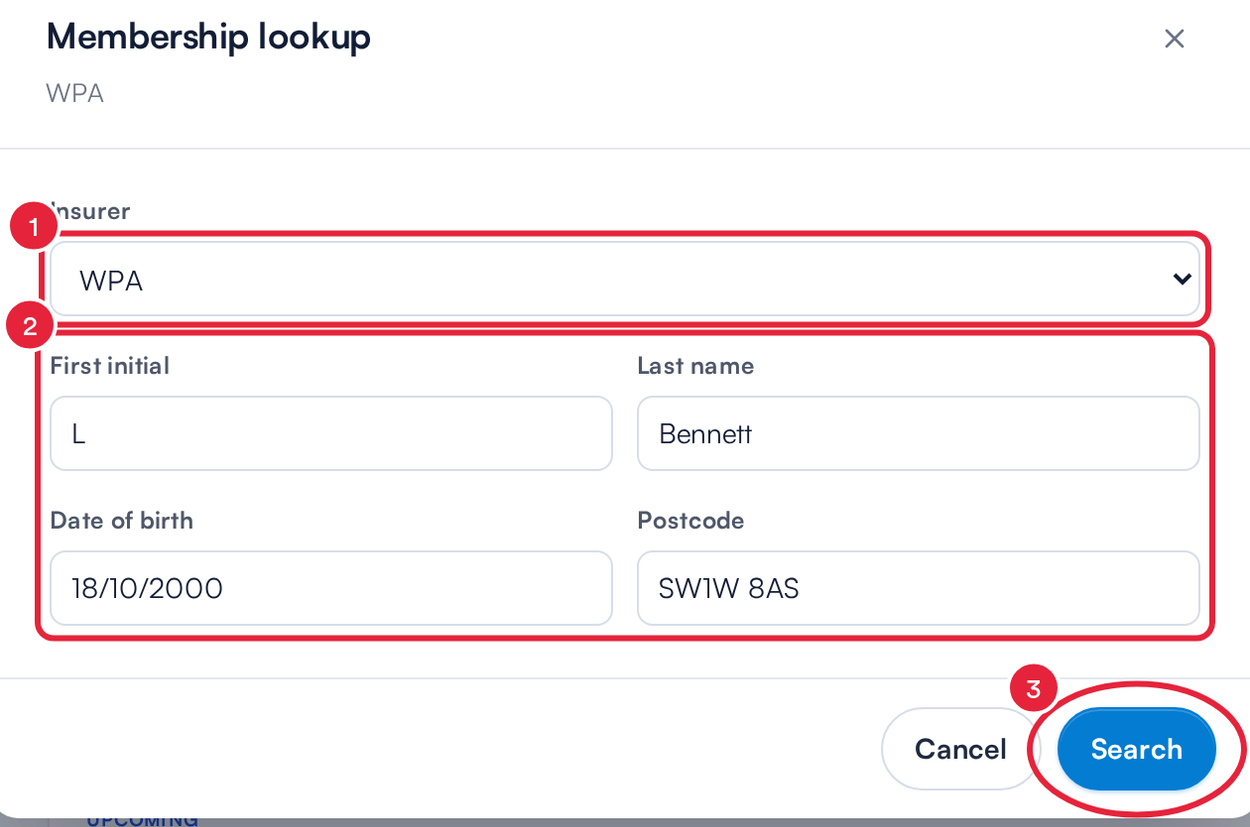
The window asks only for what the chosen insurer needs
IMPORTANT: The last name and date of birth you search with must be the ones on the client's record in Pabau, because a lookup can only confirm cover for your own clients. If they differ, Pabau shows This lookup can only confirm cover for a patient on this clinic’s records. If the client's record is out of date, correct it on the Personal tab first, then search again.
Step 3: Read and Save the Result
- Read the result. Beside the member's name you'll see Policy active or Policy inactive, followed by the Membership number, the Insurer, the dates of cover (Cover valid from and Valid to) and the Date of birth, Sex and Address the insurer holds. Insurers don't always send every detail, and anything they leave out isn't shown.
- Click Save to keep the result.
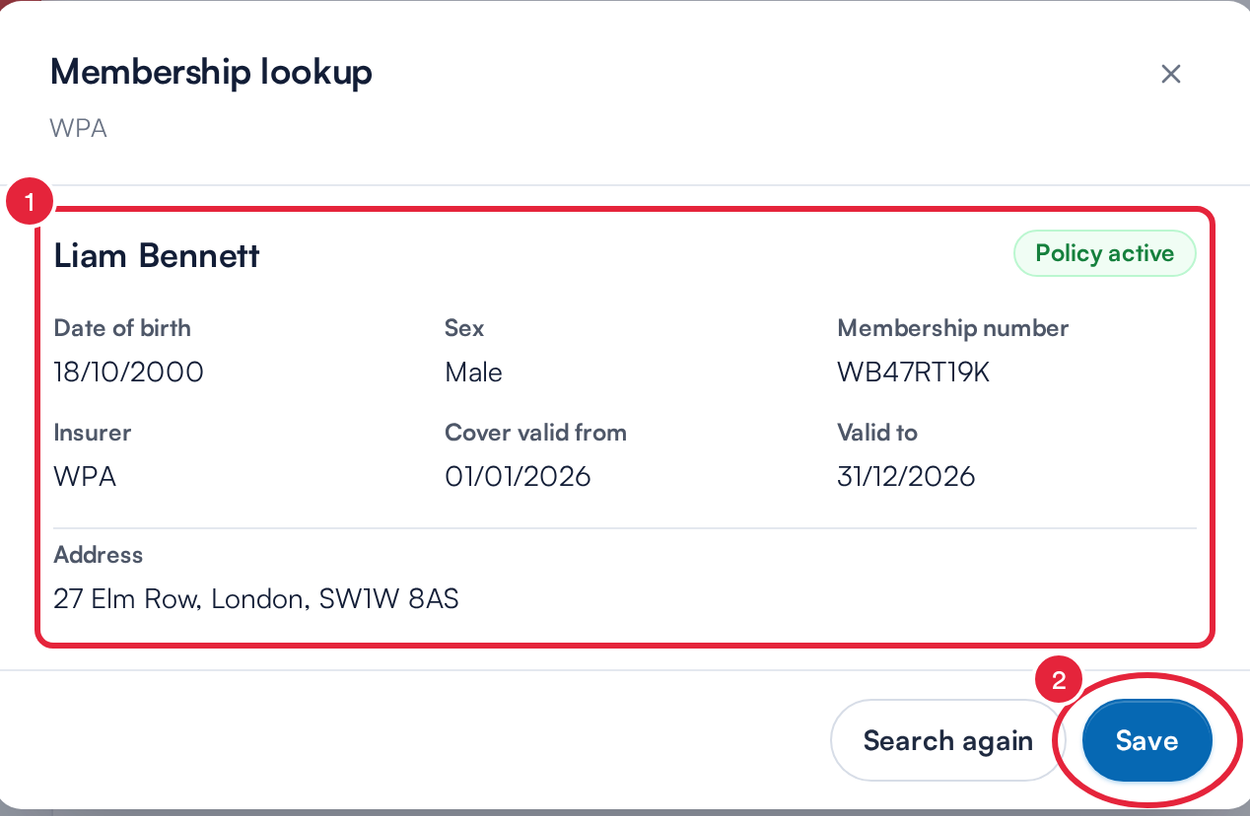
A match, with the dates of cover the insurer holds
Compare the result with the client card before you treat or bill. A different address, an old surname or a lapsed policy is worth sorting out with the client now rather than after a claim is rejected.
When you click Save, Pabau keeps the lookup on the client's record and updates the policy:
- If the policy had no membership number, the confirmed number is added to it. You'll see Lookup saved and membership number added to the policy.
- The policy's start and end dates are updated from the dates of cover the insurer returned.
- A membership number already on the policy is never overwritten. If the insurer returned a different one, Pabau shows Lookup saved. The policy keeps its membership number with both numbers, so you can check with the client and edit the policy yourself.
NOTE: Pabau only updates the policy when the result is for the policy's own insurer and the member's first initial matches your client's. If you searched a different insurer or initial, the lookup is still saved but the policy is left as it was.
If There's No Match
If the window says No match found. Check the details with your patient and try again, or contact the insurer directly., click Search again, check the insurer and the details with your client, and search once more. If it says Could not reach Healthcode. Please try again shortly., Pabau can't reach Healthcode at the moment, so close the window and try again a little later.
Step 4: Check a Membership From an Insurance Case
You can run the same lookup while you look at an insurance case, so the result is kept with that authorisation.
- On the Insurance tab, click View on the case.
- Click Look up membership at the top of the case.
- Check the details and click Search, as in Step 2. Here the save button reads Save to case, so the lookup is linked to this case.

Look up membership on an insurance case
Further down the case, Membership Lookups lists the lookups saved to the case, and any saved for the same membership number, with the Date, Policy status, Membership number and Cover dates. Click New Lookup there to run another check.
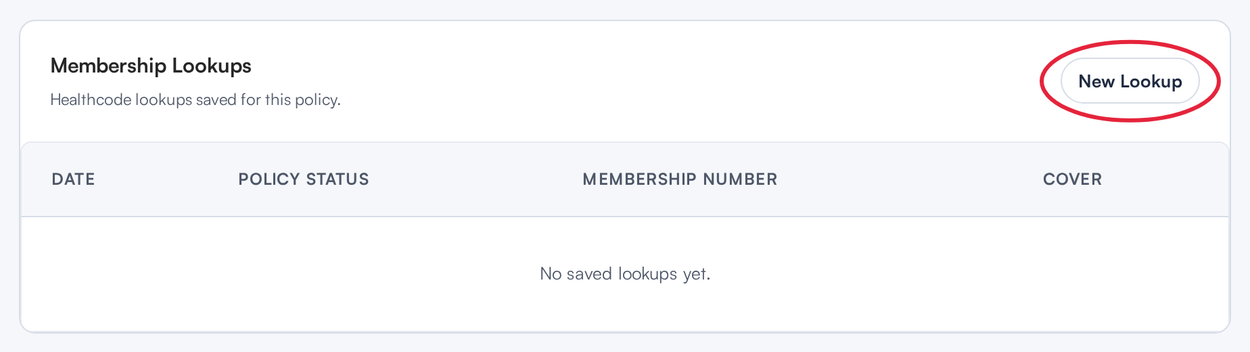
Saved lookups stay with the case
TIP: A saved result shows the cover on the day you searched. If treatment is some weeks away, or a new policy year has started, run the lookup again before you bill.
What's next?
- How to Verify a Bupa Membership from the Client Card (New Client Card)
- How to Manage Insurance Policies in the Client Card (New Client Card)
- How to Manage Insurance Case Details (New Client Card)
- Insurance Guide Part 4 (UK): Submit and track claims with Healthcode
Was this guide helpful? Let us know by voting below - your feedback helps us write clearer articles.
For more guides, browse the related articles below or use the search bar at the top of the page. You can also watch our video learning series, the Pabau Academy, or visit the Support page for additional help.