
This feature is part of the new client card version and is currently available to select users only, starting August 2026. A wider rollout to all accounts is coming soon.
Claims bounce most often because the details on file don’t match what the insurer holds. The new client card lets you check a BUPA membership without leaving the page — one click searches BUPA Providers Online using the policy number, first name and date of birth on the card, and returns the live policy status (Current or Lapsed), the member details BUPA holds, and any pre-authorisations.
You can then save the result, and the policy row will carry a status chip you can reopen at any time. This guide covers the client-card flow; for connecting your BUPA account and running checks from the claim screen, see How to verify a Bupa membership in Pabau.
Before you start: the lookup runs through your clinic’s BUPA Providers Online account. Connect it once by going to Money → Claims, clicking Configure, and opening the BUPA tile.
1. Open the client card
- Navigate to Clients from the left sidebar.
- Search for the client — for example, Emma Thompson — and click their name to open the client card.
2. Go to the Insurance tab
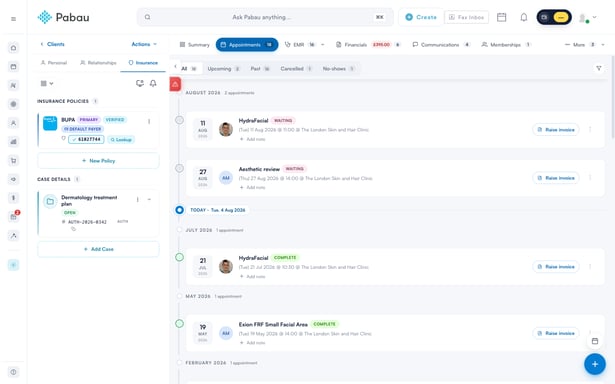
- In the panel on the left of the client card, click the Insurance tab.
- Under Insurance Policies, find the client’s BUPA policy row.
Note: The Insurance tab only appears when the Insurance Billing feature is enabled for your business — you’ll find the toggle under Setup → Business Details → Features.
The Lookup button only appears on BUPA rows that have a membership number on file. If the row shows Add membership number instead, click it and enter the number from the client’s insurance card first.
3. Run the lookup
- Click Lookup next to the membership number.
- The BUPA membership lookup window opens and searches BUPA automatically, using the policy number on the card together with the client’s first name and date of birth. You’ll see Looking up on BUPA… while it checks — it usually takes a few seconds.
If the window says BUPA isn’t connected, your clinic’s Providers Online account hasn’t been linked yet. Click Set up BUPA to connect it (you’ll need your BUPA Providers Online username and password), then run the lookup again.
4. Review the results
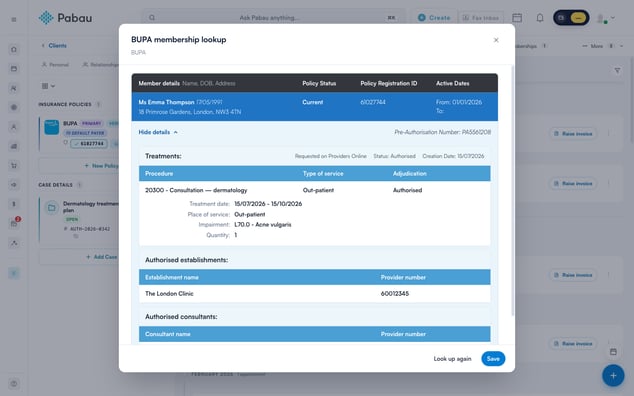
When BUPA finds a match, the window shows the membership exactly as Providers Online reports it:
- Member details — the name, date of birth and address BUPA holds for the member.
- Policy Status — Current means the policy is active; Lapsed means it isn’t.
- Policy Registration ID and Active Dates — the registration reference and the from/to dates of cover.
- Pre-authorisations — each pre-authorisation number with its status, creation date, approved treatments (procedure, type of service and adjudication, plus treatment dates, place of service, impairment and quantity), and the authorised establishments and consultants. Click Show details or Hide details on a pre-authorisation to expand or collapse it. If there are none, the window says There is no pre-authorisation linked to this member.
Compare the member details against what’s on the client card. A mismatch — a maiden name, an old address, or a formal first name (‘Charlotte’ vs ‘Lottie’) — is the most common reason a claim is rejected.
5. No match? Adjust the details and search again
If BUPA can’t find the member, the window shows No match found. Check the details and try again. together with editable search fields:
- Check the Policy number, First name and Date of birth (DD/MM/YYYY) for typos, leading spaces or nicknames.
- Correct anything that looks off and click Search to run the lookup again.
6. Save the result
- Click Save to keep the result on the client’s record. The window closes, and the policy row now shows a status chip — for example, Current.
- Click the status chip at any time to reopen the saved result — the window notes when it was last looked up.
- To refresh against BUPA’s live records, open the saved result and click Look up again.
A saved result is a snapshot from the moment it was looked up. If some time has passed — or treatment is imminent — click Look up again to confirm the policy is still current.
That’s it — you can now confirm a BUPA membership, catch detail mismatches and check pre-authorisations without ever leaving the client card.
Was this guide helpful? Let us know by voting below - your feedback helps us write clearer articles.
For more guides, browse the related articles below or use the search bar at the top of the page. You can also watch our video learning series, the Pabau Academy, or visit the Support page for additional help.