
If DHA asks your facility to send its past patient records to NABIDH before you go live, Pabau can do it for you as a backload. It always starts with a dry run: every record in your chosen date range is checked and counted, nothing is sent, and you get a report to review. Only when you’re happy do you send it, in the order DHA asks for.
NOTE: This guide is for clinics in Dubai with a NABIDH connection, and you need access to the Data Hub. You only need a backload when DHA asks for one, usually when a facility is (re)onboarding to NABIDH. Set up your connection and mapping first (Part 2 and Part 3 of the NABIDH guide series).
Step 1: Open the Backload Card
- Go to Data Hub → Data Sync, click Manage on your NABIDH connection, and stay on 1. Settings. Scroll down to the Backload to NABIDH card.
- Click Start dry run.

Every backload begins with a dry run
Step 2: Choose What to Check
- Set the From and To dates. Both dates are included.
- Under Record types, tick what to include: Visits, Prescriptions, Lab results, Documents and Problems. Everything except lab results is ticked to begin with.
- Optionally, enter At most N records of each type. Use a small sample while you’re in DHA’s test phase; leave it empty to include everything.
- Leave When a key detail is missing unticked unless DHA has agreed to it. Send nationality as Unknown (UNK) and Send country as Other (001) include patients who would otherwise be left out for a missing nationality or country.
- Click Start dry run.
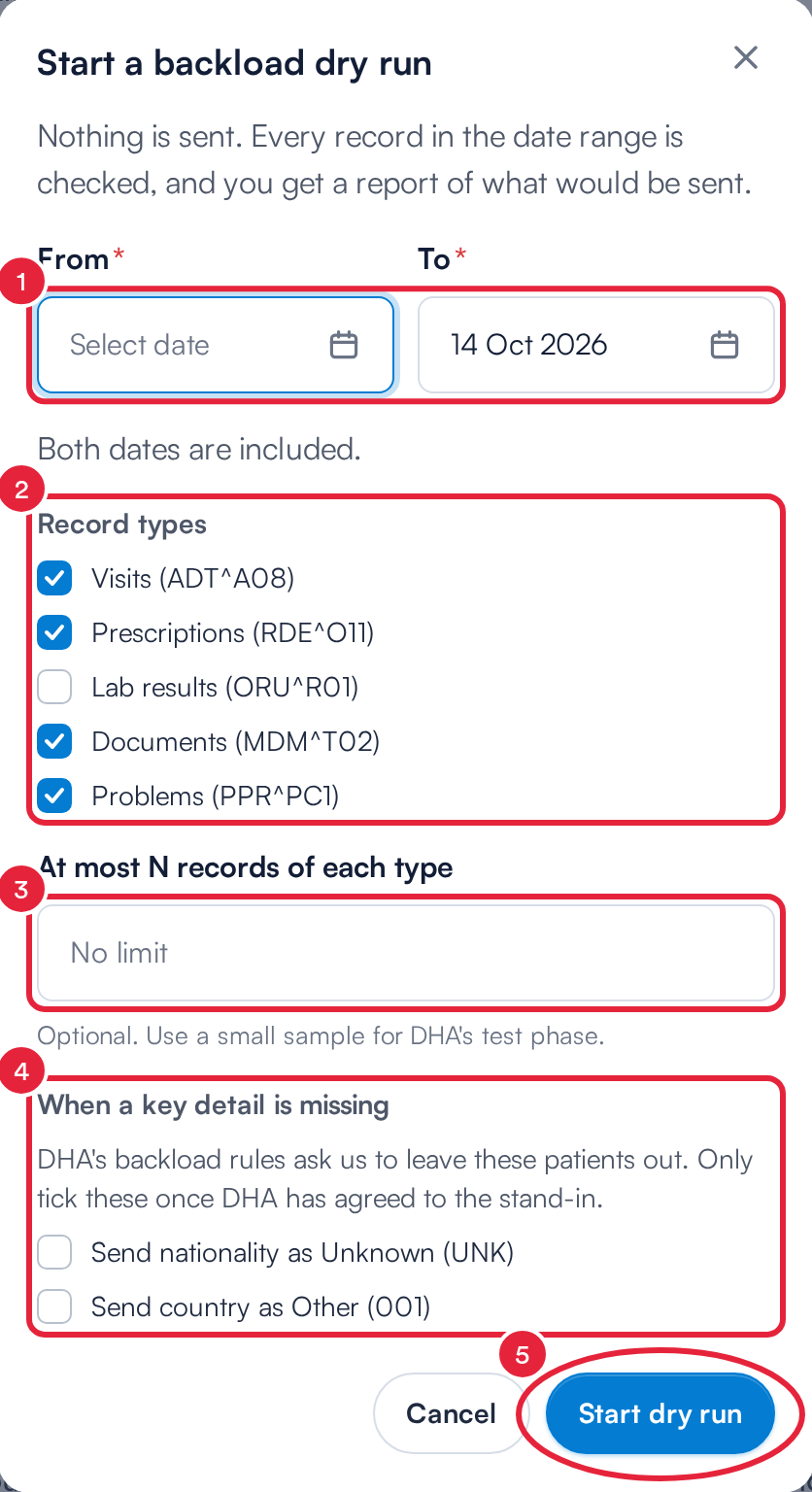
Choose the date range and record types
The dry run works through your records in the background. While it runs, the card shows Dry run in progress with the counts so far, and you can click Stop dry run at any time. Nothing is sent to NABIDH during a dry run.
Step 3: Review the Dry Run Report
When the card shows Dry run complete, read the report:
- The DHA count table shows how many valid messages of each type would be sent: the numbers DHA asks you to report.
- By record type breaks each kind of record down into Considered, Will send, Left out, Failed checks and Not applicable.
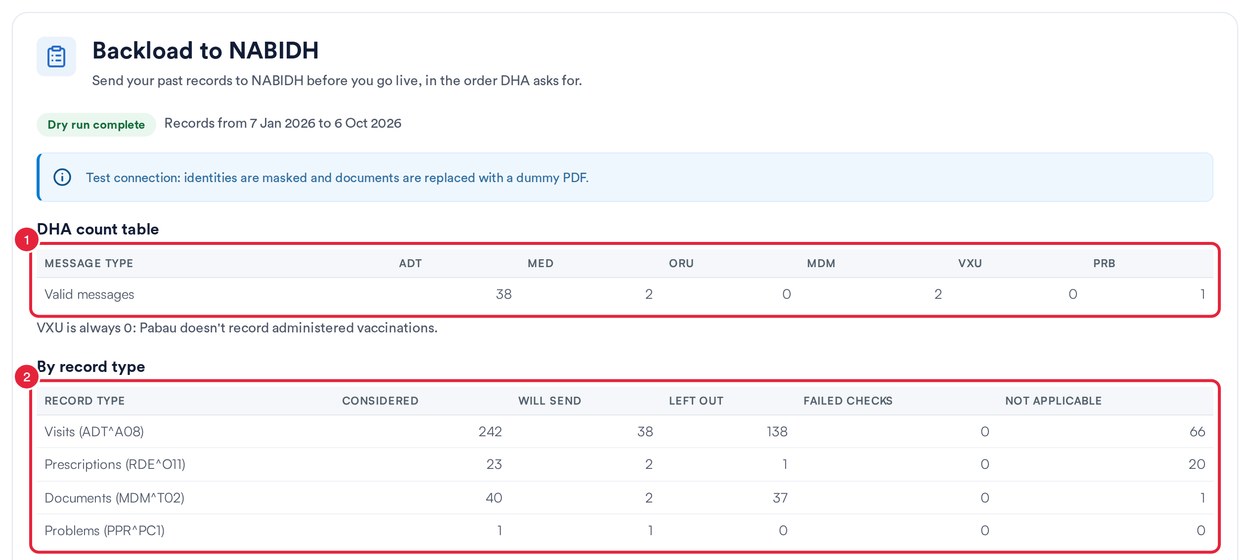
The report shows exactly what would be sent
Below the tables, Patients left out lists how many records were left out for each missing detail. DHA asks for patients missing a first name, last name, date of birth, nationality, country, Emirates ID or mobile number to be left out, and one record can be missing more than one. VIP patients are always left out.
NOTE: While the connection isn’t on Production, or when a Backload endpoint URL is set in the connection settings, the report says identities are masked: patient details are hidden and documents are replaced with a dummy PDF. That’s what DHA expects during its backload test phase.
Step 4: Send the Backload
- Click Download report (CSV) to keep a copy of the report.
- Not ready to send? Click Discard to throw the dry run away. Nothing is sent.
- Click Send backload when you’re ready.

Download, discard or send
A confirmation opens before anything leaves Pabau:
- Messages to send shows how many messages will go.
- The note underneath says where they will go. On Test, they go to the Backload endpoint URL in the connection settings, or to your regular test endpoint if none is set. On Production, they’re real patient records going to the live NABIDH platform and can’t be taken back.
- Click Send backload to start, or Cancel.
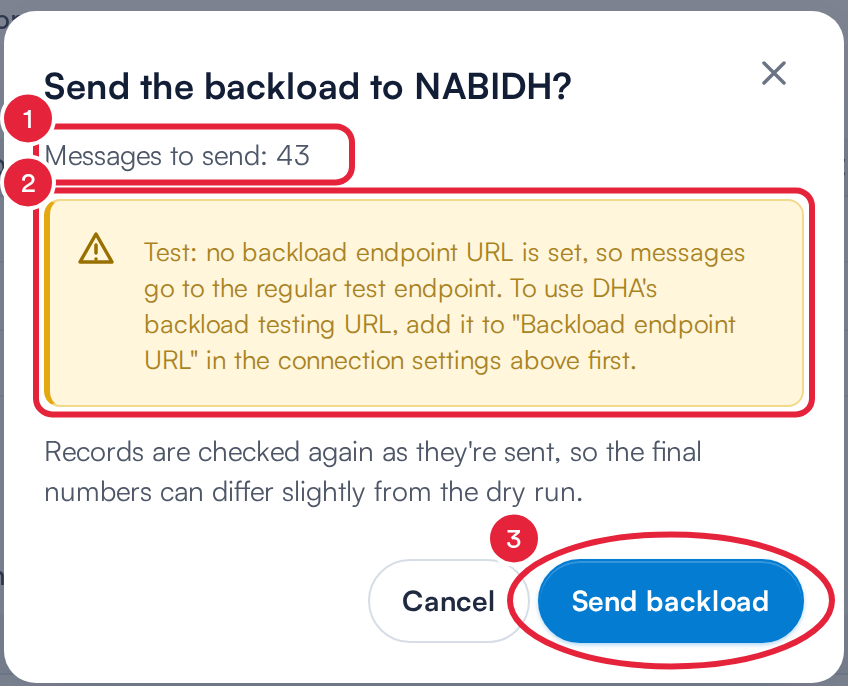
Check the count and destination before you confirm
IMPORTANT: The connection must be active to send. If it’s paused, the card asks you to resume it first. Records are checked again as they’re sent, so the final numbers can differ slightly from the dry run.
Step 5: Follow the Backload
The card shows Sending and which record type is going out (Now sending: Visits, for example). Visits go first, then the other record types, one type at a time. Each message also appears in the connection’s Logs like any other NABIDH delivery, with DHA’s reply.
- Click Stop backload to stop. Messages already queued are still sent; the rest aren’t. To send them later, start again with a new dry run.
- When it finishes, the card sums up how many messages were sent and how many failed. Click Start a new dry run to run another backload.
What's next?
- NABIDH Guide Part 5: Test, Monitor and Troubleshoot NABIDH Deliveries
- NABIDH Guide Part 6: NABIDH Error Codes and Delivery Statuses
- How to Pass the NABIDH Readiness Check and Go Live
Was this guide helpful? Let us know by voting below - your feedback helps us write clearer articles.
For more guides, browse the related articles below or use the search bar at the top of the page. You can also watch our video learning series, the Pabau Academy, or visit the Support page for additional help.