
Widgets put the lists you check all day next to the calendar, so you don't have to leave it. Add your open activities, the latest lab results, unread messages or incoming faxes to the left or right of the calendar and they keep themselves up to date while you work.
NOTE: This feature is being rolled out to clinics gradually. If you don't see it in your account yet, message us via the in-app chat.
Step 1: Open the Widgets Tab
- In the calendar, click the gear icon (Calendar settings) at the top right.
- Click Widgets. The tab shows a preview of your calendar with a Left side and a Right side.

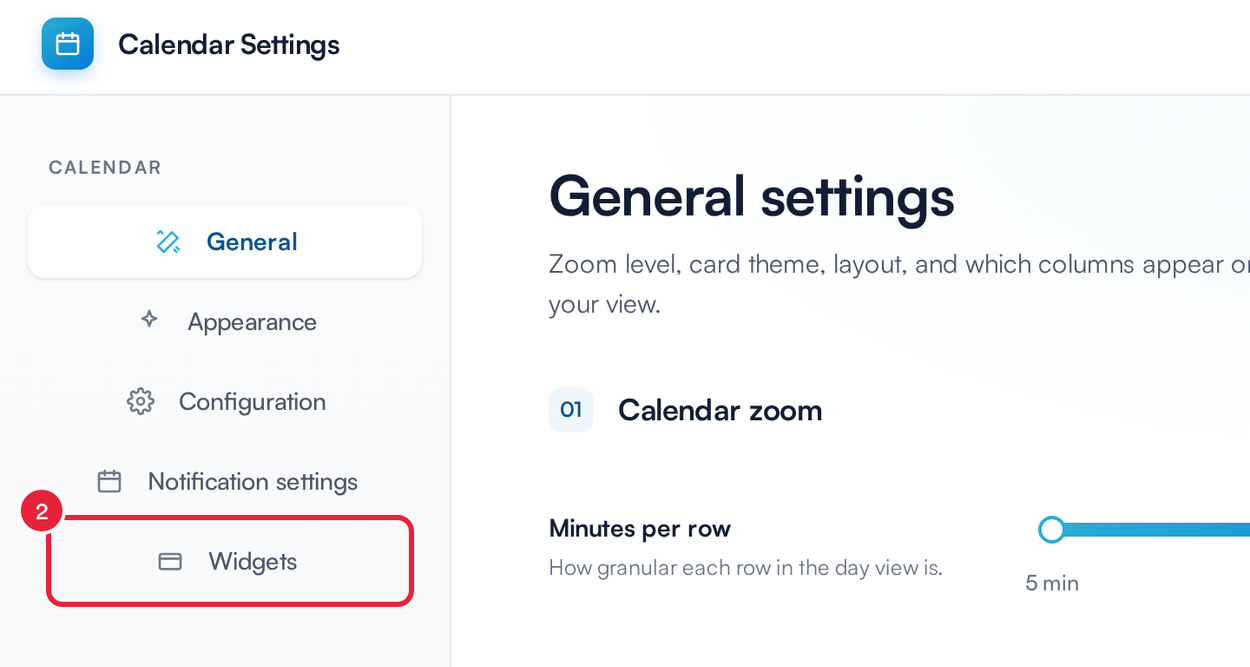
Open Calendar settings, then the Widgets tab
Step 2: Add a Widget
- Click an empty space marked Add widget on the left or right.
- Under Choose a widget, pick one:
- Activities: your open activities and their due dates.
- Recent Lab Results: the 10 most recently updated lab results marked Received or Sent.
- Unread Messages: the latest 10 unread conversations in your Engage inbox (emails and faxes are left out).
- Incoming Fax: faxes received on all your clinic's fax numbers.
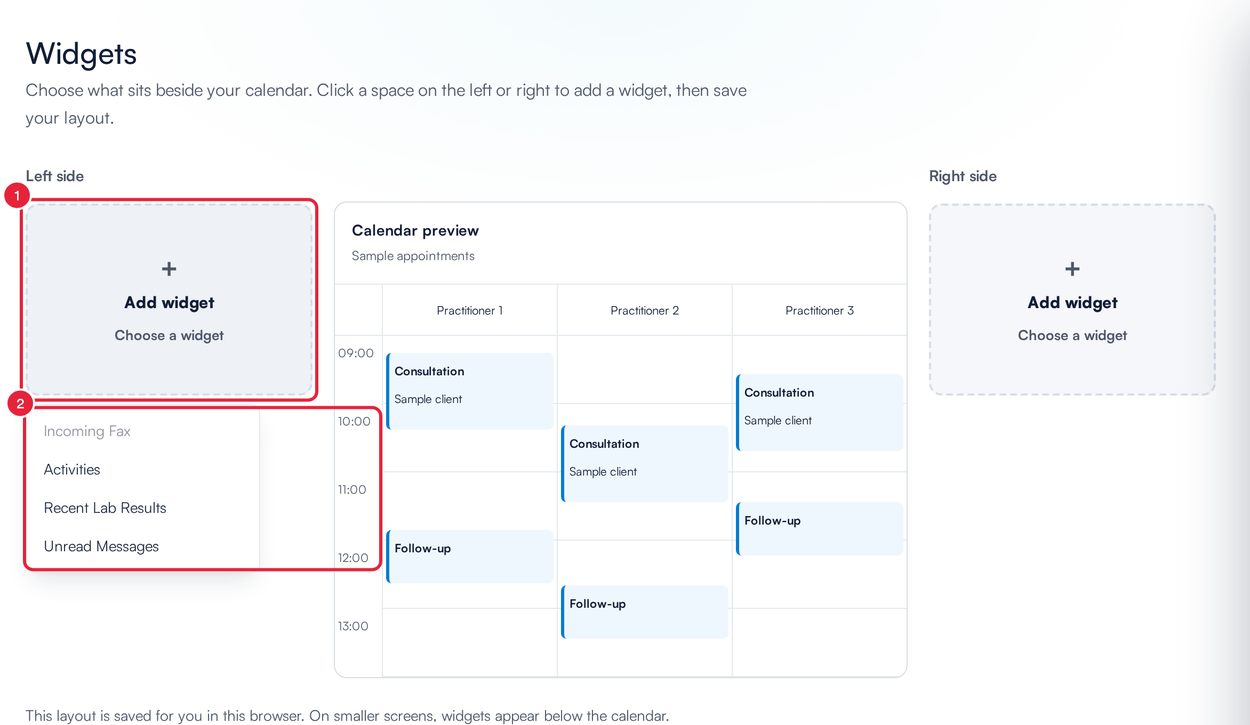
Choose a widget for each side of the calendar
NOTE: You only see the widgets you have access to. Activities needs access to the activities page, Recent Lab Results needs access to the labs page, and Unread Messages needs access to the inbox. Incoming Fax also needs your clinic to use fax. A widget you can't use is greyed out in the list.
Step 3: Arrange Your Widgets and Save
- Click Move right or Move left to send a widget to the other side. When a side has more than one widget, Move up changes their order.
- Click Remove to take a widget off.
- Click Save changes. The widgets appear beside your calendar straight away.
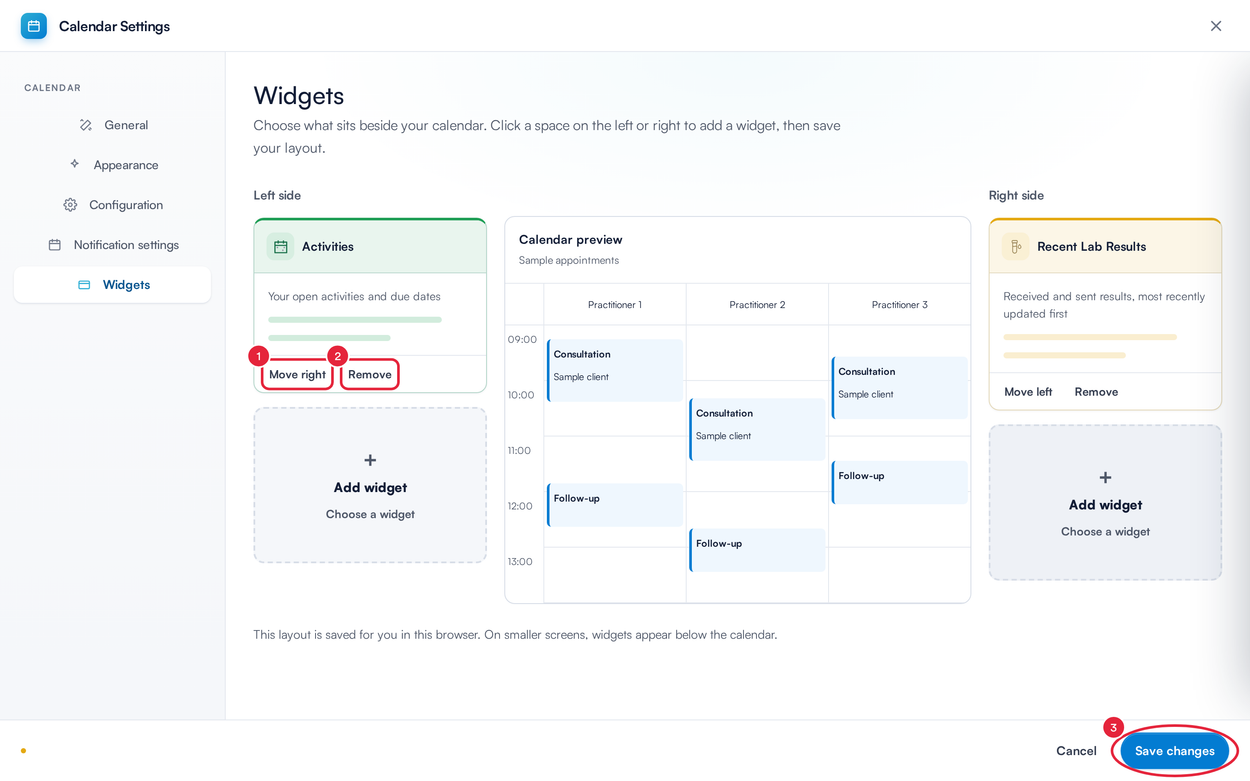
Arrange the widgets, then save
TIP: Your widget layout is saved for you on the computer and browser you are using, so each person can set up their own. On smaller screens, the widgets appear below the calendar instead of beside it.
Step 4: Use the Widgets
The widgets refresh themselves every minute while the calendar is open.
- Activities: tick the box beside an activity to mark it as done (you need permission to edit activities).
- Click + New to create an activity (you need permission to create activities).
- Click View all activities to open the full activities page.
- Recent Lab Results: click Refresh to check for new results now.
- Click View lab details to open that result on the client's card, or View all labs at the bottom to open the labs page.
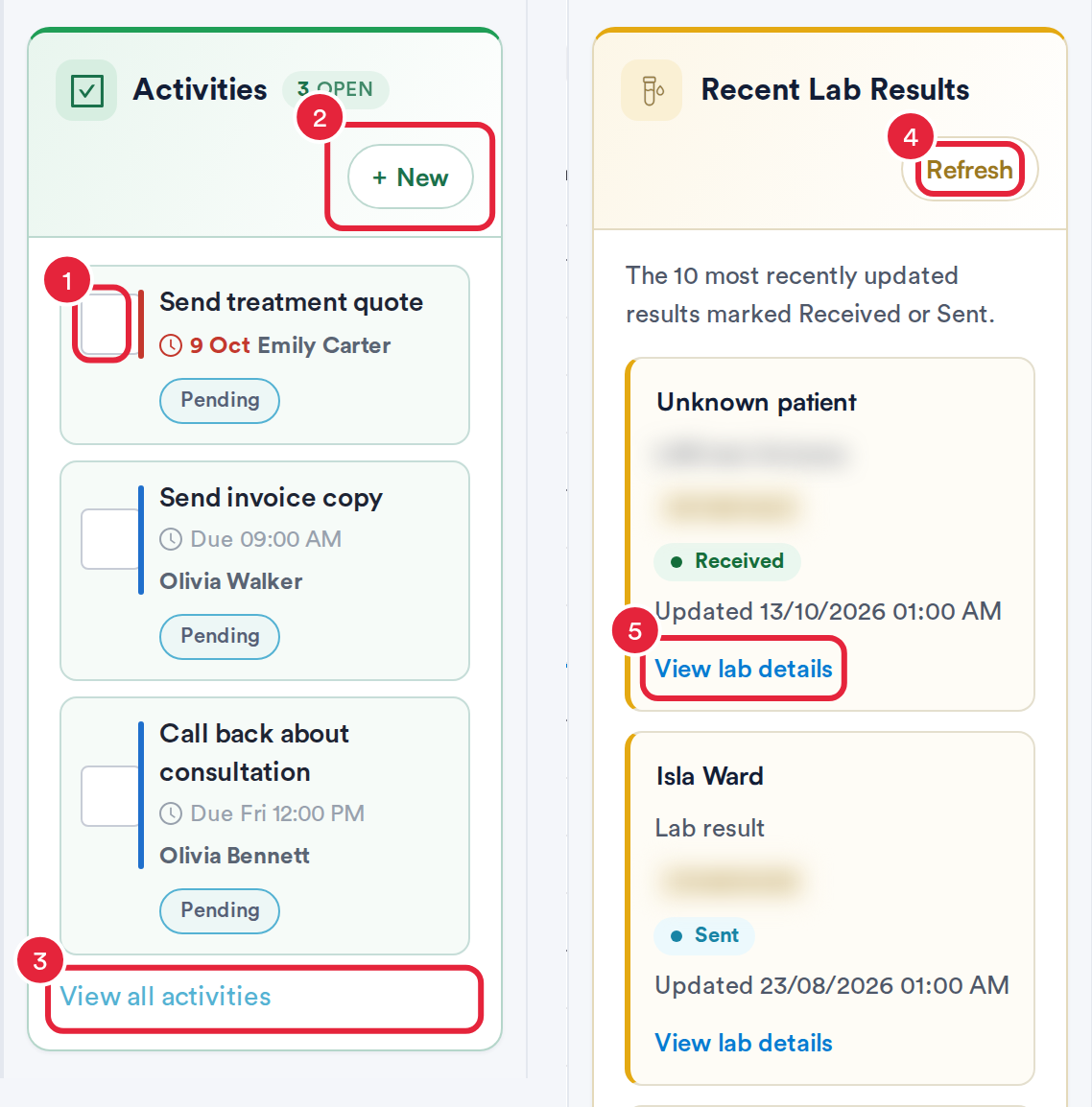
The Activities and Recent Lab Results widgets
In the Unread Messages widget, click Open conversation to open a conversation in the inbox. Opening a conversation from the widget does not mark it as read. In the Incoming Fax widget, click Open fax inbox to see all your faxes.
NOTE: While the calendar is in privacy mode or the screen is locked, the widgets hide their content and show "Widget content is hidden while the calendar is private or locked."
What's next?
- How to Find Your Way Around the New Calendar
- How to Manage Activities in the Calendar
- How to Lock and Unlock Your Calendar Screen
- How to Set Up Calendar Filters
Was this guide helpful? Let us know by voting below - your feedback helps us write clearer articles.
For more guides, browse the related articles below or use the search bar at the top of the page. You can also watch our video learning series, the Pabau Academy, or visit the Support page for additional help.