
NOTE: There is no separate Add label action in Workflows. Labels are added with the Update client fields action (or Update lead fields for leads). Remove label is the only label action listed on its own.
Before you start
The label must already exist in your account. If it doesn't, create it first – see How to Create a Label.
Step 1: Add the Update Client Fields Action
Go to Marketing → Workflows and open the workflow you want to edit, or create a new one with a trigger such as Clients → created. Click + under the trigger, choose Action, then Actions in Pabau → Clients → Update client fields.
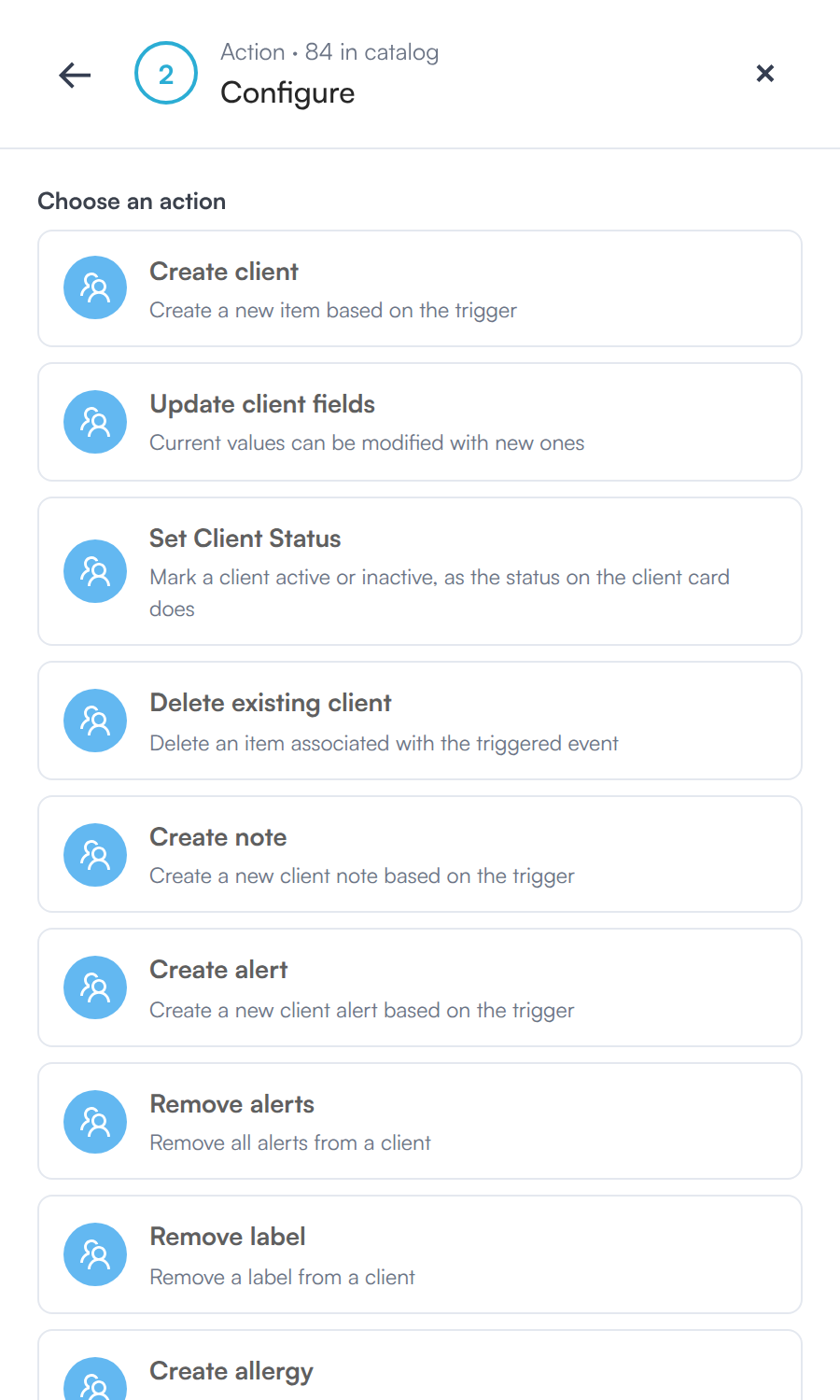
The Clients actions list – Update client fields is the one that adds a label
Step 2: Choose the Client and Add the Label Field
- In Client (Required), pick the client from the trigger, for example Trigger · Client System ID.
- Click + Add field, find Label (you can type it into Search fields) and click it.
- Click Done.
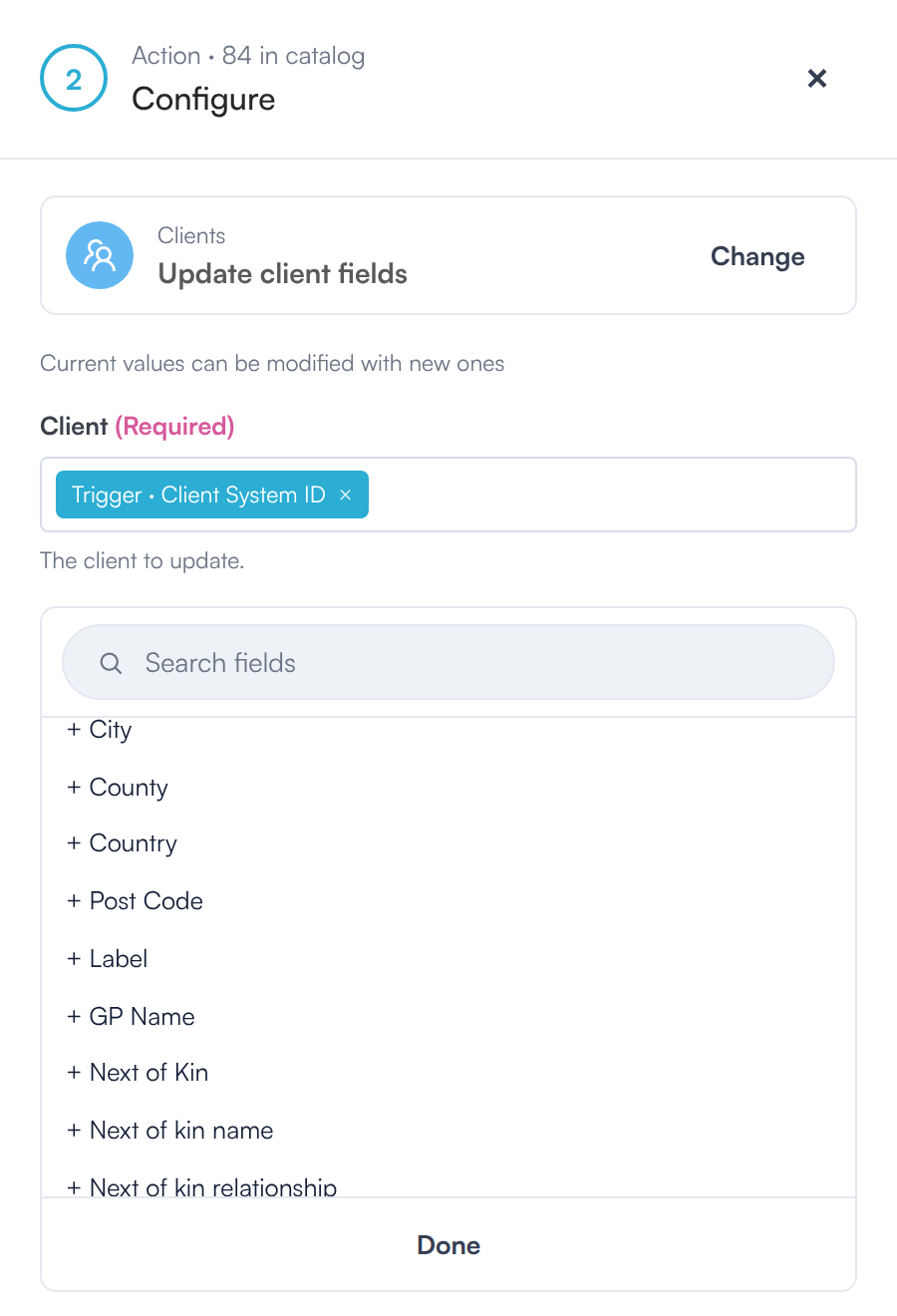
Label in the Add field list
Step 3: Pick the Label and Save
Click into the Label field and select the label to assign to the client, then click Save action. Save and publish your workflow as usual.
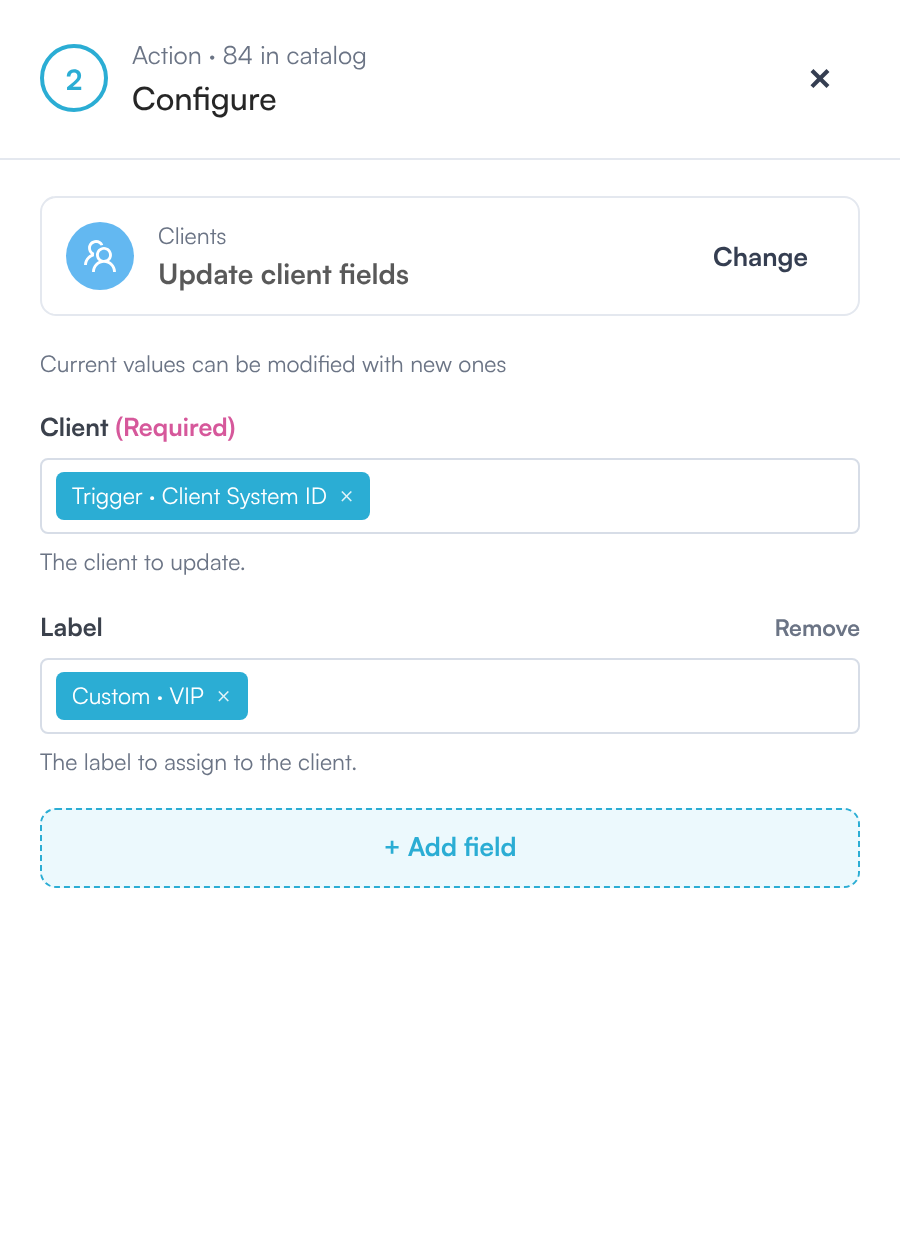
Update client fields ready to add the VIP label
TIP:
TIP: You don't need to fill in any other fields – only the label is added. The client's existing labels stay in place, and a label they already have is not added twice.
Adding a label to a lead
It works the same way for leads: use a Leads trigger, then add Actions in Pabau → Leads → Update lead fields, click + Add field → Label and pick the label.
Removing a label instead
To take a label off a client, use the Clients → Remove label action and pick the label. If the client doesn't have that label, the step fails.
What's next?
- Workflows: Detailed walkthrough
- How to Create a Label
- How to Assign a Label to a Client (New Client Card)
- How to Remove a Label from a Client (New Client Card)
- How to Use Labels for Targeted Marketing Campaigns
Was this guide helpful? Let us know by voting below - your feedback helps us write clearer articles.
For more guides, browse the related articles below or use the search bar at the top of the page. You can also watch our video learning series, the Pabau Academy, or visit the Support page for additional help.