
Step 1: Access Labels
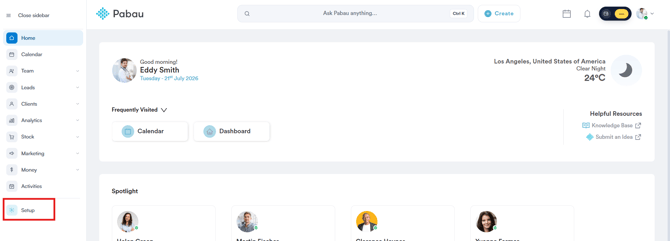
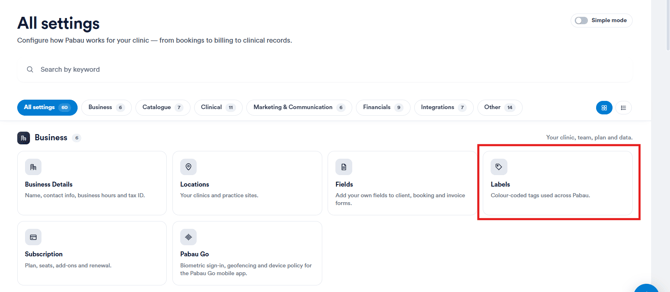
Log in to your Pabau account, navigate to the left sidebar menu, and click on Setup. From the "All settings" page, under the Business section, click on Labels.
 .
NOTE: You can also learn about this topic by watching a lesson on Pabau Academy.
Step 2: Initiating Label Creation
On the Labels page, choose whether you want to create a label for a client or a lead using the "Client Labels" or "Lead Labels" tab. Then click on the "Create" button located in the top right corner of the page.

Step 3: Label Details
Input the label name in the designated "Name" field and choose a color for the label from the color picker.
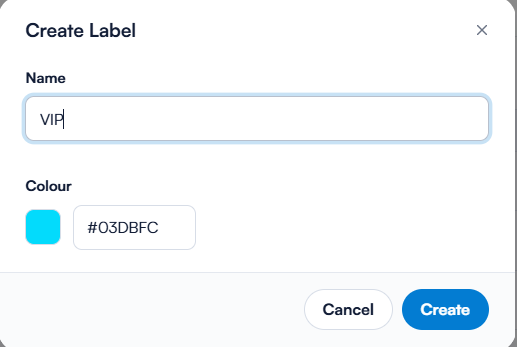
Optionally, you can use a custom color by entering the color's hex code directly into the "Color" field.
Once you've filled in the necessary details, click the "Create" button to confirm and finalize the creation of the label.
NOTE: For guidance on assigning labels to clients, please refer to the related article on assigning labels.
To learn how to use labels for targeted marketing campaigns, please refer to the related article on using labels for targeted marketing campaigns.
Where do I create lead types?
Pabau doesn't have a separate "lead type" list to set up. Depending on what you want to group your leads by, use one of these instead:
- Lead labels – colour-coded tags you create on the Lead Labels tab (Steps 1–3 above). They suit flexible groupings such as interest or priority.
- Pipelines and stages – to track where a lead is in your sales process. Go to Leads, switch to the Board view, open Pipeline options and choose New pipeline or Edit pipeline. Give it a Pipeline name, then use Add stage to build the stages. You can create several pipelines, for example one per treatment category, and choose between them with Select pipeline.
- Marketing sources – to record where a lead came from. Go to Setup → Marketing & Communication → Marketing Sources. The source shows as Lead source on the leads list, and you can filter by it.
- Custom fields – for any other category you want to record on a lead. Go to Setup → Business → Fields and create the field on the Lead tab.
NOTE: Some filters show a Lead type option with the values Open, Converted and Junk. This is the lead's fixed status in Pabau, not a list you can edit. If you need your own categories, use one of the options above.
If a lead doesn't convert, the reasons offered when you mark it as lost are set separately under Setup → Developer & Other → Lead Lost Reasons.
Was this guide helpful? Let us know by voting below - your feedback helps us write clearer articles.
For more guides, browse the related articles below or use the search bar at the top of the page. You can also watch our video learning series, the Pabau Academy, or visit the Support page for additional help.