
Pabau Engage is your clinic's unified communications workspace. It brings every conversation you have with clients and leads — text messages, WhatsApp, email, fax, Facebook Messenger, Instagram DMs and phone calls — into a single screen, connected directly to your Pabau client records. Alongside the inbox, Engage now includes a team chat, reports on how your clinic communicates, and the AI agents that can answer for you. This article explains what Engage does, how it is organised, and where to go next to set it up.
How You Open Engage
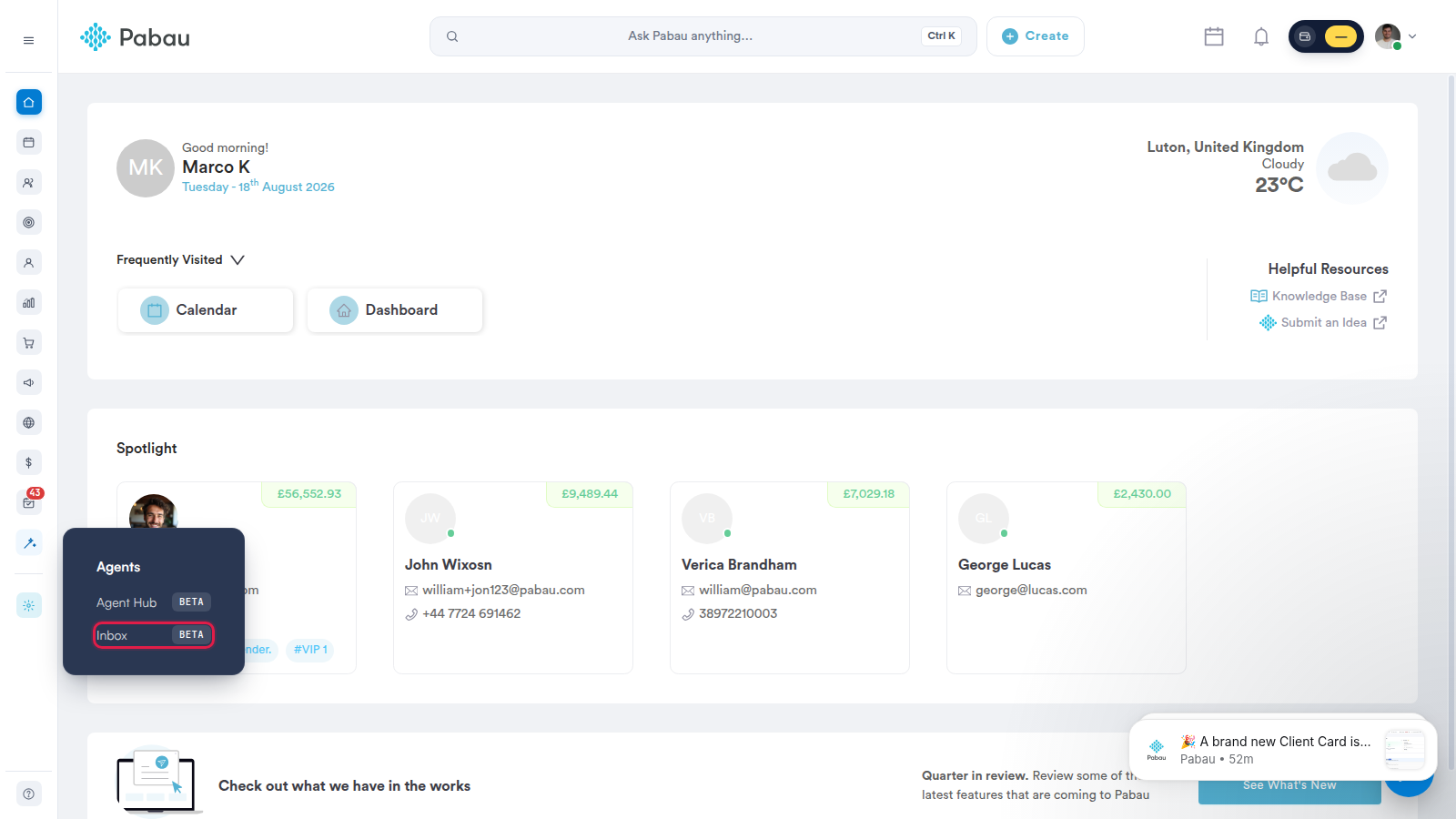
Click Agents in the Pabau sidebar and choose Inbox. Engage opens in its own browser tab and signs you in automatically — there is no separate login, and your Pabau session carries over.
One Inbox for Every Channel
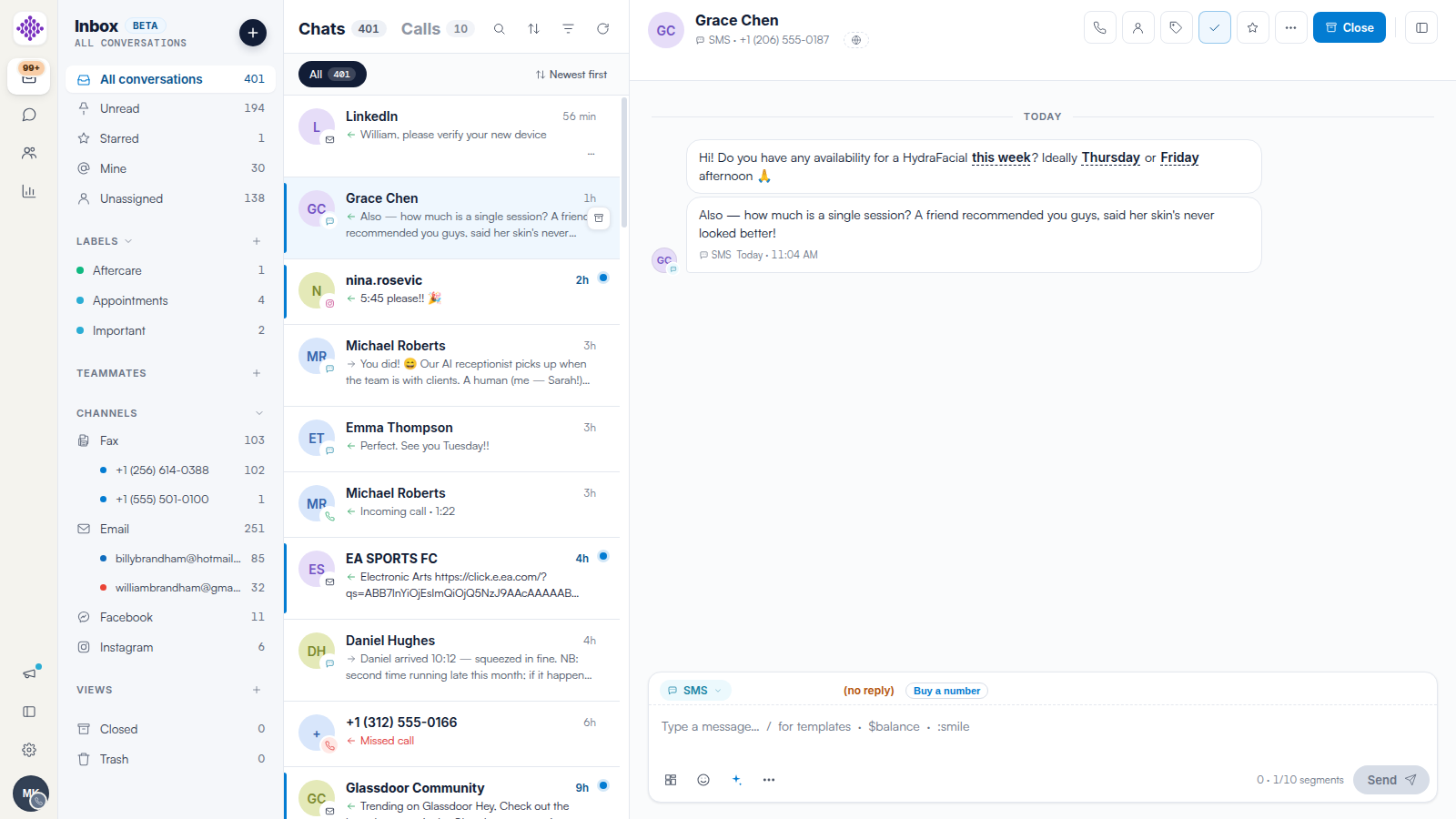
Instead of checking a phone, an email account and several social apps, your team works from one conversation list. Engage supports SMS, WhatsApp, Email (including synced Gmail and Office 365 mailboxes), Fax, Calls (with voicemail), Facebook and Instagram. Each conversation shows the full history in one place, and your team can reply on a different channel than the one the message arrived on — for example, answering an Instagram enquiry by SMS.
Only the channels your clinic has set up appear in the sidebar, each with its own numbers and mailboxes listed beneath it, so the screen stays uncluttered.
More Than an Inbox
The icon rail on the far left switches between Engage's sections:
- Inbox — every client conversation, with filters, labels, saved views and the Chats and Calls tabs.
- Chat — an internal team chat with channels such as #front-desk, direct messages, reactions and threads. Nothing in Chat is visible to clients. We suggest reading our Getting Started with Team Chat in Engage article.
- Agents — your clinic's AI teammates, managed from the Agent Hub in Pabau.
- Reports — analytics on calls, messages and team response times. We suggest reading our Engage Reports: Track Calls, Messages and Team Performance article.
- Settings (the cog) — the channel settings, where every channel is connected and managed. We suggest reading our Channel Settings: Your Communications Hub article.
Connected to Your Client Records
Engage is built on top of Pabau, so conversations are tied to real client records. When a known client messages you, the patient panel shows their contact details, files, notes and account balance, with shortcuts to Book, open their Chart, Bill or view their Profile. When someone new gets in touch, you can link the conversation to an existing record or create a new lead or client without leaving the inbox.
AI That Answers for You
If your clinic uses Pabau's AI receptionist, it can answer calls your team misses, book appointments and send confirmations — and everything it does appears in the inbox, clearly marked. Calls it handles arrive with a full transcript and an appointment card showing what was booked. Conversation routing can also assign incoming conversations to the right team member automatically — see our Conversation Routing: Auto-Route Incoming Messages in Engage article.
What Engage Costs
Engage billing has two parts. Phone and fax numbers you buy through Engage carry a monthly fee, and day-to-day usage (calls and text messages) is charged per minute and per SMS segment. The exact price is always shown before you confirm a purchase. We suggest reading our How Engage Billing Works: Subscriptions and Credits article for the full picture.
Related Articles
We suggest reading our
-
Getting Started with the Engage Inbox article for a hands-on tour
-
Channel Settings: Your Communications Hub article for connecting your first channel.
For more guides, refer to related articles below, select additional guides, or use the search bar at the top of the page. These guides will help you get the most out of your Pabau account.
Additionally, to help you fully utilize and understand your Pabau account, we recommend exploring additional guides and resources offered at the Pabau Academy.