
NOTE: Plans is switched on clinic by clinic. If you can't find Plans in your sidebar, message us via the in-app chat and we'll help.
A few settings shape how Plans works for your whole clinic. In this article, you will learn how to choose the plan types you offer, set the services whose appointment books a whole treatment plan, and show a fee distribution on your plans.
NOTE: Changing these settings needs access to Setup. Other staff can see them but can't save changes.
Step 1: Choose Your Plan Types
On the Plans page, click Plan types and switch on each type your clinic offers: Treatment, Supplements, Nutrition, IV Infusion and Exercise. Changes save straight away.
- A type that is off disappears from Build plan, the tabs on the Plans page and your clients' portal. Its existing plans are not deleted and still show under All.
- Treatment plans are always available in Pabau. The Treatment switch decides whether clients see treatment plans in the client portal.
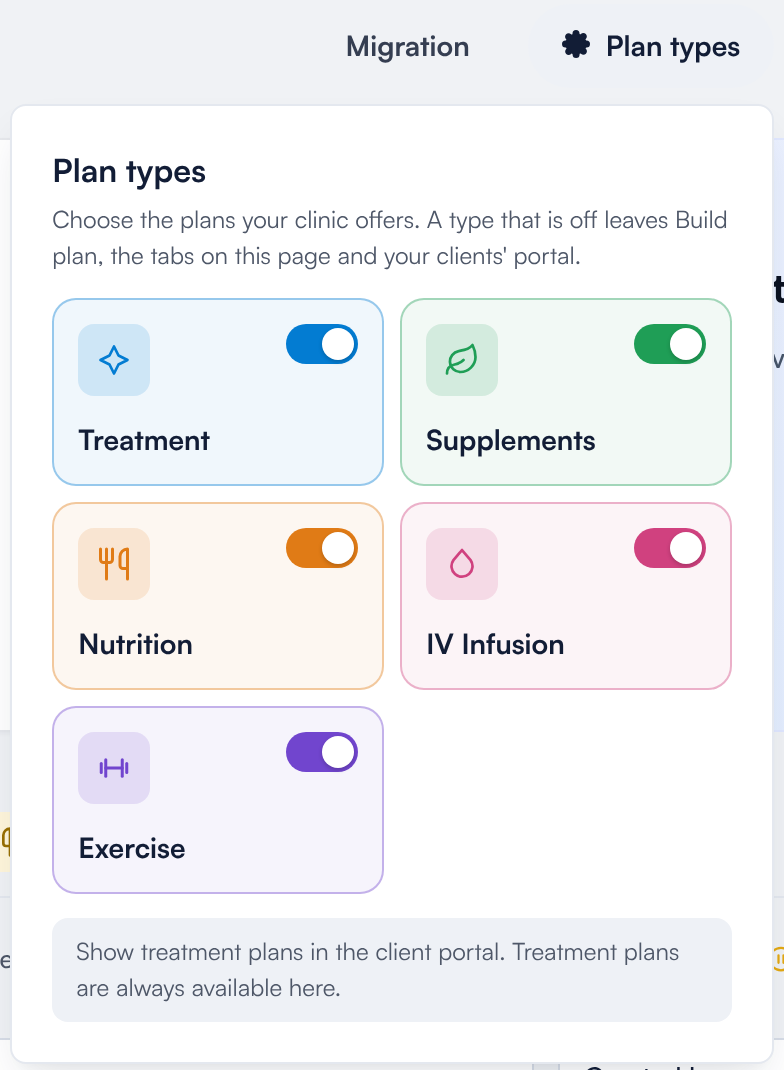
Plan types
Step 2: Set the Services That Book a Plan
Normally, a plan's treatment only counts as booked when the client has an appointment for that same service. If you book one appointment that covers several treatments, such as a surgery, click Booked by and choose those services:
- Click Booked by.
- Under Services, type at least 3 characters and choose each service.
- Click Save.
When a client has an appointment for one of these services, every service on their treatment plans shows as booked, then as done once the appointment has taken place. Cancelled appointments and no-shows don't count. Supplement, nutrition, IV infusion and exercise plans are not affected.
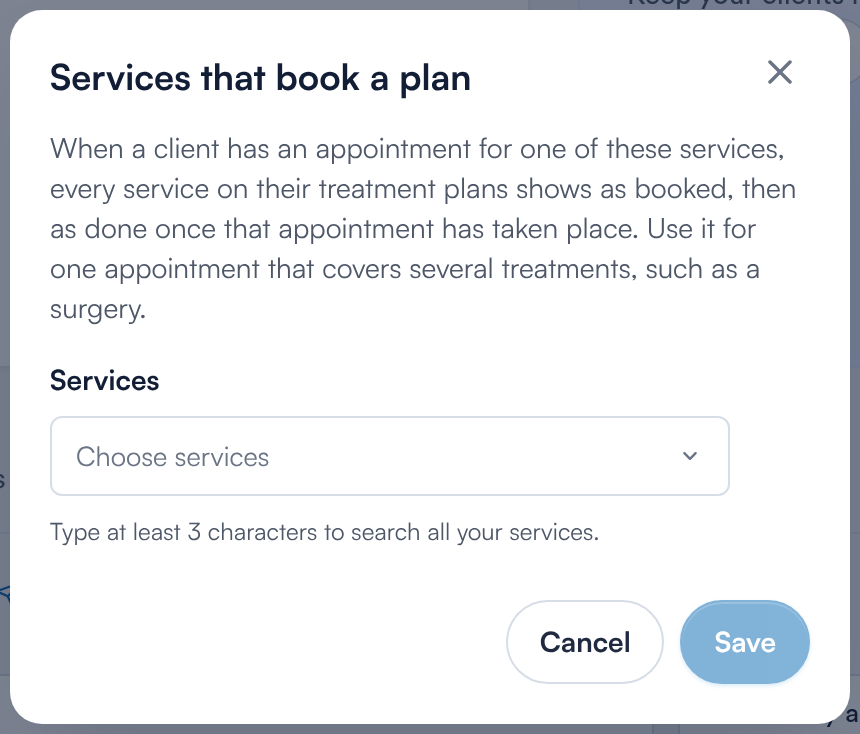
Booked by services
Step 3: Show a Fee Distribution on Plans
A fee distribution splits a plan's total into your fees, such as the treatment, products and staff, so the client sees a full breakdown. Plans use the same fee schedules as quotes, which you set up in Setup on the Fee Distribution page with New Fee.
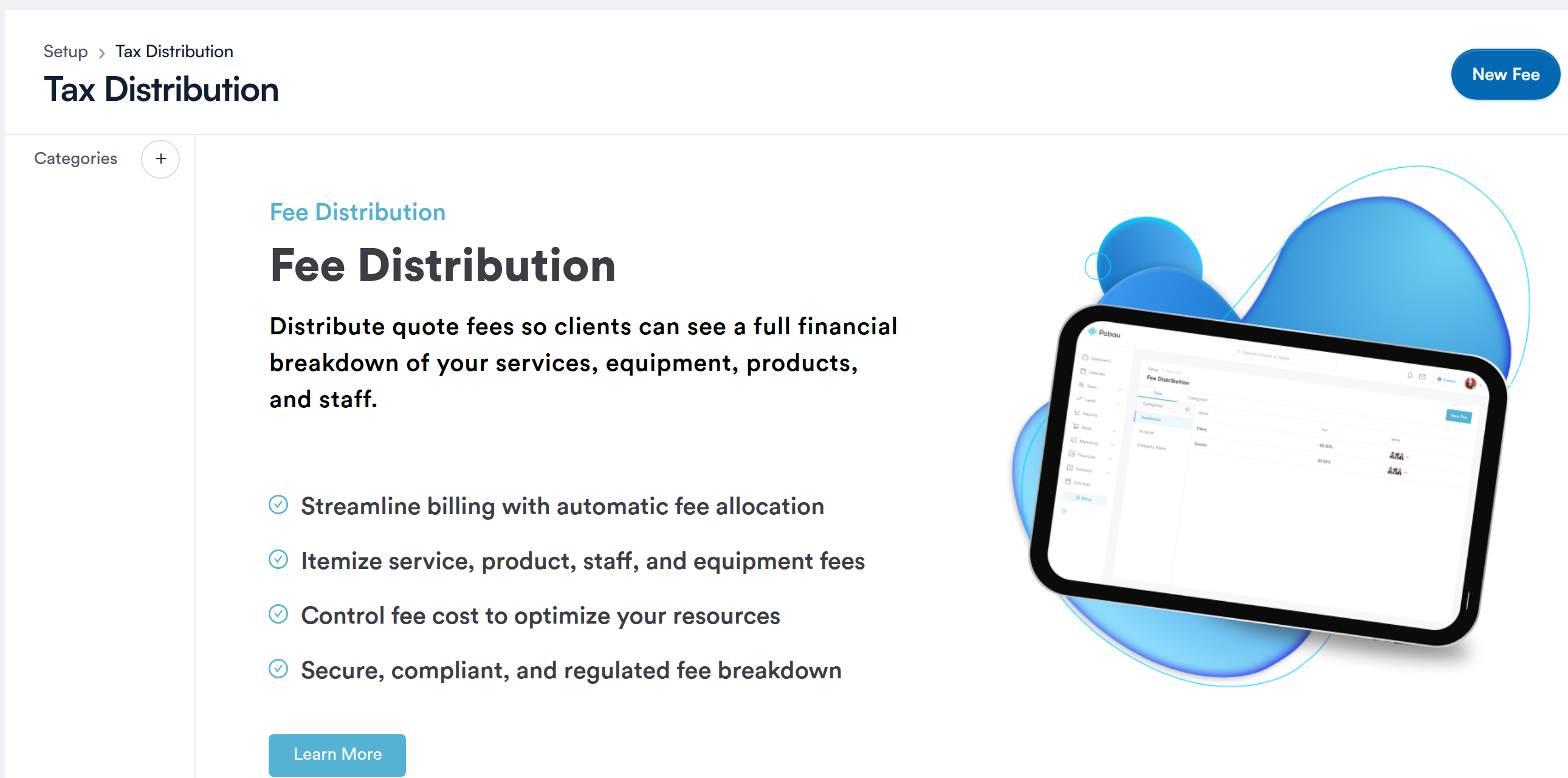
Fee schedules in Setup
Once you have a fee schedule, a Fee distribution card appears in the plan and template builders. Switch on Show a fee breakdown on this plan and choose the Fee schedule. A template's fee distribution is copied to every plan built from it.
- The breakdown is shown on the printout and the client's view of the plan. It doesn't change what the client pays.
- Plans read the schedule live, so editing a fee in Setup changes the breakdown on every plan that uses it.
- A schedule whose fees add up to more than 100% isn't shown on plans. Fix it in Setup.
- Internal orders and nutrition plans don't offer a fee distribution.
NOTE: The Fee distribution card doesn't appear in the builder until your clinic has at least one fee schedule.
What's next?
- How to Use the Plans Page: everything on the Plans page.
- How to Build and Send a Treatment Plan: build and send a plan.
- How Clients View, Sign and Pay for a Treatment Plan: show plans in the client portal.
Questions? Reach us any time via the in-app chat. We're happy to help.
Was this guide helpful? Let us know by voting below - your feedback helps us write clearer articles.
For more guides, browse the related articles below or use the search bar at the top of the page. You can also watch our video learning series, the Pabau Academy, or visit the Support page for additional help.