
Once your NABIDH connection is configured, mapped and switched on, this guide covers the operational side: sending test events, reading the delivery log, understanding retries, and fixing the failures you are most likely to meet.
This article is part of the NABIDH guide series:
- Part 1: What is NABIDH and how Pabau connects to it
- Part 2: Connect Pabau to NABIDH
- Part 3: Map your data for NABIDH
- Part 4: Choose which events are sent to NABIDH
- Part 5: Test, monitor and troubleshoot NABIDH deliveries (you are here)
- Part 6: NABIDH error codes and delivery statuses
- Part 7: NABIDH code tables reference
Step 1: Send A Test Event
The Send test event button lives on the connection's 3. Mapping tab. It picks a random matching record from your account and pushes it through the live pipeline — exactly what the real event would send — and labels the delivery as a test in the log.
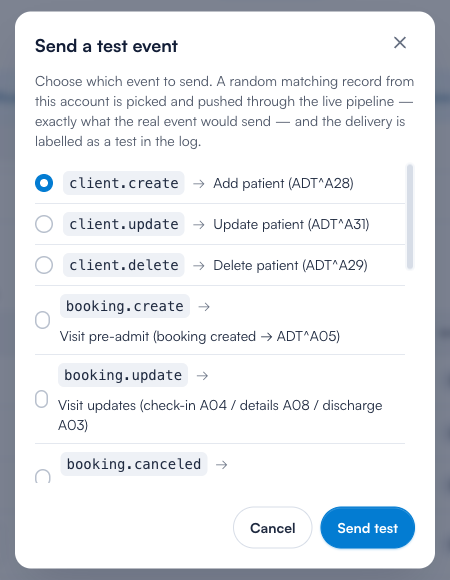
- Click Send test event, choose the event to test (e.g. client.create → Add patient (ADT^A28)), and click Send test.
- Open Logs and switch off Hide tests to see the delivery land.
- Open the delivery to inspect the exact HL7 message that was sent and NABIDH's response.
NOTE: Tests use real records and are genuinely delivered to the configured endpoint. If no suitable record exists for the chosen event (for example, a visit test with no eligible appointment), Pabau tells you exactly what to create first. Destructive tests — patient delete and merge — are only allowed on dummy-environment connections, so a test can never erase a real patient from the exchange.
Step 2: Read The Delivery Log
Click Logs in the connection header. Every delivery is listed with its trigger, action, record, status and attempt count, and a backlog strip across the top shows what is queued, processing, retrying or dead-lettered right now.
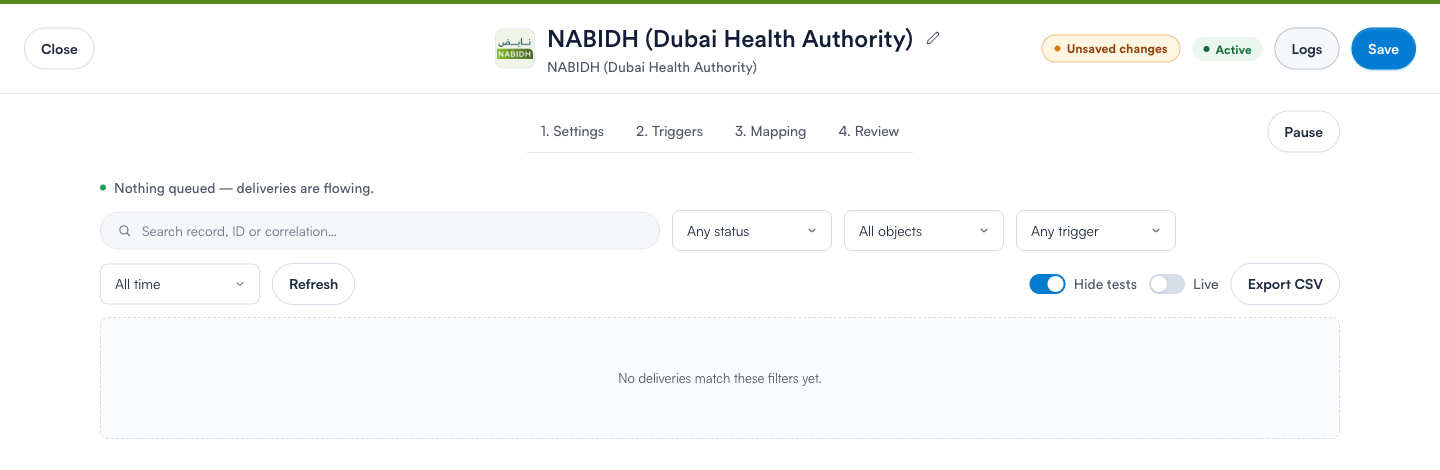
You can filter by status, object and trigger, search by record or correlation ID, restrict the date range, watch new deliveries arrive with Live, and download everything with Export CSV. Delivery statuses:
- Queued / Processing — waiting for or currently in a send attempt.
- Succeeded — NABIDH accepted the message.
- Retry scheduled — a temporary failure; Pabau will retry automatically.
- Failed — a permanent failure (most often validation); it will not retry on its own.
- Dead letter — gave up after exhausting all automatic retries; can still be replayed manually.
Step 3: Inspect A Delivery
Click any row to open the delivery details drawer. For each attempt you can expand the exact request (the raw HL7 message) and response (NABIDH's acknowledgement), copy either, and see the correlation ID for support conversations. A Spec conformance panel audits every attempt against the DHA NABIDH HL7 v2.5.1 specification and lists any findings with the spec reference and a "How to fix" explanation — this is the fastest way to understand a rejection.
NOTE: NABIDH answers every message with an HL7 acknowledgement: AA means accepted, while AE/AR mean the message was rejected by NABIDH’s own validation — the diagnostic text NABIDH returns is shown on the attempt.
Step 4: Retry A Delivery
Temporary failures (network problems, NABIDH being briefly unavailable, rate limiting) retry automatically with increasing delays — starting at 30 seconds and doubling up to a 6-hour cap, for up to 8 attempts before the delivery is dead-lettered. Permanent failures (validation, rejections) do not retry automatically. From the delivery drawer you have two manual options:
- Replay original payload — sends the exact original message again, byte for byte. Use when the problem was on the receiving side.
- Sync latest data — re-reads the record, rebuilds the message with the current data and mapping, and sends that. Use after fixing the record or mapping.
Step 5: Fix Common Failures
- Validation — the record is missing something NABIDH requires. The message names the field: most often a missing Emirates ID on a Dubai resident, a missing date of birth or contact detail, a service without a NABIDH specialty, or a practitioner without a Sheryan licence. Fix the record (or the mapping from Part 3), then Sync latest data.
- Rejected — NABIDH's own validation refused the message (an AE/AR acknowledgement or a 4xx response). Open the Spec conformance panel and the response diagnostic to see why.
- Authentication — NABIDH no longer accepts your application key. Replace it in the Settings tab's Credentials card.
- Configuration — the endpoint or connection settings are wrong. Re-check them on the Settings tab and use Test connection.
- Network / Destination error / Rate limited — transient problems on the way to NABIDH; these retry automatically and normally resolve themselves.
Step 6: Look Up A Code You Do Not Recognise
The two reference articles at the end of this series exist for the moments the log shows you something unfamiliar:
- Part 6: NABIDH error codes and delivery statuses — every delivery status and error badge, the exact retry schedule, how to read an AA/AE/AR acknowledgement and a DHA test-utility response, and a field-by-field list of what to correct in Pabau for each possible finding.
- Part 7: NABIDH code tables reference — all 25 NABIDH code tables in full. When a rejection says a value is “invalid against NAB002”, this is where you find out that NAB002 is marital status and which values NABIDH accepts.
TIP: Keep an occasional eye on the backlog strip at the top of the log — "Nothing queued — deliveries are flowing." is the healthy state. A growing retry or dead-letter count is your cue to open the most recent failure and read its conformance findings.