
NOTE: The redesigned Home page and sidebar are being rolled out gradually. If your Pabau looks different from the screenshots below, your clinic has not been moved across yet — your existing Home page and menu continue to work exactly as before.
IMPORTANT: The Features switches are clinic-wide. Unlike the sidebar order, which is personal to you, switching a feature off here removes it for every user in your clinic. They are the same settings as Setup → Business details → Features, shown in the sidebar dialog for convenience.
Who can change them
Changing a clinic feature requires the Can access the Setup page permission. Without it the switches are shown but disabled, with the message “Only users with Setup access can change clinic features.”
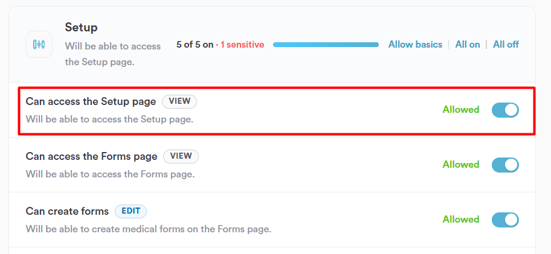
NOTE: The switches are deliberately shown rather than hidden, so that a feature your clinic does not currently use is never mistaken for one Pabau does not offer. If you need a feature switched on, ask an administrator at your clinic.
Step 1: Open the Features Section
In the sidebar, click More, then Customize, and scroll to the Features section of the dialog.
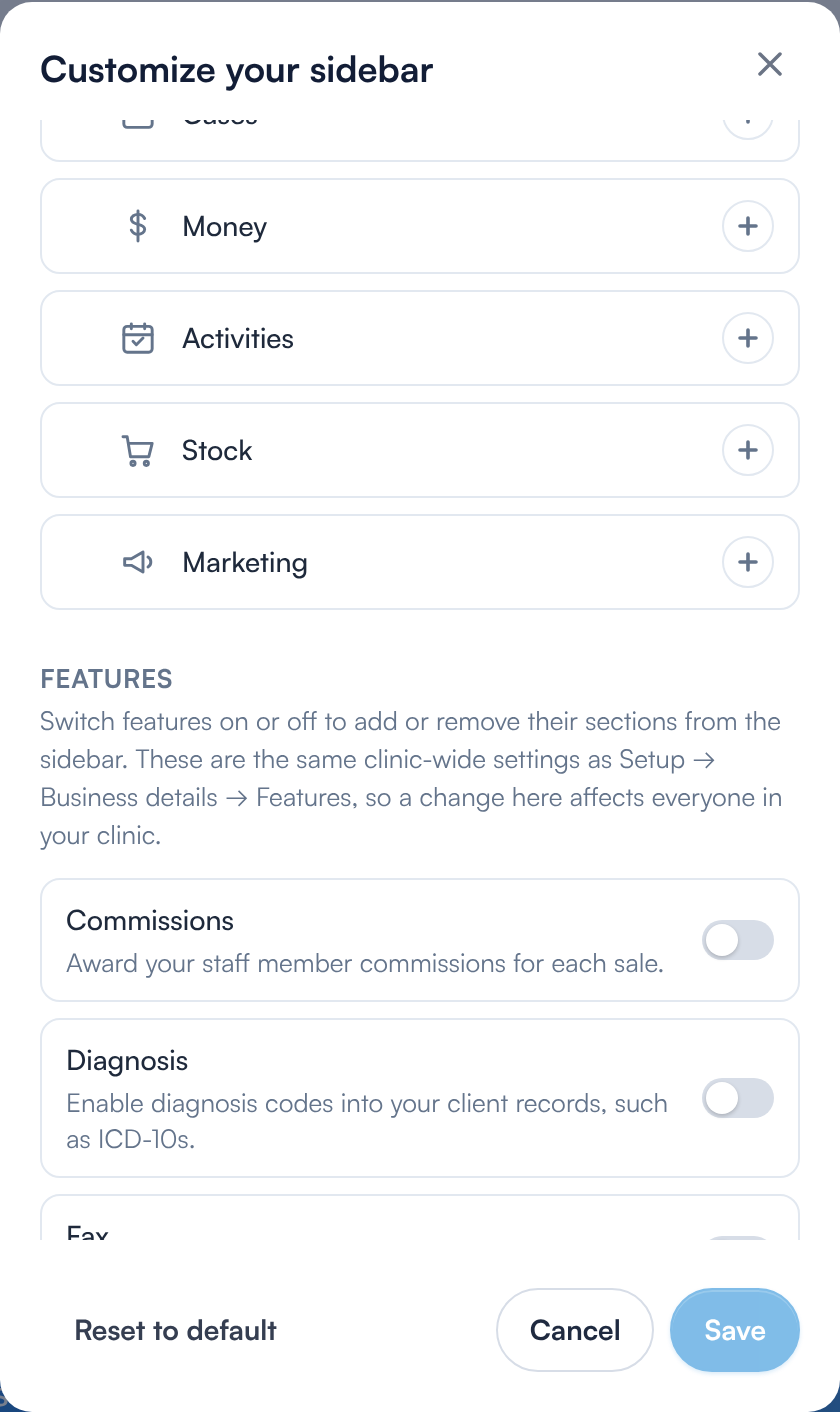
The clinic-wide Features switches
The Features section of the Customize your sidebar dialog
Step 2: Switch a Feature On or Off
Use the switch beside a feature to turn it on or off. Switching a feature on adds its sections to the sidebar for everyone in the clinic who has permission to use them; switching it off removes those sections for everyone.
The features managed here include:
- Commissions
- Diagnosis
- Fax
- Education
- Gift Vouchers
- Insurance Billing
- Labs
- Letters / Referrals
- Loyalty
- Memberships
- Patch Tests
- Prescriptions
- Quotes
- Vaccines
- Referral Tracking
Step 3: Save
Click Save to apply the change. Feature changes are staged along with any sidebar reordering you have done and applied together.
NOTE: Switching a feature off does not delete any data associated with it. The records remain in Pabau and reappear if the feature is switched back on.
Where else can I change these?
The same switches live at Setup → Business details → Features. Changing them in either place has exactly the same effect.
What’s next?
Questions? Reach us any time via the in-app chat — we’re happy to help.
Was this guide helpful? Let us know by voting below - your feedback helps us write clearer articles.
For more guides, browse the related articles below or use the search bar at the top of the page. You can also watch our video learning series, the Pabau Academy, or visit the Support page for additional help