
Table of Contents:
1. Understanding Client Relationship Types
2. How to Add a Client Relationship
3. How to Change or Edit a Linked Company or School
4. How to Remove a Client Relationship
5. How to Create Third Parties
Relationships in Pabau let you link a client to another person or organisation — such as a GP, pharmacy, parent, partner, or other relevant contact — making it easier to keep records connected and maintain a clear picture of who’s involved in their care.
Understanding Client Relationship Types
The Relationships tab lets you link clients to different types of contacts, such as family members, general practitioners (GPs), pharmacies, or other organisations. Each relationship type serves a specific purpose and can affect how records are shared and managed.
Understanding these types will help you set up relationships accurately and use them effectively.
Relationship Types:
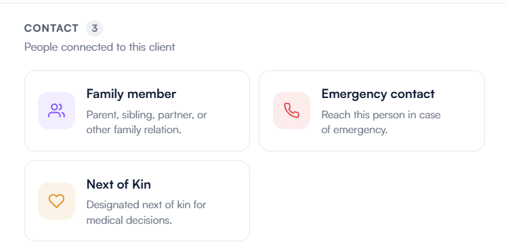
Contact
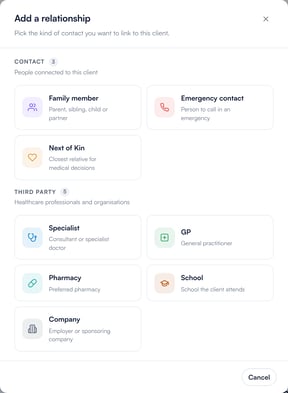
- Family Member – Parent, sibling, partner, or other family relation who may need access to records or updates regarding the client.
- Emergency Contact – A person to reach in urgent situations. Staff can contact them as needed, but they do not automatically have access to client records.
- Next of Kin – Designated next of kin for medical decisions. Like emergency contacts, they are notified in important situations but do not have default access to records.
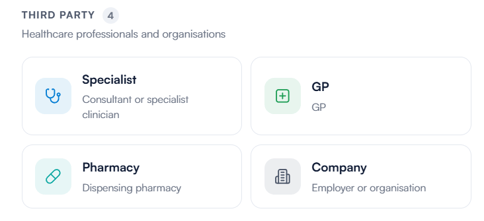
Third Party
- Specialist – A consultant or specialist clinician linked to allow secure sharing of medical records or treatment updates when necessary.
- GP – The client’s doctor, linked to allow secure sharing of medical records or treatment updates when necessary.
- Pharmacy – The client’s dispensing pharmacy, which can receive prescription or medication-related information.
- School – The school the client attends. New school links start with sharing restricted, and a school is never offered as a payer.
- Company – The client’s employer or another relevant organisation involved in the client’s care. Access can be adjusted depending on what the organisation needs to see.
By understanding each relationship type, you can link clients to the right contacts and manage access appropriately. This ensures secure sharing of information and helps maintain accurate client records.
How to Add a Client Relationship
Step 1: Navigate to the Client Card
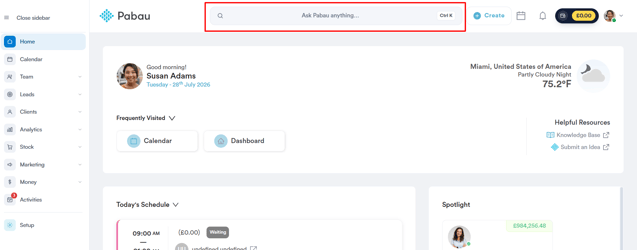
Log in to your Pabau account and open the client card of the client you want to add a relationship to by using the search bar at the top of the screen.
Step 2: Navigate to the Relationships Tab
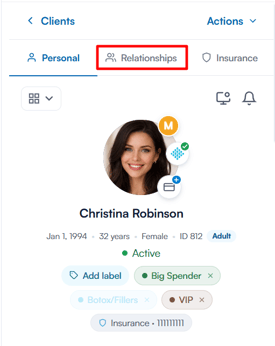
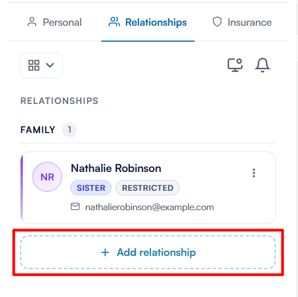
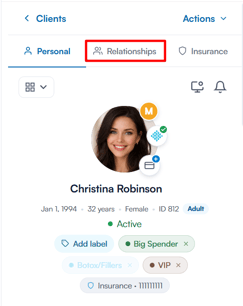
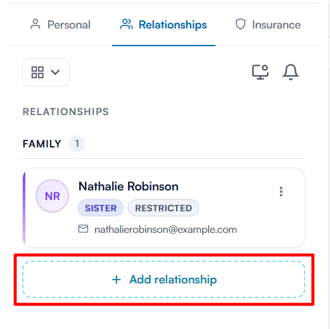
In the client details panel on the left, click the "Relationships" tab next to Personal to view the client’s linked contacts and connections.
Step 3: Add a Relationship
Click the "Add relationship" button at the bottom of the tab.
Relationship-Specific Steps
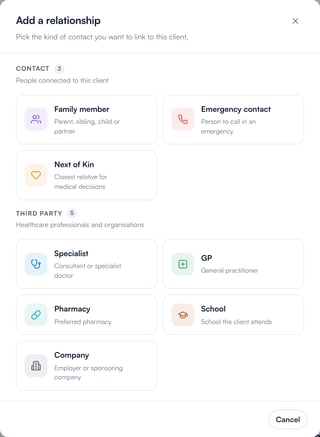
In the "Add a relationship" window, choose the type of relationship you want to add. The options are grouped into Contact (Family member, Emergency contact, Next of Kin) and Third party (Specialist, GP, Pharmacy, School, Company). The steps vary depending on your selection.
Family Member
Search for an existing client by name or email, or click "Add a new client" to create one on the spot. Then select the relation, such as father, mother, sister, brother, wife, or husband (click "Load more" for additional options).
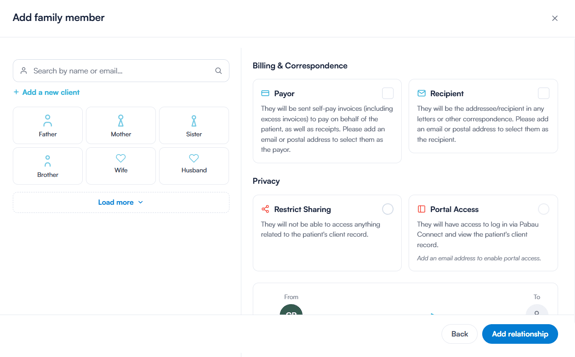
Next, you can configure a few additional settings. Under Billing & Correspondence, mark the contact as the payor if they’ll be responsible for the client’s self-pay invoices and receipts, or as the recipient if they should receive letters or other correspondence on the client’s behalf — an email or postal address is required for either option.
Under Privacy, you can turn on Restrict Sharing so the contact has no access to the client’s record, or grant Portal Access so they can log in via Pabau Connect and view the client’s information (this requires an email address).
Once everything is set, click "Add relationship" to save.
Emergency Contact and Next of Kin
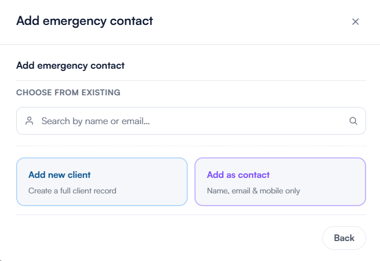
Search for an existing contact by name or email, or choose "Add new client" to create a full client record, or "Add as contact" to save them with just a name, email, and mobile number.
Specialist
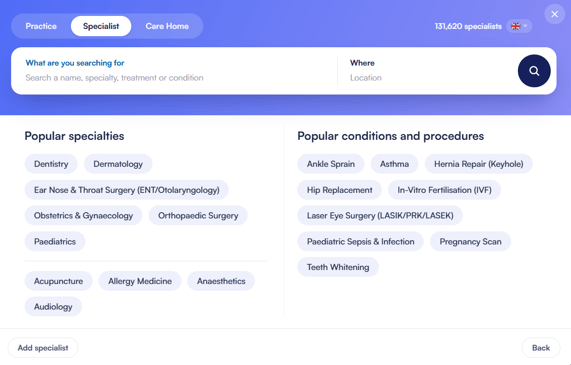
Search by name, specialty, treatment, or condition, and filter by location if needed. You can also browse popular specialties or popular conditions and procedures. Once you’ve found the right match, click "Add" to link them to the client. If they aren’t in the directory yet, click "Add specialist" to add them manually.
GP
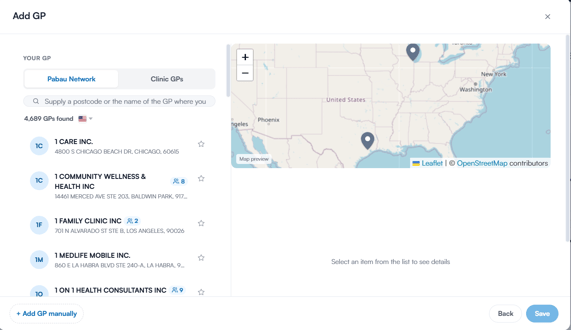
Choose between the Pabau Network and your Clinic GPs, then search by postcode or name. Select the correct practice from the results and save your selection — you’ll then be asked to choose the GP the client sees at that practice (you can skip this). If the GP isn’t listed, you can add one manually.
Pharmacy
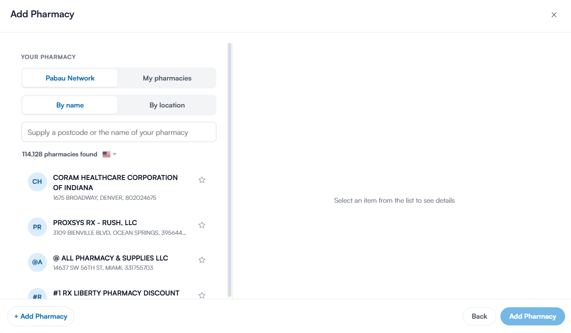
Choose between the Pabau Network and My pharmacies, then search by name or location. Select the correct pharmacy from the results to add it. If it isn’t listed, you can add one manually. The Pabau Network directory is only available in supported countries — if it isn’t supported in your country, that option is greyed out and you can use My pharmacies instead.
School
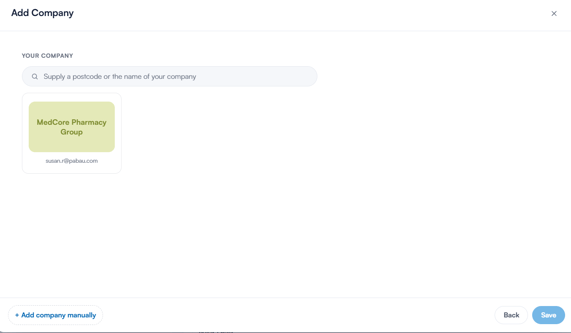
Search by the name of the school or its postcode, then select the correct school and click "Save". The list shows the schools your clinic has already added, so the first time you link a school click "Add school manually" to create it. The school then appears under Schools on the client’s Relationships tab.
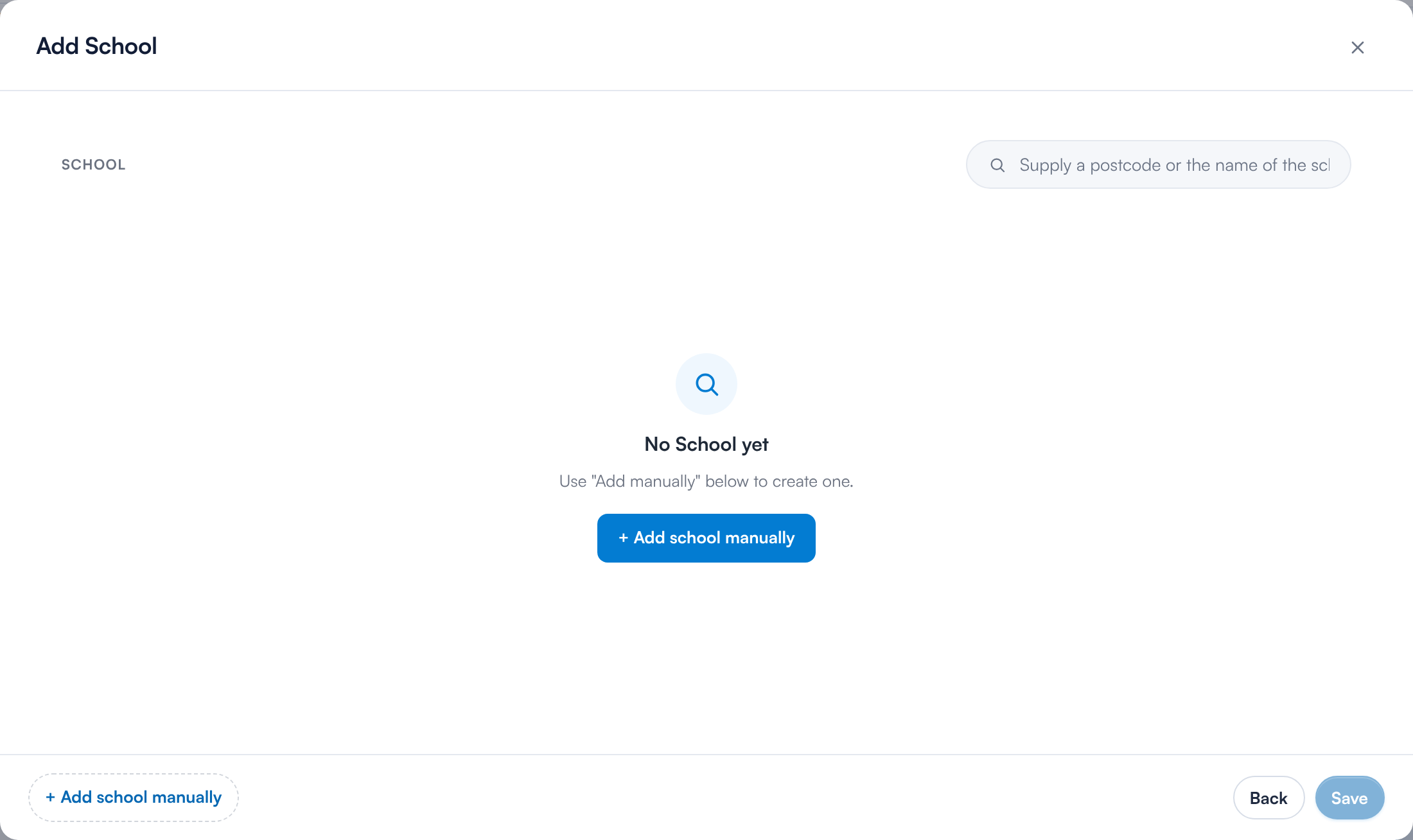
The Add School window before any schools have been added
NOTE: A new school link starts with sharing set to Restrict, so the school is not offered as a recipient when you share the client’s information. To share with the school, click the three-dot menu on its row, select "Sharing settings" and choose Share. A school is never offered as a payer when you take a payment for the client.
Company
Search by name or postcode, then select the correct company. If it isn’t listed, you can add one manually.
NOTE: We suggest reading our Clients article for a more in-depth exploration of this topic.
Once you’ve added the contact or organisation, the relationship is saved to the client’s profile under the Relationships tab.
By following these steps, you can quickly link contacts and organisations to a client’s profile, keeping all relationships organised and easy to access.
How to Change or Edit a Linked Company or School
If a client is linked to the wrong company or school, or has moved to a new one, you can change it without removing the relationship. The relationship keeps its sharing settings and its payor and recipient settings.
Step 1: Open the Relationships Tab
Open the client card and click the "Relationships" tab next to Personal.
Step 2: Select Change Company or Change School
Click the three-dot menu on the company or school row and select "Change company" or "Change school". These options are only available on company and school rows.
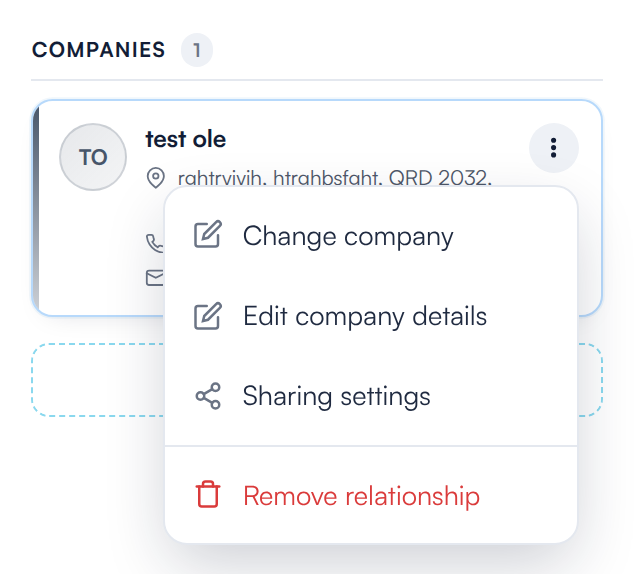
The three-dot menu on a linked company
Step 3: Pick the New Company or School
The Change Company or Change School window opens with the current one selected. Select a different company or school and click "Save". If it isn’t listed, click "Add company manually" or "Add school manually" to create it. A confirmation shows Changed to followed by the new name.
NOTE: If the company or school you pick is already linked to this client on another row, you will see That one is already linked to this client. and nothing is changed.
NOTE: If the school has points of contact recorded for this client, you are asked to confirm first: Change school? — has points of contact recorded for this client. They are removed once you pick the new school. Click "Change school" to continue.
How to Edit a Linked Company’s or School’s Details
To correct the company or school record itself — its name, provider number, contact information or address — click the three-dot menu on its row and select "Edit company details" or "Edit school details". Make your changes and click "Save". The change is made to the company or school record, so every client linked to it sees the updated details.
If the company or school comes from Pabau’s shared directory, it isn’t your clinic’s to change: the window becomes Suggest an edit, and clicking "Send suggestion" sends your correction to our team to review.
How to Add Points of Contact at a School
A school row can list the client’s points of contact at that school, such as a class teacher or SENCo. Each one shows their name and role, with their email and phone number as links you can click to email or call them.
To add one, click "Add point of contact" on the school row (or select "Points of contact" from the row’s three-dot menu). Enter a Name (required) and, if you have them, a Role, Email and Phone, then click "Save".
Once a school has points of contact, the button reads "Manage points of contact". It opens the Points of contact window, where you can Edit or Remove a contact, add another with "Add point of contact", and close the window with "Done".
NOTE: Points of contact belong to this client’s link to the school, not to the school itself, so other clients at the same school don’t see them. If two client records are merged, the points of contact move to the remaining client’s link to the same school.
How to Remove a Client Relationship
Step 1: Navigate to the Client Card
Log in to your Pabau account and open the client card of the client you want to remove a relationship from by using the search bar at the top of the screen.
Step 2: Navigate to the Relationships Tab
In the client details panel on the left, click the "Relationships" tab next to Personal to view the client’s linked contacts and connections.
Step 3: Remove the Relationship
In the "Relationships" tab, you’ll see all contacts linked to the client. To remove a relationship, click the three-dot menu next to the contact and select "Remove relationship". 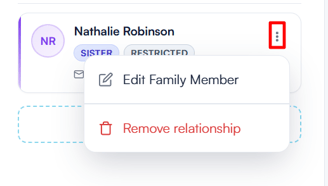
A confirmation prompt will appear — click "Remove" to confirm.
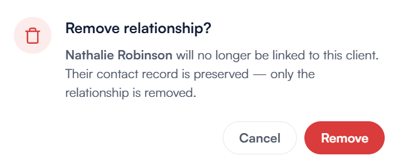
The relationship is now removed from the client card. Removing a relationship only unlinks the two records — the contact’s own record is preserved.
By following these steps, you can remove a client’s linked contact, keeping their Relationships tab accurate and up to date.
Step 1: Navigate to Third Parties
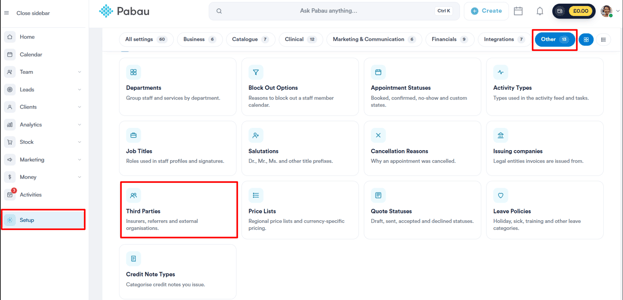
Start by logging in to your Pabau account. Click on Setup in the left sidebar menu, then under the "Other" section select "Third Parties".
Step 2: Create a Third Party
Click the "Create Third Party" button in the top-right corner.
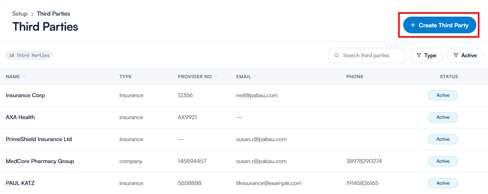
In the window that appears, select the type of third party you want to create: Company, Insurance, Pharmacy, or School. You can also filter the Third Parties list by School.
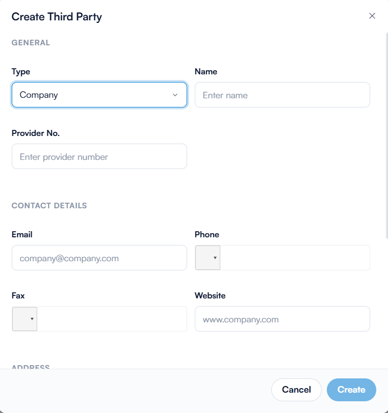
Then, enter the required information such as the name, provider number (if applicable), contact details, and address.
Once completed, click "Create" to save the third party.
Step 3: Link Third Parties with Clients
To associate a third party such as a pharmacy or company with a client:
- Go to the client’s Client Card.
- Click on the "Relationships" tab next to Personal.
- Click "Add relationship", then select the type of third party you’d like to add (Specialist, GP, Pharmacy, School, or Company).
- Search for the third party by name or postcode, select it from the results, and confirm to link it to the client. If it isn’t listed, you can add it manually from the same window.
Linking third parties to clients helps you manage workflows more efficiently. For example:
- Send prescriptions directly to the client’s preferred pharmacy.
- Bill an insurance provider or employer on behalf of the client.
By following these steps, you can successfully link and manage third parties in your Pabau account.
Now that you know how to manage client relationships, you can keep profiles organised and ensure the right contacts have access when needed.
Was this guide helpful? Let us know by voting below - your feedback helps us write clearer articles.
For more guides, browse the related articles below or use the search bar at the top of the page. You can also watch our video learning series, the Pabau Academy, or visit the Support page for additional help.