
Two places answer "how much are we using?": the per-channel Usage tabs, and Reports. This article shows you both.
Per-Channel Usage Tabs
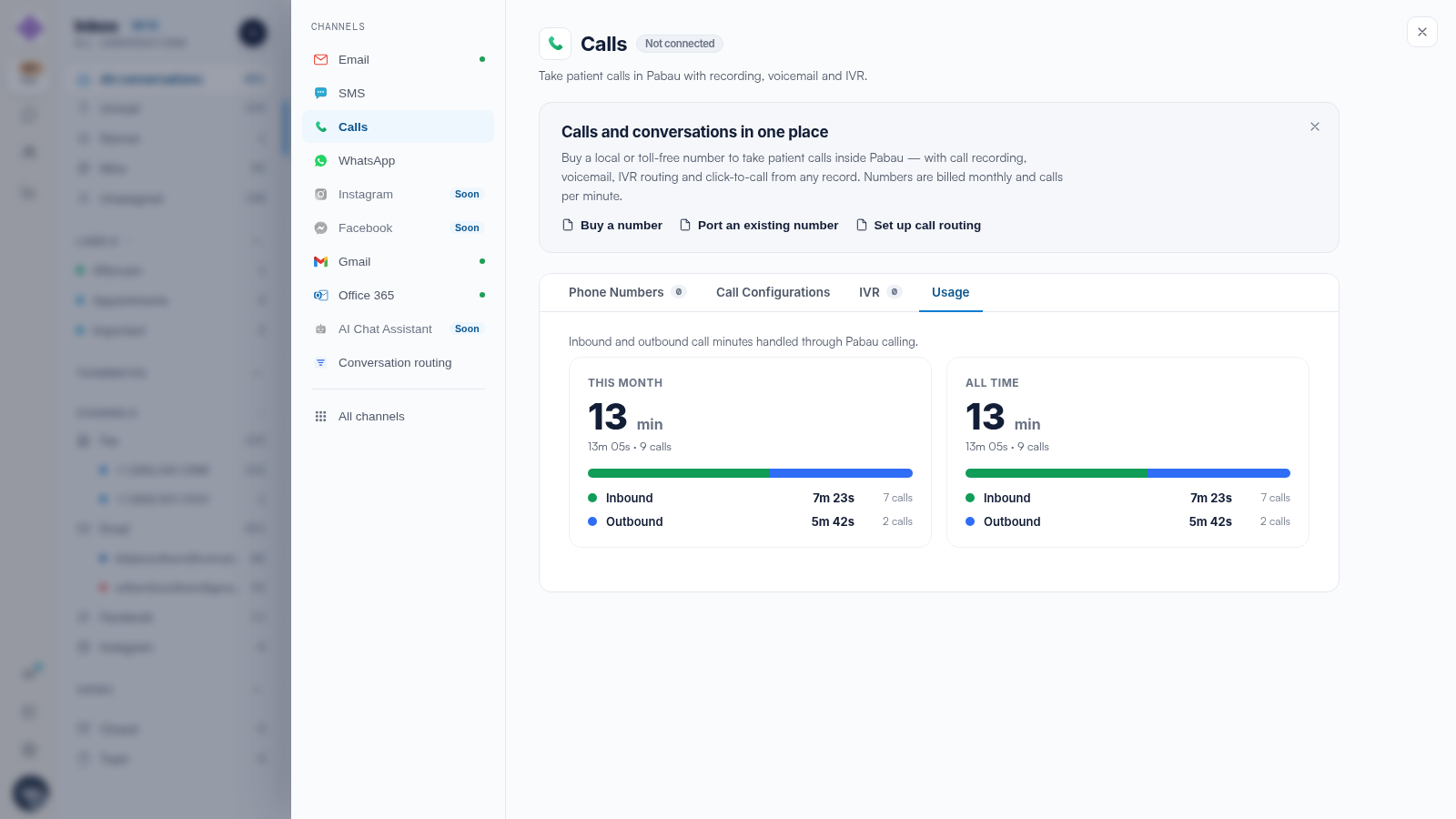
Open Settings → Calls or Settings → Fax and switch to the Usage tab. Calls usage tracks minutes on your numbers; fax usage tracks pages. These are the numbers that reconcile with billing.
Reports for the Bigger Picture
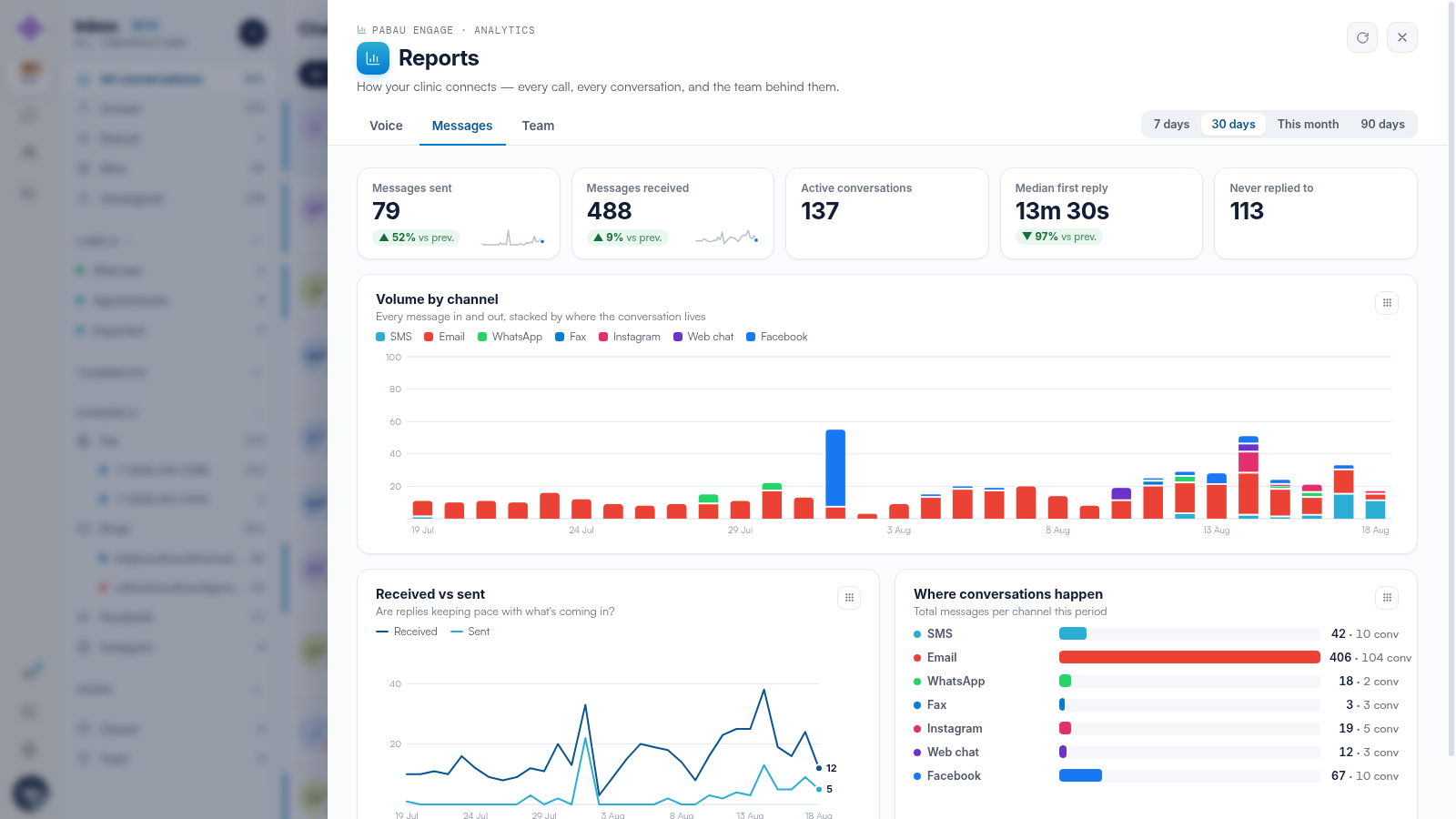
Click Reports in the icon rail:
- Voice — total calls, answer rate, call volume day by day, and where unanswered rings ended up.
- Messages — messages sent and received, volume stacked by channel (SMS, email, WhatsApp, fax, Instagram, web chat, Facebook), and whether replies keep pace.
- Team — per-teammate messages, conversations, first-reply times and talk time.
TIP: Check usage after any change in reminder strategy — switching reminders to a two-way number, or adding WhatsApp templates, changes the mix noticeably within a month.
Related Articles
We suggest reading our How Engage Billing Works: Subscriptions and Credits article for how usage turns into charges.
For more guides, refer to related articles below, select additional guides, or use the search bar at the top of the page. These guides will help you get the most out of your Pabau account.
Additionally, to help you fully utilize and understand your Pabau account, we recommend exploring additional guides and resources offered at the Pabau Academy.