
The Service Optimizer scans your services, products, packages and team profiles, and your own website if you like, then suggests improvements such as clearer names, better descriptions, the right forms and add-ons, and which items to show online. You review every suggestion, and nothing changes until you apply the ones you approve. You can start it straight from your services list.
NOTE: The Service Optimizer button is greyed out until online booking is set up for your clinic, because the suggestions link to your booking page. Hover over it to see why.
Step 1: Open the Service Optimizer
- Go to Setup → Services and click Service Optimizer at the top of the Services tab. The Catalogue optimisation window opens.

The Service Optimizer button on the Services page
Step 2: Choose What to Optimise
- Under What would you like to optimise?, keep or untick Services, Products, Packages and Team. Each card shows how many items it holds, and all four are ticked to start with.
- If you have a long service list, tick Only services clients can book online. It skips lab tests, insurer codes, deposits and anything else clients never see, so the scan finishes much faster.
- Check the web address in Your clinic website. Pabau reads your public pages for wording, team bios and photos. Leave the address empty to use only what's already in Pabau.
- Click Optimise catalogue.
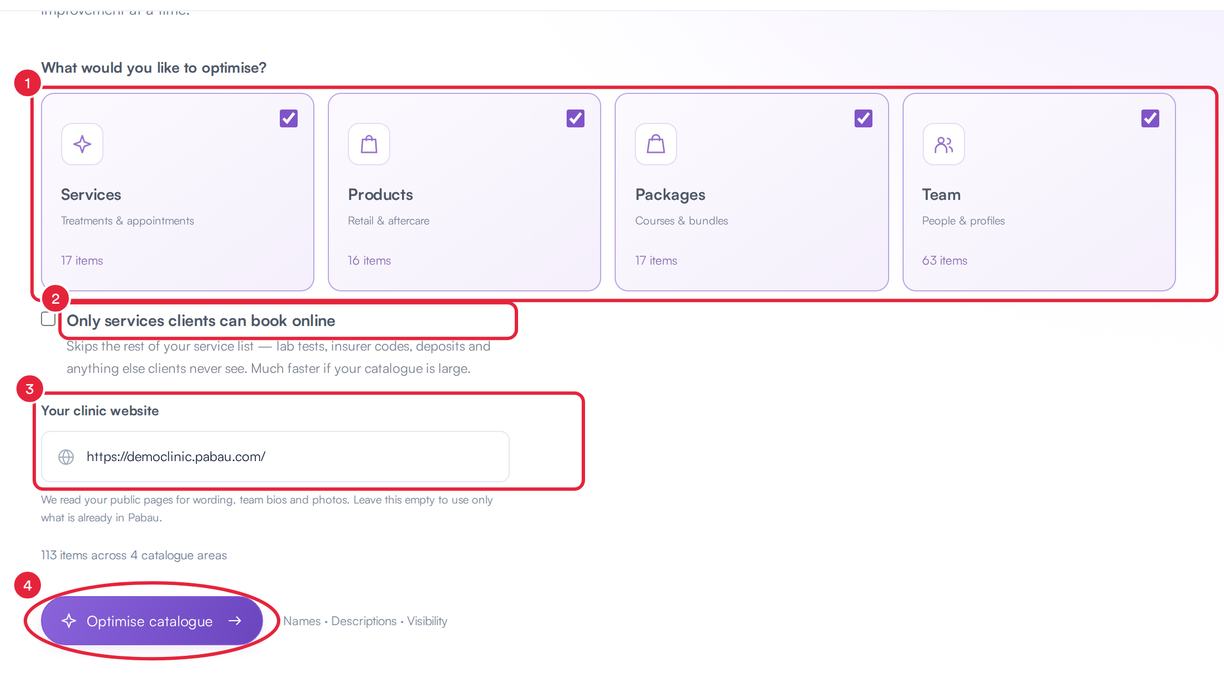
Pick the areas to scan, then start
Step 3: Review and Apply the Suggestions
When the scan finishes, the suggestions are grouped by type, such as names, descriptions and visibility, so you can work through one kind of improvement at a time. Open a suggestion to compare what you have now with what's suggested, edit it if you want, then approve it or skip it. When you're happy, apply your approved changes.
IMPORTANT: Scanning never changes your catalogue. Only the changes you approve and apply are saved, and they then appear on your booking page and online store.
For every option on the review screen, including running a scan in the background and finding your past runs, see How to Improve Your Catalogue with AI Onboarding. The Service Optimizer is the same tool, opened from your services list.
What's next?
- How to Improve Your Catalogue with AI Onboarding
- How to Create a Service
- How to Make a Service Bookable Online
Was this guide helpful? Let us know by voting below - your feedback helps us write clearer articles.
For more guides, browse the related articles below or use the search bar at the top of the page. You can also watch our video learning series, the Pabau Academy, or visit the Support page for additional help.