
In Pabau's lists, hovering over a client's or lead's name opens a small card with their photo or initials, their name and their mobile number, plus buttons for the things you most often do next. You can message, call or open a client without opening their record first, and copy a phone number with one click.
NOTE: The hover card works on the Clients and Leads lists and on other lists that show client names, such as sales, payments, activities and list reports.
Step 1: Hover Over a Name
- Open a list, for example Clients, and hover over a client's name. The card opens under the name.
- Click one of the buttons on the card. Hover a button to see what it does:
- Send a message: opens a new SMS to the client in a pop-out window, so you stay on the list.
- Call: dials the mobile number with your computer's or phone's calling app. It only shows when there's a number.
- View financials: opens the client's Financials tab.
- New treatment note: starts a treatment note for the client in a pop-out window.
- Open in new tab: opens the client's or lead's card in a new browser tab.

Hover a name to see the quick actions
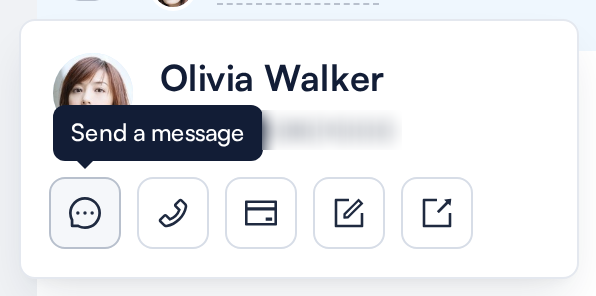
Hover a button to see its name
Messages and treatment notes open in a pop-out window over the list. You can minimise it, expand it or close it from its title bar.
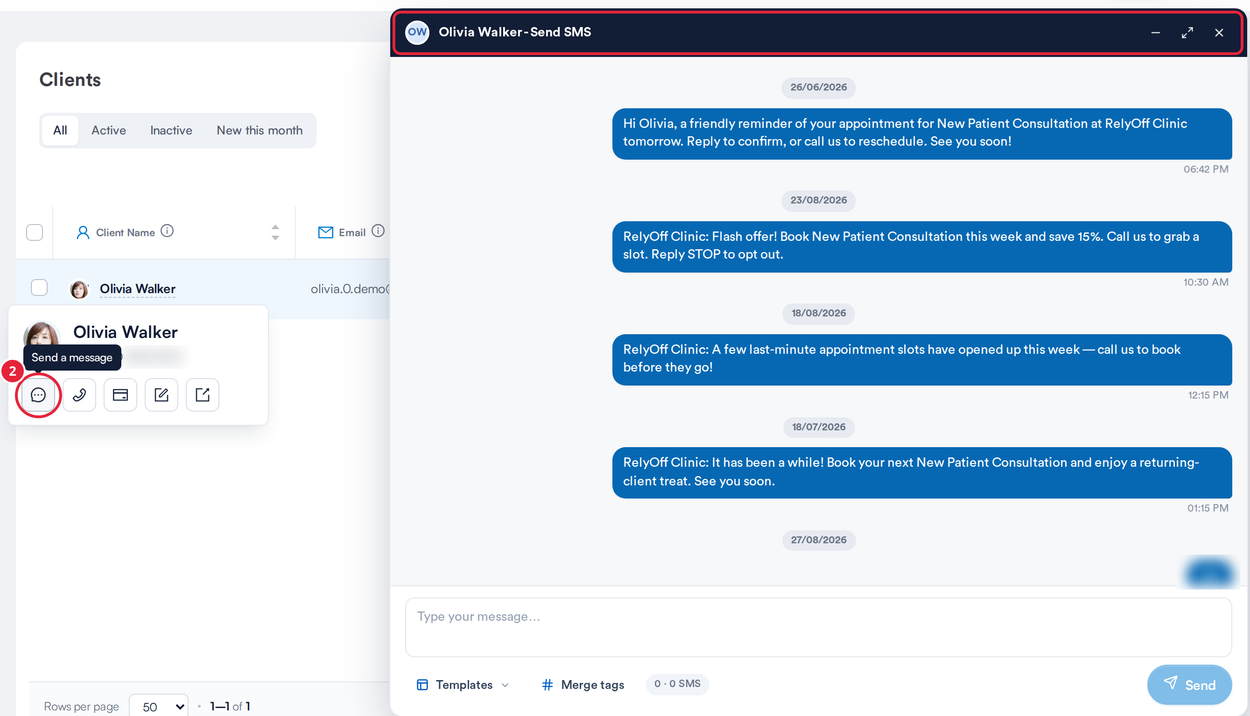
Send a message opens the SMS window over the list
NOTE: On a lead, the card only offers Call and Open in new tab. Send a message, View financials and New treatment note appear once the lead is linked to a client.
Step 2: Copy a Phone Number
- In the mobile or phone column, click the number. It's copied so you can paste it anywhere, and the tooltip changes from Copy phone number to Copied!

Click a number to copy it
What's next?
- Overview of Clients and Client Card (New Client Card)
- Understanding the Communications Page on the Client Card (New Client Card)
Was this guide helpful? Let us know by voting below - your feedback helps us write clearer articles.
For more guides, browse the related articles below or use the search bar at the top of the page. You can also watch our video learning series, the Pabau Academy, or visit the Support page for additional help.