
Templates save your team from typing the same replies over and over. This article shows you how to insert a template, create new ones, and manage them.
Step 1: Insert a Template
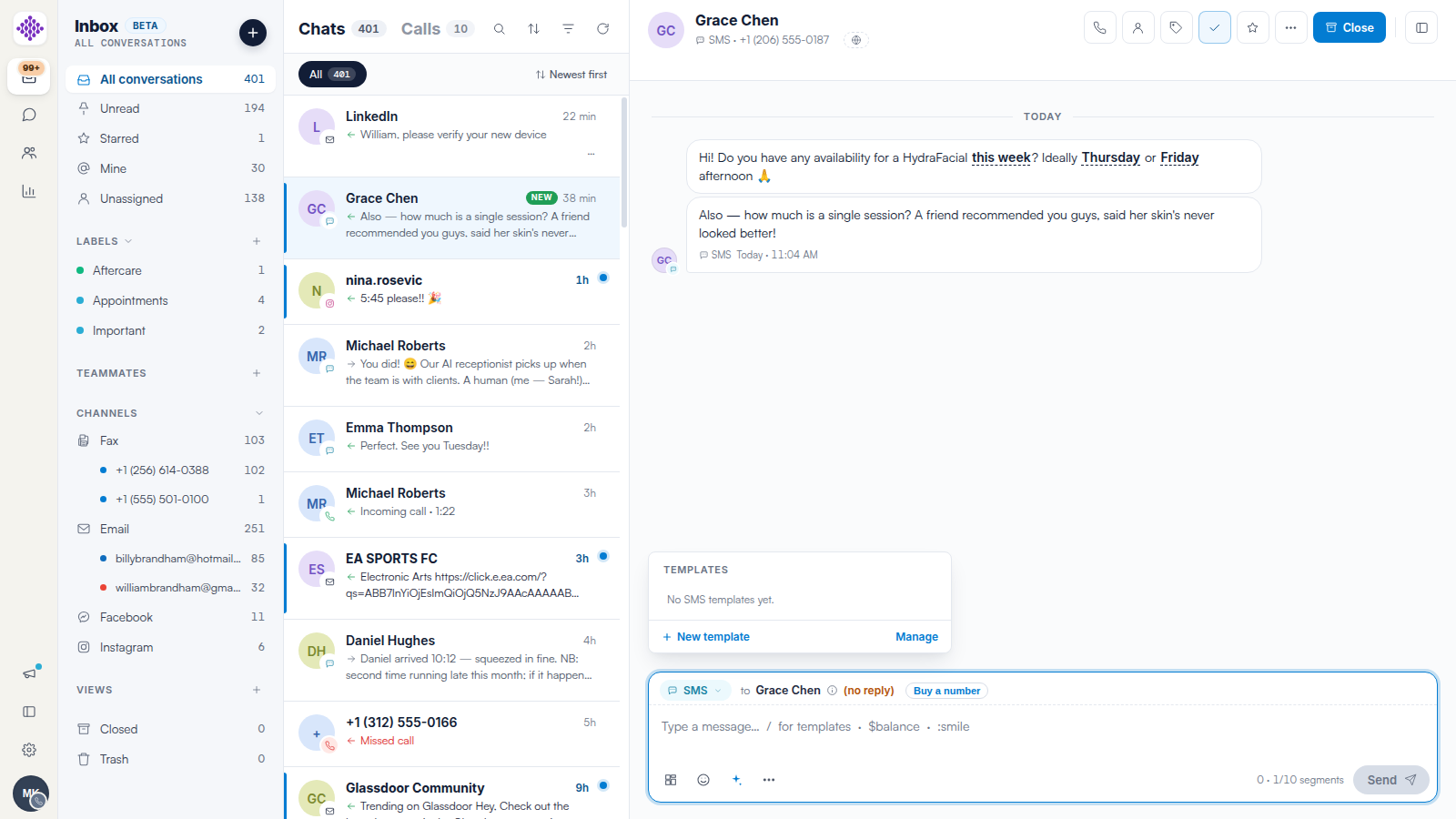
In any conversation, type / in the composer (or click the Templates icon). The template picker opens above the composer, filtered to the channel you are replying on. Click a template to drop its wording into your message, ready to edit before sending.
Step 2: Create a Template
Click + New template in the picker to save a new one for that channel. Anything your team sends repeatedly — directions to the clinic, aftercare reminders, deposit requests — is a good candidate.
Step 3: Manage Your Templates
Click Manage in the picker to open the template manager for that channel.
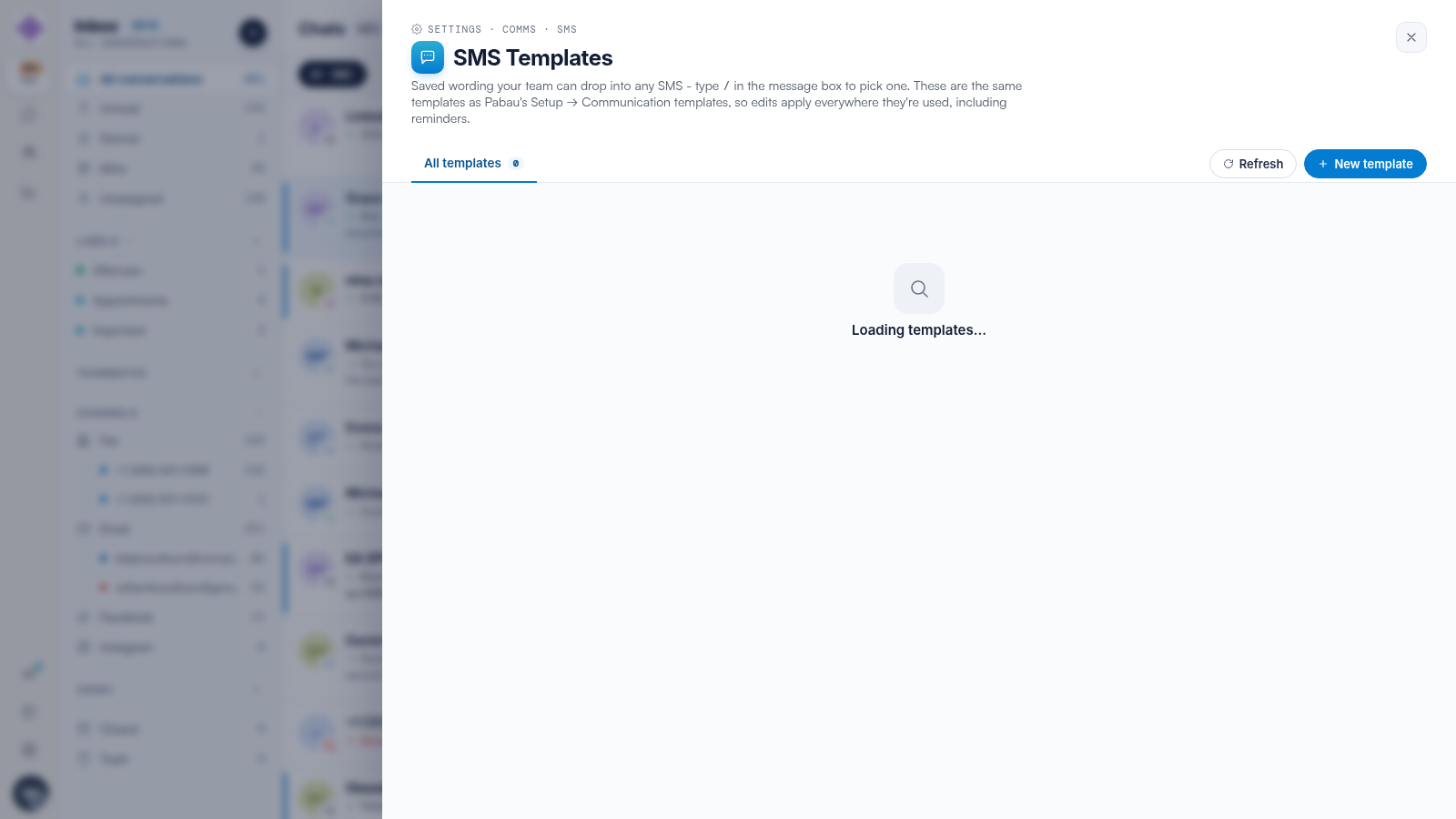
NOTE: SMS templates are the same templates as Pabau’s Setup → Communication templates — edits here apply everywhere they are used, including appointment reminders.
WhatsApp Templates Are Different
WhatsApp message templates must be approved by Meta before they can be sent, and they are the only way to message a client more than 24 hours after their last reply. They have their own editor in the WhatsApp channel settings — see our WhatsApp Templates and the 24-Hour Window article.
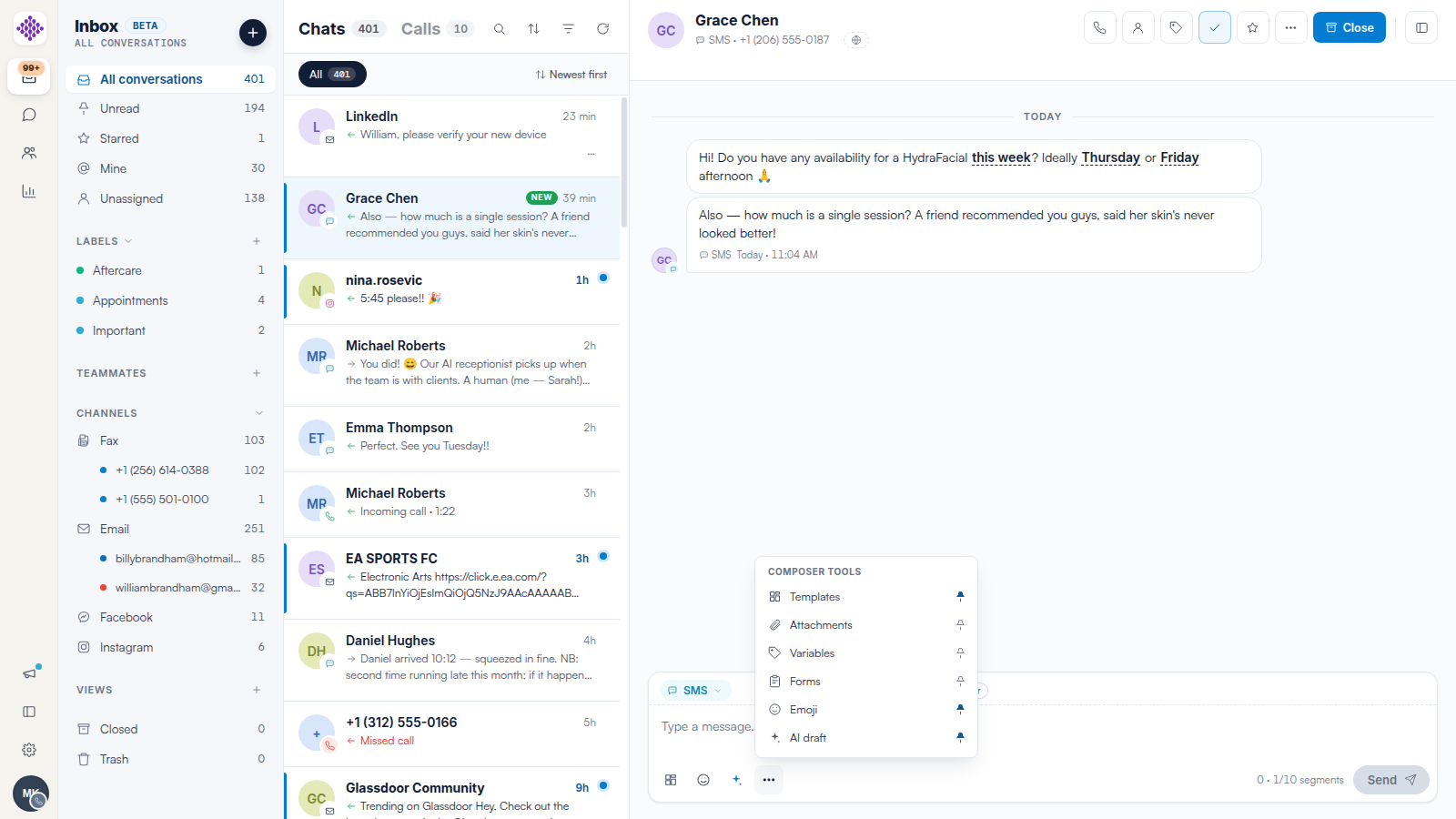
TIP: Open All tools (…) in the composer to pin the tools you use most — Templates, Attachments, Variables, Forms, Emoji and AI draft can each be pinned to the toolbar.
Related Articles
We suggest reading our How to Reply to Messages and Switch Channels in Engage article for the rest of the composer.
For more guides, refer to related articles below, select additional guides, or use the search bar at the top of the page. These guides will help you get the most out of your Pabau account.
Additionally, to help you fully utilize and understand your Pabau account, we recommend exploring additional guides and resources offered at the Pabau Academy.