
This article shows you how to reply to messages in the Engage inbox — and how to answer on a different channel than the one the client used, add a private internal note, personalise your reply with variables, or let AI draft it for you.
Step 1: Open the Conversation
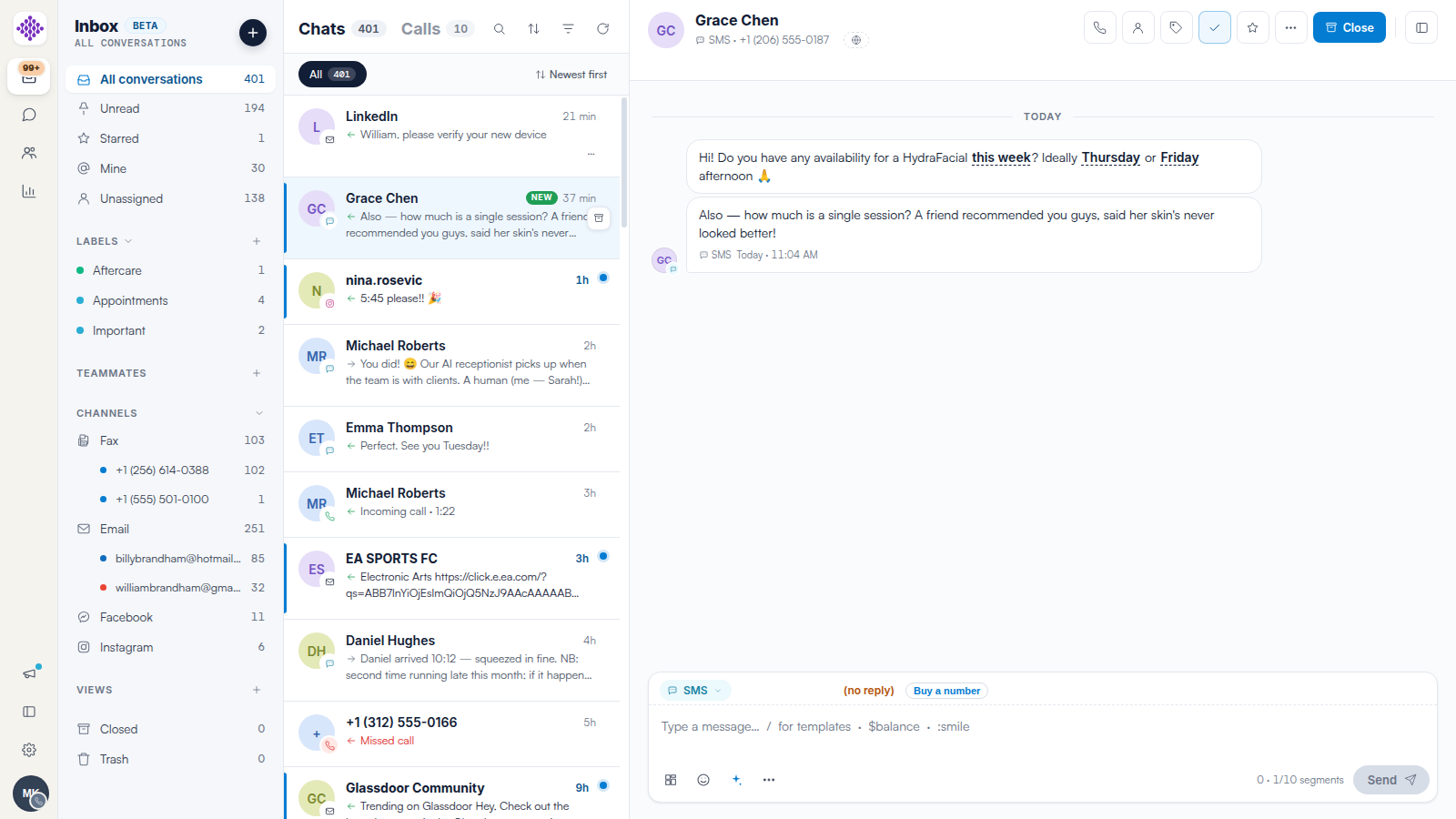
Open Engage and click a conversation in the list. The pane shows the full history across every channel on one timeline, with the composer at the bottom.
Step 2: Write Your Reply
Type in the composer. Three shortcuts save time:
- Type / to insert a saved template — see our How to Use Message Templates in Engage article.
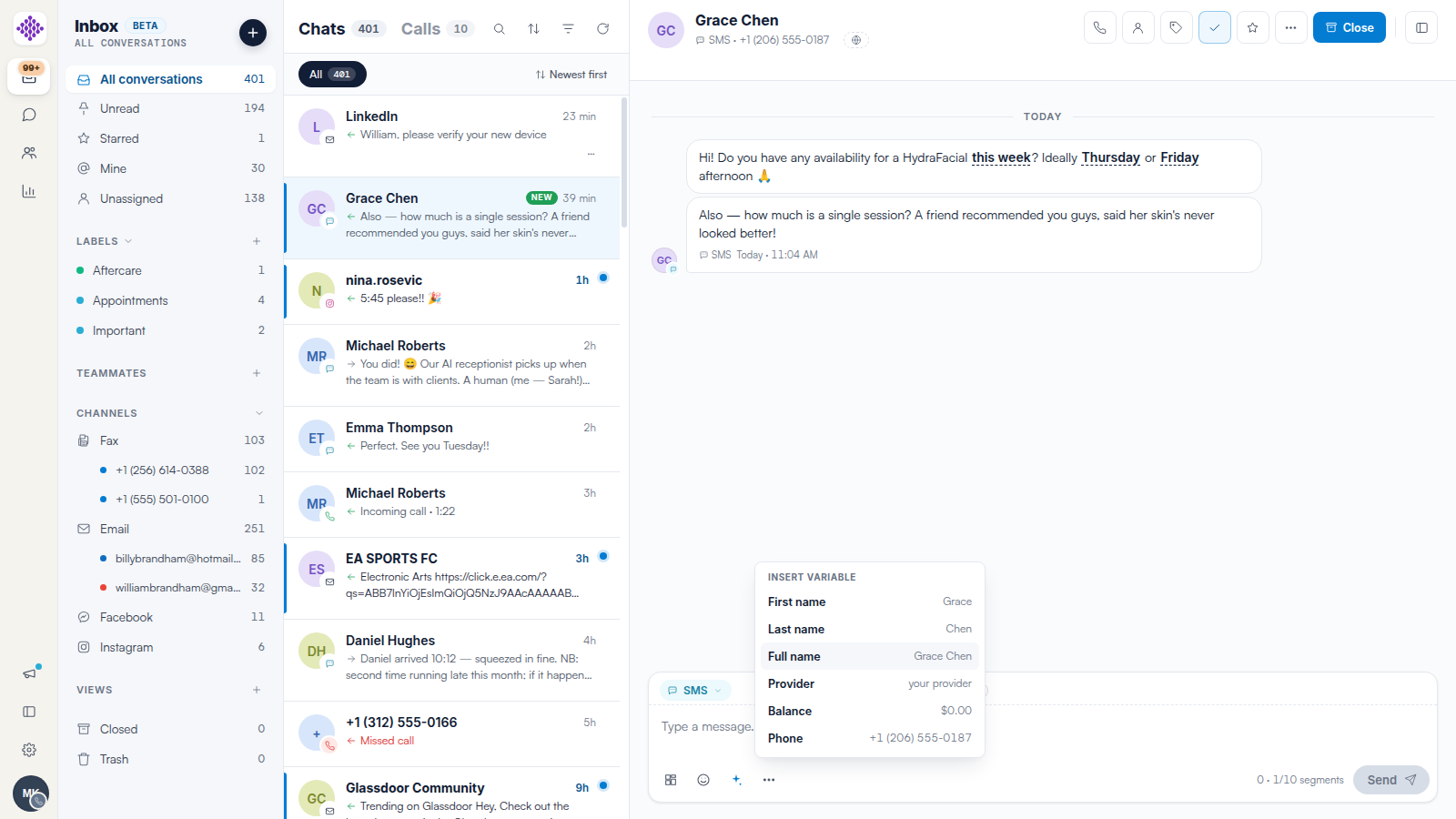
- Type $ (or open Variables from the composer tools) to insert live values such as the client's First name, their Balance or their Provider — each shows a preview of the real value before you insert it.
- Click AI draft and Engage writes a reply from the conversation's context, ready for you to edit before sending.
Step 3: Choose the Reply Channel
Click the channel pill on the left of the composer to switch where your reply goes — for example from SMS to Email or WhatsApp. The recipient line updates to the client's address on that channel. Choose Note to write an internal note instead: notes are saved on the conversation for your team and are never sent to the client.
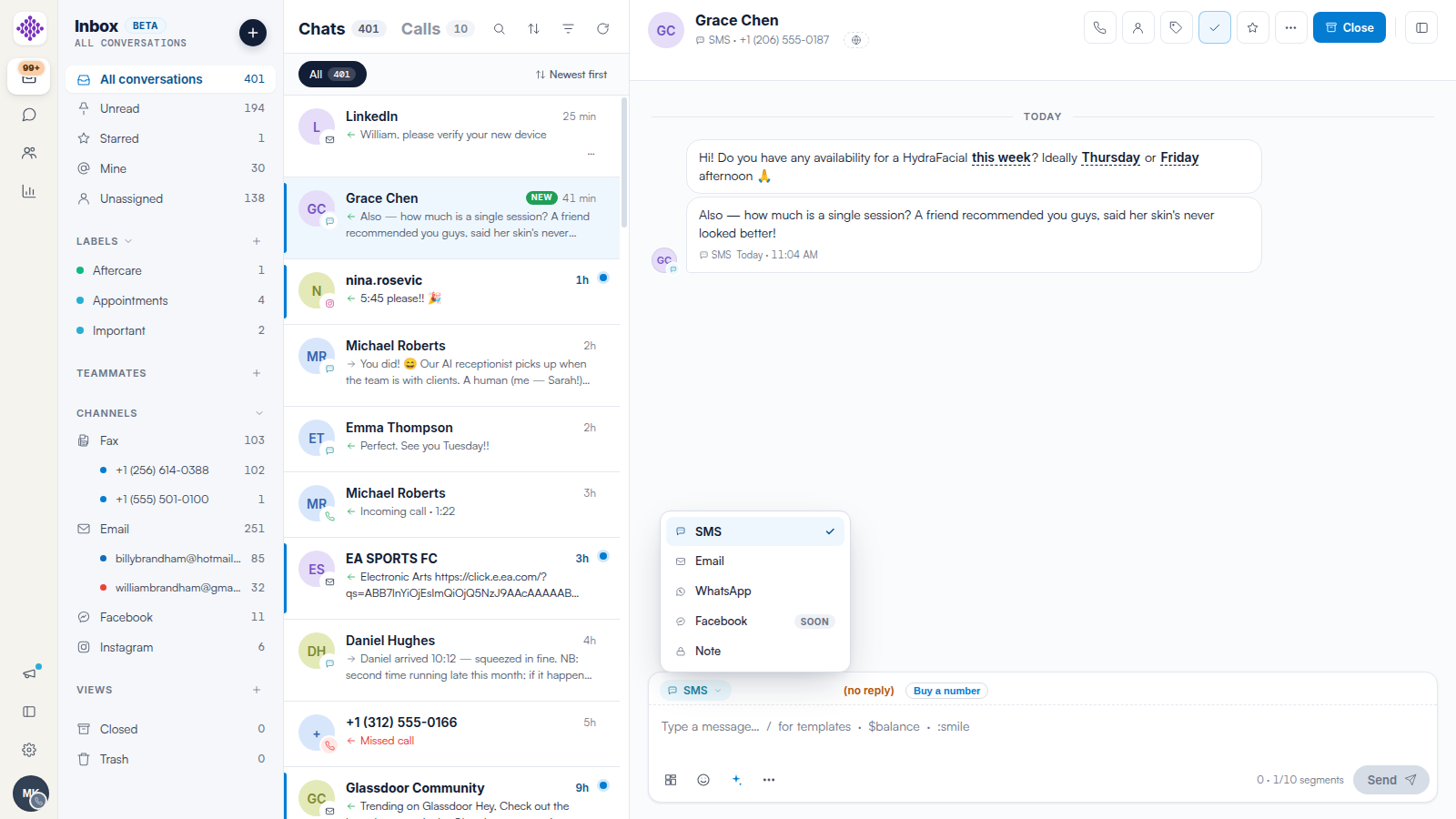
NOTE: Channels you have not connected yet are greyed out or marked Soon. On SMS, the counter above Send shows how many billable segments your message uses — carriers accept up to 10 segments per message.
Step 4: Send
Click Send. Your reply appears on the timeline with its channel icon and delivery time. New incoming messages appear automatically while Engage is open, and opening a conversation with unread messages marks it read for you.
Related Articles
We suggest reading our
For more guides, refer to related articles below, select additional guides, or use the search bar at the top of the page. These guides will help you get the most out of your Pabau account.
Additionally, to help you fully utilize and understand your Pabau account, we recommend exploring additional guides and resources offered at the Pabau Academy.