
A tidy inbox means nothing gets missed. This article covers the four everyday actions that keep your Engage inbox under control: marking read or unread, starring, closing, and deleting.
Mark as Read or Unread
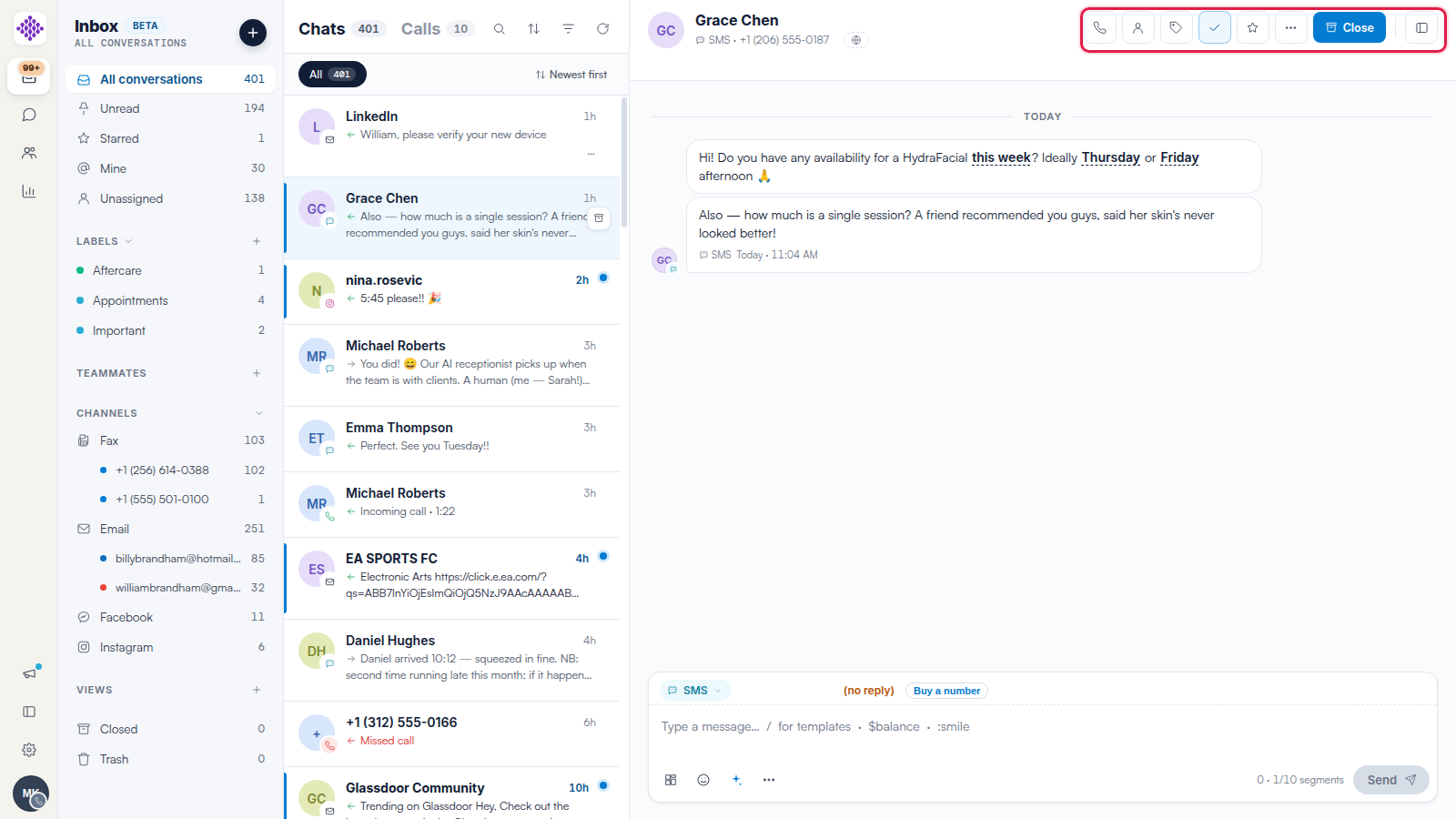
Opening a conversation marks it read automatically. To flip it back — for example to leave it for a colleague — click the tick icon in the conversation header (Mark as unread). Unread conversations show a blue dot and count in the list, and the Unread filter in the sidebar collects them all.
Star What Matters
Click the star icon in the header to flag a conversation. Starred conversations appear under the Starred filter in the sidebar and keep a star marker in the list.
Close a Finished Conversation
When a conversation is dealt with, click the blue Close button in the header — or hover the conversation in the list and use the quick Close conversation action. Closed conversations move out of your active list into the Closed folder at the bottom of the sidebar. Closing is not deleting: the history is kept, and if the client messages again the conversation comes back to your inbox.
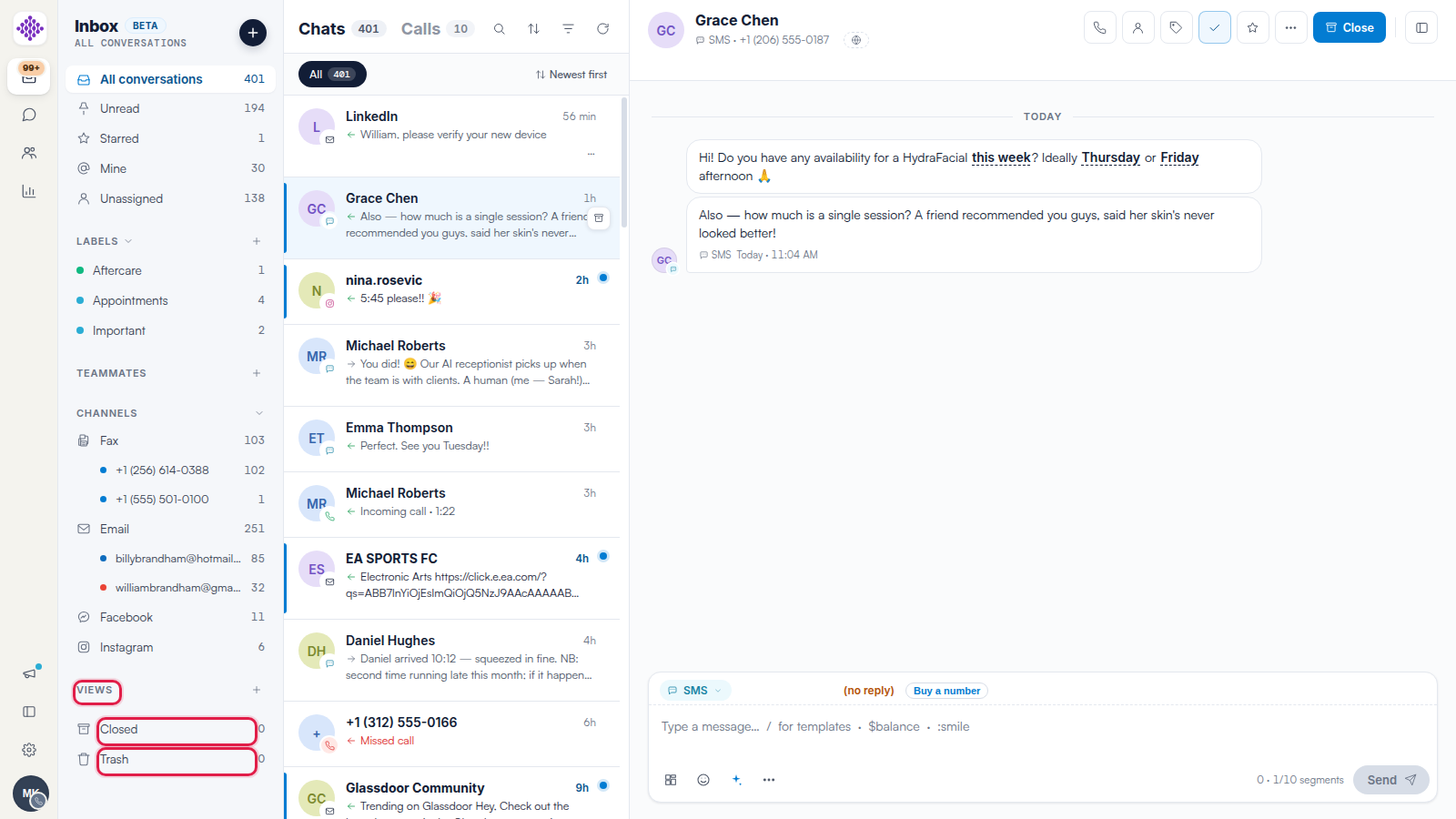
NOTE: If you used an earlier version of Engage, Closed replaces the old Archived folder — same idea, new name.
Move to Trash
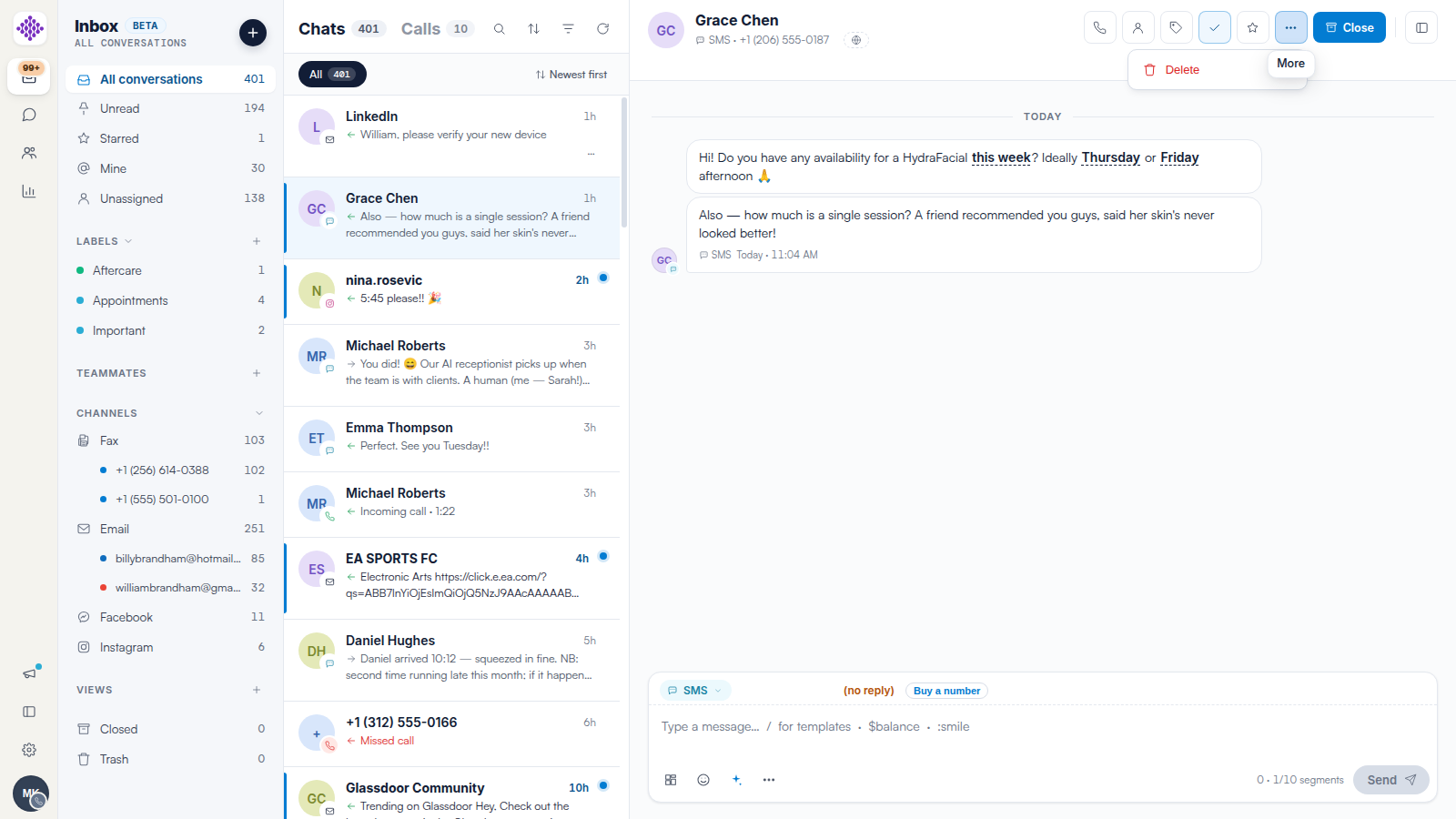
For junk you never want to see again, open the More (…) menu in the header and choose Delete. The conversation moves to Trash at the bottom of the sidebar.
Related Articles
We suggest reading our
-
How to Filter, Search and Sort Conversations in Engage article next
-
How to Assign Conversations to Team Members in Engage article for sharing the workload.
For more guides, refer to related articles below, select additional guides, or use the search bar at the top of the page. These guides will help you get the most out of your Pabau account.
Additionally, to help you fully utilize and understand your Pabau account, we recommend exploring additional guides and resources offered at the Pabau Academy.