
With every channel in one inbox, the list grows quickly. This article shows you the three tools that find anything in seconds: search, sort and filters.
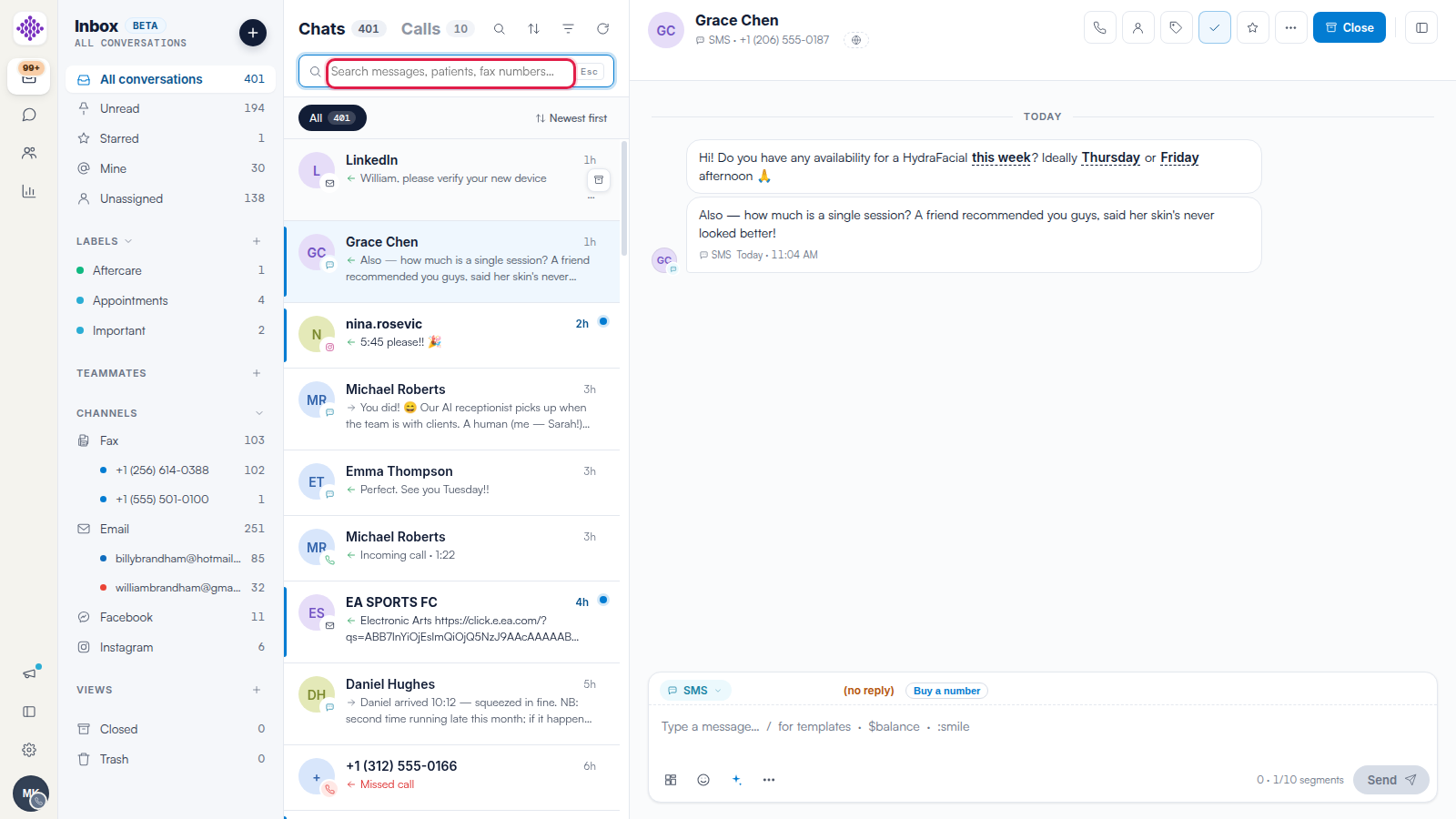
Search (⌘K)
Click the magnifying glass above the conversation list, or press ⌘K (Ctrl+K on Windows) anywhere in the inbox. The search bar looks across messages, patients and fax numbers, narrowing the list as you type. Press Esc to close it.
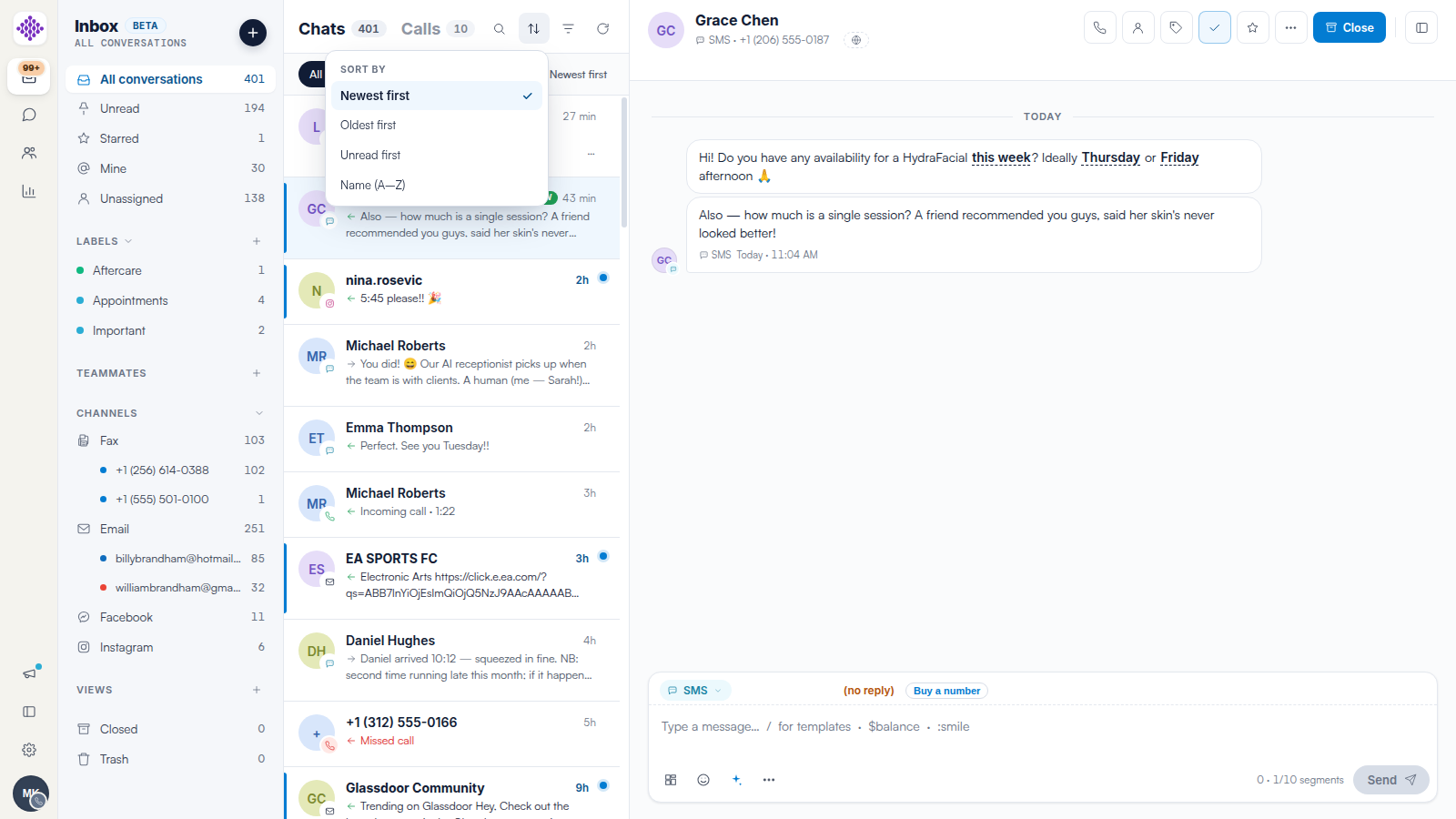
Sort
Click the sort icon to reorder the list: Newest first (the default), Oldest first, Unread first or Name (A–Z). The current order is always shown above the list.
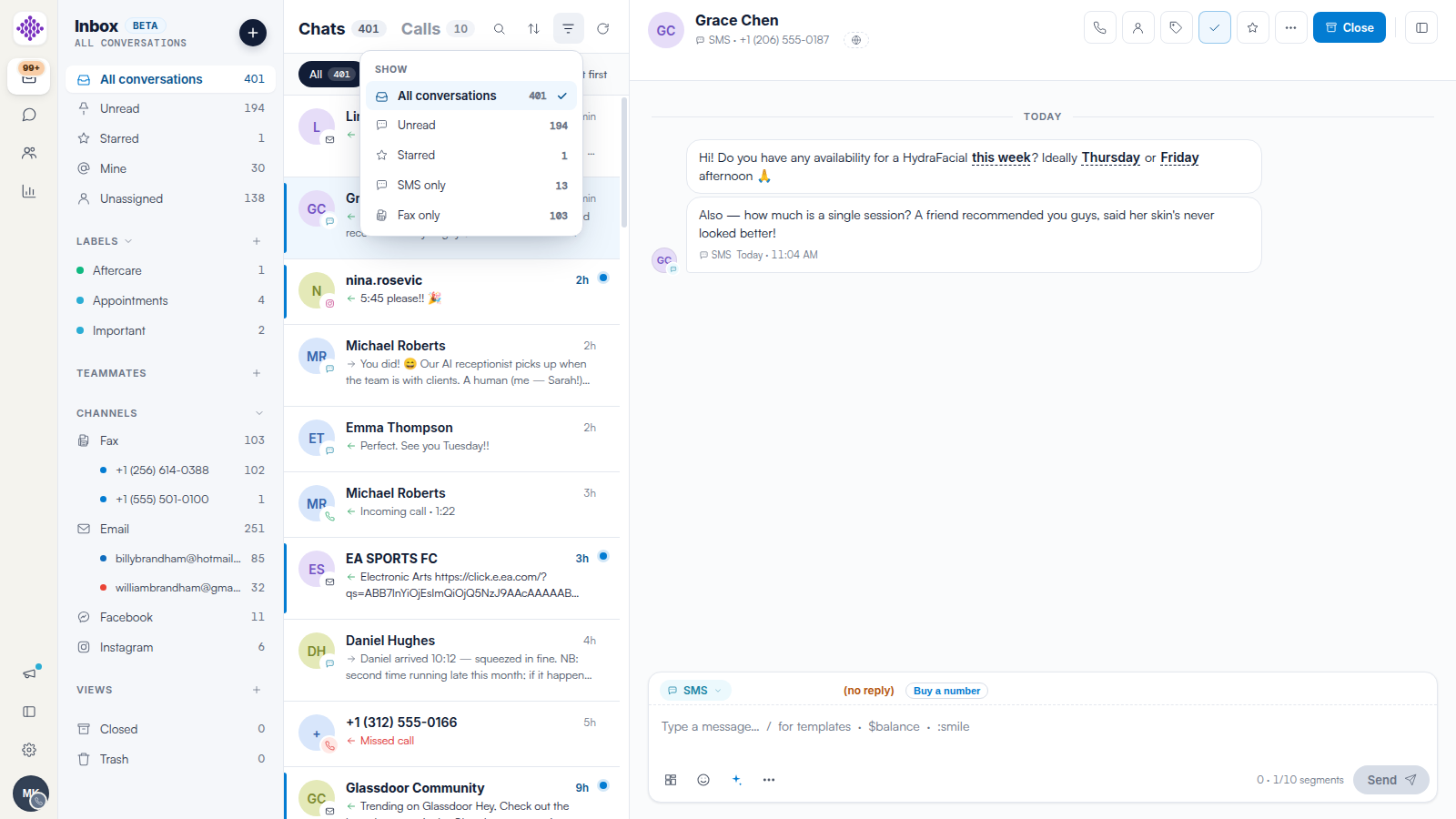
Filter
Click the filter icon for quick filters — All conversations, Unread, Starred, plus a per-channel filter such as SMS only or Fax only, each with a live count. The active filter shows as a pill above the list.
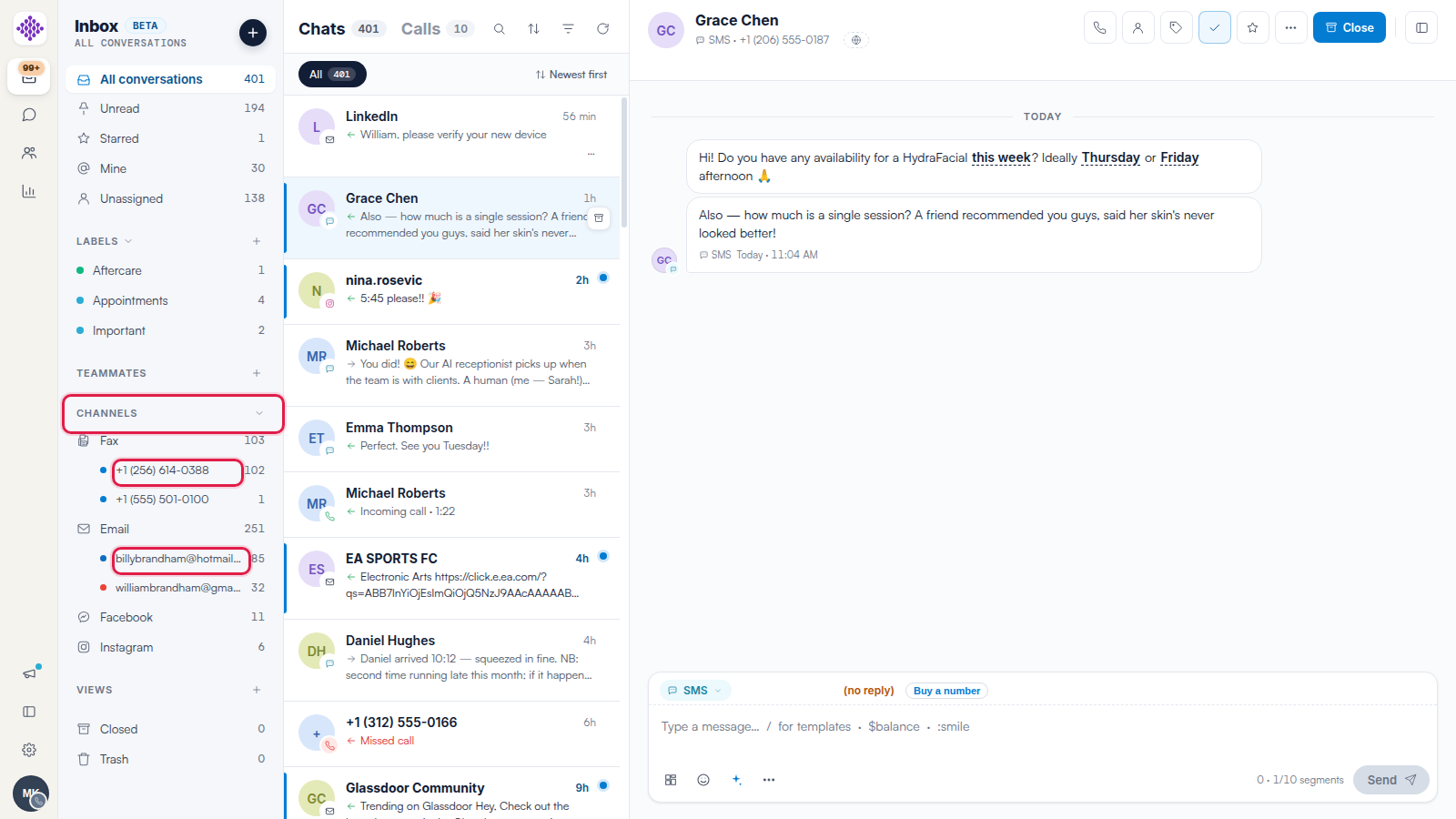
Filter from the Sidebar
The sidebar is itself a filter: click Unread, Starred, Mine or Unassigned, any label, any channel — or a single number or mailbox nested under a channel — to narrow the list to just those conversations.
TIP: If you keep using the same combination of filters, save it as a view so the whole team gets it in one click — see our How to Create Views in Engage article.
Related Articles
We suggest reading our How to Create Views in Engage article next.
For more guides, refer to related articles below, select additional guides, or use the search bar at the top of the page. These guides will help you get the most out of your Pabau account.
Additionally, to help you fully utilize and understand your Pabau account, we recommend exploring additional guides and resources offered at the Pabau Academy.