
NOTE: NOTE: Data Studio and the Data Explorer are being rolled out gradually, so they may not appear in your account yet. Creating and revoking feed keys needs the Can manage Power BI feeds permission (see below).
Step 1: Open Your Query in the Data Explorer
Go to Analytics → Data Hub → Studio and click a dataset to open it, or click Create dataset to build a new query. See How to Save Data Studio Datasets and Connect Power BI/Excel Feeds for how to build and save a dataset.
Step 2: Choose Google Sheets
Click Use in at the top right and choose Google Sheets.
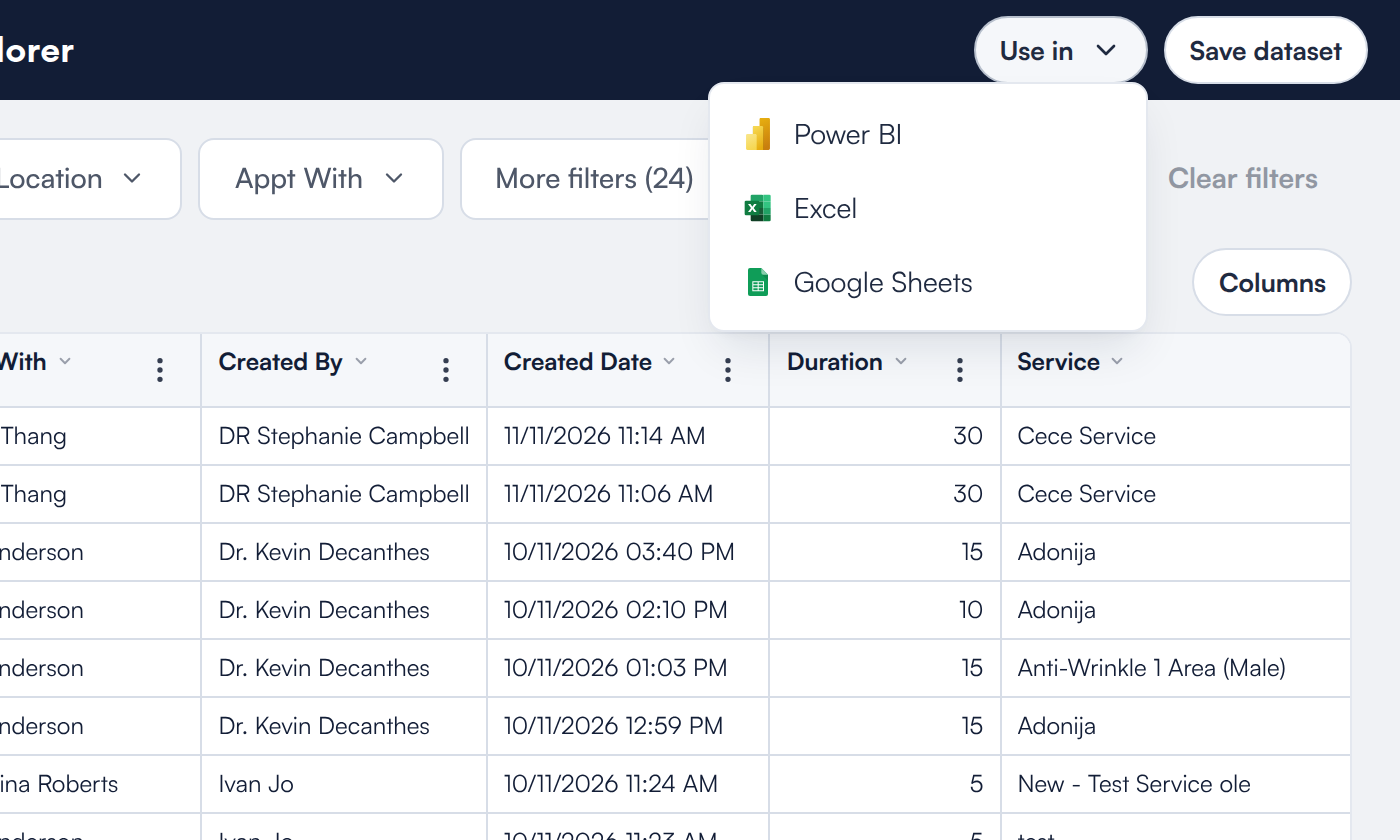
Use in → Google Sheets
Step 3: Save the Dataset and Create a Feed Key
If the query is not saved yet, click Save dataset and give it a name. Then click Create feed key. The key is shown once, so copy it and keep it somewhere safe.
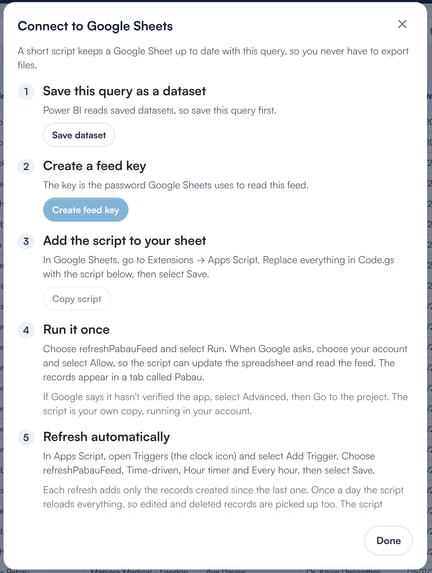
The Connect to Google Sheets steps
Step 4: Add the Script to Your Sheet
Click Copy script. In Google Sheets, go to Extensions → Apps Script, replace everything in Code.gs with the script and select Save.
NOTE: NOTE: If you created the key in the same window, the script already includes it. Otherwise, replace PASTE_YOUR_FEED_KEY_HERE in the script with your key; if you no longer have it, create a new one. Anyone who can edit the spreadsheet can see the key, so share the sheet as view-only with everyone else.
Step 5: Run It Once
Choose refreshPabauFeed and select Run. When Google asks, choose your account and select Allow, so the script can update the spreadsheet and read the feed. The records appear in a tab called Pabau.
TIP: TIP: If Google says it hasn't verified the app, select Advanced, then Go to the project. The script is your own copy, running in your account.
Step 6: Refresh Automatically
In Apps Script, open Triggers (the clock icon) and select Add Trigger. Choose refreshPabauFeed, Time-driven, Hour timer and Every hour, then select Save.
How Does the Sheet Stay Up to Date?
- Each hourly refresh adds only the records created since the last one.
- Once a day the script reloads everything, so edited and deleted records are picked up too.
- The script rewrites the Pabau tab, so build your own formulas and charts on other tabs.
- One script loads one dataset. To connect several datasets at once, use Power BI or Excel.
How Many Rows Can the Sheet Load?
Each refresh reads at most 100,000 rows. If a dataset is bigger, some records are missing and the sheet reloads everything on every refresh. Narrow the dataset's filters so it returns fewer rows, or load it in Power BI, which can read large datasets in parts.
What Data Does the Sheet Get?
The sheet gets the saved dataset's columns, in the same order. The feed key reads data as the person who created it: phone numbers and email addresses are blank if that person cannot see them in Pabau, and the sheet stops refreshing if they leave or lose access. If a key is shared by mistake, revoke it in the Data Explorer and create a new one.
What's next?
Prefer Power BI or Excel? See How to Save Data Studio Datasets and Connect Power BI/Excel Feeds.
Was this guide helpful? Let us know by voting below - your feedback helps us write clearer articles.
For more guides, browse the related articles below or use the search bar at the top of the page. You can also watch our video learning series, the Pabau Academy, or visit the Support page for additional help.