
NOTE: NOTE: Data Studio and the Data Explorer are being rolled out gradually, so they may not appear in your account yet. Creating and revoking feed keys needs the Can manage Power BI feeds permission (see below).
Step 1: Open Data Studio
Go to Analytics → Data Hub and open the Studio tab. It lists every dataset your team has saved, plus any query a workflow runs on (these show a From workflow badge). Use Search datasets…, Created by and Last updated to find one, and click a row to open it in the Data Explorer.
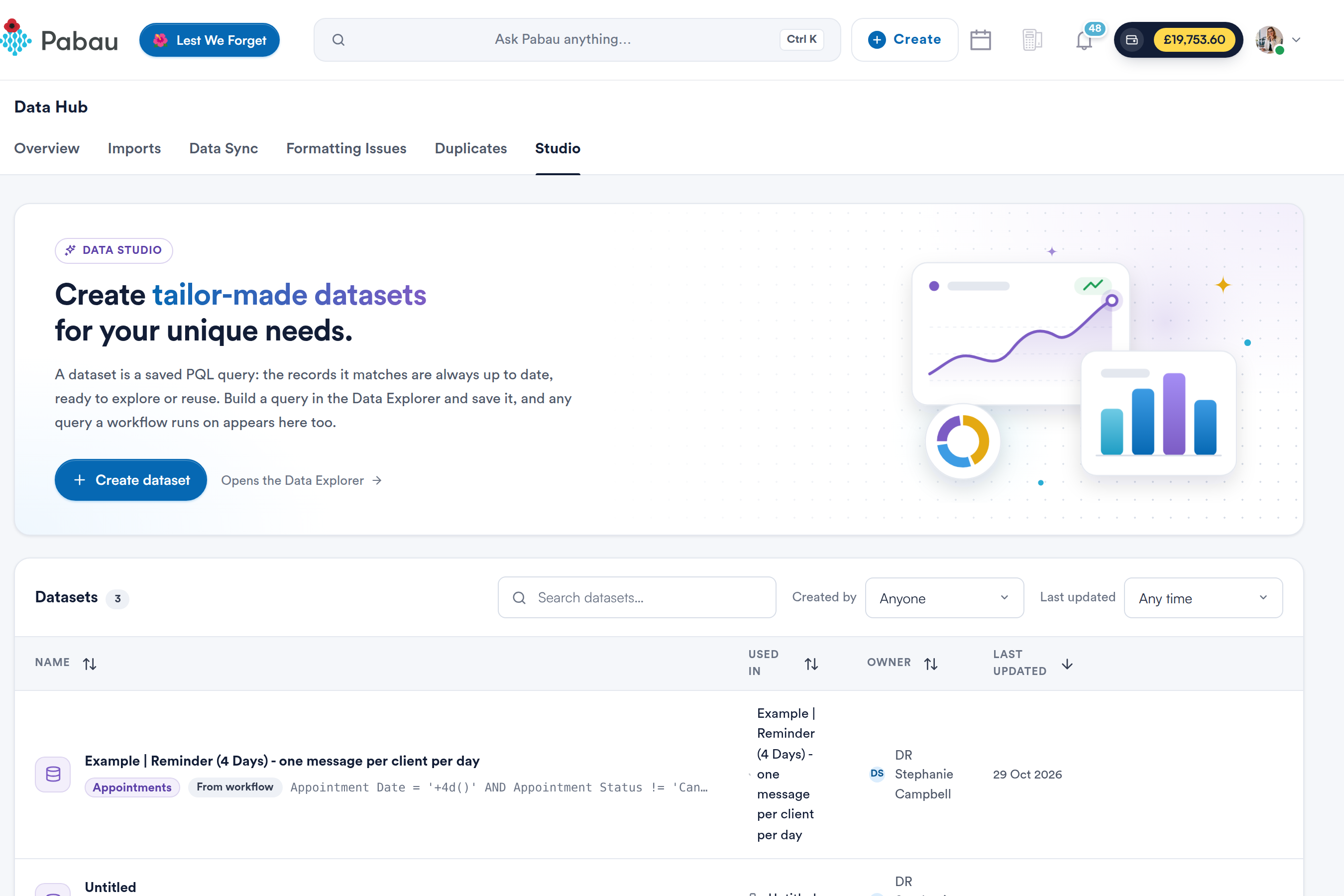
Data Hub → Studio, with the Datasets list below
To start a new dataset, click Create dataset. This opens the Data Explorer.
Step 2: Build Your Query in the Data Explorer
Choose an object from the object picker, then add filters. The picker groups objects into Bookings & tasks, People, Sales, Catalogue and Team & locations.
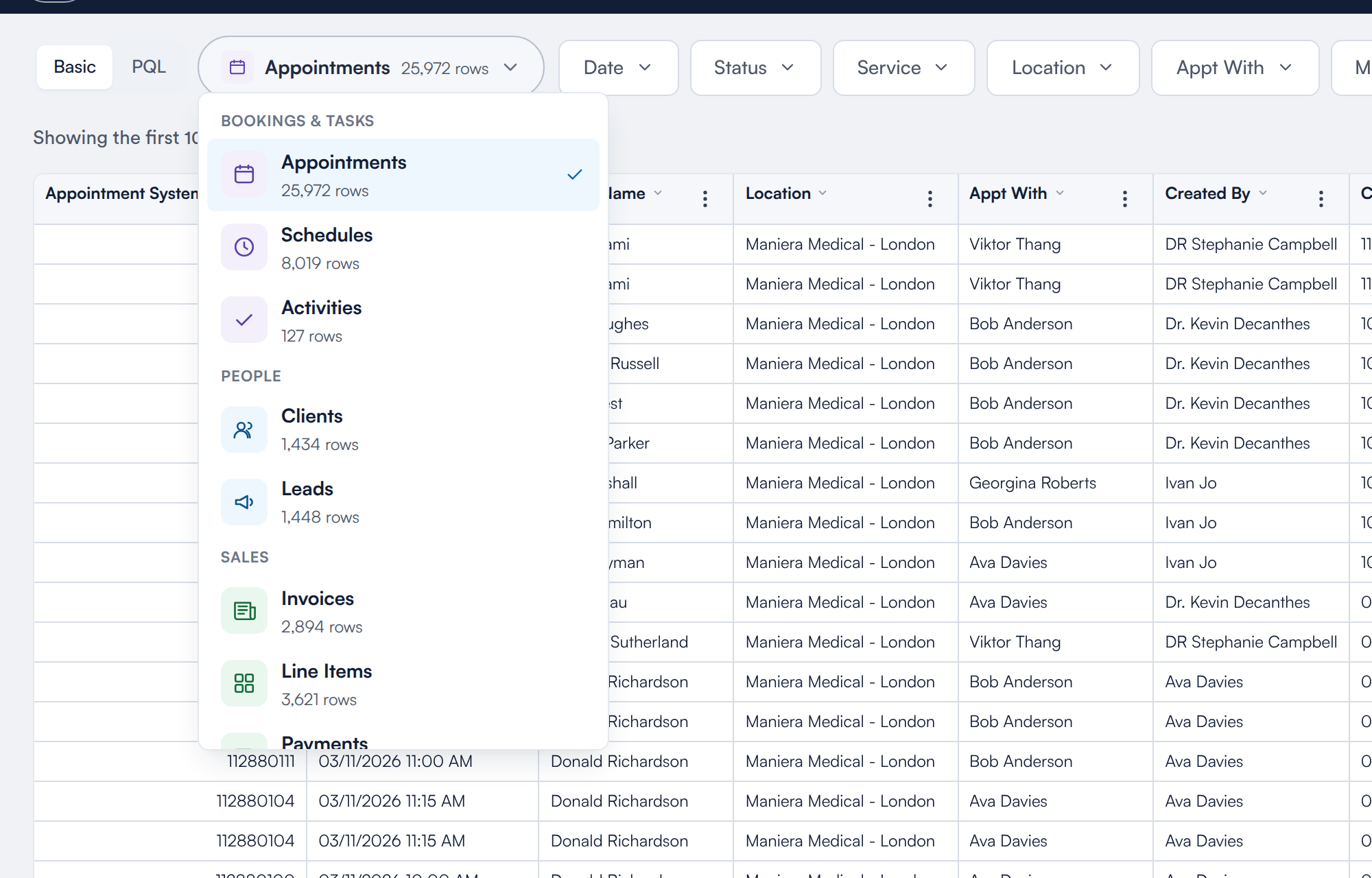
The object picker, grouped by area, with a row count for each object
NOTE: NOTE: Two objects have been renamed: Packages is now Package Sales and Memberships is now Membership Sales. Queries that use the old names still work. Packages under Catalogue is the list of packages you sell, not package sales. You only see an object if you have permission to see its page in Pabau.
Click Columns to add fields from related records as extra columns (up to 30). Every object has a System ID column, which is how you link datasets to each other in Power BI or Excel. You can also use each column's menu to rename, hide, pin or sort it.
Step 3: Save the Query as a Dataset
Click Save dataset at the top right, enter a Dataset name and click Save. The dataset is saved with its columns and appears in Data Hub → Studio. Its results always reflect your current records.
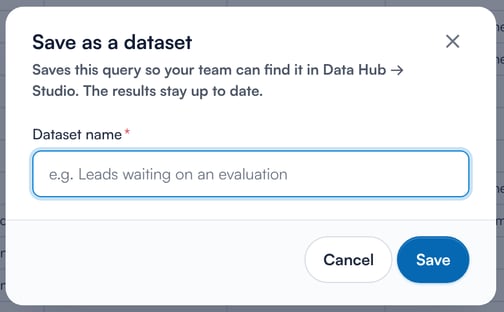
Saving a query as a dataset
Step 4: Open the Power BI or Excel Steps
Click Use in and choose Power BI or Excel. The options are only available once the query has run, and not while you have edited it since.
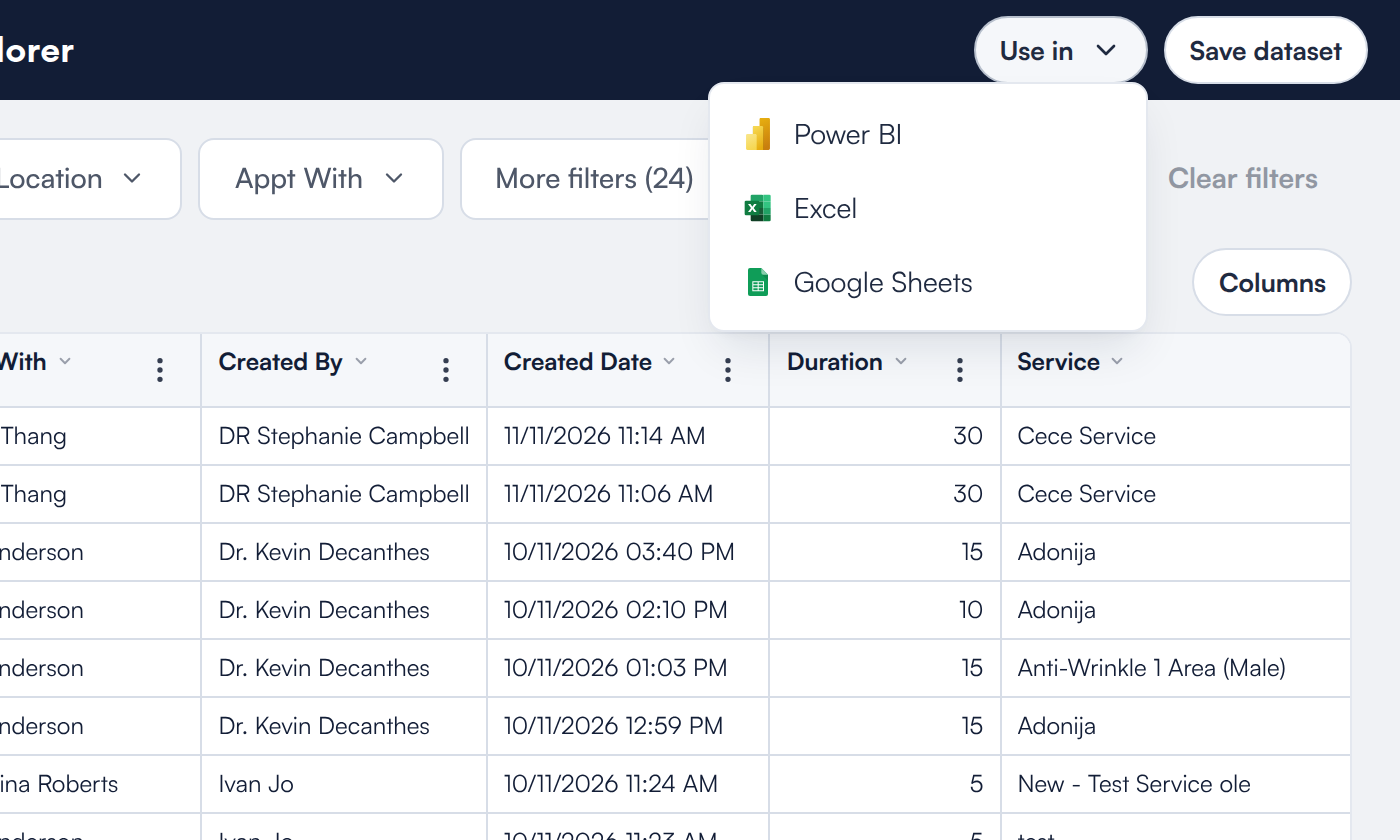
The Use in menu
Step 5: Create a Feed Key
In the This dataset tab, step 1 shows the dataset you saved. If you have changed the columns since saving, click Save dataset again so the feed has the columns you see.
Under Create a feed key, copy the Feed URL, then click Create feed key. Copy the Feed key straight away and keep it somewhere safe, such as a password manager. It is not shown again.
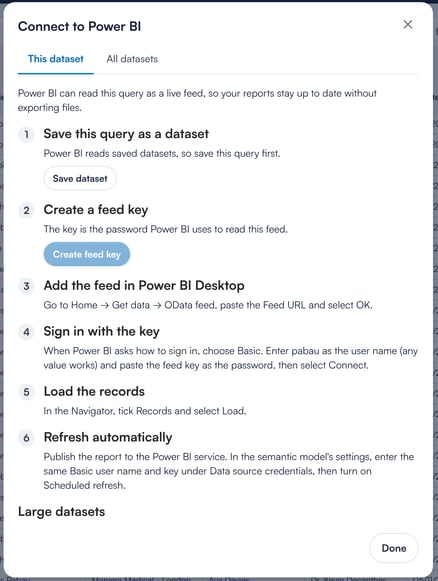
The Connect to Power BI steps
IMPORTANT: IMPORTANT: A feed key reads data as the person who created it, with their permissions. Phone numbers and email addresses are blank in the feed if that person cannot see them in Pabau, and the feed stops working if they leave or lose access.
Step 6: Connect Power BI
- In Power BI Desktop, go to Home → Get data → OData feed, paste the Feed URL and select OK.
- When asked how to sign in, choose Basic. Enter pabau as the user name (any value works) and paste the feed key as the password, then select Connect.
- In the Navigator, tick Records and select Load.
- To refresh automatically, publish the report to the Power BI service. In the semantic model's settings, enter the same user name and key under Data source credentials, then turn on Scheduled refresh.
Step 7: Or Connect Excel
- In Excel, go to Data → Get Data → From Other Sources → From OData Feed, paste the Feed URL and select OK.
- Choose Basic, enter pabau as the user name and paste the feed key as the password, then select Connect.
- In the Navigator, tick Records and select Load. To bring in the latest records later, go to Data → Refresh All.
Connecting All of Your Datasets at Once
The All datasets tab gives you a Clinic feed URL. Click Create clinic key and add it the same way as a single dataset. Each dataset saved by someone who can manage Power BI feeds appears as its own table in the Navigator; link the tables by their System ID columns.
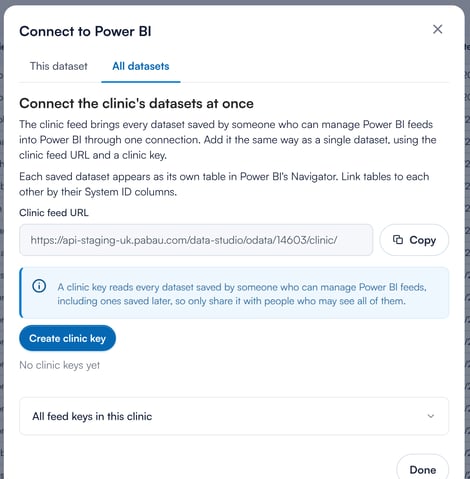
The clinic feed brings every eligible dataset in through one connection
IMPORTANT: IMPORTANT: A clinic key reads every dataset saved by someone who can manage Power BI feeds, including datasets saved later. Only share it with people who may see all of them.
How Many Rows Can a Feed Return?
Each refresh reads at most 100,000 rows. If a refresh hits that limit, the key list shows that some records are missing. In Power BI, open Large datasets in the same window to set up incremental refresh, which loads older records once and then only reloads recent ones. In Excel, narrow the dataset's filters so it returns fewer rows.
Who Can Create and Revoke Feed Keys?
Admins and owners always can. Anyone else needs Can manage Power BI feeds turned on in their Analytics permissions, which is off by default. See How to Set Analytics Permission for a Staff Member.
How Do I Revoke a Key?
Open All feed keys in this clinic at the bottom of the window to see every live key, then click Revoke. Reports and spreadsheets using that key stop refreshing, and this cannot be undone. If a key is shared by mistake, revoke it and create a new one.
What's next?
Want the same dataset in a spreadsheet that updates itself? See How to Use Data Explorer Data in Google Sheets.
Was this guide helpful? Let us know by voting below - your feedback helps us write clearer articles.
For more guides, browse the related articles below or use the search bar at the top of the page. You can also watch our video learning series, the Pabau Academy, or visit the Support page for additional help.