
NOTE: You only see this option for a membership your clinic charges by card online, when its last payment did not go through, or when it was paused because a payment could not be taken. Your clinic decides which options the portal shows.
Step 1: Open the Membership
Open My Memberships in your client portal. If you got an email from your clinic saying your payment didn't go through, click Update card and pay in the email instead — it opens this page with the card form ready. If the portal asks you to, click Continue to sign in.
A membership with a missed payment shows Payment due (or Paused, if it was paused for non-payment). Under Plan details, click Update card & pay — Your last payment didn't go through.
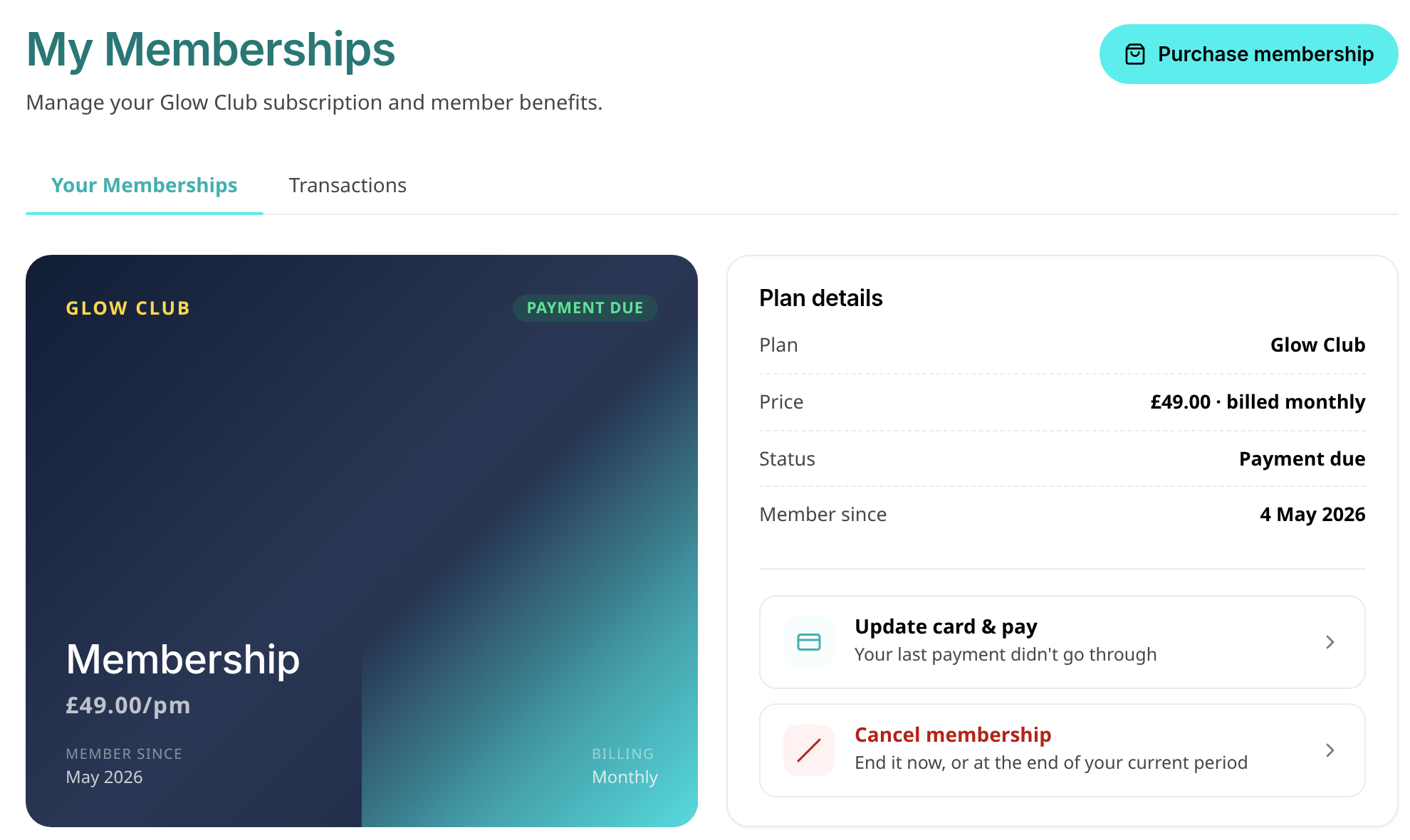
A membership with a missed payment, and the Update card & pay option
NOTE: A membership paused because a payment failed cannot be restarted with Resume membership — Update card & pay takes its place. Paying what is owed restarts it. Cancel membership is still there if you would rather end it.
Step 2: Add Your Card and Pay
The window names your plan and the amount owed, for example "We'll take the £49.00 that's owed straight away."
- Enter your card details.
- Click Save card and pay (the button shows the amount). If nothing is owed any more, the button reads Save card and only saves the card.
- If your bank asks you to confirm the payment (for example in your banking app), follow its steps.
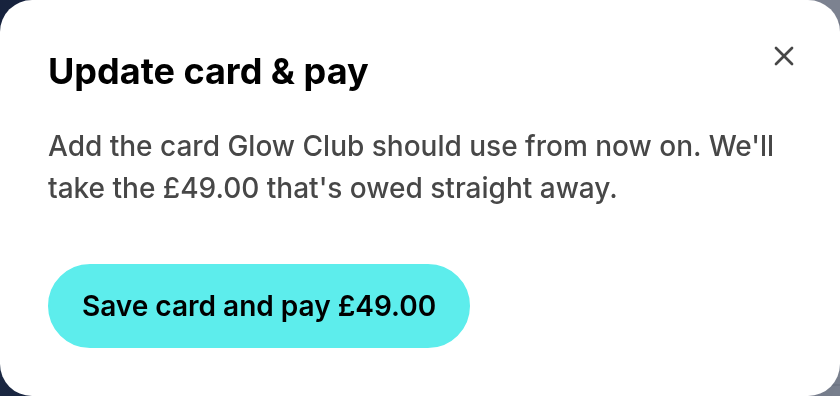
The Update card & pay window (card fields not shown)
The card you add becomes the card this membership is charged to from now on, so future payments use it too.
Step 3: Check the Result
- Payment received, thank you. Your membership will update in a few minutes. — you're done. Click Done. If your membership was paused, it restarts on its own once the payment is recorded.
- Card saved. Your next payment will use it. — nothing was owed, so only the card was saved.
- Your card was declined (or your bank's reason) — click Try another card and use a different card.
- If the amount owed changed while you were adding your card, nothing is charged — check the new amount and add your card again.
TIP: Submitting twice does not charge you twice. If the card form doesn't load, close the window and try again, or contact your clinic.
What about family memberships?
The person who pays for the membership sees Update card & pay in their own portal and settles it there.
What's next?
- How to Use Your Client Portal
- How to Reset Your Password or Get a New Sign-In Code
- For clinic teams: Membership Payment Failed and Paused Emails to Patients
Was this guide helpful? Let us know by voting below - your feedback helps us write clearer articles.
For more guides, browse the related articles below or use the search bar at the top of the page. You can also watch our video learning series, the Pabau Academy, or visit the Support page for additional help.